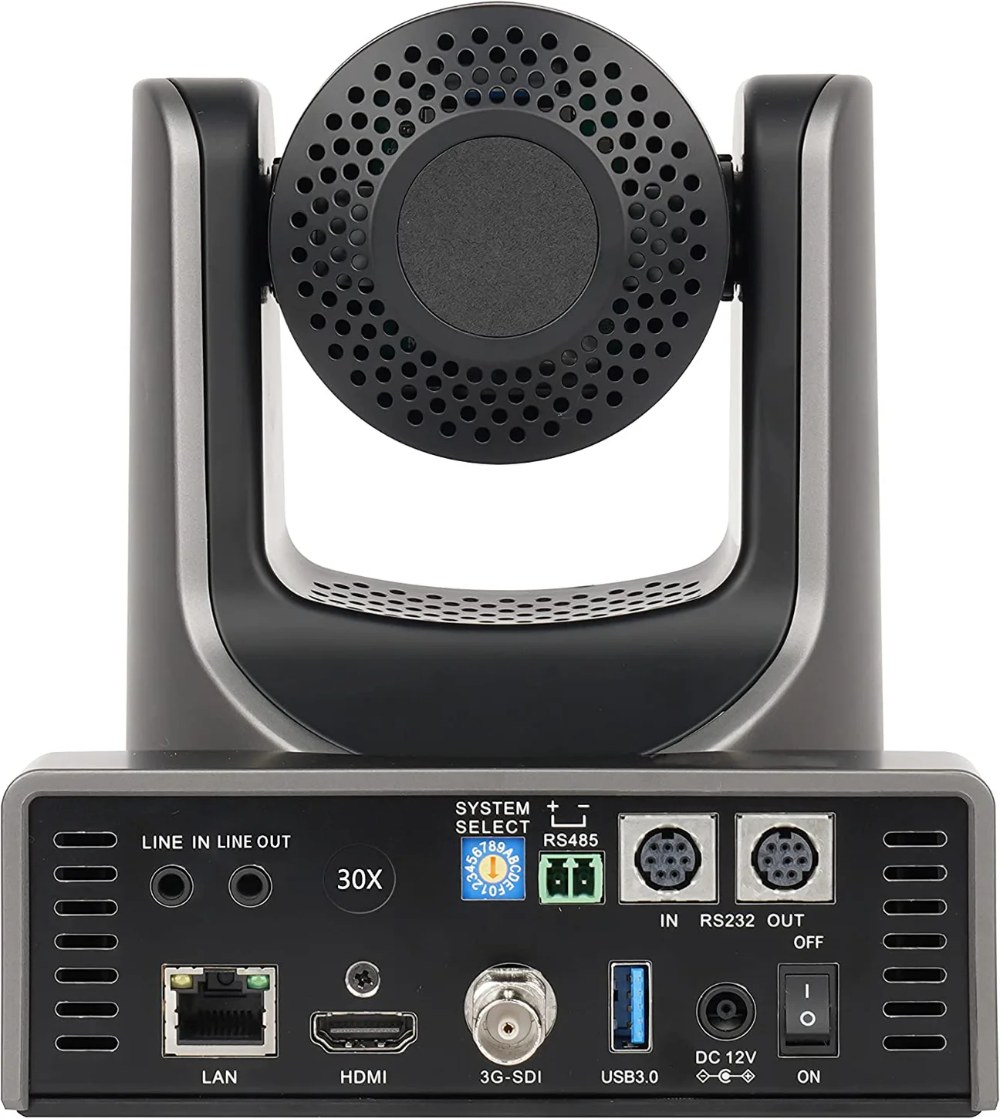
The SMTAV BX30N is a reliable camera, but like any networked device, it occasionally encounters issues. This guide covers the most common problems and practical solutions without requiring professional service or specialized equipment.
NDI Source Not Appearing in Broadcast Software
If your BX30N doesn’t appear in the NDI source list in OBS, vMix, or other broadcast software, start with basic network verification. Check that the camera is powered on and that its network indicator light shows it’s connected to the network.
Verify that your broadcast computer is on the same network as the camera. If your church uses network segmentation or VLANs, the devices might be on separate segments that can’t communicate. Ask your IT administrator to verify that both are on the same network segment or that inter-segment routing is enabled.
Check that NDI is enabled in the camera’s web interface. Log in and navigate to the NDI settings section. If NDI shows as disabled, enable it and save your changes. The camera will restart its network services, taking a few seconds.
Power cycle the camera by turning off the power supply, waiting 10 seconds, and turning it back on. Let the camera fully boot. Sometimes a fresh start resolves network discovery issues.
If the camera still doesn’t appear, check your network switch and firewall. Some firewalls block UDP multicast traffic, which NDI uses for device discovery. Ask your IT team to verify that NDI traffic isn’t being blocked.
Video Connected But Appears Frozen or Drops Frequently
If NDI video connects but appears frozen or disconnects frequently, you likely have a network bandwidth or stability issue. Check your network switch to ensure all cables are properly connected and that indicator lights show normal operation.
Reduce the video quality in the camera’s NDI settings if available. Lower quality uses less bandwidth and might stabilize your connection. Alternatively, reduce the camera’s output resolution from 1080p to 720p.
Check how many other NDI sources you’re running simultaneously. If you have multiple cameras or other NDI sources active, you might be exceeding your network bandwidth. Disable unnecessary sources and test again.
If only one camera is dropping out, try moving it to a different port on your network switch. Sometimes a single port has intermittent problems that cause issues only with certain devices.
Verify that other network activities aren’t consuming bandwidth. Ask your IT team if anyone is streaming video, downloading large files, or performing network-intensive tasks. These activities can starve video streams of bandwidth.
Video Quality Issues or Artifacts
If video is connected but appears with strange colors, horizontal lines, or compression artifacts, the video format might be mismatched or the video quality settings might be wrong. Log into the camera’s web interface and check the output resolution and frame rate.
Verify that the settings match what your broadcast software expects. Most broadcast software expects 1080p at 59.94 frames per second, which is the BX30N’s default. If your broadcast software uses different settings, adjust them to match.
If artifacts appear intermittently, you might have network congestion. Reduce other network traffic and test again. If the problem persists, try reducing the video quality in the camera’s NDI settings.
Pan-Tilt-Zoom Motors Not Responding
If the pan-tilt mechanism doesn’t respond to control commands, verify that you’re using the correct control interface. If using the web interface, ensure you’re logged in and accessing the PTZ control section.
Power cycle the camera. Sometimes the pan-tilt system enters a state where it doesn’t respond correctly. A full power-off and power-on usually resolves this.
Visually inspect the pan-tilt head for any visible obstructions. The mechanism should move freely without resistance. If there’s resistance or grinding sounds, power off immediately and clear the obstruction.
If the camera responds but moves very slowly, reduce the pan or tilt speed if available in the web interface settings. Some cameras have adjustable speed controls. Allow the camera to cool if it’s been in continuous use—motors sometimes throttle when warm.
Zoom Issues
If the zoom doesn’t respond or behaves erratically, power cycle the camera. Test zoom again after the camera fully boots.
If zoom responds slowly, the lens mechanism might be sticking slightly. Try zooming all the way in, then all the way out while the camera is powered on. Slow zoom can also indicate the camera is thermally limited. Allow it to cool for 15 minutes and test again.
If the zoom appears to jump instead of moving smoothly, the lens motor might be failing. Contact the manufacturer or an authorized service center if this behavior continues.
Focus Issues
If the image appears blurry regardless of zoom level, autofocus might be struggling. Some cameras have autofocus assistance or manual focus options. Try switching between autofocus and manual focus modes if available.
If the image is still blurry in manual focus, the lens might need professional adjustment. Contact the manufacturer.
If the image is in focus at some zoom levels but blurry at others, the lens might need internal calibration. This is a service issue requiring professional technicians.
Preset Recall Problems
If presets don’t move the camera to the saved positions, verify that presets were actually saved successfully. Reposition the camera and save the preset again.
If presets are very slightly off (a few inches in the frame), this is usually acceptable and doesn’t require correction. Small positional variations aren’t visible in broadcasts.
If presets work but seem inconsistent, try clearing all presets and saving them again from scratch. Occasionally corrupted preset data causes issues.
Network Connection Unstable
If you experience intermittent network disconnections, check that the Ethernet cable connecting the camera to your switch is properly inserted on both ends. Try reseating the cable by disconnecting and reconnecting it firmly.
Try using a different Ethernet cable. Sometimes cables fail intermittently, appearing connected but not conducting data reliably.
If the problem persists, try connecting the camera to a different port on your network switch. If this resolves the problem, the original port might be faulty.
Check your network switch for any signs of problems. Indicator lights should show normal operation. If you have access to the switch’s diagnostic interface, look for error messages.
Web Interface Not Accessible
If you can’t access the camera’s web interface through your browser, verify that the camera is powered on and connected to the network. Check the network indicator light on the back.
Verify that your computer is on the same network. If you’re not sure, connect directly to the same network switch as the camera using an Ethernet cable.
Try finding the camera’s IP address using a network scanning tool. Once you have the IP, try accessing it again.
If you still can’t access the web interface, try rebooting the camera and your computer. Power off both devices, wait 10 seconds, and turn them back on.
Firmware Update Issues
If you’re experiencing problems after a firmware update, the update might have been incomplete or corrupted. Most cameras allow you to retry the firmware update. Download the latest firmware from the manufacturer’s website and try updating again.
Do not interrupt a firmware update once it’s started. Let it complete fully, even if it takes several minutes. Interrupting a firmware update can corrupt the camera’s software.
If the camera doesn’t boot after an update, contact the manufacturer. They might have a recovery procedure or be able to send you updated firmware files.
Maintenance and Preventive Care
Periodically inspect your camera for dust or debris. Clean the lens with a microfiber cloth and gentle circular motions. Don’t press hard, as this can scratch the lens.
Verify that the pan-tilt mechanism moves smoothly and without resistance. If you notice any change in how smoothly the camera moves, it might indicate mechanical wear or the need for lubrication.
Check all cable connections periodically to ensure they remain tight and corrosion-free. Loosen and retighten connections every few months to prevent corrosion from forming.
Conclusion
Most SMTAV BX30N issues can be resolved with basic troubleshooting. Document what you’ve tried so that if you need to contact support, you have a clear record. With proper care and maintenance, your BX30N will provide years of reliable service.