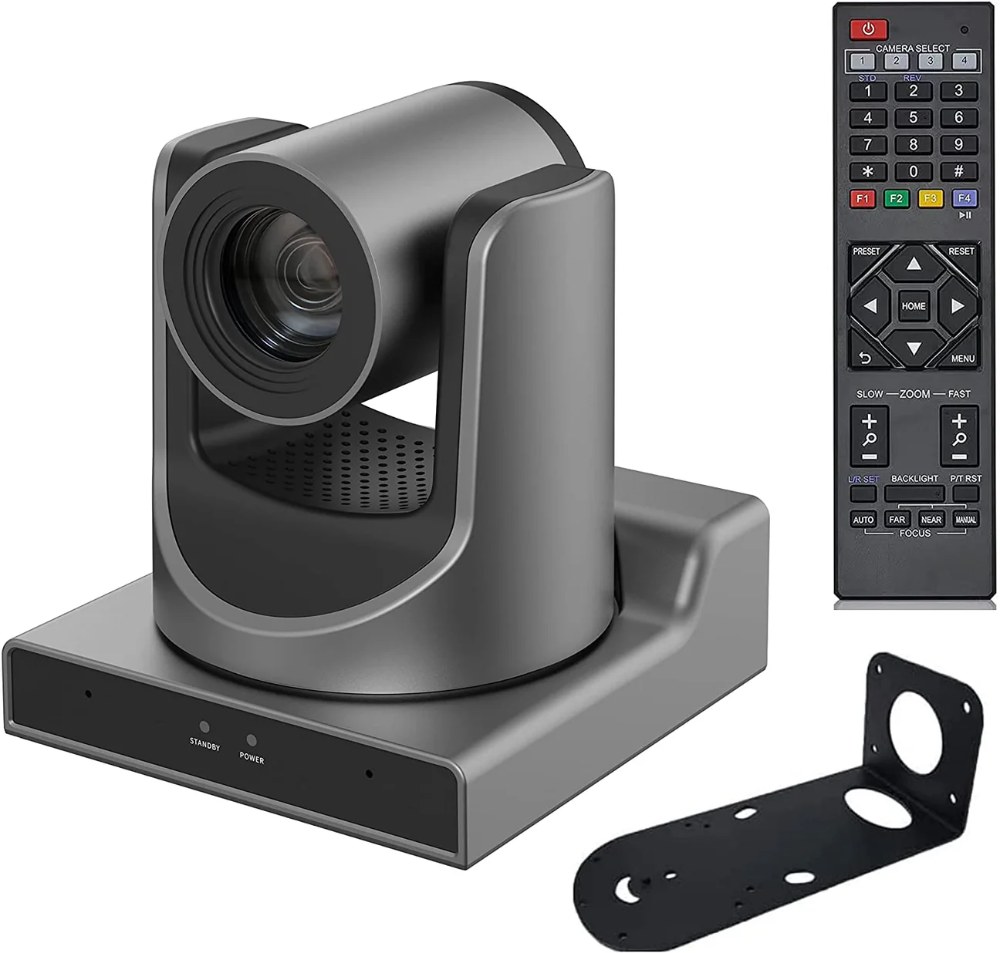
Network infrastructure is the foundation of NDI-based video systems. While the SMTAV BX20N can work on basic networks, proper network planning ensures reliable performance. This guide covers IP addressing, bandwidth planning, VLAN considerations, and infrastructure optimization for church environments.
Assessing Your Current Network
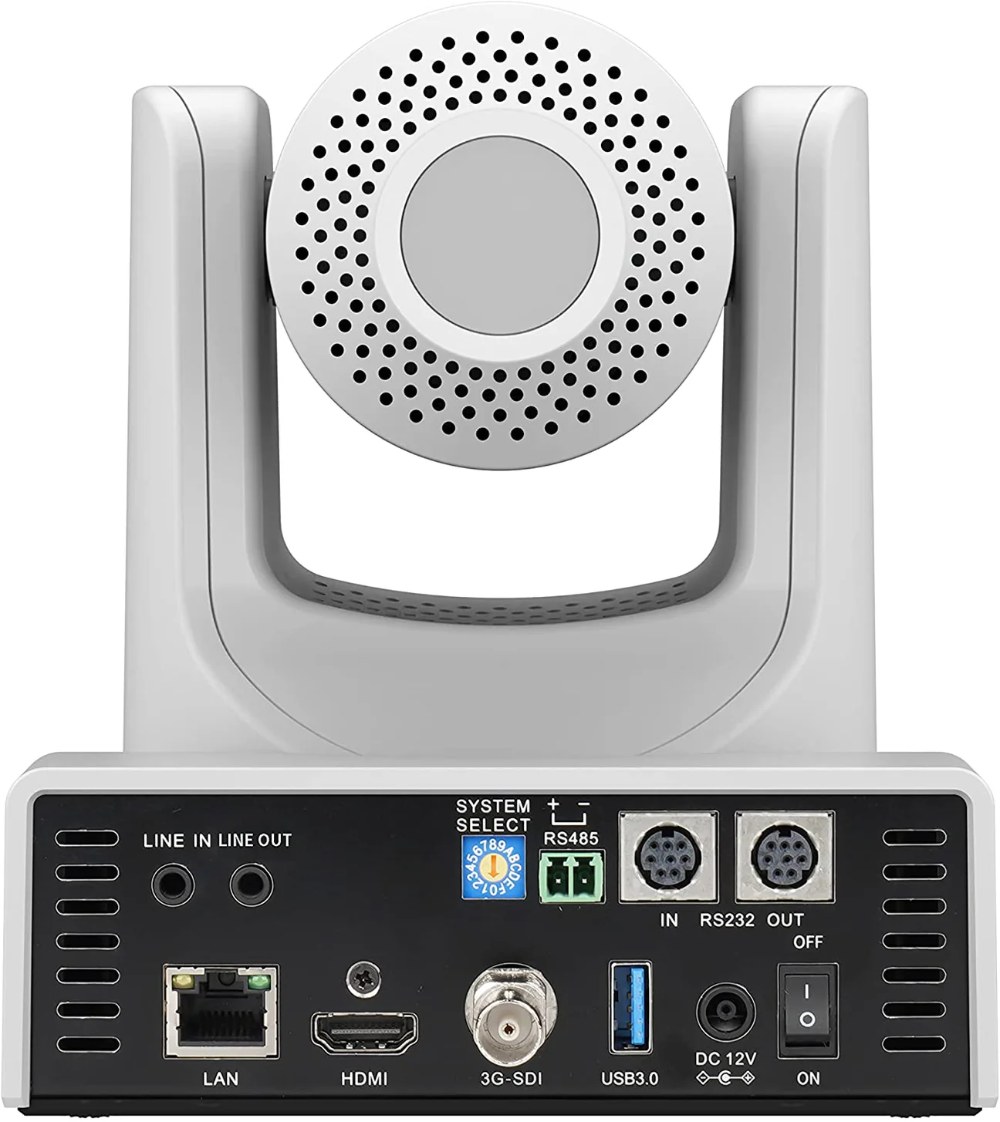
Before adding PTZ cameras to your network, evaluate what you have. Identify your network switch and verify it’s a gigabit switch (1000 Mbps). Older Fast Ethernet switches (100 Mbps) cannot handle modern video streams reliably.
Check how many ports your switch has available. Ensure you have at least one port for your camera and one for your broadcast computer. Consider future expansion when evaluating available ports.
Verify that your network has stable DHCP service. If your router is handling DHCP, confirm it’s functioning properly. Many churches have dedicated network servers handling DHCP, which is even better.
IP Addressing Strategy
Assign a static IP address to your BX20N rather than relying on DHCP. Static IPs ensure your camera always has the same address, so your broadcast software and web interface bookmarks remain consistent.
Work with your IT team to reserve a block of addresses for video equipment. For example, reserve 192.168.1.100 through 192.168.1.110 for your PTZ cameras. Assign your BX20N to 192.168.1.100 and document this in your system records.
If your church prefers DHCP, ask your IT administrator to set up a DHCP reservation for the camera. This provides benefits of static IP while still using DHCP.
Gateway and DNS Configuration
When setting a static IP, you’ll need the gateway address (usually your router’s IP, like 192.168.1.1) and DNS server addresses. Ask your IT team for these values.
The gateway is critical for the camera to communicate with devices on other network segments. The DNS addresses allow the camera to resolve domain names if needed for network services.
VLAN Considerations
If your church uses VLANs to segment network traffic, ensure your BX20N and broadcast computer are on the same VLAN. NDI uses multicast discovery, which works only on the same network segment.
If you want to use separate VLANs, ask your IT administrator to enable inter-VLAN routing so the devices can communicate. This is a moderately technical task but necessary if your network uses VLANs.
Network Switch Quality and Managed Switches
For basic single-camera setups, any modern gigabit switch works. As you expand to multiple cameras, upgrade to a managed switch with Quality of Service (QoS) settings.
Managed switches allow you to prioritize video traffic over less important network activities. This ensures your broadcast cameras get the bandwidth they need even if other network activities spike.
When selecting a managed switch, look for models with at least 24 gigabit ports and support for VLAN tagging, QoS, and SNMP monitoring. These features support professional video deployments.
Bandwidth Planning
Calculate your bandwidth needs based on the number of cameras and resolution you need. Each BX20N at 1080p uses approximately 150 megabits per second. A gigabit network (1000 Mbps) can handle about six full-quality cameras, but practical limits are lower.
Reserve headroom for other network traffic. A realistic deployment on a gigabit network is two to three cameras while maintaining adequate bandwidth for other network activities.
If you plan more than three cameras, upgrade your network infrastructure or reduce camera resolution and frame rate to fit within available bandwidth.
Network Cable Quality
Use quality Ethernet cables for your video connections. Cat 6 or Cat 6A cables are preferable to older Cat 5e. Quality cables have better shielding and more reliable connectors.
For long cable runs, higher-grade cables improve reliability. If you’re running a 50+ foot cable from a camera to your switch, investing in premium cabling prevents future issues.
Power Over Ethernet Considerations
The BX20N doesn’t support Power over Ethernet natively, so you’ll use standard power supplies. However, if you want to add PoE capability, use PoE injectors with adequate wattage for the camera.
Verify that your PoE solution provides sufficient power (the camera requires several watts). Have your IT team test the installation to ensure it works reliably.
Firewall Configuration
If your church has a hardware firewall, ensure that NDI traffic isn’t being blocked. NDI uses UDP multicast packets for discovery. Ask your IT administrator to verify that UDP multicast isn’t blocked.
In some cases, you might need to add specific firewall exceptions for your broadcast computer or camera IP addresses.
Network Monitoring and Management
Once your network is carrying video, monitor it regularly. Check for any error messages or warnings from your switch. Monitor bandwidth usage during broadcasts to ensure you have adequate capacity.
If you have a managed switch with SNMP monitoring, set it up to alert you if network problems occur. Early warning of network issues prevents broadcast disasters.
Cable Management and Documentation
Document your network infrastructure including IP addresses, gateway, DNS servers, and VLAN assignments. Create a network diagram showing how your camera connects to your switch and how your broadcast computer connects.
Label all Ethernet cables at both ends with their purpose (e.g., “Camera 1 Main” or “Broadcast Computer”). Organized cable management makes troubleshooting and expansion easier.
Redundancy and Backup Power
Consider redundant network connections for critical systems. Some professional deployments use two network switches in parallel, providing backup connectivity if one fails.
Install a UPS (uninterruptible power supply) that can keep your network switch and broadcast equipment running during brief power outages. A 30-minute UPS often provides enough time to gracefully shut down systems during extended outages.
Testing and Verification
After your network is configured, test NDI discovery from your broadcast computer. Your BX20N should appear in the NDI source list within a few seconds.
Test video quality during an extended broadcast. Watch for any dropout, artifacts, or performance degradation. If you see problems, investigate and resolve them before relying on the system for live broadcast.
Ongoing Maintenance
Periodically verify that your network is performing well. Check cable connections for corrosion or looseness. Update your IT documentation if you make any changes.
Have your IT administrator run diagnostics on your switch periodically to ensure it’s functioning properly. Network maintenance prevents many video equipment issues.
Conclusion
Proper network configuration is the foundation of reliable PTZ camera operation. By planning your IP addresses, managing bandwidth, using quality equipment, and maintaining good documentation, you set your SMTAV BX20N up for years of reliable service. Network planning doesn’t glamorous, but it’s absolutely critical to broadcast success.