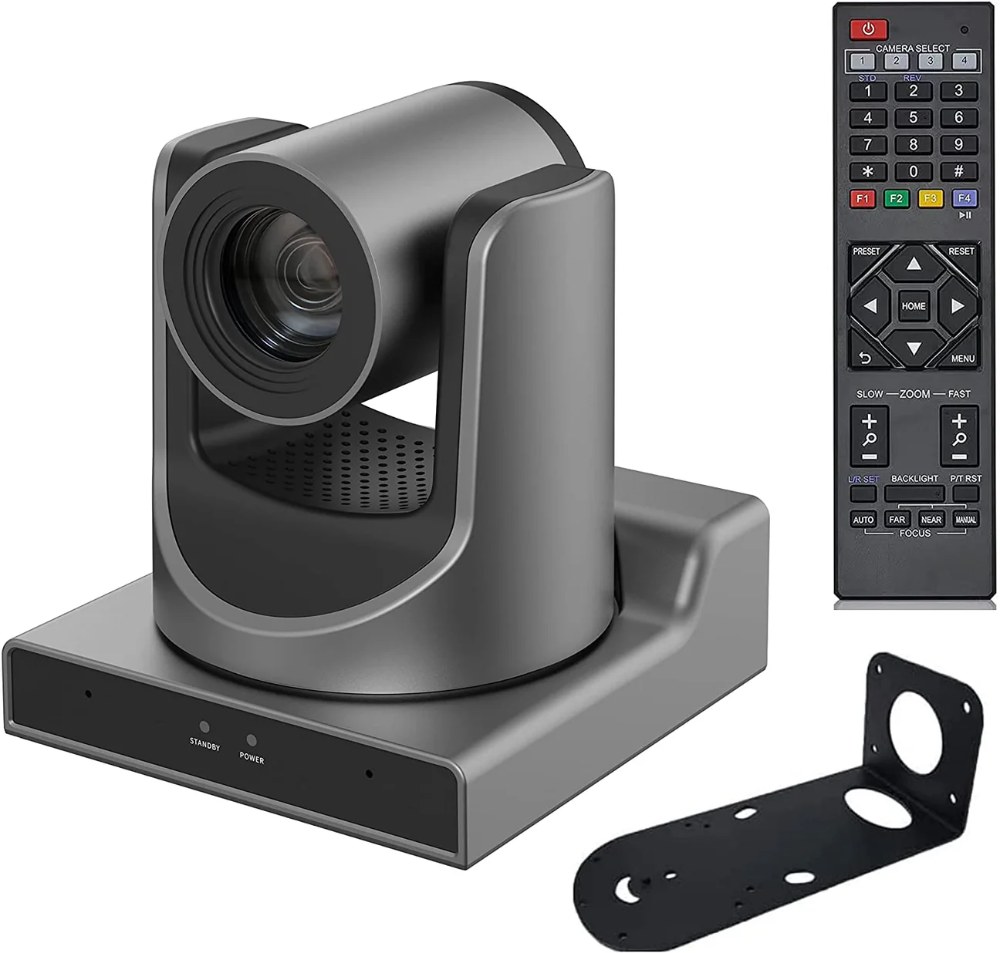
Once your SMTAV BX20N is configured for NDI, adding it to OBS Studio or vMix is straightforward. Both broadcast software packages handle NDI sources natively, making it simple to incorporate your PTZ camera into your production workflow. This guide covers setup for both platforms.
NDI Network Preparation
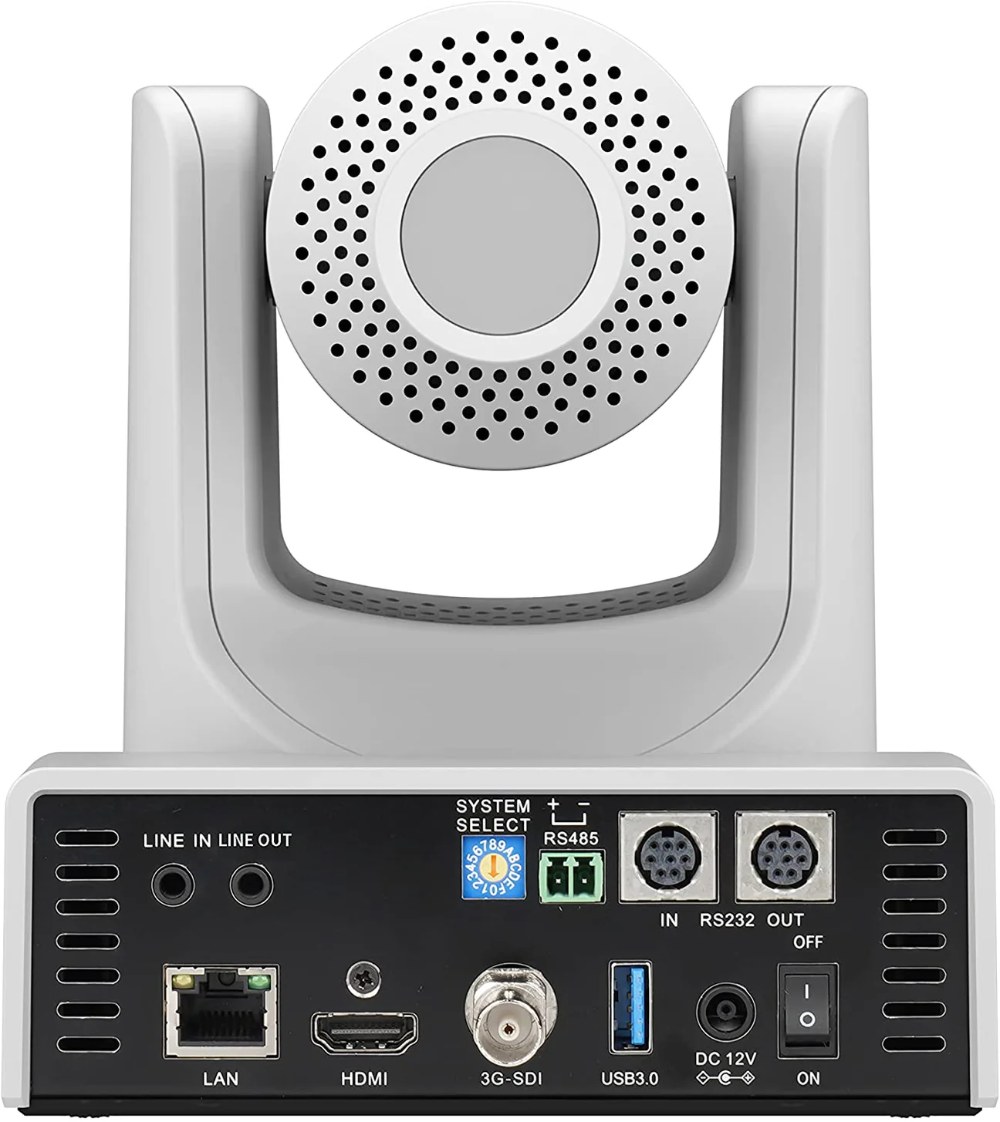
Ensure your BX20N is powered on, connected to your network via Ethernet, and NDI is enabled in its web interface. Verify that your broadcast computer is on the same network as the camera.
For reliable NDI performance, both devices should connect to the same network switch via Ethernet. WiFi is not recommended for video equipment as it’s unpredictable and can cause dropout.
Adding the BX20N to OBS Studio
Open OBS Studio and create or select the scene where you want to add the camera. In the Sources panel at the bottom, click the plus icon to add a new source. Select “Network Device Interface (NDI)” from the dropdown.
If the NDI option doesn’t appear, install the free NDI plugin for OBS from the NDI website, then restart OBS. Once installed, the option will appear.
A dialog will display available NDI sources. Your BX20N should appear by the name you configured. Select it and click OK. OBS will connect to the camera and display video in your scene.
Resize the source to fit your layout. Right-click the source to access properties where you can adjust bandwidth settings if needed.
Adding the BX20N to vMix
In vMix, click “Add Input” at the bottom left. Select “Network (NDI)” from the input types. Your BX20N should appear in the list.
Select the camera and click “Add Input”. The video will appear in vMix’s inputs panel. You can drag it onto your canvas or use it with vMix’s switching features.
vMix has superior PTZ support compared to OBS, with native controls for pan, tilt, and zoom. These controls should appear in vMix’s interface once the camera is connected.
Controlling the Camera in OBS
OBS doesn’t have built-in PTZ control, so you’ll control the BX20N through its web interface. Keep the camera’s web interface open in a browser window. When you need to move the camera or recall presets, use the web interface controls.
For simple setups, this method works fine. You switch between video sources in OBS and control camera position in the web browser.
Controlling the Camera in vMix
vMix has native PTZ controls that make camera operation much more convenient. Once your BX20N is added as an input, look for PTZ options in vMix’s interface.
You should see buttons to control pan, tilt, and zoom, plus buttons to recall presets if the camera supports it. This integration keeps everything in one software interface, making your workflow much cleaner.
Multi-Camera Setups
If you’re adding multiple BX20N cameras or other NDI sources, add each one as a separate source. Give each camera a unique name in its web interface so you know immediately which source corresponds to which physical camera.
With multiple cameras, careful naming is critical. Names like “Sanctuary Left,” “Sanctuary Center,” and “Sanctuary Right” immediately tell your operator which camera is which.
Network Bandwidth with Multiple Cameras
Each BX20N uses approximately 150 megabits per second of network bandwidth. A gigabit network can handle about three cameras comfortably while leaving bandwidth for other network activities.
If you’re running multiple cameras and experiencing video dropout, reduce other network traffic or upgrade to a managed switch with Quality of Service settings.
Recording NDI Sources
Both OBS and vMix can record NDI streams. This captures the raw camera feed before any graphics or effects are added, giving you clean source material for archival or re-editing.
Many churches record both the complete broadcast output and individual camera feeds for maximum flexibility.
Latency and Performance
NDI typically has very low latency (50-100 milliseconds), making camera switching feel responsive. If you notice significant delay between camera movement and the picture updating, you likely have a network issue.
Check that your network is not congested with other activities. If latency is excessive, work with your IT team to optimize your network.
Testing Before Broadcast
Before relying on this setup during a live service, conduct a full test with all sources connected. Test switching between cameras and verify that video from each source looks good.
Have someone monitor the broadcast while someone else controls the cameras. This lets you catch any problems before they affect your live service.
Troubleshooting Connection Issues
If your BX20N doesn’t appear in the NDI source list, verify that the camera is powered on and that NDI is enabled in its web interface. Power cycle the camera if needed.
Ensure both devices are on the same network. Check that no firewall is blocking NDI traffic.
If the camera appears but video freezes or drops frequently, reduce the video quality in the camera’s NDI settings or reduce other network traffic.
Keyboard Shortcuts and Workflow Optimization
As you become comfortable with your setup, develop keyboard shortcuts for common tasks. OBS allows you to set hotkeys for switching between sources. vMix also supports custom hotkeys.
Designing a hotkey layout that matches your team’s workflow makes production faster and smoother.
Conclusion
Your SMTAV BX20N is now integrated into OBS or vMix, ready for broadcast. The NDI-based approach eliminates cable clutter while providing professional video quality. Your production workflow is now streamlined and efficient.