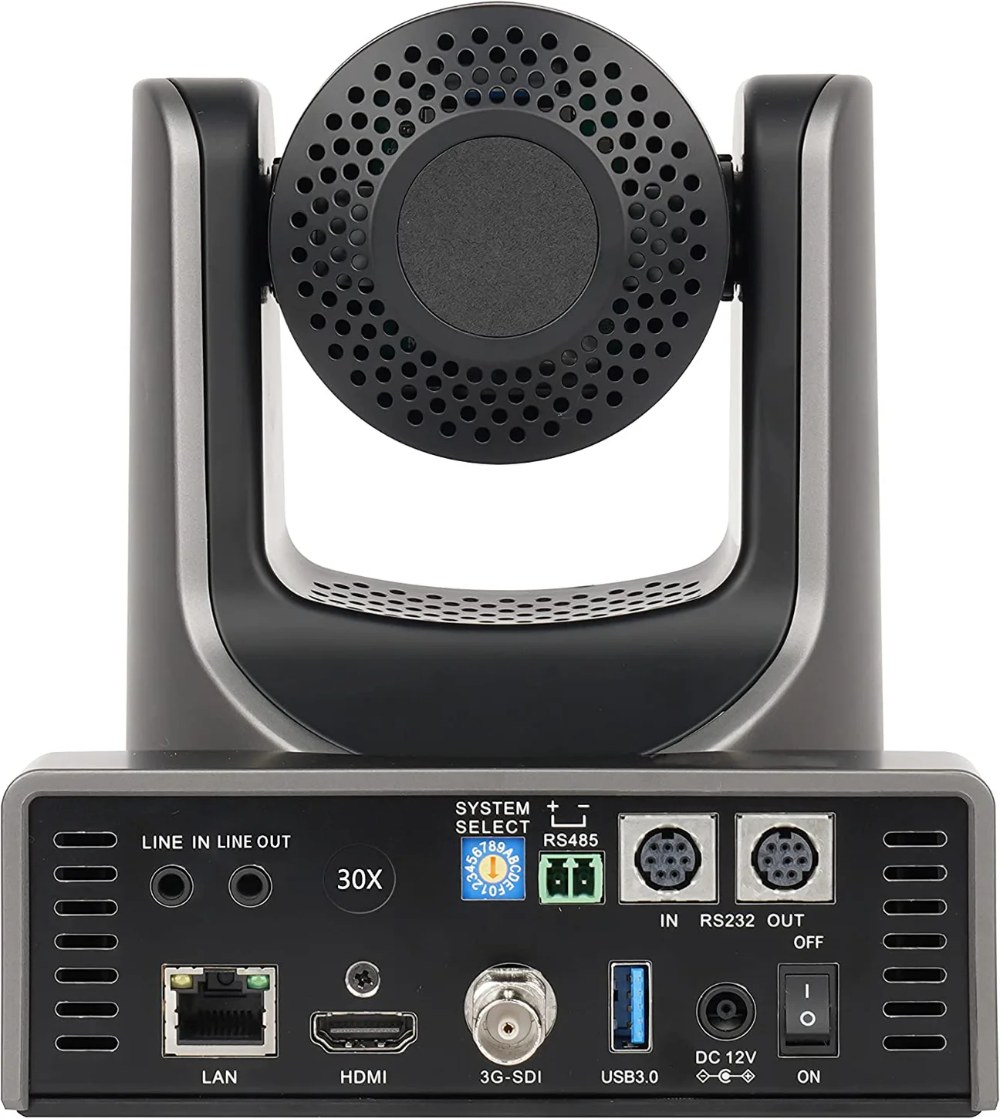
The SMTAV BX30N brings professional 30x zoom capability to churches with modern network-based broadcast infrastructure. Unlike cameras that require HDMI cables running across your sanctuary, the BX30N sends video directly over your network using NDI technology. This guide walks you through unboxing, power-up, and initial configuration.
Unboxing and Initial Inspection
When your BX30N arrives, carefully inspect the packaging for any signs of shipping damage. The camera should come with the main body, a robust power supply, an Ethernet cable, and documentation. Unlike some cameras, the BX30N typically arrives with the pan-tilt head already mounted and ready for use.
Set the camera on a stable work surface in an accessible location. Before permanently mounting, you’ll want to test all functions and verify that everything works correctly. The 30x zoom and pan-tilt mechanism should feel smooth and responsive when you power it on.
Connecting Power and Initial Startup
Plug the power supply into the camera and connect it to a standard outlet. The SMTAV will begin booting almost immediately. You might see indicator lights illuminate and hear small sounds from the pan-tilt mechanism as it initializes. These startup sounds and movements are normal.
Wait for at least 15 to 20 seconds for the camera to complete its startup sequence. The indicator lights should transition from a startup pattern to a steady operational pattern. During startup, the lens might focus automatically and the zoom might move to its starting position.
Once the startup lights stabilize, the camera is ready for testing. Power-on complete is typically indicated by steady green lights rather than blinking lights.
Network Connection Setup
Connect an Ethernet cable from the camera to your network switch. The BX30N automatically requests a DHCP IP address, so no manual network configuration is required for basic operation. The network indicator light on the back should change to indicate a successful connection.
Ensure you’re connecting to your main network, not a guest network or test network. If your church has a dedicated network for video equipment, use that. If not, the main office network works fine as long as it has adequate bandwidth for video.
Locating the Camera’s IP Address
To access the camera’s web interface and NDI settings, you need to find its IP address. The easiest way is to check your router’s list of connected devices. If you don’t have access to the router, use a free network scanning tool like Advanced IP Scanner to find all devices on your network and identify the SMTAV by its MAC address (printed on the back of the camera).
Once you have the IP address, open a web browser on a computer connected to the same network. Type the IP address into the address bar and press Enter. The camera’s web login page should appear.
Accessing the Web Interface
Log in with the default credentials, typically admin with a blank password or admin as both username and password. Check your documentation to confirm the default credentials for your model. Once logged in, immediately change the password to something unique. Use a strong password with at least 12 characters including letters, numbers, and symbols.
The web interface is your primary configuration tool for the BX30N. You’ll use it to set up NDI, configure network settings, manage presets, and control pan-tilt-zoom functions.
Configuring NDI on the BX30N
Navigate to the Network settings or NDI configuration section in the web interface. You should see options to enable or disable NDI. Ensure NDI is enabled. Some cameras ship with NDI disabled, so this is a critical step.
Once NDI is enabled, you’ll see an option to name your NDI source. Choose a clear, descriptive name that your team will recognize immediately, such as “Sanctuary Main PTZ” or “Stage Camera 1”. Avoid special characters and keep the name relatively short. This is the name that will appear in OBS, vMix, and other broadcast software.
Verify that the other NDI settings are appropriate for your deployment. Default settings usually work well for most churches. If you want to optimize bandwidth, you can adjust quality settings, but this is optional for most installations.
Testing Network Connectivity
Save your NDI configuration and allow the camera a few seconds to restart its network services. Now test that the camera is properly on your network. Open OBS Studio or vMix on a computer connected to the same network as the camera.
In OBS, add a new source and select “Network Device Interface (NDI)”. Your SMTAV BX30N should appear in the list by the name you configured. Select it and add it as a source. Video should appear almost immediately.
If the camera doesn’t appear in the NDI source list, verify that both the camera and your broadcast computer are on the same network. Check that NDI is enabled in the camera’s web settings. If problems persist, ensure your network switch is powerful enough to support video traffic.
Testing Pan-Tilt-Zoom Functions
Using the web interface PTZ control section, test pan-tilt movement. Use the arrow buttons or controls to move the camera left, right, up, and down. The movement should be smooth and responsive. Listen for any grinding sounds that might indicate mechanical problems.
Test the zoom function by zooming all the way in and all the way out. The 30x optical zoom should maintain focus throughout the zoom range. Zoom in to see fine details, zoom out to see the entire stage. The smooth zoom range is one of the BX30N’s strengths.
Verifying Video Quality
With the camera added as an NDI source in your broadcast software, verify that the video quality looks good. Check for proper color reproduction and clear focus. The camera should output 1080p at 59.94 frames per second, providing professional-quality video suitable for streaming or recording.
If the video appears blurry or out of focus, the autofocus might be struggling. Some cameras have autofocus assist options in the settings. If the image is still blurry, manual focus adjustment might be needed. This is often a quick fix through the web interface.
Planning for Permanent Installation
With the camera tested and working, start planning its permanent mounting location. Identify the best position in your sanctuary for capturing stage and congregation views. Verify that this location has network access (usually via the same cable run as power) and that the viewing angles will work well for your broadcast.
Consider cable routing and the structural support needed for secure mounting. The BX30N is a professional camera and needs solid support. Plan cable management to keep everything organized and safe.
Conclusion
Your SMTAV BX30N is now powered on, connected to your network, and configured for NDI streaming. The next steps involve permanent mounting, preset setup, and integration with your full broadcast workflow. The 30x zoom and stable pan-tilt mechanism will serve your church well for years of professional production.