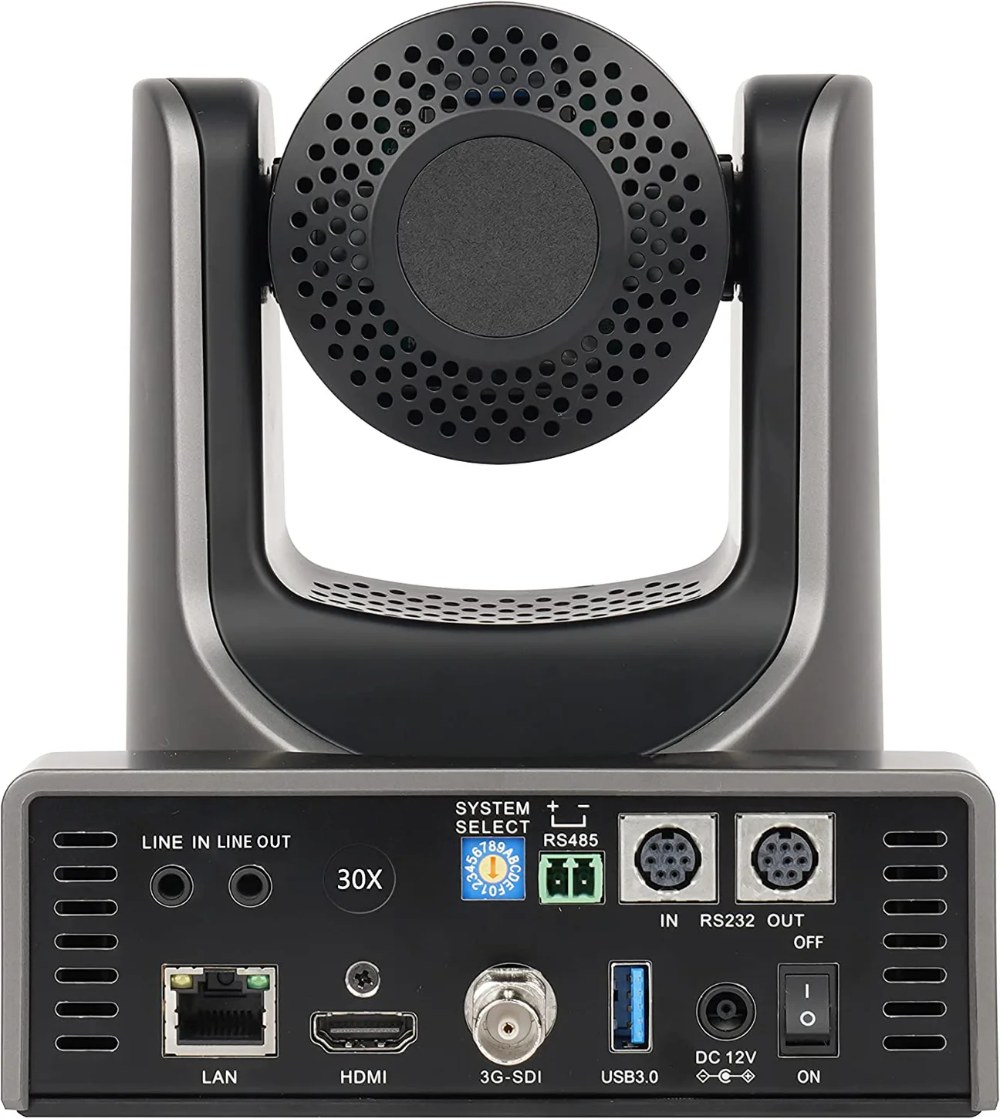
The SMTAV BX30N’s NDI capability is perfect for modern church streaming workflows. NDI eliminates the need for long HDMI or SDI cables running across your sanctuary—video travels over your existing network directly from the camera to your broadcast computer. This guide covers complete NDI setup, optimization, and integration with broadcast software.
NDI Fundamentals and Network Requirements
NDI sends broadcast-quality video over standard network cables. Each BX30N camera using NDI consumes approximately 150 megabits per second of network bandwidth. Your church network should have a gigabit switch (1000 Mbps) to support one or more NDI cameras.
Both the camera and your broadcast computer must be on the same network or at least able to communicate with each other. If your church uses VLANs or network segmentation, ensure both devices are on the same logical network, or ask your IT administrator to enable inter-VLAN routing so they can communicate.
Enabling and Naming NDI on the BX30N
Log into the camera’s web interface and navigate to Network settings or NDI configuration. Verify that NDI is enabled. If it shows as disabled, enable it and save your changes. The camera will briefly restart its network services.
Configure your NDI source name—this is what appears in broadcast software. Choose something immediately recognizable to your team, like “Sanctuary Main PTZ” or “Stage Camera 1”. Avoid special characters and keep it concise. This simple naming saves enormous amounts of troubleshooting time later.
If your camera supports NDI bandwidth optimization, you can adjust quality settings to balance video fidelity against network usage. For most churches, the default settings work well. Only adjust these if you’re experiencing network congestion.
Verifying NDI Discovery and Connection
Save your NDI settings and allow the camera a few seconds to restart its network services. Now test NDI discovery from your broadcast computer. Open OBS Studio or vMix and look for NDI sources.
Your SMTAV BX30N should appear in the NDI source list within a few seconds, identified by the name you configured. If it doesn’t appear, verify both devices are powered on and connected to the network. Check that NDI is enabled in the camera’s web settings.
If the camera still doesn’t appear in NDI source lists, you might have a firewall issue. Some firewalls block UDP multicast, which NDI uses for device discovery. Ask your IT administrator to verify that NDI traffic isn’t being blocked.
Adding the BX30N to OBS Studio
Open OBS and add a new source to your scene. Select “Network Device Interface (NDI)”. If this option doesn’t appear, install the free OBS NDI plugin from the NDI website.
In the dialog that appears, select your BX30N from the list of available NDI sources. Click OK and the camera will connect. Video should appear in your scene almost immediately. Resize and position it as needed for your broadcast layout.
Adding the BX30N to vMix
In vMix, click “Add Input” at the bottom left. Select “Network (NDI)” from the input types menu. Your SMTAV BX30N should appear in the list.
Select the camera and click “Add Input”. vMix will establish the connection, and video will appear in your inputs panel. You can drag the input onto your canvas or use it with vMix’s switching features.
vMix has native PTZ support that OBS lacks. Once your BX30N is added as an input, look for PTZ control options in vMix’s interface. These allow you to control pan, tilt, zoom, and recall presets directly from vMix.
Multi-Camera NDI Deployments
If you’re running multiple BX30N cameras or other NDI sources simultaneously, monitor your network bandwidth carefully. Three cameras producing full-quality NDI video approaches the limits of a gigabit network while leaving adequate bandwidth for other network activities.
If you plan more than three cameras, upgrade to a managed switch with Quality of Service (QoS) settings. QoS prioritizes video traffic, ensuring your broadcast cameras get the bandwidth they need even if other network activities spike.
Give each camera a unique, descriptive NDI source name so operators know immediately which physical camera they’re selecting. Document your NDI naming scheme so all team members understand it.
Bandwidth Optimization Techniques
If you have limited network bandwidth, you have several optimization options. First, reduce the video quality in the camera’s NDI settings. This reduces bandwidth but also reduces image quality.
Second, reduce the camera’s output resolution from 1080p to 720p if your broadcast doesn’t require full HD quality. Third, reduce frame rate from 59.94 to 30 frames per second if your broadcast software allows it.
These optimizations are usually necessary only if you’re running four or more cameras or if your network is heavily utilized for other purposes.
Network Monitoring and Troubleshooting
Monitor your network performance during broadcasts. If you experience frequent video dropout or stuttering, you likely have a bandwidth or latency issue. Check your network switch to ensure all connections are secure and functioning properly.
Some network switches have built-in diagnostics. If your IT team has access, ask them to check the ports where your camera and broadcast computer connect for excessive errors or retransmissions.
If video is connected but frequently drops, try moving your broadcast computer to a different network port or a different switch if you have multiple switches. Sometimes a single bad switch port causes intermittent problems.
Latency and Performance
NDI typically has very low latency compared to other streaming protocols—usually 50 to 100 milliseconds. This low latency makes it feel responsive when switching between cameras. If you notice significant delay between camera movement and the picture updating in your broadcast, latency might be excessive.
Check your network infrastructure. Long cable runs, outdated switches, or network congestion can increase latency. If latency is a problem, work with your IT team to optimize your network.
Recording NDI Sources
If you want to record your broadcast for archival, you can record the NDI sources directly in OBS or vMix. This records the raw NDI stream before any graphics, titles, or other production elements are added. This gives you clean source material that you can re-edit later if needed.
Some churches record the complete broadcast from the switcher output and also record individual NDI sources separately. This provides maximum flexibility for future editing and re-broadcasting.
Security Considerations
NDI traffic travels over your network, potentially visible to anyone on the network if not properly secured. For most churches, this isn’t a concern because broadcast content is intended to be public. However, if you’re concerned about network security, ask your IT administrator about encrypting NDI traffic or isolating it to a dedicated network segment.
Most churches don’t need special security for NDI since the video is being broadcast publicly anyway. But larger organizations sometimes have security policies that require encryption of all network video.
Documentation and System Maintenance
Document your NDI camera names, IP addresses, and their physical locations. Keep this documentation accessible to anyone who might operate the cameras. Update it whenever you make changes to your setup.
Periodically verify that NDI discovery is working correctly. If a camera disappears from the NDI source list, check the web interface to ensure NDI is still enabled. Firmware updates or configuration changes sometimes accidentally disable NDI.
Archiving Your Configuration
Some SMTAV cameras allow you to export configuration settings through the web interface. If available, periodically export and save your configuration. If you ever need to reset the camera or restore after a problem, you can reimport your settings and presets.
Conclusion
Your SMTAV BX30N is now configured for reliable NDI streaming. NDI’s network-based approach is ideal for modern churches with established IT infrastructure. As your streaming needs grow, you can add additional NDI cameras confident that your network and workflow can support them.