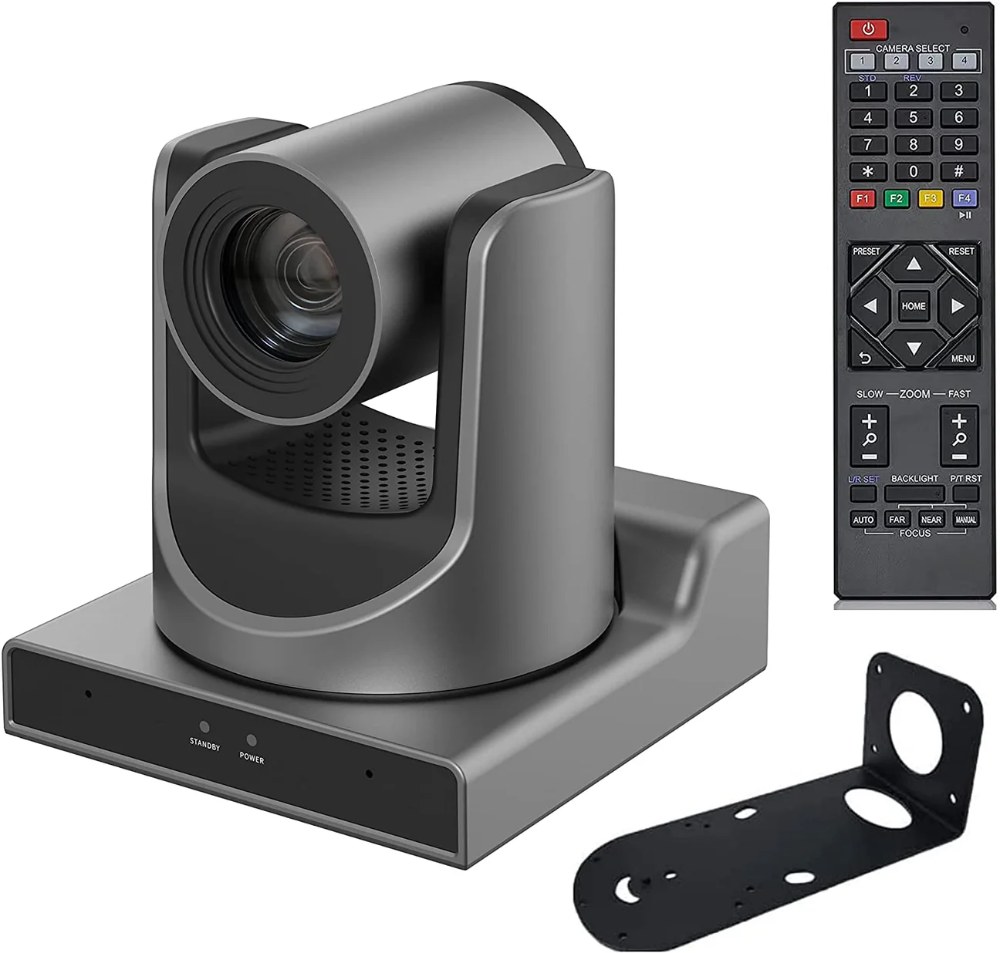
The SMTAV BX20N brings professional 20x optical zoom and NDI streaming capability to churches at an affordable price point. Like its larger cousin the BX30N, the BX20N sends video over your network, eliminating the need for HDMI cable runs. This guide covers complete setup from unboxing through first operational test.
Unboxing and Inspection
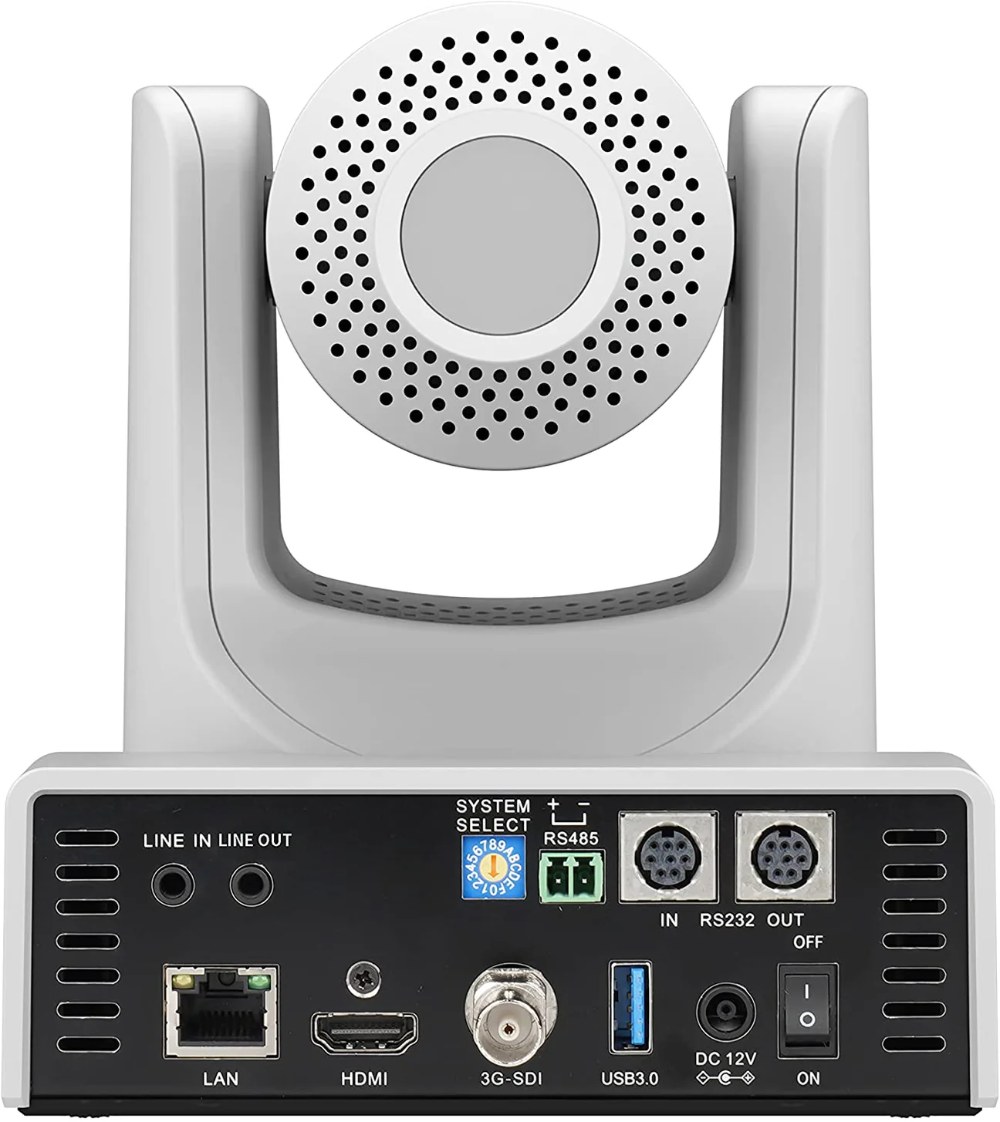
When your BX20N arrives, inspect the packaging for shipping damage. The camera should include the main body with pan-tilt mechanism already mounted, a power supply, an Ethernet cable, and documentation. Set the camera on a stable work surface and verify that all components are present before proceeding.
The 20x zoom is excellent for most church applications—it provides excellent framing flexibility without the extreme magnification of 30x or higher. The lighter weight of the BX20N compared to larger models makes installation and mounting slightly easier.
Power-Up and Startup
Connect the power supply to the camera and plug it into an outlet. The SMTAV will begin booting immediately. You might hear small motor sounds as the pan-tilt system initializes. These startup sounds are normal.
Wait at least 15 seconds for full startup. The indicator lights should transition from a startup pattern to steady operational lights. Once steady, the camera is ready for testing.
Network Connection
Connect an Ethernet cable from the camera to your network switch. The BX20N automatically requests a DHCP IP address. Verify that you’re connecting to your main network, not a guest or test network.
The network indicator light should change to show successful connection. If it doesn’t change after a few seconds, try reseating the Ethernet cable on both ends.
Accessing the Web Interface
Find the camera’s IP address using your router’s device list or a network scanning tool. Open a browser and type the IP address into the address bar. The login page should appear.
Log in with the default credentials (usually admin/admin). Immediately change the password to something unique for security. Use a strong password with at least 12 characters including letters, numbers, and symbols.
Configuring NDI
Navigate to Network settings or NDI configuration. Ensure NDI is enabled. If disabled, enable it and save your changes.
Set your NDI source name to something immediately recognizable, like “Sanctuary Camera 1” or “Main PTZ”. This name appears in your broadcast software’s NDI source list.
Verify other NDI settings are appropriate. Default settings work well for most churches.
Testing NDI Discovery
Save your NDI settings and allow the camera a few seconds to restart its network services. Open OBS Studio or vMix on a broadcast computer connected to the same network.
Add a new NDI source. Your SMTAV BX20N should appear in the list. Select it and verify video appears.
If the camera doesn’t appear, check that NDI is enabled in the web interface. Verify both devices are on the same network.
Testing Pan-Tilt-Zoom
Use the web interface PTZ controls to test camera movement. Pan left and right to verify full movement range. Tilt up and down to verify tilt range.
Test zoom by zooming all the way in and all the way out. The 20x zoom should move smoothly through its full range while maintaining focus.
Conclusion
Your SMTAV BX20N is now powered on, networked, and streaming NDI video. The next steps involve permanent mounting, preset setup, and full broadcast integration. The 20x zoom and reliable NDI performance will serve your church well.