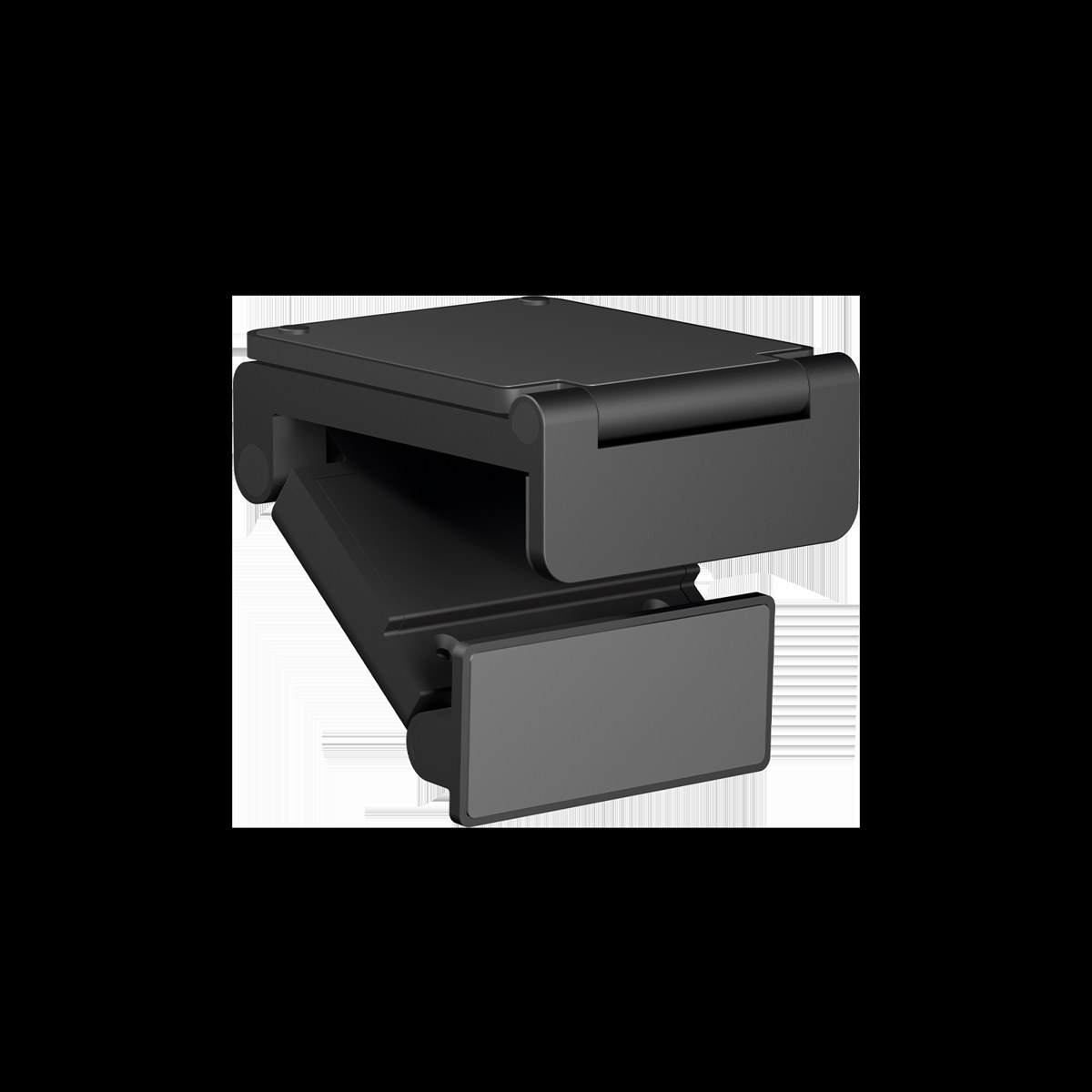
The OBSBOT Tiny 4K is a compact, AI-tracking camera that combines 4K video quality with automatic speaker following. Unlike traditional PTZ cameras, the Tiny 4K is designed as a stationary camera that pans and tilts via AI tracking rather than motorized movement. It’s perfect for churches seeking compact, affordable 4K streaming without massive equipment investments.
What Makes the Tiny 4K Different
The Tiny 4K captures video at 4K resolution (3840x2160) instead of the standard 1080p. For churches with modern streaming infrastructure and audience members watching on larger screens, 4K provides significantly better visual quality. The automatic AI tracking means you get dynamic framing without a dedicated camera operator.
The camera is much more compact and affordable than traditional PTZ cameras, making it ideal for churches with limited budgets or limited installation space.
Unboxing and Initial Inspection
Your Tiny 4K arrives with the camera body, a USB-C cable, and documentation. Unlike larger cameras, this is a simple setup with minimal components. Inspect the camera for any damage before proceeding.
The Tiny 4K is designed for desktop use or small mounting brackets. It’s lighter and more compact than traditional cameras, but still provides professional video quality.
Powering the Camera
Connect the USB-C cable to the camera. The Tiny 4K draws power entirely through USB, so you can use a USB power adapter plugged into an outlet, a powered USB hub, or a computer’s USB port.
For reliable operation during services, use a dedicated power adapter rather than relying on computer USB ports. This ensures the camera stays powered even if your computer reboots.
Power on the camera and wait for startup, which typically takes 10 to 15 seconds.
Downloading the OBSBOT App
Download the OBSBOT app on your smartphone or tablet. Create an account and log in. When you power on the Tiny 4K, the app will detect it via Bluetooth.
Follow the pairing process to establish a connection. Once paired, the app will show live video and provide access to all controls.
Positioning the Camera
The Tiny 4K is designed for desktop positioning or mounting on a small bracket. Position it where it has a clear view of your speakers or stage area. Unlike ceiling-mounted traditional cameras, the Tiny 4K might be positioned at stage level or mounted on a mobile tripod.
The AI tracking means the camera doesn’t need a wide view—it will automatically follow whoever it detects, so a relatively narrow field of view pointing at your primary speaker area is fine.
Ensure the camera isn’t in direct sunlight, as this can overwhelm the sensor. Stage lighting is typically fine, but direct sunlight through windows can cause exposure issues.
Connecting to OBS or Broadcast Software
Connect the USB-C cable from the Tiny 4K to your broadcast computer. Windows and Mac should recognize it automatically as a video device.
In OBS, add a Video Capture Device source and select the OBSBOT camera from the dropdown. Video should appear within a few seconds.
In vMix, add a new input and select the appropriate video input device. The Tiny 4K will appear in the list of available devices.
Testing Video Quality
With the camera connected and video appearing in OBS or vMix, verify that the video quality is excellent. At 4K resolution, the image should be sharp and detailed.
The video might appear larger than 1080p video in your broadcast software due to the higher resolution. You can zoom out in your software to see the full frame, or crop the video if you want to use part of it.
Test the AI tracking by moving around in front of the camera. It should follow your movement smoothly.
Configuring AI Tracking
Use the OBSBOT app to enable and configure AI tracking. The app provides settings for tracking sensitivity and tracking mode. For churches, speaker tracking mode is typically best.
Adjust the tracking sensitivity to provide smooth, natural-looking camera movement. Test this with your actual speakers or staff members during setup.
4K Bandwidth Considerations
4K video consumes more bandwidth than 1080p. For streaming to YouTube or Facebook, 4K streams often require 8 to 15 megabits per second depending on compression. Ensure your internet connection can handle 4K streaming if that’s your plan.
For recording locally, 4K video consumes roughly 2 GB per minute of recording, so plan your storage accordingly. A one-hour service recording in 4K requires about 120 GB of storage.
USB Connection vs Network Streaming
The Tiny 4K connects via USB, not through a network like traditional NDI cameras. This means it’s tethered to your broadcast computer, but it also means you don’t need network infrastructure for the camera itself.
If you want to stream 4K to the internet, your internet connection speed is the limiting factor, not the camera connection.
Creating Presets
Use the OBSBOT app to create presets for different camera positions. Although the Tiny 4K focuses on automatic tracking, presets are useful for switching between different fields of view or recording angle.
Create presets like “Wide View,” “Tight Speaker,” or “Audience View” depending on your broadcast needs.
Testing During Rehearsal
Before a live service, rehearse with the Tiny 4K. Have speakers move around naturally while you watch the tracking. Verify that the AI follows them smoothly and that the framing looks good on your broadcast output.
Adjust tracking sensitivity if needed. Test recalling presets if you plan to use them during your broadcast.
Conclusion
Your OBSBOT Tiny 4K is now powered on, connected, and ready for 4K streaming. The combination of 4K video quality and AI tracking provides professional results at a fraction of the cost of traditional PTZ cameras. Your church broadcasts will benefit from the crisp, detailed video that 4K provides.