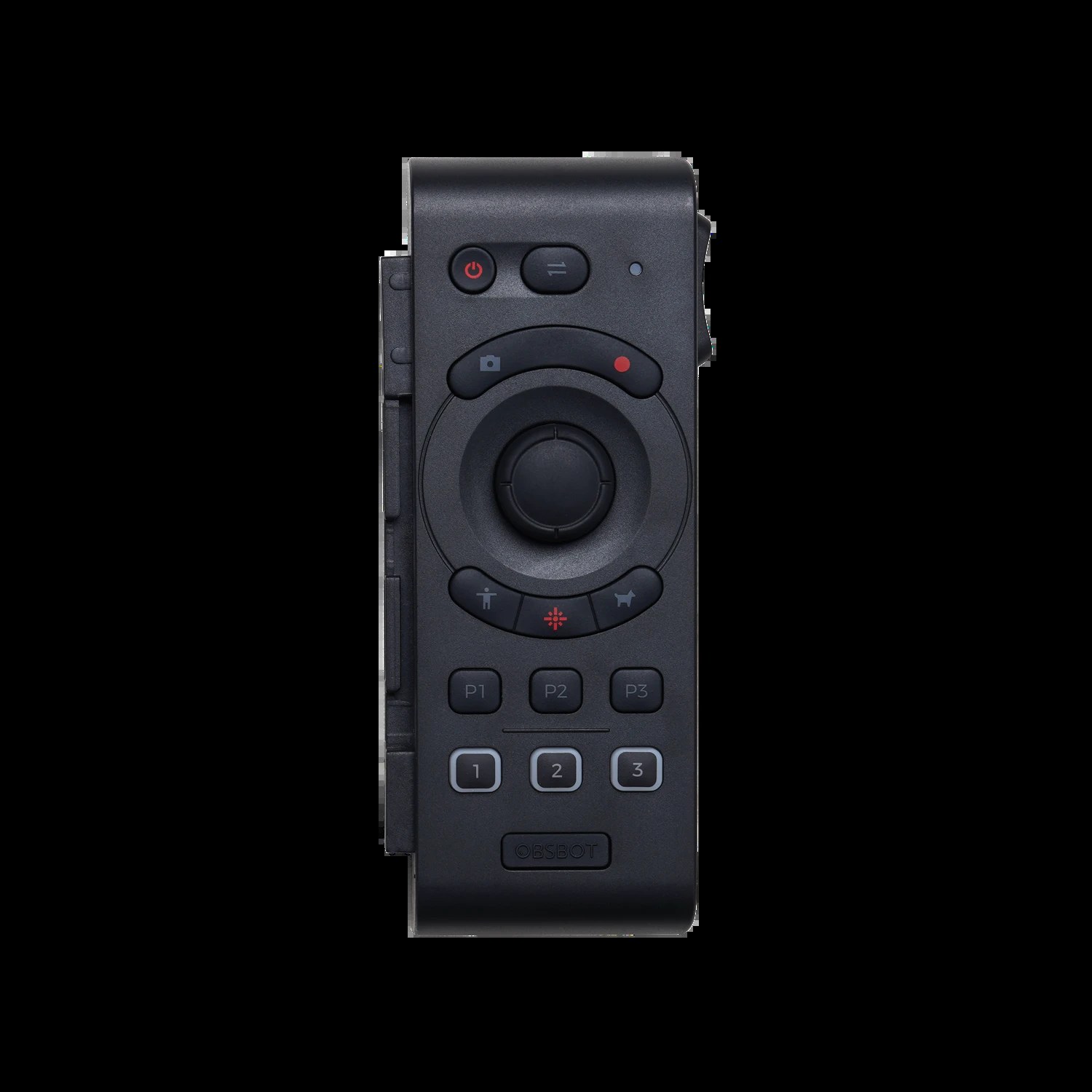
The OBSBOT Tail Air’s AI tracking capability transforms how churches broadcast their services. The camera automatically follows speakers and musicians, creating dynamic video that keeps viewers engaged. Unlike traditional cameras that require an operator, the Tail Air provides smooth, professional camera work with minimal human intervention.
How AI Tracking Works
The Tail Air uses computer vision to detect people in its field of view. When tracking is enabled, the camera automatically orients to keep the detected person centered in the frame. As the person moves, the camera smoothly follows.
You don’t need a dedicated camera operator. The camera handles movement automatically while you focus on other aspects of your broadcast. This is especially valuable for smaller churches with limited volunteer crews.
Positioning the Camera for Effective Tracking
For AI tracking to work well, position the camera so it has a clear view of the speaker or musicians you want to track. Mounting at the rear of the sanctuary looking toward the stage works well for most church layouts.
Avoid mounting directly above speakers, as this creates awkward angles. Mount at least slightly forward and to the side of where speakers stand. This positioning creates natural camera angles even when the AI is tracking.
The camera’s field of view is important—it needs to see your speakers but shouldn’t be so wide that it sees too much of the congregation. If the field of view is too wide, the tracking might focus on the wrong person.
Enabling and Configuring Tracking
Open the OBSBOT app and navigate to the tracking settings. Enable speaker tracking mode. You’ll see several configuration options that affect how aggressively the camera tracks and how quickly it responds to movement.
Tracking sensitivity adjusts how responsive the camera is to movement. Higher sensitivity means the camera follows movements more quickly. Lower sensitivity creates smoother movement with more lag. For church worship, moderate sensitivity usually works best.
Testing Tracking During Rehearsal
Before relying on tracking during a live service, test it thoroughly during rehearsal. Have your pastors or speakers move around the stage as they normally would during a service while the camera tracks them.
Watch the resulting video to ensure the tracking looks natural. The camera should keep the speaker framed nicely without jerky or overly aggressive movements. If the framing is off, adjust the tracking sensitivity or reposition the camera.
Handling Multiple People and Transitions
If your service involves multiple speakers, the Tail Air tracks whoever is closest or most prominent. When a new person comes on stage, the camera might take a moment to transition its focus. For smooth transitions, have speakers move gradually into the shot rather than appearing suddenly.
If two people are on stage together, the camera tracks the most prominent person based on size and position. This usually works well for conversations or duets.
Manual Control When Needed
While the Tail Air excels at automatic tracking, you can take manual control at any time using the OBSBOT app. If you want a wide shot of the entire stage, pull back the zoom manually. If you want to frame a specific element, pan or tilt manually.
The combination of automatic tracking and manual override provides flexibility. You get automatic camera work most of the time, but can intervene when needed.
Setting Up Presets for Manual Scenes
Create presets for scenes that don’t involve tracking. For example, a wide opening shot of your entire stage, or a shot of the worship band before they start performing. You can recall these presets when you want specific framing that tracking wouldn’t provide.
In the OBSBOT app, position the camera where you want it and save the position as a preset. Give presets clear names like “Wide Worship Band” or “Congregation Shot” so you remember what each one is for.
Adjusting for Lighting Conditions
AI tracking performance depends partly on lighting. The camera needs to see faces clearly to track effectively. If your stage is very dark, the tracking might struggle.
Ensure your stage lighting is adequate for tracking. This doesn’t require special lighting—normal stage lighting that’s suitable for an in-person service usually works fine for AI tracking.
If certain areas of your stage are very bright (like a spotlight on the pulpit), the tracking might occasionally lock onto the bright area. Position the camera to minimize direct spotlight in the lens.
Optimizing Tracking Accuracy
If the camera tracks the wrong person or seems confused about who to follow, check that the tracking sensitivity isn’t too high. Very high sensitivity can cause the camera to jump between targets erratically.
Also verify that your camera has a clear view of your speakers. If the camera is blocked by beams, decorations, or other obstacles, tracking will be unreliable.
Some versions of the Tail Air allow you to define a tracking area or exclude certain regions. If your app supports this, define a tracking region that includes your stage but excludes congregation areas.
Handling Stage Setup Changes
If you use different stage setups for different services or seasons (like special holiday decorations), you might need to adjust tracking settings. What works well in your normal setup might not work well with additional stage elements.
During rehearsal, test the tracking with your actual stage setup. Make adjustments to sensitivity or camera position as needed for each major setup change.
Integration with Your Broadcast Workflow
The Tail Air works well as your primary camera for smaller productions. For multi-camera setups, use the Tail Air as your main dynamic camera, with a second stationary camera providing wide shots.
In OBS or vMix, the Tail Air is just another video source. You can use it in multi-view layouts, picture-in-picture displays, or as your primary broadcast camera.
Troubleshooting Tracking Issues
If the camera doesn’t track at all, verify that tracking is enabled in the app. Power cycle the camera if tracking was enabled but isn’t working.
If the tracking is jerky or erratic, reduce the tracking sensitivity. Higher sensitivity can cause overly aggressive movement.
If the camera tracks the wrong person, reposition the camera or define a tracking area if that feature is available.
Performance and CPU Usage
Unlike traditional PTZ cameras, the Tail Air’s AI processing happens on the camera itself, not on your broadcast computer. This means adding the camera doesn’t significantly increase your computer’s CPU load.
The USB-C connection provides both power and video, simplifying cabling. This is especially valuable if your camera is mounted far from your broadcast computer.
Conclusion
The OBSBOT Tail Air’s AI tracking transforms your church’s broadcast from static to dynamic. The automatic speaker following creates engaging video that viewers prefer to watch. With proper setup and tuning, the Tail Air provides professional results with minimal operator involvement, perfect for churches with small volunteer teams.