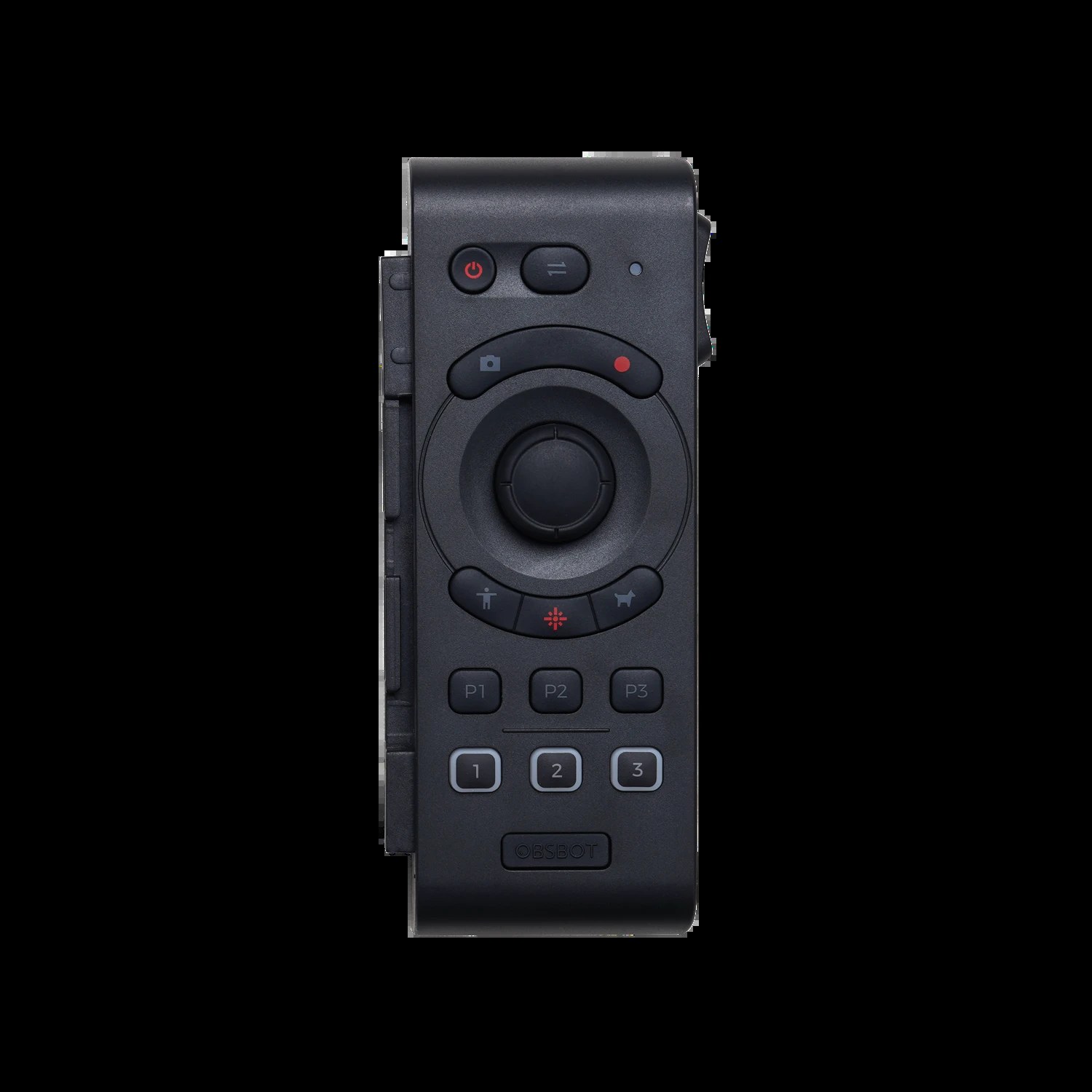
The OBSBOT Tail Air combines AI-powered automatic speaker tracking with manual PTZ control, making it ideal for churches that want dynamic camera movement with minimal operator effort. The camera automatically follows speakers using computer vision, while you maintain manual control when needed. This guide covers setup from unboxing through first AI-tracked broadcast.
Unboxing and Initial Setup
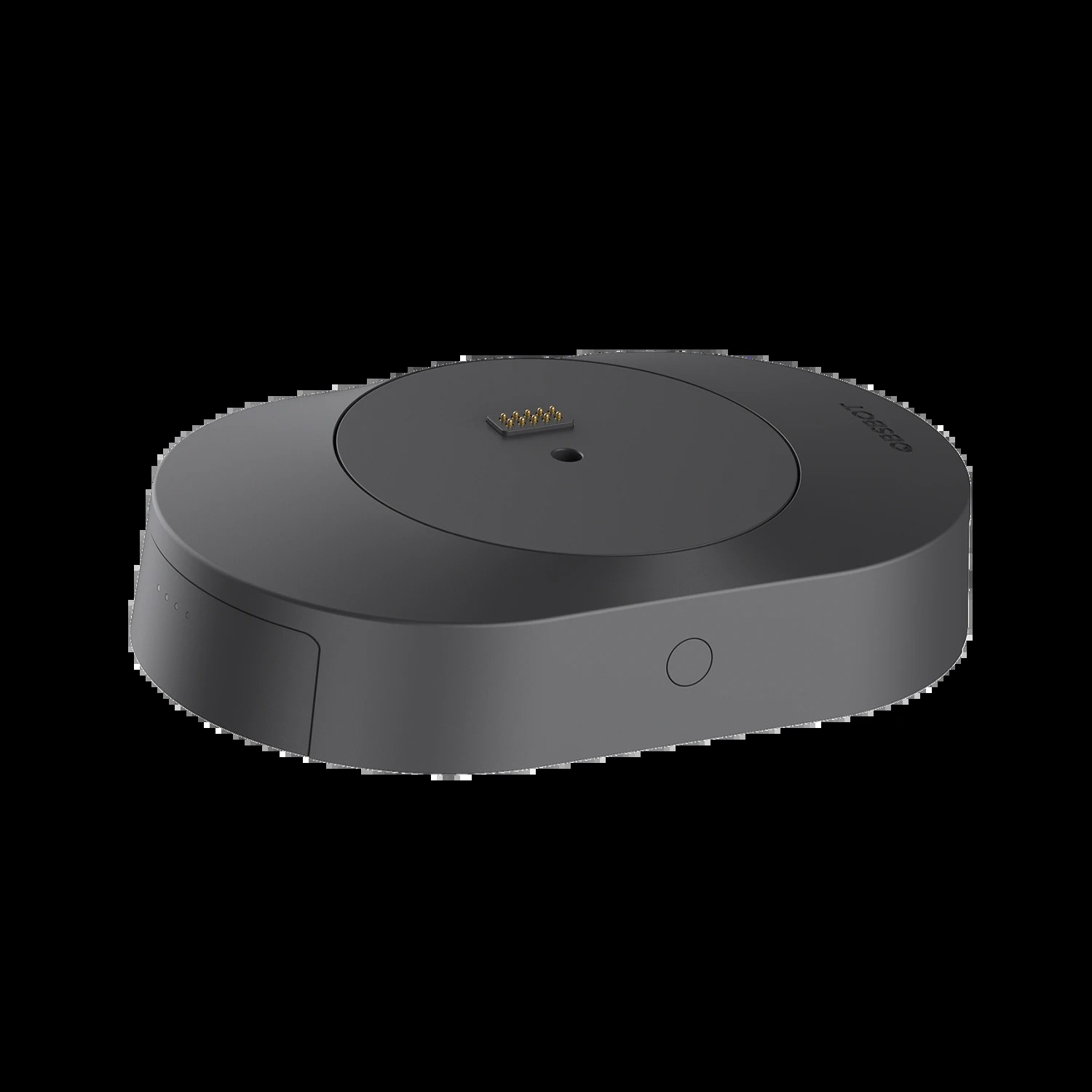
Your Tail Air arrives with the camera body, a robust gimbal stabilization system, a USB-C cable, and documentation. Unlike traditional PTZ cameras with separate pan-tilt heads, the Tail Air integrates its stabilization and movement into a compact gimbal.
Set the camera on a stable work surface and verify all components are present. The gimbal should move smoothly when powered off. Power on the camera to test the stabilization system.
Powering On and Initial Startup
Connect the USB-C cable to the camera. Unlike traditional cameras, the Tail Air draws power through USB. You can use a USB power adapter connected to an outlet, or a powered USB hub, or even a computer’s USB port in some configurations.
Power on the camera and wait for startup to complete. The gimbal will perform initialization movements, stabilizing the camera orientation. The startup sequence takes 10 to 15 seconds.
Downloading the OBSBOT App
Download the OBSBOT app on your smartphone or tablet. The app provides access to AI tracking settings, manual camera controls, and preset management. Create an account and log in.
When you power on the camera, the app should auto-detect it via Bluetooth or WiFi. Follow the app’s pairing process to connect your camera.
Setting Up WiFi or Network Connection
The Tail Air can connect to your network via WiFi or through a connected computer. For streaming to OBS or vMix, you typically connect the camera to your broadcast computer via USB-C, so a separate network connection isn’t required.
However, the OBSBOT app provides remote control, so WiFi connectivity to your phone or tablet is useful for adjusting settings during production.
Testing Pan-Tilt-Zoom Functionality
Use the OBSBOT app to test manual camera controls. The app provides virtual joystick controls for pan and tilt, and zoom controls for adjusting magnification.
Test moving the camera in all directions. The gimbal should move smoothly and be responsive to your inputs. The 4x digital zoom should provide adequate framing flexibility for most church applications.
Enabling and Testing AI Tracking
In the OBSBOT app, look for the AI tracking settings. Enable tracking and select the tracking mode (typically “speaker tracking” for churches). The camera will use computer vision to automatically detect and follow people.
Hold your hand or face in front of the camera and watch as it automatically orients to track your movement. The tracking should be smooth and accurate.
Connecting to Your Broadcast Computer
Connect the Tail Air to your broadcast computer using a USB-C cable. Windows and Mac should recognize the camera automatically. It will appear as a video device in OBS, vMix, or other broadcast software.
In OBS, add a Video Capture Device source. Select the OBSBOT camera from the dropdown. Video should appear almost immediately.
Testing Video Quality
With the camera connected to your broadcast computer and visible in OBS or vMix, verify that the video quality looks good. The Tail Air outputs video at 1080p resolution.
The video should be sharp and properly exposed. The gimbal stabilization should keep the image steady even if the camera is moved or vibrates.
Setting Up NDI
Some versions of the Tail Air support NDI output. If your model supports it, enable NDI in the OBSBOT app. The camera will appear as an NDI source in OBS, vMix, and other software.
If your model doesn’t support NDI, USB-C connectivity works fine for direct connection to your broadcast computer.
Planning for Permanent Mounting
Consider where you want to mount the Tail Air for services. The camera needs to see your speakers or worship band to track them effectively. Mounting height of 8 to 15 feet works well for most churches.
The gimbal’s compact design makes ceiling mounting straightforward. Plan cable routing from the camera to your broadcast computer or power source.
Conclusion
Your OBSBOT Tail Air is now powered on, connected, and ready for AI-tracked broadcasts. The automatic speaker tracking will enhance your production while you maintain the ability to manually control the camera when needed. Next steps involve permanent mounting, tracking setting optimization, and preset configuration.