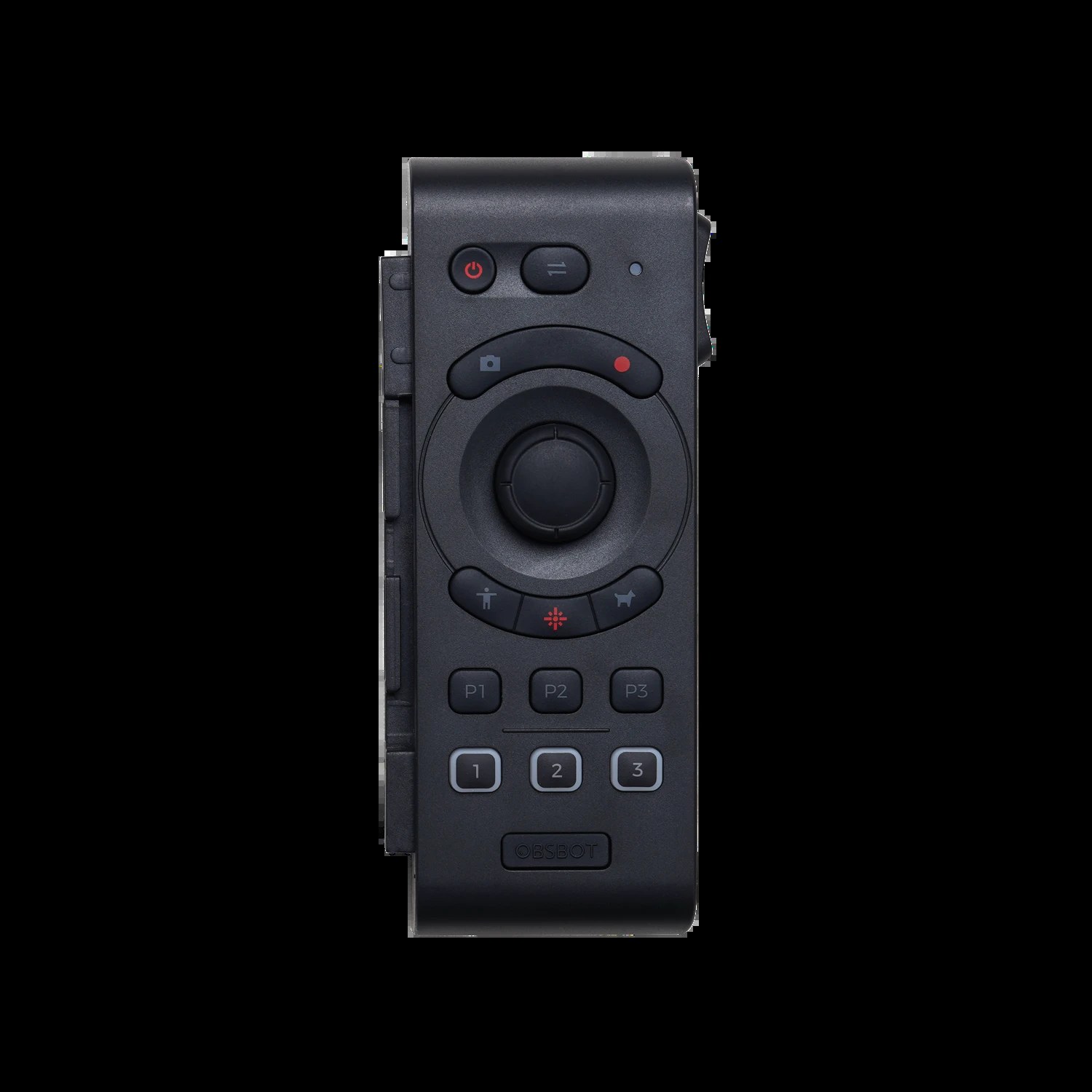
The OBSBOT app is your primary interface for controlling the Tail Air camera, managing presets, and fine-tuning tracking behavior. Unlike traditional PTZ cameras with separate control devices, the Tail Air uses your smartphone or tablet as the command center. This guide covers all app features and how to use them effectively.
Installing and Pairing the OBSBOT App
Download the OBSBOT app from the Apple App Store or Google Play Store. Create an account and log in. The app will search for OBSBOT cameras via Bluetooth and WiFi.
Power on your Tail Air. The app should detect it automatically. Follow the pairing process to establish a connection. Once paired, the app will show live video from the camera and provide access to all controls.
The Main Camera View
The app displays live video from the Tail Air in the center of the screen. Below the video, you’ll see control buttons for various functions. Around the video, virtual joysticks or arrow buttons provide pan and tilt controls.
A zoom slider typically appears on the right side of the video, allowing you to adjust magnification. Buttons for tracking, presets, and settings are usually accessible through tabs or menus at the bottom of the screen.
Manual Camera Controls
Use the virtual joystick or arrow buttons to pan and tilt the camera. The joystick usually provides smooth, proportional control—moving further from center creates faster movement.
The zoom slider adjusts the camera’s zoom. Slide up to zoom in for close-ups, slide down to zoom out for wide views. Zoom responds smoothly and is immediate, not requiring a second click or confirmation.
Practice moving the camera using these controls during your setup phase. You’ll develop muscle memory for how far to move the joystick to achieve the camera positioning you want.
Tracking Settings and Configuration
The OBSBOT app provides access to tracking configuration. Look for a tracking tab or menu option. You should see a toggle to enable or disable tracking, and options to adjust tracking behavior.
Tracking sensitivity is a key setting. Higher sensitivity makes the camera follow movements more quickly and aggressively. Lower sensitivity creates smoother, more gradual movement. For worship settings, try a moderate sensitivity that provides smooth tracking without being jerky.
Some apps allow you to select tracking mode (speaker tracking, face tracking, etc.). Choose speaker tracking for church services where you want the camera to focus on whoever is speaking.
Testing Tracking Settings
Before a live service, test your tracking settings with your actual speakers or musicians. Have them move around your stage while you watch the camera tracking on your app.
Adjust sensitivity based on what you see. If the camera moves too much or too quickly, reduce sensitivity. If it seems sluggish or misses movements, increase sensitivity.
Different services or speaker styles might require different settings. You can adjust settings anytime, even during a service if needed.
Creating and Saving Presets
Presets allow you to save specific camera positions and recall them with a single tap. Position the camera where you want it, then look for a “Save Preset” or similar button in the app.
Give your preset a descriptive name like “Wide Stage,” “Pulpit Close-up,” or “Worship Band.” Save it and it becomes available in your preset list.
Create presets for different scenes in your service. A typical service might have 5 to 8 presets: opening wide shot, speaker close-up, worship band, congregation shot, etc.
Recalling Presets During Broadcast
Your presets appear in a list or grid in the app. Tap any preset and the camera smoothly moves to the saved position. The movement usually takes 2 to 5 seconds, depending on how far the camera needs to move.
During your service, tap presets in the order you need them. Develop a rhythm and flow so that preset recalls happen at the right moments—usually during natural breaks or transitions in your service.
Managing Preset Library
As you use the camera more, you might create many presets. The app usually allows you to rename or delete presets if needed.
Keep your preset names consistent and clear. Names like “Pastor Main,” “Worship Band,” and “Congregation” are more useful than generic names like “Preset 1” and “Preset 2.”
Organize presets in the order you use them during your typical service. This makes it easier to recall them smoothly without thinking about which preset is next.
Remote Operation from a Distance
One advantage of app-based control is that you can operate the camera from anywhere in your facility. Your camera operator can position themselves where they have a good view of the broadcast output, even if they’re far from the camera.
The app communicates with the camera via WiFi or Bluetooth. The range is typically up to 50 to 100 feet, depending on obstacles and interference. For most church deployments, operating from your broadcast booth or sound booth works perfectly.
Switching Between Tracking and Manual Control
You can toggle between automatic tracking and manual control at any time. When tracking is on, the camera automatically follows your speakers. When you disable tracking, the camera stays in its current position until you manually move it or recall a preset.
This flexibility allows you to use automatic tracking for dynamic segments of your service (like sermon delivery) and switch to manual control or presets for other segments where you want specific framing.
Fine-Tuning Camera Position After Presets
Sometimes after recalling a preset, you want to make a small adjustment to the framing. Use the manual controls (joystick or arrow buttons) to fine-tune the position. The adjustment is temporary—the next time you recall the preset, it returns to the saved position.
If you want to save a modified version, create a new preset with a slightly different name rather than overwriting the original preset.
Troubleshooting App Connection Issues
If the app can’t find your camera, verify that both your phone and the camera are powered on and within WiFi range. Restart both devices and try pairing again.
If the connection is established but lags or is slow, move closer to your WiFi router or camera. Interference from other devices can degrade WiFi connection quality.
If the app keeps disconnecting, check that your WiFi network is stable. Ask your IT administrator to verify that the WiFi connection is strong and that no firewall is blocking communication between your phone and the camera.
Backup Control Methods
While the app is your primary interface, some OBSBOT cameras support alternative control methods through compatible control panels or software. Having a backup control method is useful if your phone battery dies or the app crashes during a service.
Discuss backup control options with your OBSBOT retailer when you purchase the camera.
Conclusion
The OBSBOT app transforms your smartphone into a powerful camera control center. With practice, you’ll develop proficiency in controlling the Tail Air, setting up and recalling presets, and fine-tuning tracking behavior for your specific worship environment. The combination of automatic tracking and manual app control provides flexibility that makes the Tail Air an excellent choice for churches.