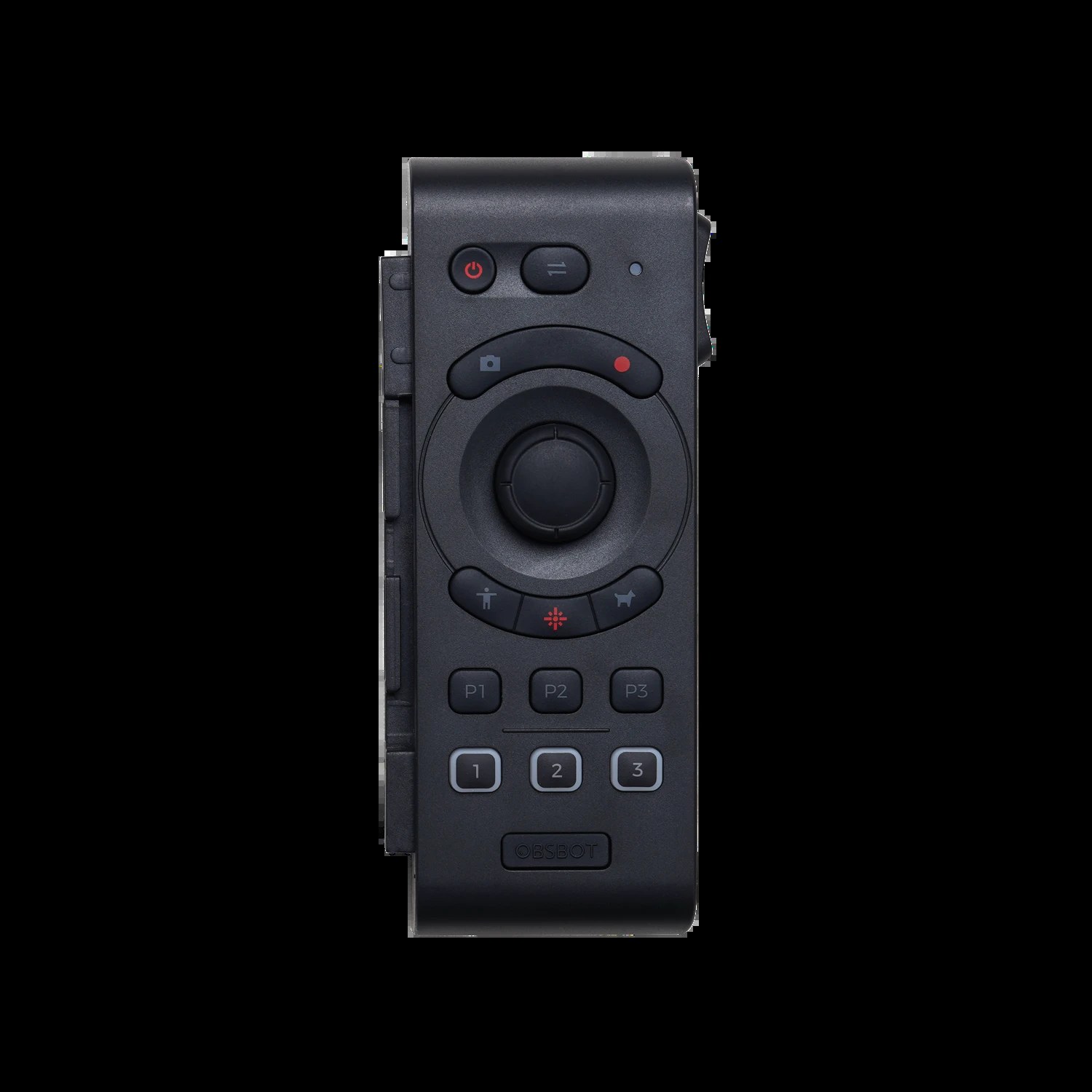
The OBSBOT Tail Air supports NDI output, allowing it to stream video over your network just like traditional NDI cameras. This makes it possible to use the Tail Air’s AI tracking capabilities in network-based broadcast workflows without needing USB cables running to your broadcast computer.
NDI Capability and Network Requirements
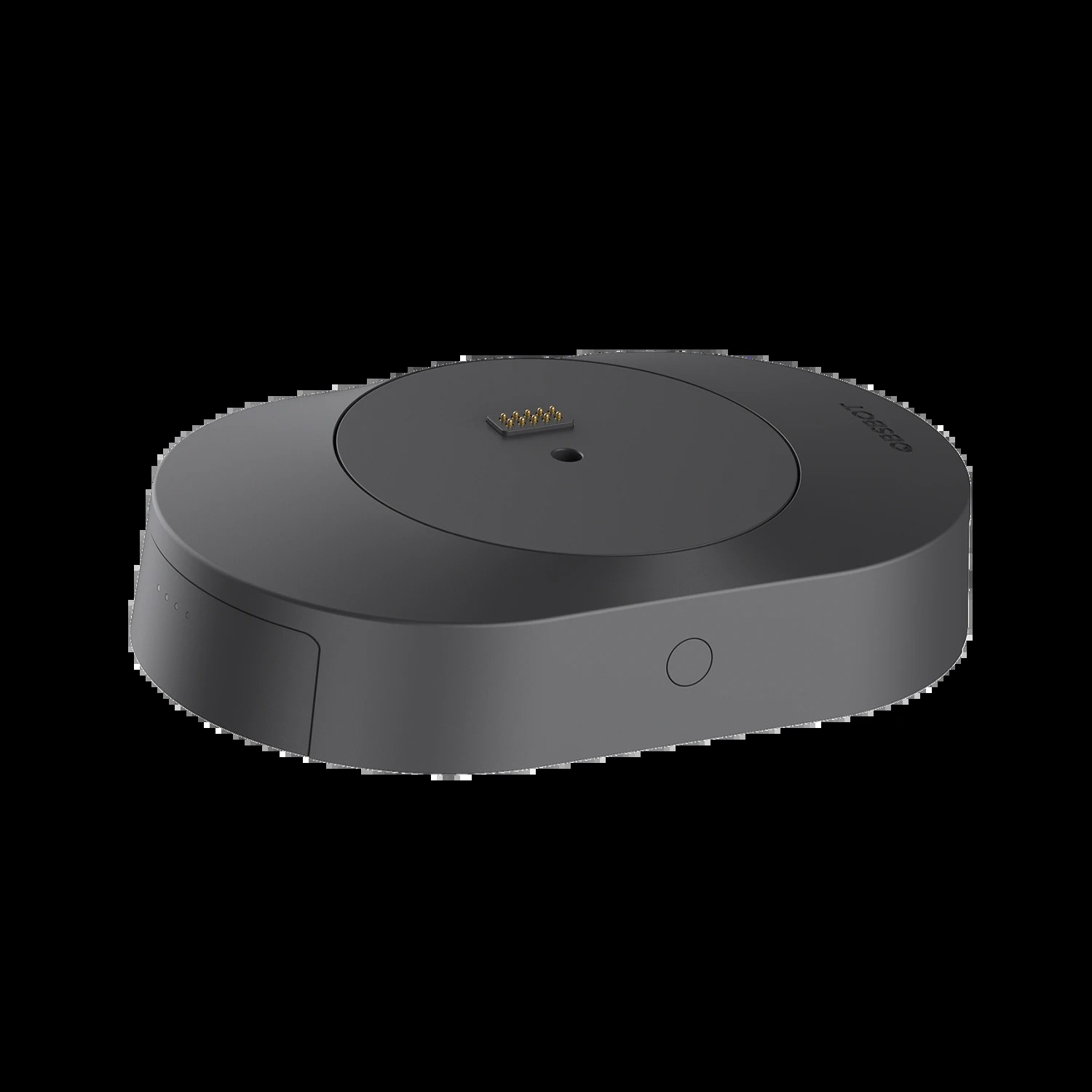
Some OBSBOT Tail Air models support NDI output natively. Verify that your model includes NDI before proceeding. Check the product documentation or the OBSBOT website to confirm NDI support.
Ensure your Tail Air is connected to your network via WiFi or Ethernet. The camera needs a stable network connection to broadcast NDI video reliably. WiFi works, but a wired connection provides better reliability for broadcast applications.
Enabling NDI on the Tail Air
Open the OBSBOT app and navigate to the settings or network configuration section. Look for NDI options. If available, enable NDI and set a descriptive source name like “Tail Air Main” or “Worship Tracking Camera”.
The source name is important—this is what appears in OBS when you look for available NDI sources. Choose something immediately recognizable to your team.
Some models also allow you to adjust NDI quality settings. Higher quality uses more bandwidth but provides better image fidelity. For most churches, the default settings work well.
Connecting to OBS Studio
Open OBS and add a new source to your scene. Select “Network Device Interface (NDI)”. If this option doesn’t appear, install the free NDI plugin for OBS from the NDI website.
In the NDI source dialog, your Tail Air should appear in the list by the name you configured. Select it and click OK. OBS will connect to the camera via NDI.
Video from the Tail Air should appear in your scene within a few seconds. The video will include the camera’s AI tracking, so the framing will move and adjust automatically based on what the camera is tracking.
Configuring Video Properties
Right-click on the NDI source in OBS to access properties. You can adjust bandwidth settings if available, but the defaults usually work well.
Resize the source on your canvas to fit your layout. You might want the Tail Air to fill your entire canvas, or you might include other elements alongside it.
Controlling AI Tracking Remotely
With the Tail Air streaming NDI to OBS, you control the camera through the OBSBOT app on your phone or tablet. The app provides access to tracking settings, manual camera controls, and preset recall.
You can adjust tracking sensitivity, manually pan or tilt, or switch to a preset without touching the OBS interface. This separation of concerns (app for camera control, OBS for scene management) works well for team-based productions.
Adjusting Tracking for Your Broadcast
As you watch the video in OBS, you can see the AI tracking in action. Watch how the camera follows your speakers. If the tracking seems too aggressive or too sluggish, adjust the tracking sensitivity in the OBSBOT app.
Test the tracking during rehearsal with your actual speakers and stage setup. Fine-tune the tracking sensitivity so that it provides smooth, professional-looking camera work without being distracting.
Using Multiple OBSBOT Cameras
If you have two OBSBOT Tail Air cameras, you can add both as NDI sources in OBS. Give each camera a unique name in its NDI settings so you know which is which.
With two tracking cameras, you can create dynamic multi-camera broadcasts where different cameras track different speakers or musical performers. This creates very engaging video.
Balancing Automatic and Manual Control
While AI tracking is powerful, sometimes you want manual control. You can toggle between tracking and manual mode in the OBSBOT app. When you want the camera to stop tracking and stay in a specific position, disable tracking and the camera will hold its current position.
Create presets for static shots that you want to recall during your broadcast. For example, a wide shot of your entire stage, or a close-up of the worship band. You can toggle between tracking and these presets throughout your service.
Network Bandwidth Considerations
Each OBSBOT Tail Air using NDI consumes bandwidth similar to other NDI cameras—approximately 100 to 150 megabits per second depending on resolution and quality settings.
If you’re running multiple NDI sources or the Tail Air alongside other network equipment, monitor your bandwidth. If video drops out or becomes choppy, reduce other network traffic or upgrade your network switch.
Troubleshooting NDI Connection Issues
If the Tail Air doesn’t appear in the NDI source list, verify that NDI is enabled in the OBSBOT app. Check that the camera has a stable network connection.
Power cycle the camera and restart OBS. Sometimes a fresh start resolves NDI discovery issues.
If video connects but appears frozen, check that your broadcast computer has adequate CPU resources. Reduce other applications running on your computer to free up processing power for OBS.
Recording NDI Streams
OBS can record the NDI stream directly to a file. This captures the camera’s video including all the AI tracking movement. You can later edit this recording or re-broadcast it for archived services.
Record to a location with adequate storage space. Broadcast-quality video consumes roughly 800 MB per minute of recording, so a one-hour service requires about 50 GB of storage.
Advanced Techniques
As you become comfortable with the Tail Air in OBS, explore advanced features. You can use NDI effects filters, apply color correction, or combine the Tail Air with other sources in creative layouts.
Some advanced churches use automation to trigger tracking mode and preset recalls at specific times, creating a fully automated broadcast flow.
Conclusion
The OBSBOT Tail Air’s NDI capability brings AI tracking to network-based broadcast workflows. The combination of automatic tracking and network distribution provides flexibility that traditional cameras can’t match. Your church broadcasts will benefit from the dynamic, professional-looking camera work that AI tracking enables.