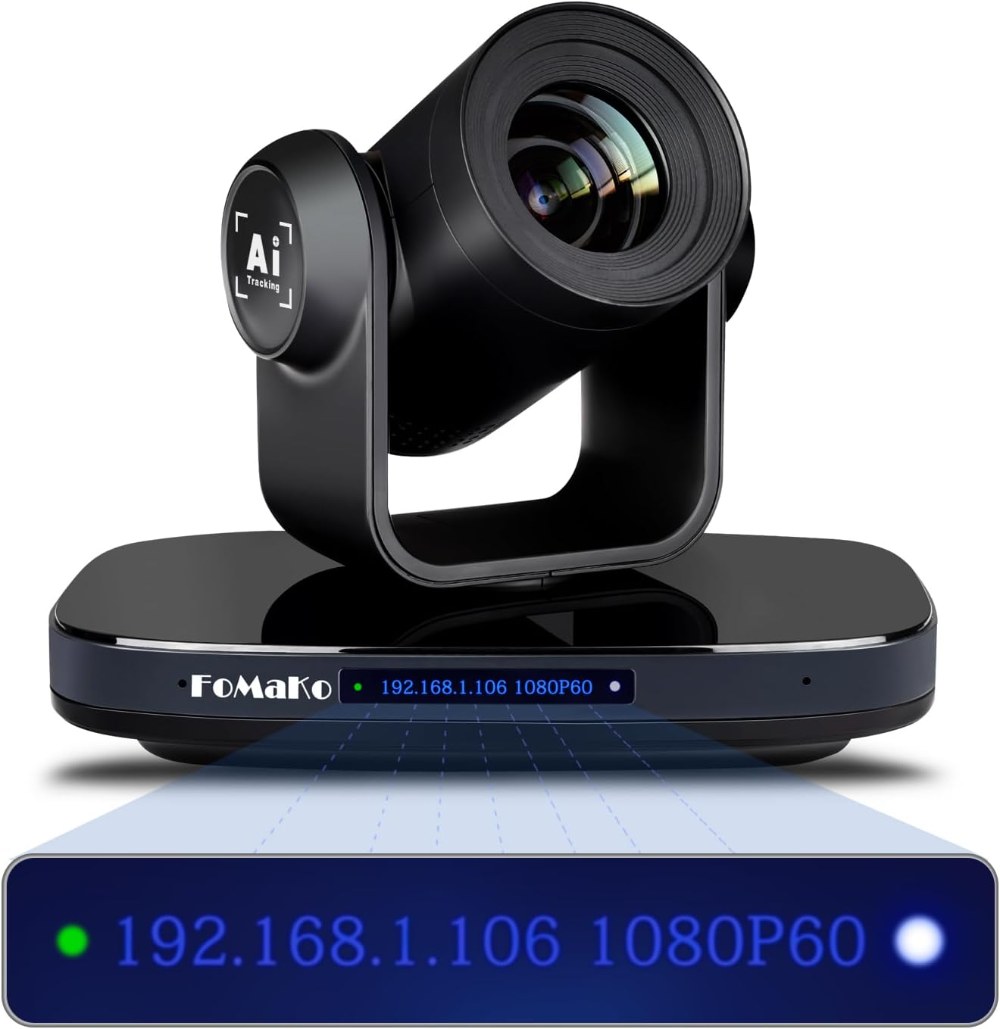
The FoMaKo FMK-30X is a professional-grade camera that generally performs reliably, but like any complex equipment, it occasionally needs troubleshooting. This guide covers the most common issues church AV teams encounter and practical solutions that don’t require professional service.
No Video Appearing on Monitor or Switcher
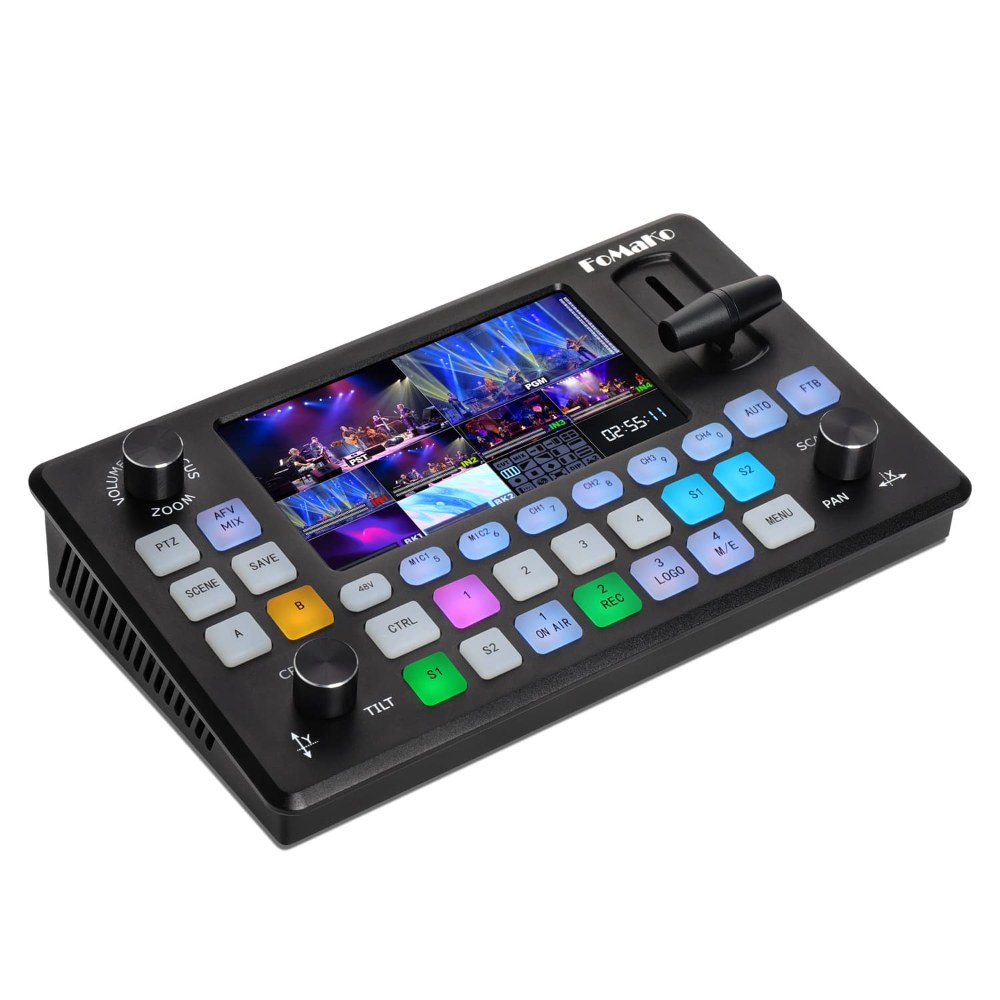
If you’ve connected the FMK-30X via HDMI or SDI but no video appears, start with basic checks. Verify that the camera is powered on by checking the indicator lights on the back panel. If no lights are visible, check that the power supply is properly connected to both the camera and the outlet.
Verify that the correct input is selected on your monitor or switcher. Many devices have multiple inputs, and it’s easy to be looking at the wrong one. Try switching to other inputs and back to confirm the correct input is selected.
Try a different cable. HDMI and SDI cables can fail, especially if they’ve been bent sharply or stressed. If you have a spare cable, use it to test if the original cable is faulty.
Power cycle the camera by turning off the power supply, waiting 10 seconds, and turning it back on. Let the camera fully boot before testing video output again. During the boot sequence, the camera performs initialization routines that sometimes resolve connection issues.
If you’re using HDMI, try a different HDMI input on your switcher. Some switcher inputs have higher-quality circuits than others. If video appears on one input but not another, the original input on your switcher might be faulty.
Video Appears But Has Quality Issues or Artifacts
If video is connected but appears with strange colors, horizontal lines, or other artifacts, the video format might be mismatched. Log into the camera’s web interface and check the output format. Verify that it matches what your switcher expects.
If your switcher supports multiple video formats (1080p, 720p, 1080i, etc.), try changing the camera’s output format to match what the switcher supports. After making changes, save them and allow the camera a few seconds to restart its output.
If the image appears distorted or compressed, the cable might be failing. Try a different cable. Sometimes a cable that conducts video signal but is degraded produces video that looks wrong rather than no video at all.
If you’re using a very long HDMI cable (over 40 feet), try using an active HDMI repeater or extender. Long HDMI runs sometimes produce artifacts because the signal degrades over distance. An active extender regenerates the signal and can fix this.
Pan-Tilt Motors Not Responding or Moving Slowly
If the pan-tilt mechanism doesn’t respond to control commands, verify that you’re using the correct control method. If you’re controlling through the web interface, ensure you’re logged in and accessing the PTZ control section.
If the camera moves but very slowly or with noticeable hesitation, the motors might be drawing too much current and encountering thermal limits. Try reducing the pan or tilt speed if your interface provides speed controls. Allow the camera to cool for a few minutes and try again.
Power cycle the camera. Sometimes the pan-tilt system gets into a state where it doesn’t respond correctly. A full power-off and power-on cycle often resolves this.
Visually inspect the pan-tilt mechanism for any visible obstructions. The pan-tilt head should move freely without resistance. If there’s resistance when you try to move it by hand while powered off, something might be stuck. Power off immediately and clear the obstruction.
Zoom Issues or Inability to Focus
If the zoom doesn’t respond or moves very slowly, the lens mechanism might be sticking. Power off the camera and try moving the zoom ring by hand to ensure it moves smoothly. Try zooming all the way out, then all the way in while the camera is powered on.
If the zoom is sluggish but does respond, the lens motor might be wearing or need lubrication. Contact the manufacturer or an authorized service center if the zoom continues to deteriorate.
If the image is always blurry regardless of zoom level, the autofocus might be struggling. Some cameras allow you to switch between autofocus and manual focus. Try toggling focus mode if available. If the image is still blurry in manual focus, the lens might need adjustment by a service technician.
If the image is in focus at certain zoom levels but blurry at others, the lens elements might be misaligned. This is a service issue that requires professional repair.
Preset Not Recalling Correctly
If you click a preset button but the camera doesn’t move to the saved position, verify that the preset was actually saved. Try repositioning the camera and saving the preset again. You might have accidentally saved a blank preset.
If the preset moves the camera partially but not to the correct position, the preset might have been corrupted or partially overwritten. Delete the preset and save it again from scratch.
If presets work but are very slightly off (a few inches in the frame), this is usually acceptable and requires no action. Very minor positional differences aren’t visible in broadcasts.
Network Connectivity Issues
If you can’t access the camera’s web interface through your browser, verify that the camera is powered on and connected to the network with an Ethernet cable. Check the network indicator light on the back of the camera.
Verify that your computer is on the same network as the camera. If you have a router, both devices should be connected to the same router or network switch.
Try rebooting the camera and your computer. Sometimes network connectivity issues are resolved by a simple restart of both devices.
If you still can’t access the web interface, try connecting the computer and camera directly with an Ethernet cable, bypassing any switches. If this works, the problem is likely with your network infrastructure, and you should consult your IT administrator.
Audio Issues
The FMK-30X outputs video but might not include audio by default. If you need audio from the camera (which is rare in most church setups where audio comes from a separate audio system), check the camera’s settings to ensure audio output is enabled.
Most churches keep audio completely separate from video, with audio coming from a mixing console. The FMK-30X is primarily a video device and isn’t typically relied upon for audio.
Overheating
The FMK-30X has thermal protection that throttles performance if the camera becomes too hot. If the camera seems to be running slowly or has reduced performance after extended use, it might be thermally limited. Allow the camera to cool in a well-ventilated location for 15 to 20 minutes.
Ensure the camera’s ventilation ports aren’t blocked by cables or dust. Clean dust from the ventilation areas with a soft brush or compressed air if needed.
If the camera frequently overheats even in normal use, the room might be too warm, or there might be internal component issues. Contact the manufacturer if overheating continues.
Conclusion
Most FoMaKo FMK-30X issues can be resolved with basic troubleshooting and don’t require professional service. Document what you’ve tried so that if you do need to contact support, you have a clear record. With proper care and maintenance, your FMK-30X will provide years of professional performance for your church productions.