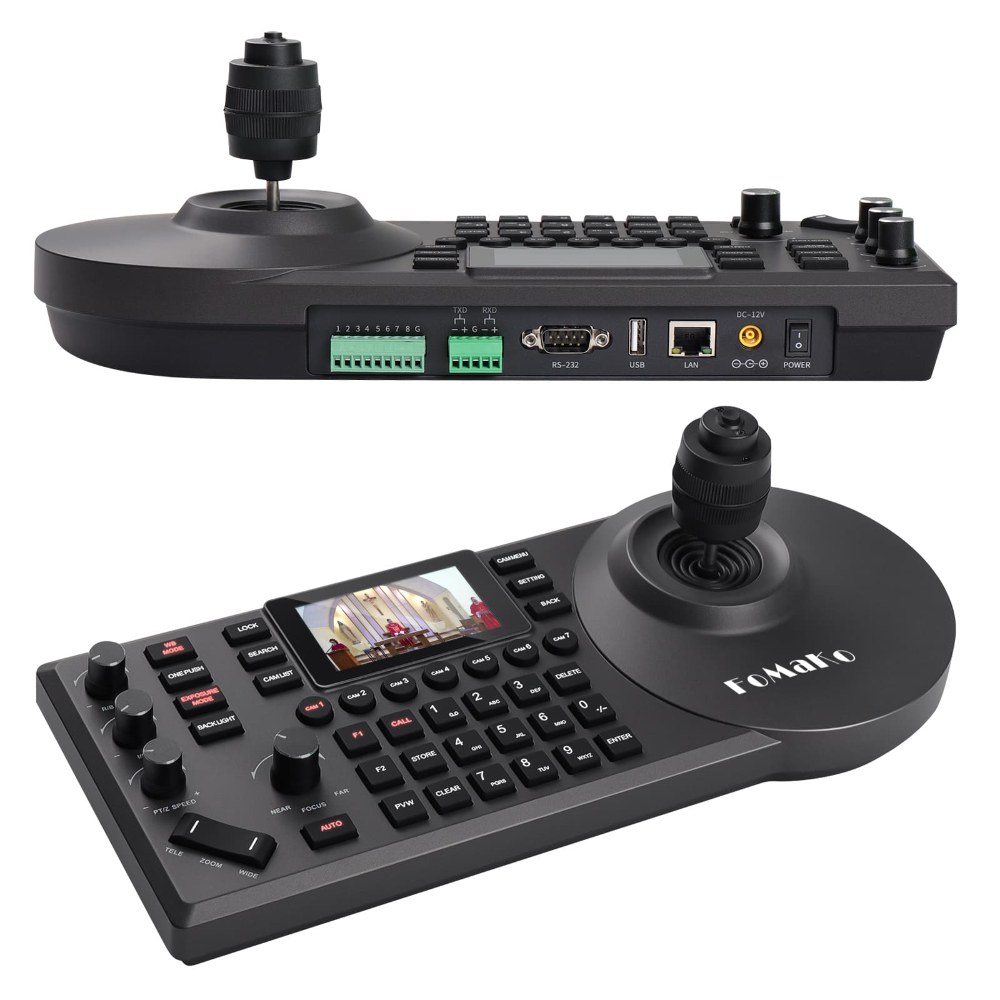
The FoMaKo FMK-20X represents a professional step up from basic PTZ cameras, offering 20x optical zoom quality and multiple output options that let it fit into various church broadcast workflows. Unlike cameras with digital zoom, the optical zoom on the FMK-20X maintains image clarity even at full magnification. This guide takes you through unboxing, power-up, and initial configuration so you can get this camera streaming in your church.
Unboxing and Inventory Check
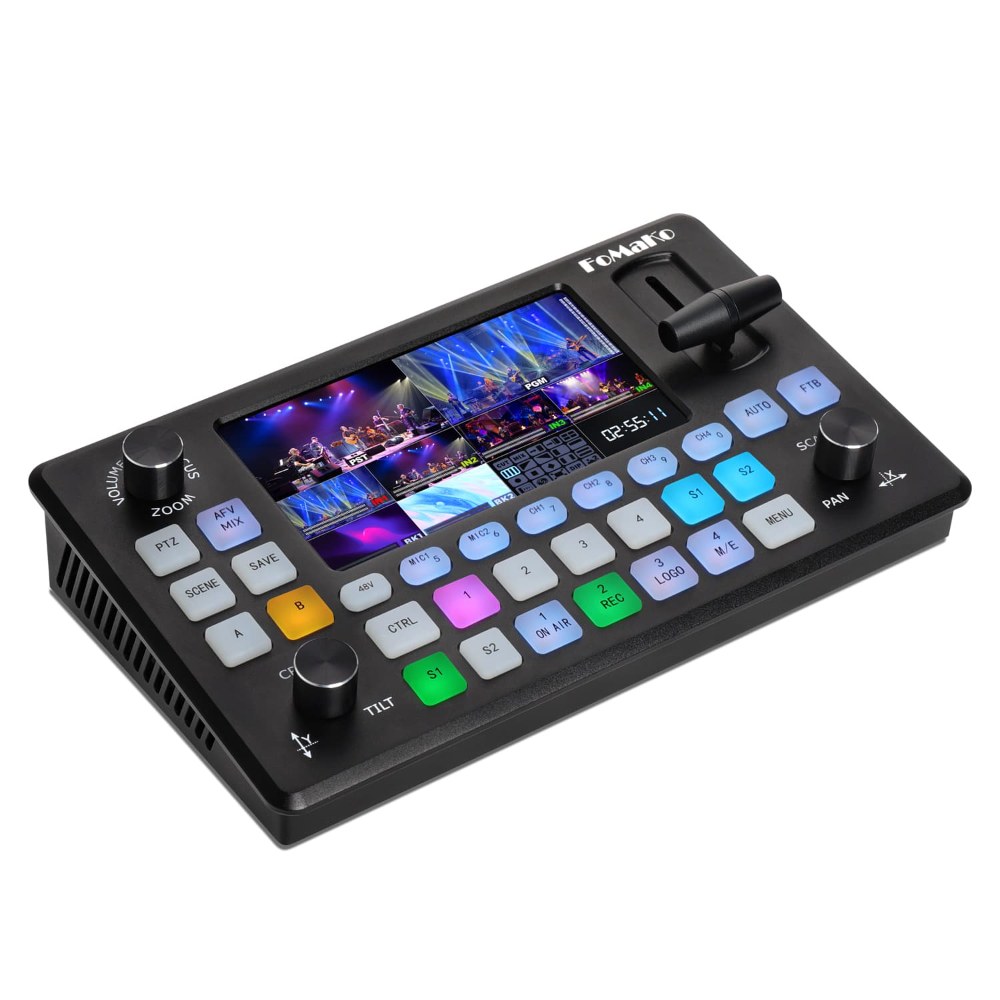
When your FMK-20X arrives, carefully remove it from the packaging and inspect for any damage sustained during shipping. The camera should come complete with the camera body, a power supply with international plug adapters, an Ethernet cable for network connectivity, an HDMI cable, and documentation. Verify that nothing appears scratched, cracked, or loose before proceeding.
Set the camera on a stable work table away from the edge so it won’t fall if bumped. The FMK-20X is heavier than entry-level PTZ cameras, so choose a surface that can safely support its weight. Before mounting it permanently, you’ll want to test all connections and verify the basic operations work as expected.
Initial Power-Up and Startup Sequence
Connect the power supply to the camera and plug it into a wall outlet. The FoMaKo should begin booting up within a few seconds. You’ll see indicator lights illuminate on the back panel, showing power status, network connection status, and other information. The pan-tilt mechanism will move slightly as it performs its initialization routine.
Allow the camera to fully boot—this typically takes 15 to 20 seconds. During this time, you might hear small motor movements and see the zoom lens move slightly. This is normal behavior and indicates that the camera is performing self-checks. Do not attempt to control the camera manually until the lights have settled into their normal operating pattern.
Once the startup sequence is complete, you should see steady indicator lights indicating the camera is ready. Power-on complete lights are usually green or solid, rather than blinking.
Network Connection Setup
The FMK-20X is designed as a networked camera, so your first major configuration task is connecting it to your church network. Plug the Ethernet cable into the port on the back of the camera and the other end into an available port on your network switch. Make sure you’re using a port on your main network switch, not a guest network or separate VLAN, unless your IT team has specifically set up a dedicated network segment for video equipment.
The camera will automatically request an IP address via DHCP. Most church networks have DHCP enabled by default, so this should happen without any intervention from you. The network status light on the back of the camera should change from blinking to solid or change colors, indicating a successful connection.
Finding and Accessing the Web Interface
To configure the camera beyond basic power-up, you need to access its web interface. On a computer connected to the same network as the camera, open a web browser. You need to find the camera’s IP address first. If your network has a router with a connected devices list, you can look there. Alternatively, use a free network scanning tool like Advanced IP Scanner to find all connected devices and identify the FoMaKo by its MAC address (printed on the back of the camera).
Once you have the IP address, type it into your browser’s address bar. You should see a login page for the FoMaKo web interface. The default credentials are typically admin with the password admin, though your documentation should confirm this. Log in to proceed.
We strongly recommend changing the default password immediately after first login. Access the user management or settings section, find the password change option, and create a unique password. Make a note of this password in a secure location, as you’ll need it if you need to access the camera’s settings again.
Configuring NDI Settings
Once you’re logged into the web interface, look for Network settings or NDI configuration options. The FMK-20X supports NDI output, which is ideal for modern church streaming workflows. In the NDI settings, you’ll see options to enable or disable NDI and to name the NDI source.
Give your camera a clear, descriptive name that your team will recognize immediately, such as “Sanctuary Main PTZ” or “Stage Camera 1”. Avoid special characters and keep the name relatively short. This is the name that will appear in your OBS or vMix software when you add the camera as an NDI source.
Enable NDI in the settings and save your configuration. The camera will restart its network services, and you might lose connection to the web interface briefly. This is normal—just refresh your browser after a few seconds and you should reconnect.
Configuring HDMI Output
The FMK-20X also offers HDMI output, making it compatible with traditional video switchers. If you plan to use HDMI instead of NDI, or in addition to NDI, you need to verify that HDMI output is enabled. Look for HDMI or video output settings in the web interface.
Verify that the camera is set to output video at a resolution your switcher can accept. Most modern switchers accept 1080p at 59.94 frames per second, which is the FMK-20X’s native output format. If your switcher is older and requires 720p or 1080i, you can usually change this in the camera’s output settings.
USB Connectivity for Computer-Based Streaming
If you’re using OBS Studio or another computer-based streaming solution without a switcher, the FMK-20X can connect via USB as well. USB provides video and control signals over a single cable, simplifying your installation. Check that you have the appropriate USB drivers installed on your broadcast computer.
You don’t need to configure anything special in the camera to use USB—just make sure your computer recognizes the camera when you plug in the USB cable. Drivers should install automatically on Windows, though you might need to visit the FoMaKo support website if automatic installation doesn’t work.
Verifying Video Output
With the camera connected via whichever method you’ve chosen (NDI, HDMI, or USB), verify that video is actually being output. If you’re using HDMI, connect it to a monitor or switcher and verify you see video. If you’re using NDI, open OBS or vMix and look for the camera in the NDI source list. If you’re using USB, connect to your computer and verify the camera appears as a video device.
Video should appear immediately. If it doesn’t, check that all cables are firmly connected. Power cycle the camera by turning off the power supply, waiting 10 seconds, and turning it back on. After the camera reboots, video should appear.
Testing Pan-Tilt and Zoom
Test the pan-tilt and zoom functions using the web interface or control software. The camera should move smoothly in all directions. Zoom in to verify that the optical zoom is functioning and that the image remains sharp at all zoom levels.
Pan all the way left, then all the way right, to check the full pan range. Do the same for tilt, moving up and down. The camera should move smoothly without jerking. If you notice any grinding sounds or unusual resistance, power off the camera and inspect the pan-tilt mechanism for obstructions.
Conclusion
Your FoMaKo FMK-20X is now powered on, connected to your network, and ready for more detailed configuration. The next steps involve setting up presets, fine-tuning your specific broadcast output format, and planning your permanent mounting location. Refer to additional articles in this knowledge base for those topics.