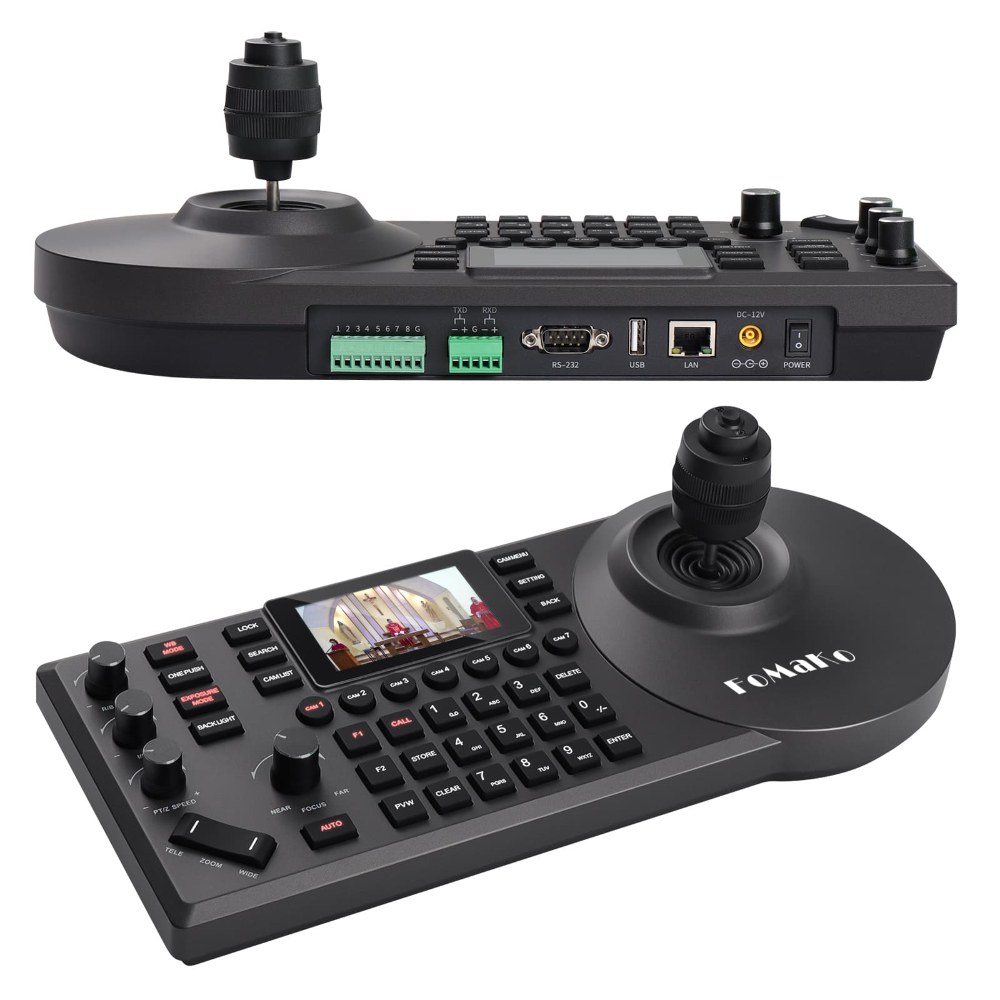
The FoMaKo FMK-20X’s web interface is where you handle most configuration tasks, from NDI setup to output format selection to preset management. Understanding how to navigate the web interface efficiently saves time and helps you troubleshoot problems. This guide walks through the major sections of the interface so you can find what you need quickly.
Accessing the Web Interface Safely
To access the camera’s web interface, open a browser on a computer connected to the same network as the camera. Type the camera’s IP address into the address bar. If you don’t know the IP address, use a network scanning tool like Advanced IP Scanner to find it, or check your router’s connected devices list.
The login page will appear. The default username is typically admin with the default password also being admin, but verify this with your documentation. After logging in, you should change the default password to something unique to secure your camera from unauthorized access. Your IT team might have specific password requirements, so check with them before creating a new password.
Modern browsers might show a security warning when you access the camera’s web interface, especially if it uses a self-signed SSL certificate. This is normal for network devices and doesn’t indicate a real security problem. You can safely proceed past the warning.
Understanding the Main Dashboard
Once logged in, you’ll see the main dashboard or home page of the web interface. This typically displays live video from the camera and provides quick access to major settings sections. The layout varies depending on the firmware version, but most dashboards have a navigation menu on the left side with major categories.
Take a moment to familiarize yourself with the menu structure. You’ll typically see sections for System settings, Network configuration, NDI settings, Video output settings, PTZ control, and Presets. Knowing where things are located helps you navigate efficiently when you need to make changes.
Network Configuration Section
The Network section is where you configure how the camera connects to your church network. Here you can view the camera’s current IP address, set static IP addressing, and configure gateway and DNS settings. If you want to assign a static IP instead of relying on DHCP, this is where you make that change.
For most church setups, DHCP works fine, and you don’t need to change anything here. However, if you want to guarantee the camera always has the same IP address for bookmarking the web interface or for integrating with control systems, configuring a static IP is advisable. Discuss IP addressing with your IT team to ensure you choose an address that won’t conflict with other devices.
The Network section also typically shows the camera’s MAC address, which is useful if you need to reserve a DHCP address or identify the camera in your network infrastructure.
NDI Configuration
The NDI section is where you enable NDI output and configure the NDI source name. If NDI is disabled, you’ll see an option to enable it. Turn it on and save your changes. The camera will briefly restart its network services.
Enter a descriptive NDI source name here. This is what appears in OBS, vMix, and other broadcast software. Make it something your team will immediately recognize, like “Sanctuary Camera 1” or “Main PTZ”. Once you’ve set the NDI name and verified NDI is enabled, save and move on.
Some FoMaKo models include NDI bandwidth optimization options. These control how much network bandwidth the camera uses. For most churches, the default settings provide an excellent balance between quality and bandwidth usage. Only adjust these if you’re experiencing congestion or network issues.
Video Output Configuration
In the Video Output section, you configure what resolution and frame rate the camera will output on its HDMI and NDI connections. The FMK-20X typically defaults to 1080p at 59.94 frames per second, which is excellent for most church applications.
If you have an older switcher or broadcast setup that requires 720p or a different frame rate, you can change the output format here. Just make sure you select a format that your broadcast equipment supports. After making changes, save them and allow the camera a few seconds to apply the new settings.
The Color Space setting in this section determines whether the camera outputs using BT.709 color space (standard for video) or another format. For most churches, BT.709 is correct and you should not change this unless you have a specific reason to do so.
PTZ Control Interface
Many FoMaKo models include a web-based PTZ control interface that lets you control the pan, tilt, and zoom remotely through your browser. Look for a section labeled “PTZ Control,” “Camera Control,” or similar.
This interface usually displays live video and has arrow buttons or sliders to control pan and tilt. You’ll also see zoom controls, typically as a slider or buttons for zoom in and out. Use this interface to test the camera’s movement and to verify that nothing is physically obstructed.
This PTZ control interface is useful for testing and preset setup, but during actual broadcasts, you’ll typically control the camera through your broadcast software (OBS, vMix) or a dedicated control panel for better workflow integration.
Preset Management
The Preset section is where you save and manage camera positions. Some FoMaKo models allow you to save presets directly through the web interface, which is convenient for setup. To save a preset, first position the camera where you want it using the PTZ controls, then click the “Save Preset” or similar button.
You’ll be asked to select a preset number and optionally give it a descriptive name. Save your presets with meaningful names so you remember what each one is for. During your Sunday services, you can recall these presets to quickly move the camera to predetermined shots.
System Information and Firmware Updates
The System Information section shows details about your camera, including the firmware version, hardware information, and system status. Note the current firmware version and check the FoMaKo website periodically to see if newer firmware is available.
If a firmware update is available and the firmware changelog indicates important fixes or features, you might want to update. Firmware updates are typically performed through the web interface using an “Update Firmware” or “Upgrade” button. Follow the on-screen instructions carefully—don’t interrupt a firmware update once it’s started, as this can corrupt the camera.
Before updating firmware, document your current settings, especially NDI name and any custom network configuration. Most firmware updates preserve your settings, but it’s good to have a backup in case something goes wrong.
Security Settings
The Security or Administration section is where you manage user accounts and change your login password. The default admin account is the only account initially, but you can create additional user accounts with limited permissions if you want multiple people to have web interface access.
Change the default password immediately after setting up your camera. Use a strong password that’s at least 12 characters long and includes a mix of letters, numbers, and symbols. Document this password in a secure location that your AV team can access if needed.
Troubleshooting and Support
Many web interfaces include a Diagnostics or Support section that shows system logs and can help with troubleshooting. If you’re experiencing problems, check here for error messages or warnings that might indicate what’s wrong. You can often export logs to share with technical support if you need professional help.
Documentation and Record Keeping
As you configure your FMK-20X, take screenshots of important settings pages. Create a document that records your configuration choices, static IP address if used, NDI source name, preset positions, and any other custom settings. This documentation becomes invaluable if you need to reconfigure the camera later or if something goes wrong.
Conclusion
The FoMaKo FMK-20X web interface provides comprehensive control over every aspect of the camera’s operation. By taking time to understand the major sections and settings, you can configure the camera efficiently and troubleshoot problems effectively. Most churches only need to visit the web interface occasionally for adjustments or maintenance, but having a good understanding of its capabilities ensures you can handle those tasks when needed.