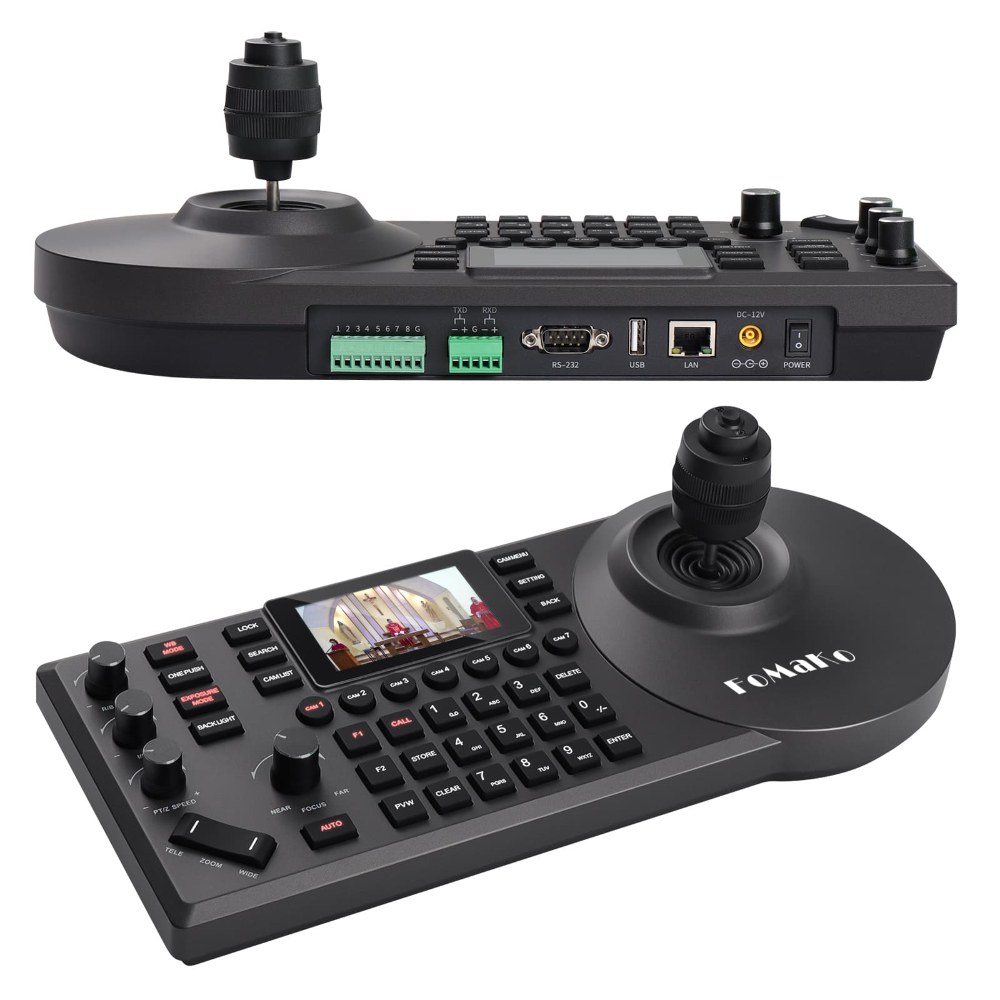
Many growing churches eventually add a second or third PTZ camera to get better coverage of their sanctuary and stage. Multiple cameras create more complex network and control requirements than a single camera. This guide covers bandwidth planning, IP address management, network configuration, and practical workflow tips for churches running multiple FoMaKo FMK-20X cameras.
Assessing Your Network Bandwidth
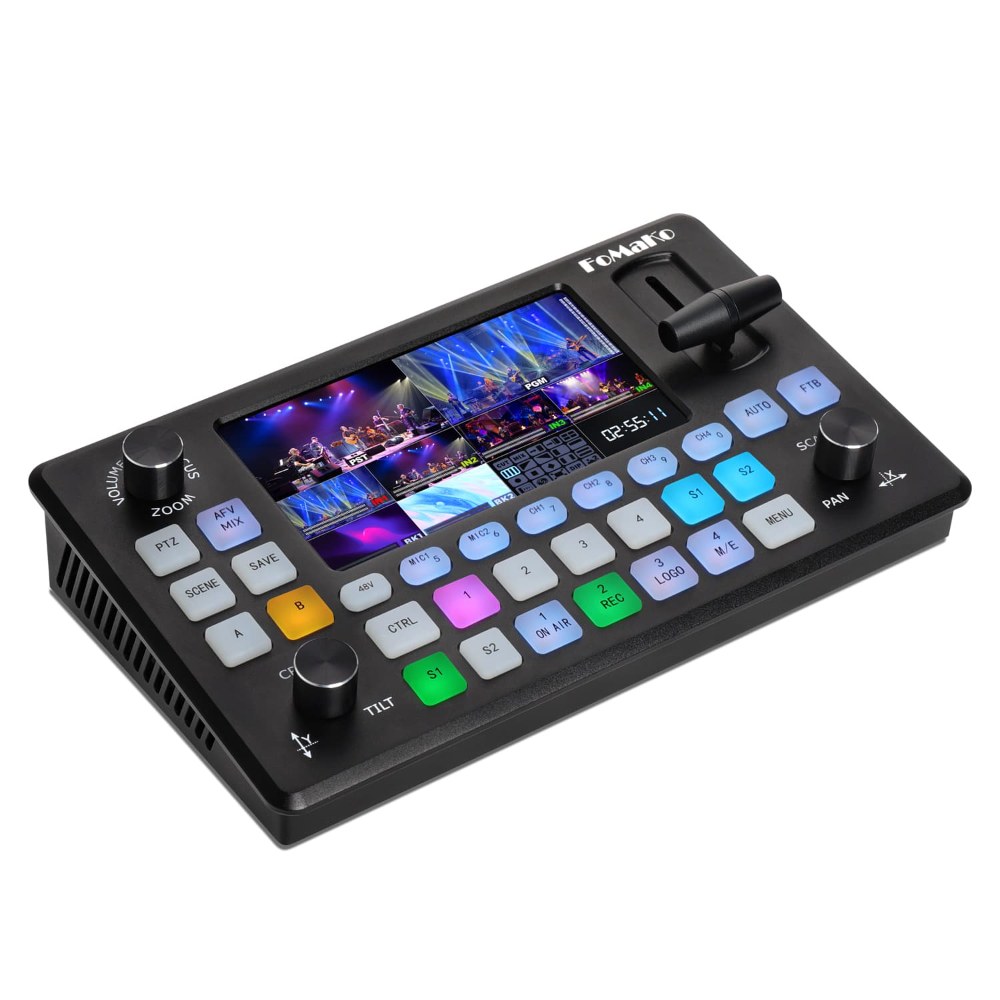
Before you add cameras, evaluate your current network infrastructure. Each FMK-20X using NDI consumes roughly 150 megabits per second. A gigabit network (1000 Mbps) can theoretically handle six cameras, but real-world networks rarely perform at theoretical maximum. Account for other network traffic like WiFi, office computers, internet usage, and headroom for network inefficiencies.
A practical rule of thumb is that a gigabit network can reliably handle three to four simultaneous NDI cameras while maintaining adequate bandwidth for other network activities. If you’re planning to add a second camera, verify with your IT team that your network switch has capacity. If you’re planning three or more cameras, strongly consider upgrading to a managed switch with Quality of Service (QoS) settings that can prioritize video traffic.
IP Addressing Strategy for Multiple Cameras
When you have multiple cameras, assigning static IP addresses becomes even more important. With static IPs, you always know where to find each camera in the web interface, and your broadcast software configuration remains stable even after network reboots.
Work with your IT team to reserve a block of IP addresses for your video equipment. For example, you might reserve 192.168.1.100 through 192.168.1.110 for your PTZ cameras. Assign the first FMK-20X to 192.168.1.100, the second to 192.168.1.101, and so on. Document these assignments in a spreadsheet that your AV team maintains. Include the physical location of each camera, its NDI source name, and any other relevant information.
If your church uses DHCP reservations instead of manual static IP configuration, work with your IT administrator to set up reservations for your cameras. This provides some of the benefits of static IP while still using DHCP.
Naming Conventions for Multiple NDI Sources
With multiple cameras, consistent naming is critical for avoiding confusion during broadcasts. Develop a naming scheme that immediately tells your operator which physical camera each NDI source represents. Good naming schemes include location-based names like “Sanctuary Left,” “Sanctuary Center,” “Sanctuary Right,” or “Stage Camera 1,” “Stage Camera 2,” etc.
Avoid generic names like “Camera 1” and “Camera 2” because if something goes wrong and cameras are unplugged or moved, you won’t know which name corresponds to which physical location. Document your naming scheme in your system documentation so new team members understand it immediately.
Network Switch Configuration and Optimization
A regular unmanaged gigabit switch works for small deployments, but once you have multiple cameras, invest in a managed switch. Managed switches allow you to enable Quality of Service (QoS), which prioritizes video traffic over less important network activities like web browsing.
When configuring QoS, set it to prioritize traffic from your camera IP addresses and your broadcast computer. This ensures that even if someone is streaming video or downloading large files elsewhere on the network, your PTZ cameras and broadcast equipment get the bandwidth they need.
If your church has a dedicated IT person or network administrator, ask them to review your network configuration and enable QoS on your switch. This is a moderately advanced task, but it significantly improves the reliability of multi-camera setups.
VLAN Considerations for Larger Deployments
Some churches with larger, more complex networks use Virtual LANs to segregate different types of traffic. If your church uses VLANs, ensure that all your cameras and your broadcast computer are on the same VLAN, or that your VLANs are configured to communicate with each other.
Ask your IT administrator to place your video equipment on a dedicated AV VLAN if one exists, or to ensure inter-VLAN routing is enabled so your cameras and broadcast computer can communicate. This is a technical conversation, but it’s important if you’re experiencing mysterious NDI discovery problems.
Control and Preset Strategy for Multiple Cameras
With multiple cameras, managing presets becomes more complex. You might have five presets on each of three cameras, totaling 15 presets to recall during your service. This is manageable but requires organization.
Create a control panel or worksheet that documents which camera and preset combination corresponds to each shot in your service. For example: “Worship song opening: Camera 2 Preset 3 (Wide Stage),” “Sermon opening: Camera 1 Preset 2 (Pulpit Close-up),” etc. Your camera operator uses this worksheet to know which buttons to click and in what order.
Some churches with sophisticated setups use control software that can send commands to multiple cameras simultaneously, or that can recall a “scene” that positions all cameras at preset locations at once. This advanced setup is beyond the scope of this article, but it’s worth exploring as your system grows.
Managing Network Cable Runs
With multiple cameras, cable management becomes more important. Plan your cable routes so Ethernet cables from multiple cameras converge at your switch without creating a tangled mess. Use cable trays, conduit, or organized cable management to keep things neat.
Document your cable runs in a diagram or notes so that if a cable is accidentally disconnected, you know which camera it belongs to. Label each cable at both ends with the camera location and camera name.
Power Management and Backup Power
Multiple cameras draw more total power than a single camera. If you’re using the standard power supplies that came with your cameras, ensure that all outlets you’re using can handle the total power load. Never plug multiple cameras into a single power strip that wasn’t designed for the load.
If power reliability is important to your church, consider installing an uninterruptible power supply (UPS) or backup power system that can keep your cameras and network equipment running during brief power outages. A UPS with 30 minutes to 1 hour of backup time is often sufficient for churches in areas with stable power.
Testing Multi-Camera Deployments
Before you rely on a multi-camera setup for a Sunday service, thoroughly test it with all cameras running simultaneously. Add all three cameras as NDI sources in OBS or vMix. Verify that you can switch between cameras smoothly and that video from each camera is clear and stable.
Have one person operate the cameras while another person monitors the broadcast output to catch any problems. Test your preset recalls to ensure that each camera moves to the correct position when you click the preset button. Check that network traffic is stable and that no cameras experience dropout.
Disaster Recovery and Documentation
Document your multi-camera setup thoroughly. Create a network diagram showing the IP addresses of each camera, the location of each camera, and how they connect to your switch. Include NDI source names and preset assignments. Store this documentation where your AV team can access it easily.
If something goes wrong and you need to reconfigure the system, having comprehensive documentation makes the recovery process much faster. If you’re the only person who knows how the system works, make sure your documentation could allow someone else to restore it if you’re unavailable.
Conclusion
Multiple FoMaKo FMK-20X cameras give your church professional multi-camera production capability. With proper network planning, IP addressing strategy, and control organization, managing multiple cameras becomes routine. Many churches find that a three-camera setup provides excellent coverage of the sanctuary and stage while remaining manageable for smaller volunteer teams.