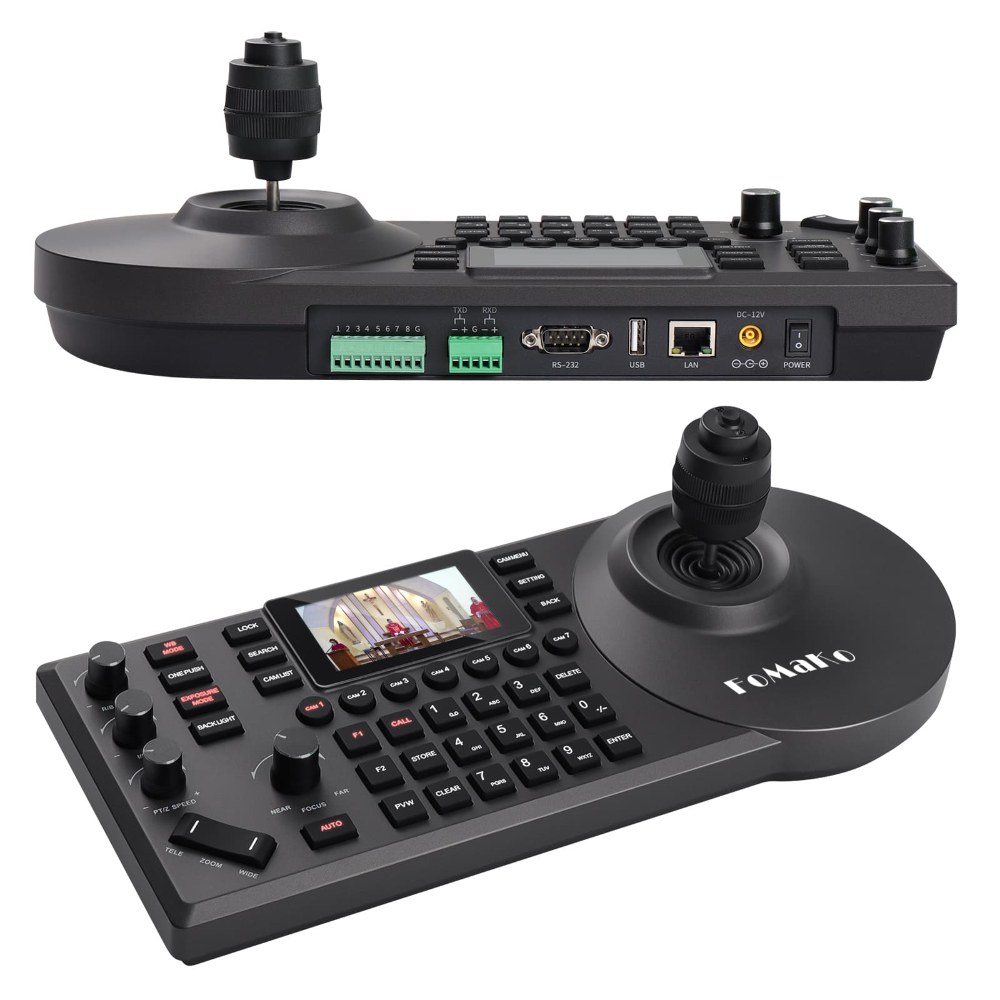
The FoMaKo FMK-20X’s NDI capability is one of its biggest strengths for church production. NDI allows the camera to send broadcast-quality video over your existing network without needing separate HDMI or SDI cables running across your sanctuary. Once your camera is configured for NDI and connected to your network, adding it to OBS or vMix is straightforward. This guide covers the complete NDI setup and integration process.
Understanding NDI Network Requirements
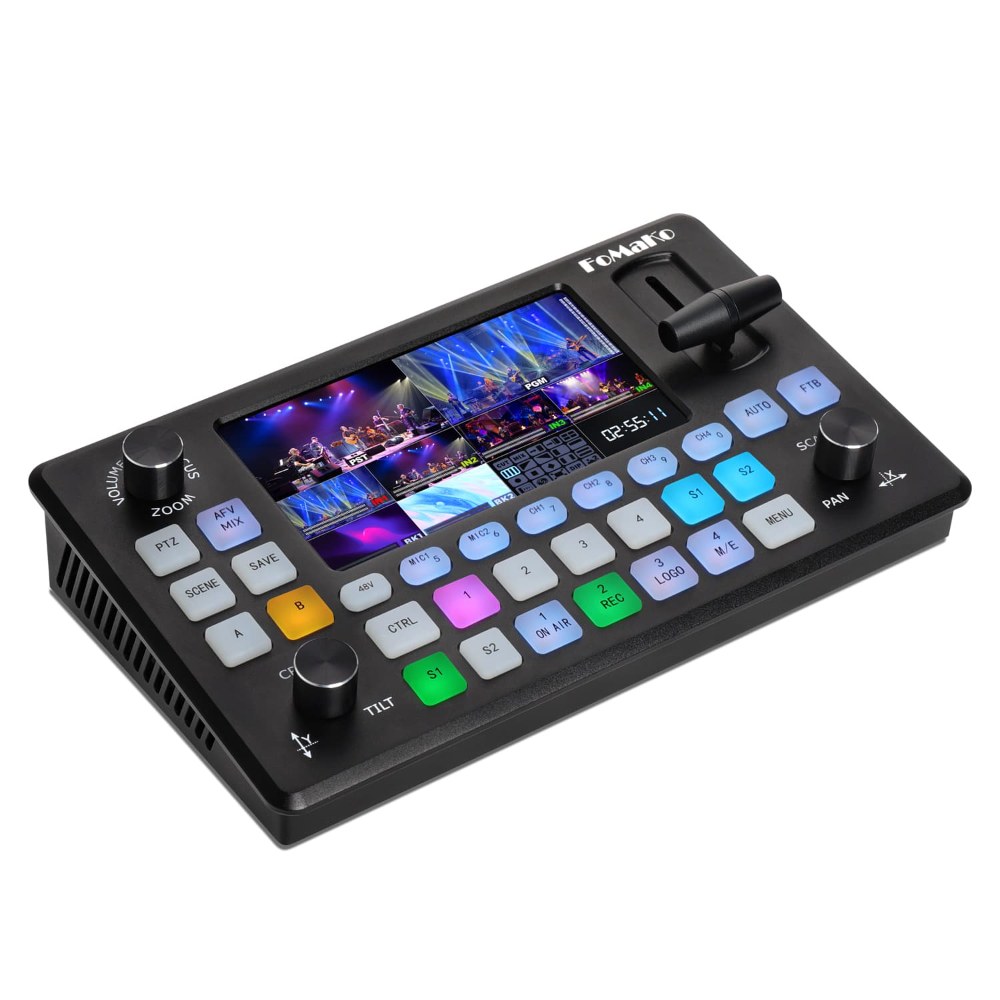
Before configuring NDI, ensure your network is properly set up to support video streaming. NDI video streams consume approximately 100 to 150 megabits per second depending on resolution and frame rate. Your church network should have a gigabit switch (1000 Mbps capacity) that your FMK-20X and broadcast computer connect to.
Make sure both the camera and your broadcast computer are on the same network segment. If your church uses VLANs or separate network segments, you might need your IT administrator to place them on the same VLAN or enable communication between VLANs. NDI uses multicast discovery, which works only on the same network segment by default.
Enabling and Configuring NDI on the FMK-20X
Log into the camera’s web interface and navigate to the Network settings section. Look for NDI configuration options. Verify that NDI is enabled. If it’s disabled, toggle it on and save your settings. The camera will restart its network services, which takes a few seconds.
Once NDI is enabled, you’ll see options to configure the NDI source name. This is the name that will appear in OBS, vMix, and other broadcast software. Choose a descriptive name that’s immediately recognizable to your team, such as “Sanctuary Main Camera” or “Pulpit PTZ”. Avoid special characters and keep it concise.
If your camera supports NDI bandwidth optimization, you can leave these at default settings for most church applications. Default settings typically use adequate bandwidth while maintaining excellent video quality. Only adjust these settings if you’re experiencing network congestion.
Adding the FMK-20X as an NDI Source in OBS
Open OBS Studio and go to the scene where you want to add the camera. Click the plus icon in the Sources panel to add a new source. Select “Network Device Interface (NDI)” from the list. If this option doesn’t appear, you need to install the OBS NDI plugin, which is available for free from the NDI website.
A dialog box will appear asking you to select an NDI source. Your FoMaKo FMK-20X should appear in the list by the name you configured in its web interface. Select the camera and click OK. OBS will now connect to the camera and begin displaying video in your scene.
You can resize and position the source on your canvas however you prefer. Right-click the source to access properties where you can adjust bandwidth settings or enable low-latency mode if desired. For church productions, default settings usually work well.
Adding the FMK-20X as an NDI Source in vMix
In vMix, click the “Add Input” button at the bottom left. A menu will appear showing various input types. Select “Network (NDI)” or “NDI Input” to see the list of available NDI devices. Your FoMaKo should appear in the list.
Select your camera and click “Add Input”. vMix will establish the connection, and video will appear in your inputs list on the left side. You can now drag the input onto your canvas or use it with vMix’s switching and mixing features.
vMix has superior PTZ camera support compared to OBS, including native preset recall buttons. Once your FMK-20X is added as an input, you might see additional PTZ controls in vMix’s interface if the camera supports them. Test these controls to see what functionality is available.
Troubleshooting NDI Discovery Issues
If your FoMaKo doesn’t appear in the NDI source list, first verify that the camera is powered on and connected to the network. Check the network status indicator light on the back of the camera.
Next, ensure both the camera and broadcast computer are on the same network. If you’re unsure, ask your IT administrator. Verify that no firewall is blocking NDI traffic. Some firewalls block UDP multicast, which NDI uses for device discovery. Ask your IT team to verify that UDP multicast isn’t being blocked.
If you know the camera’s IP address, you can sometimes manually enter it in OBS or vMix instead of relying on automatic discovery. This is a workaround that bypasses the discovery issue while you resolve the underlying networking problem.
Managing Bandwidth in Multi-Camera Setups
If you’re running multiple NDI cameras simultaneously, carefully monitor your network bandwidth. Each 1080p camera uses roughly 150 Mbps. A gigabit network can handle three to four cameras comfortably, but you’re approaching the limit. If you’re planning more than four cameras, discuss network upgrades with your IT team.
Most managed switches have Quality of Service (QoS) settings that can prioritize video traffic over less important network activities. Enabling QoS ensures that your PTZ cameras get the bandwidth they need even if other network activities spike.
Latency and Performance Optimization
NDI video has naturally lower latency than traditional streaming protocols, which is one of its advantages. However, if you’re experiencing noticeable delay between the camera moving and the picture updating in your broadcast software, you can enable low-latency mode in the camera’s NDI settings.
Enabling low-latency reduces processing and compression, making the video appear more responsive. The trade-off is slightly higher bandwidth consumption. For most churches, the default latency is acceptable and you don’t need to enable low-latency mode.
Network Maintenance and Monitoring
Once your NDI system is operational, monitor it periodically to ensure stable performance. If you notice that video frequently drops out or becomes choppy, check the network switch to ensure all cables are connected and lights indicate normal operation.
Some network switches have a web interface where you can view port activity and errors. If your IT team has access, ask them to check for excessive errors or retransmissions on the ports where your camera and broadcast computer connect. High error rates indicate cable or switch port problems that should be addressed.
Archiving Your NDI Configuration
Document your NDI camera names and IP addresses in a spreadsheet or document that your team can reference. If you ever need to troubleshoot NDI discovery or reconfigure your system, having this reference information readily available saves considerable time.
Include notes about which NDI sources are active during which parts of your service, and any bandwidth limitations or special settings you’ve configured. This documentation becomes invaluable as your system grows or when new team members join your AV ministry.
Conclusion
Your FoMaKo FMK-20X is now configured for NDI and integrated into your OBS or vMix workflow. NDI’s network-based approach provides flexibility and simplicity that traditional video infrastructure can’t match. As you gain experience with the system, you’ll likely find new ways to use it and may even expand to multiple NDI cameras as your budget and infrastructure allow.