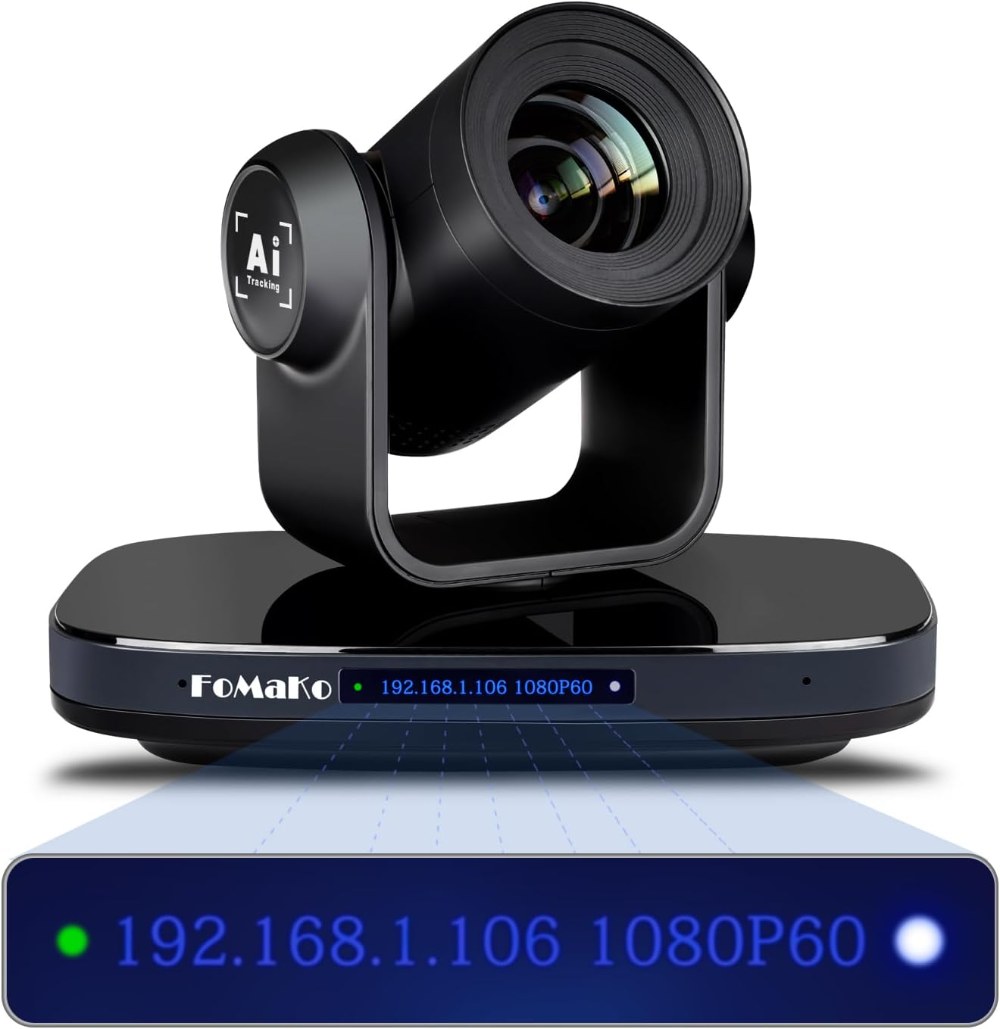
The FoMaKo FMK-30X represents a significant upgrade from consumer-grade PTZ cameras, offering professional-grade 30x optical zoom and output options including HDMI and SDI that work with traditional broadcast infrastructure. If your church is moving beyond basic streaming into more professional territory, the FMK-30X is an excellent choice. This guide covers unboxing through first operational testing.
What’s Included and Initial Inspection
Your FMK-30X should arrive with the camera body, a robust power supply, HDMI and SDI cables, and complete documentation. The camera is heavier and more solidly constructed than entry-level models, reflecting its professional positioning. Inspect the lens and pan-tilt mechanism carefully for any shipping damage before proceeding.
Place the camera on a sturdy work surface away from edges. The weight and size of the FMK-30X demand a stable support. Unlike smaller cameras, this is a piece of equipment where you want to be extra careful during the testing phase. The 30x optical zoom is a significant feature that distinguishes this model, so take a moment to appreciate the quality of the glass and mechanics before you power it on.
Powering On and Initial Startup
Connect the power supply to the back of the camera and plug it into an outlet. The FMK-30X requires a few seconds to fully boot. During startup, you might hear and see small movements of the pan-tilt mechanism as it initializes. The zoom lens might also perform a calibration cycle. These actions are normal and expected.
Wait at least 20 seconds for the camera to complete its startup sequence. Indicator lights on the back panel should transition from a startup pattern to a steady operational pattern. Once the lights stabilize, the camera is ready for testing.
Verifying Physical Movement
Test the pan-tilt movement by gently moving the camera head by hand while it’s powered on. The movement should be smooth and responsive. Move it left and right to test the pan range, then up and down to test the tilt range. Listen for any grinding or unusual sounds that might indicate mechanical problems.
The FMK-30X’s heavier construction means pan-tilt movement is deliberate and precise, not jerky. The movements should feel professional and smooth. If you notice any resistance, grinding sounds, or sluggish response, power off the camera and inspect the mechanism for obstructions.
HDMI Connection Testing
Connect an HDMI cable from the camera to an HDMI monitor or switcher. The FMK-30X outputs HDMI at 1080p resolution, 59.94 frames per second, which is the industry standard for video production. Once connected, you should see live video from the camera appear on your monitor within a few seconds.
If no video appears, verify that you’ve selected the correct HDMI input on your monitor or switcher. Try a different HDMI cable if you have one available, as HDMI cables can be defective. Power cycle the camera by turning off the power supply, waiting 10 seconds, and turning it back on. Video should appear after the camera reboots.
SDI Connection Testing
The FMK-30X also includes SDI output for connection to professional video switchers and broadcast infrastructure. SDI provides more robust connections than HDMI for longer cable runs and is the preferred output in many professional broadcast environments.
Connect an SDI cable from the FMK-30X’s SDI output to an SDI input on your switcher or monitor. SDI should appear almost immediately. If it doesn’t, verify that your receiving device is set to the correct input and that the SDI cable is fully inserted on both ends.
SDI cables are more rugged than HDMI cables and less prone to connection issues, but they do require proper SDI connectors. Standard coaxial RG6 cables don’t work with SDI—you need actual SDI cables. If you don’t have SDI infrastructure yet but plan to upgrade, you can use HDMI for now and add SDI later.
Network Connection for Remote Access and Control
Although the FMK-30X is primarily controlled through HDMI and SDI outputs, it can connect to your network via Ethernet for remote web interface access and future firmware updates. Plug an Ethernet cable from the camera into your network switch.
The camera will automatically request a DHCP IP address. You can leave this as is, or configure a static IP if you want consistent web interface access. The network connection is optional for basic operation, but it’s useful for accessing the camera’s settings and checking its status remotely.
Accessing the Camera’s Web Interface
Open a browser on a networked computer and navigate to the camera’s IP address. If you don’t know the IP, check your router’s connected devices list or use a network scanning tool. You’ll see a login page for the web interface. Log in with the default credentials (usually admin/admin) and change the password immediately.
In the web interface, verify that the output resolution is set to 1080p 59.94. Check that both HDMI and SDI outputs are enabled. Some configuration options might not be visible until you log in with admin credentials.
Zoom and Focus Testing
Test the 30x optical zoom by zooming in and out using the web interface zoom controls or any included remote control. Zoom should be smooth and responsive. The optical zoom should maintain focus automatically as you zoom.
Zoom all the way in to see how tight a shot you can get. Zoom all the way out to see the full wide-angle view. The FMK-30X’s 30x zoom gives you incredible flexibility in framing shots. A wide zoom level lets you see your entire stage from the back of the sanctuary, while fully zoomed in, you can capture a speaker’s facial expressions in intimate detail.
Pan-Tilt Range Verification
In the web interface PTZ section, test the full pan range by moving the camera all the way left and all the way right. Do the same for tilt. The pan should move smoothly across your expected viewing area without hitting mechanical stops.
You might find that the pan range is wider than you need. During production, you might want to limit the pan range so the camera doesn’t pan too far and capture walls or the side of the sanctuary. You can configure these limits in the web interface if desired.
Conclusion
Your FoMaKo FMK-30X is now powered on, tested, and ready for more detailed configuration. The next steps involve permanent mounting, preset configuration, and integration with your full broadcast infrastructure. The quality of the 30x optical zoom and professional output options will serve your church well for years of production.