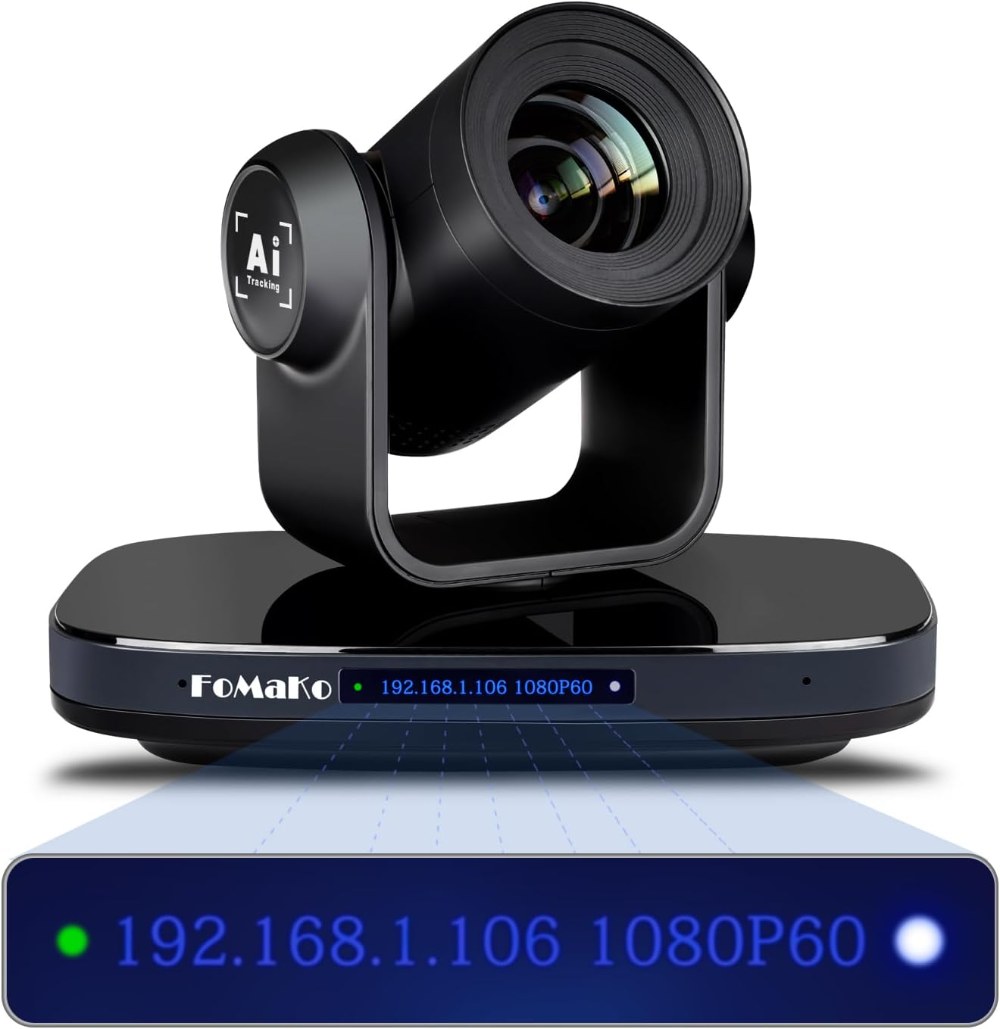
The FoMaKo FMK-30X’s exceptional 30x optical zoom makes preset management crucial. A wide-angle preset reveals your entire stage, while a fully zoomed preset captures a speaker’s facial expression. Without presets, your camera operator would need to manually adjust zoom, pan, and tilt throughout your service, which is both distracting and error-prone. This guide covers the complete preset workflow for professional church productions.
Understanding Presets on the FMK-30X
A preset on the FMK-30X stores four pieces of information: pan position (left-right), tilt position (up-down), zoom level, and focus. When you recall a preset, the camera smoothly moves to that stored position and zoom level. The FMK-30X typically supports 20 or more presets, giving you plenty of flexibility.
Presets are controlled through the camera’s web interface and can be integrated with your switching software if it supports PTZ control. Some switchers like vMix have native PTZ support that makes preset recall as simple as clicking a button.
Planning Your Preset Positions
Before you save any presets, discuss with your worship leader and production team what shots are most important for your service. Every church is different, but a typical set includes a wide stage shot, close-ups of key speakers or performers, and perhaps a congregation reaction shot.
For example, you might plan: Preset 1 (Wide Stage), Preset 2 (Pulpit Close-up), Preset 3 (Worship Band), Preset 4 (Piano), and Preset 5 (Congregation). Your actual preset list will depend on your sanctuary layout and broadcast priorities. Write down your preset plan before you start saving presets to the camera.
Accessing the Preset Interface
Log into the camera’s web interface using your browser. Navigate to the Presets or PTZ Control section. You should see a live video feed from the camera and controls for pan, tilt, zoom, and focus. Some cameras also include a list of existing presets that you can edit.
Saving Your First Preset
Position the camera exactly where you want your first preset to be. Use the pan, tilt, and zoom controls to frame your desired shot. For your wide stage preset, zoom out so your entire stage is visible and adjust pan and tilt so the stage is centered in the frame.
Take time to perfect the shot. Test it in your broadcast software to make sure it looks good, not just in the web interface preview. Once you’re satisfied, locate the “Save Preset” button in the web interface. Click it and you’ll be asked to select a preset number. Select preset 1 and click Save.
Saving Additional Presets
Move the camera to the position for your second preset. For a pulpit close-up, zoom in so the pulpit area fills most of the frame. Center the pulpit in the frame. Save this as preset 2.
Continue this process for each shot you’ve planned. Save your worship band shot as preset 3, your piano shot as preset 4, etc. Take your time positioning each preset correctly. The effort you invest now in precise preset positioning pays dividends when you’re operating the camera during your service.
Testing Preset Recall
Once you’ve saved all your presets, test them by recalling them one at a time. Most web interfaces have numbered buttons that let you click a preset number and the camera will move to that position. The movement should be smooth and complete.
Recall each preset in the order you expect to use them during your service. Watch the camera movements carefully. If a preset is slightly off, you can reposition the camera and save over it with the same preset number. Most cameras allow you to update an existing preset.
Documenting Your Presets
Create a document or print a reference sheet that lists each preset and what it’s for. For example:
Preset 1: Wide Stage Shot Preset 2: Pulpit Close-up Preset 3: Worship Band Medium Preset 4: Piano Preset 5: Congregation
Share this document with your camera operator and anyone else who might need to operate the camera. During rehearsals, have your operator practice recalling presets in the order they’ll use them during the service.
Integrating Presets with vMix or Other Switchers
If you use vMix and the FMK-30X is properly connected, vMix might automatically detect the camera’s PTZ capabilities. In vMix, you can set up buttons that recall presets directly. This integration lets your camera operator use the same interface for switching video sources and controlling the PTZ camera, making the workflow much more efficient.
To set up vMix PTZ control, add your FMK-30X as an input, right-click it, and look for PTZ options. If available, you can configure buttons to recall specific presets. This eliminates the need to open the web interface during production.
Fine-Tuning Presets During Rehearsal
Before your first service using the new presets, have a full rehearsal. Have your camera operator recall presets throughout the rehearsal in the order they’ll be used on Sunday. Watch the resulting broadcast to see if the presets look good on screen, not just in the web interface.
You might find that a preset that looked good during setup looks awkward or too tightly zoomed when you’re actually broadcasting. Make adjustments during rehearsal and resave presets as needed. It’s much better to refine presets during rehearsal than to discover problems during a live service.
Managing Zoom Levels Across Different Presets
The FMK-30X’s 30x zoom is both a strength and a challenge. If your zoom levels vary widely between presets, your camera operator needs to adjust zoom manually when moving between them. This is where presets excel—they store the exact zoom level, so you can have very different zoom levels in different presets without manual adjustment.
However, be aware that extremely tight zooms can look unflattering if the camera shakes or if your video is compressed for streaming. Generally, zoom to a level that’s just tight enough to show what’s important without being extreme. A medium zoom showing the speaker from shoulders up often looks more natural than a extreme close-up that shows only the face.
Updating Presets Over Time
Your preset positions might need adjustment as your stage setup changes. For example, if your pastor moves the pulpit slightly, your pulpit close-up preset might need to be repositioned. Whenever you make a physical change to your stage or congregation setup, review your presets and make adjustments as needed.
Some churches update presets seasonally or for special events. During Christmas or Easter, you might need different presets to accommodate special stage decorations or a larger choir.
Backing Up Your Preset Configuration
Some FoMaKo cameras allow you to export your preset configuration through the web interface. If this feature is available, use it to periodically save a backup of your presets. If you ever need to reset the camera or update firmware, you can restore your presets from the backup.
If backup export isn’t available, document your preset positions in a spreadsheet. Include the pan, tilt, and zoom values if the camera displays them. This documentation allows you to recreate your presets if necessary.
Troubleshooting Preset Issues
If a preset doesn’t move the camera to the expected position, it might have been accidentally changed. Return to the web interface, reposition the camera to the correct location, and save over the preset.
If the camera hesitates before recalling a preset, or if the movement is jerky, check that nothing is mechanically obstructed in the pan-tilt mechanism. Ensure the camera is properly powered and that the network connection is stable.
Conclusion
Well-configured presets transform your FoMaKo FMK-30X from a powerful camera into a reliable, consistent tool for church production. Spending time upfront to position presets correctly and document your preset plan pays dividends throughout every service. Your camera operator gains confidence knowing exactly where to find each shot, and your viewers get consistent, professional-looking framing throughout your broadcast.