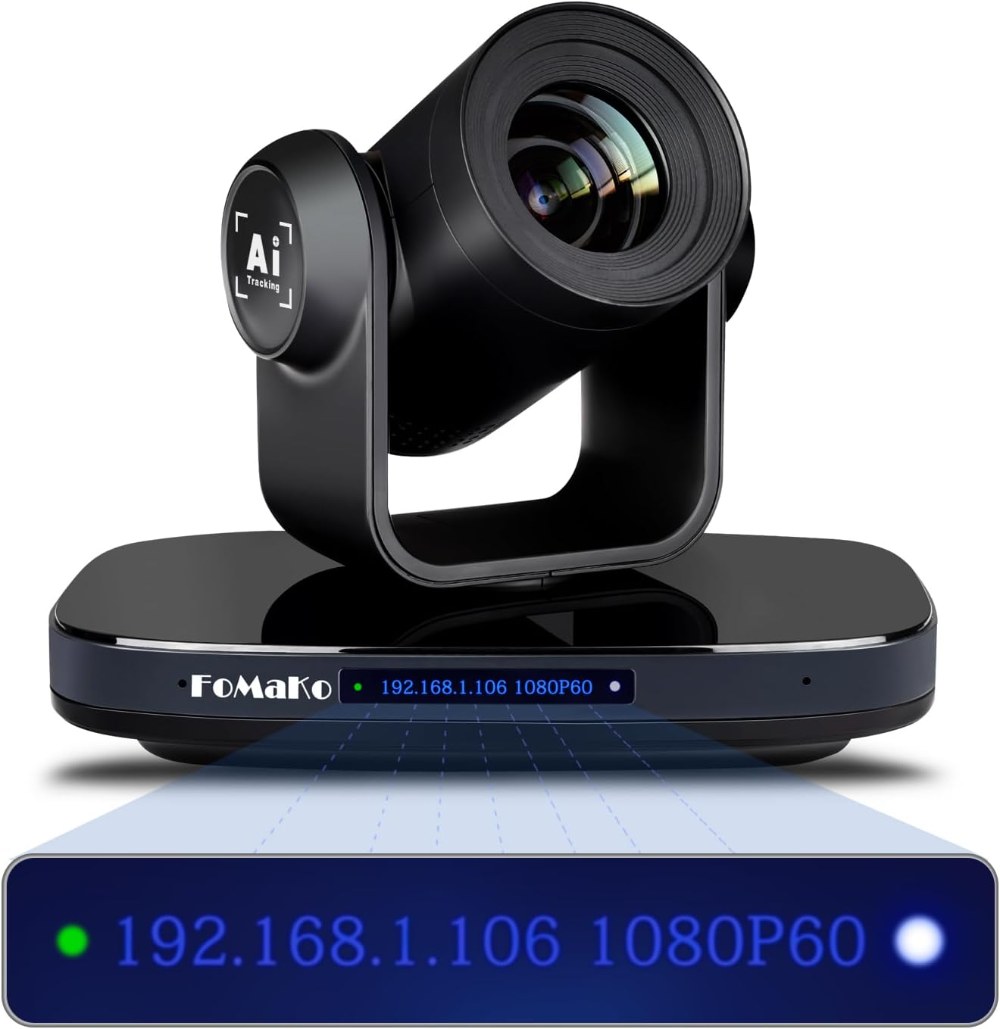
The FoMaKo FMK-30X offers both HDMI and SDI output, giving your church flexibility in how it connects to your existing broadcast infrastructure. Both outputs deliver excellent video quality, but they have different strengths and requirements. Understanding the differences helps you choose the right output for your specific situation and configuration.
Understanding HDMI Output
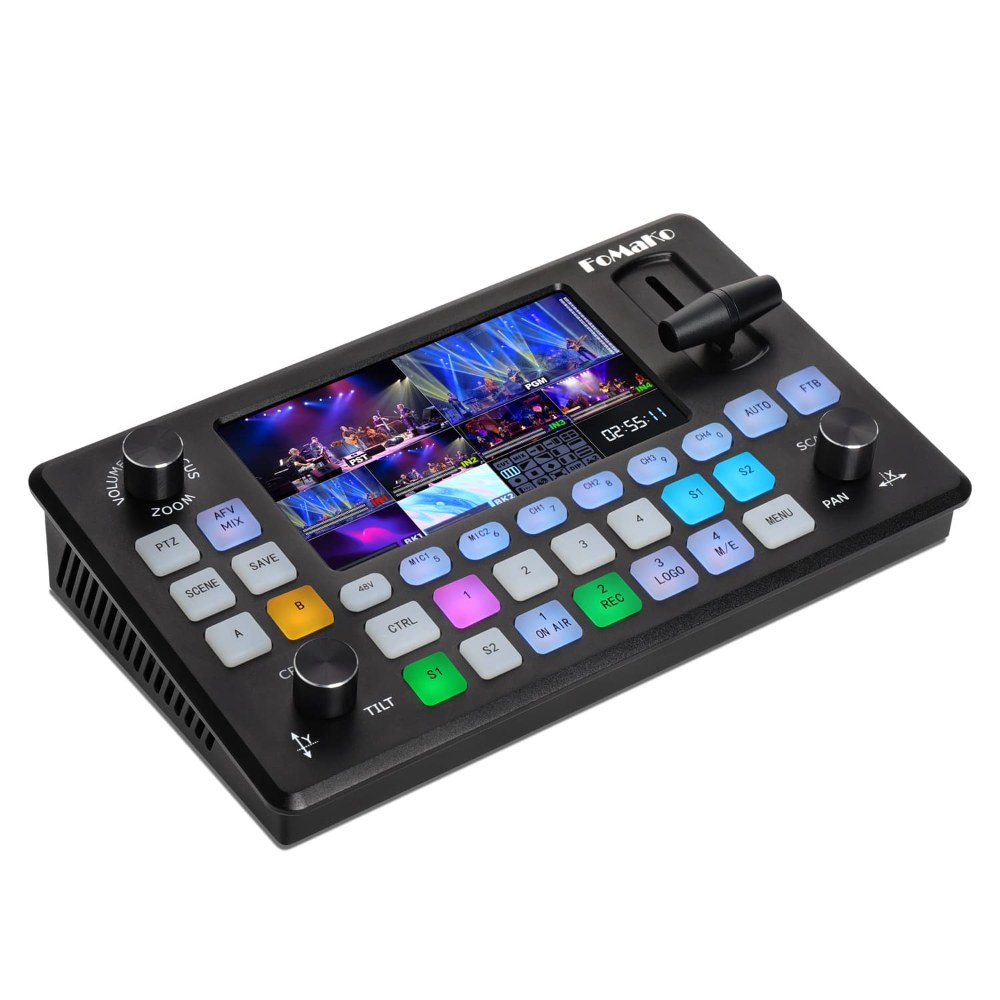
HDMI is familiar to most people and works with both consumer and professional equipment. The FMK-30X outputs HDMI at 1080p, 59.94 frames per second, which is broadcast standard quality. HDMI cables carry both video and audio, though the camera’s video is the primary concern in a broadcast scenario.
HDMI connections are straightforward—plug the cable into the HDMI output on the camera and the other end into your switcher or capture device. HDMI works reliably up to about 25 feet with standard quality cables. Longer runs require active HDMI extenders or higher-grade cables. Many churches use HDMI because their existing broadcast infrastructure already includes HDMI inputs on their switcher.
Understanding SDI Output
SDI stands for Serial Digital Interface and is the traditional broadcast standard for video transmission. SDI provides a more robust connection than HDMI, especially for longer cable runs. Professional broadcast facilities almost exclusively use SDI because it’s more forgiving of cable degradation and interference.
The FMK-30X outputs SD-SDI, which carries 1080p video at 1.485 gigabits per second. You need actual SDI cables, not regular coaxial cables, though the connectors are standard BNC connectors. SDI works reliably up to 300 feet with standard cables, and up to 1000 feet with higher-grade cables. If your church has long cable runs from where the camera is mounted to your broadcast booth, SDI is a superior choice.
Choosing Between HDMI and SDI
Most churches with switchers purchased in the last ten years have HDMI inputs, making HDMI the simpler choice. If your existing broadcast infrastructure is HDMI-based, stick with HDMI. There’s no advantage to switching to SDI if you already have working HDMI infrastructure.
If your church has older, professional-grade broadcast infrastructure with SDI inputs, use SDI. SDI is also the better choice if your cable runs are longer than 25 feet or if you want maximum reliability and professional-grade connections. Some churches use both HDMI and SDI simultaneously, with SDI going to the main broadcast switcher and HDMI providing a backup connection.
Configuring Output Format in the Web Interface
Log into the camera’s web interface and navigate to the Video Output settings section. Here you can verify that both HDMI and SDI are enabled. The default configuration outputs 1080p at 59.94 frames per second on both connections, which is correct for most church applications.
Some cameras allow you to output different formats on HDMI versus SDI. You might want both to match, or you might want different formats if you’re feeding different equipment. For most churches, keeping the formats identical on both outputs simplifies configuration and reduces confusion.
Verify that the output format matches what your switcher expects. If you have an older switcher that requires 720p or 1080i instead of 1080p, you can change this in the settings. After making changes, save them and allow the camera a few seconds to apply the new configuration.
Cable Selection and Quality
HDMI cables vary widely in quality. For professional applications, use cables rated for video broadcast rather than consumer-grade cables. Look for HDMI cables rated for 4K or certified for professional use. These cables have better shielding and more reliable connectors.
SDI cables should be actual SDI cables, not generic coaxial cables. SDI cables are specifically constructed to carry the high-speed digital signal without degradation. Using the wrong cable type will result in video problems. Quality SDI cables from manufacturers like Belden or Gepco are worth the investment for reliable, long-distance runs.
Cable Length Considerations
HDMI becomes less reliable over longer distances. A 25-foot HDMI run might work fine, but a 50-foot run will likely experience intermittent video loss. If you need HDMI over long distances, use an active HDMI extender that regenerates the signal.
SDI is naturally better at long distances. A 300-foot SDI cable run with good-quality cable will work reliably without any signal regeneration. If you need even longer runs, use a professional SDI fiber converter, which converts the signal to fiber optics for transmission over extremely long distances.
Switcher Integration
Connect HDMI from the FMK-30X to an HDMI input on your switcher. The switcher should immediately recognize the input and display the camera’s video. You might need to set the input format on the switcher to match the camera’s output format if your switcher has options.
For SDI, connect the BNC connector from the camera to an SDI input on your switcher. The connection is more robust than HDMI, and once connected, the switcher will immediately recognize the video format. SDI is plug-and-play, with fewer format compatibility issues than HDMI.
Using Both HDMI and SDI Simultaneously
Many professional setups use both outputs simultaneously. You might send HDMI to a backup monitor or secondary switcher, and SDI to your main broadcast switcher. Both outputs carry identical video, so you get redundancy. If one connection fails, the other continues to work.
Configure the camera to output the same resolution and frame rate on both connections so your equipment expectations are aligned. If one output is for a monitor and another for a switcher, ensure both are set to formats your equipment accepts.
Troubleshooting Output Problems
If HDMI video isn’t appearing on your switcher, verify that you’ve selected the correct HDMI input. Try a different HDMI cable. Power cycle the camera by turning off the power supply, waiting 10 seconds, and turning it back on.
If SDI video isn’t appearing, verify that the SDI cable is fully connected on both ends. SDI connections need to be firmly seated to work. Check that the receiving device is set to the correct input and that SDI is not disabled in any settings.
If video appears but the color seems wrong or the image has artifacts, verify that the output format in the camera’s web interface matches what the receiving equipment expects. Format mismatches can cause color or sync problems.
Monitoring and Testing
Before relying on your HDMI or SDI connection during a broadcast, test it thoroughly with the actual equipment it will connect to. Stream for at least a few minutes while monitoring for any intermittent disconnections or video quality issues.
If you’re using HDMI, monitor it during the entire warm-up and rehearsal period before your service. Long HDMI cable runs sometimes work intermittently. A cable that works initially might fail after 30 minutes of operation due to heat or other factors. Finding problems during rehearsal is much better than discovering them during your live broadcast.
Documentation and Maintenance
Document which outputs you’re using and how they connect to your broadcast equipment. Keep spare HDMI and SDI cables on hand for emergencies. When storing cables, coil them loosely rather than wrapping them tightly, as tight coiling can damage the conductors and connectors.
Periodically inspect your connections for corrosion or loose connectors, especially in humid environments. A small amount of corrosion on a BNC connector can degrade an SDI signal. Clean connectors gently with a pencil eraser if you notice any discoloration.
Conclusion
The FoMaKo FMK-30X’s dual HDMI and SDI outputs provide flexibility and redundancy for professional church productions. Choose HDMI if your broadcast infrastructure is HDMI-based and cable runs are short. Choose SDI for longer runs or more robust professional connections. Many churches use both for the reliability that comes from having a backup connection.