The Kiloview N2 is an HDMI-to-NDI encoder. It takes an HDMI video feed and converts it to NDI (Network Device Interface) format, sending it over your church’s Ethernet network. This is useful for churches that want to bring ProPresenter graphics, a document camera, or a remote camera into a central control room via network rather than HDMI cables.
This guide covers basic setup and configuration.
Understanding NDI and the N2’s Role
NDI is a networking protocol that sends video over Ethernet. Instead of running long HDMI cables, you run a Ethernet cable. This is useful for multi-room setups or when your switcher is far from your source.
The Kiloview N2 converts HDMI input into NDI output on your network. Other devices (your switcher, OBS on a PC, etc.) receive the NDI feed.
Physical Setup
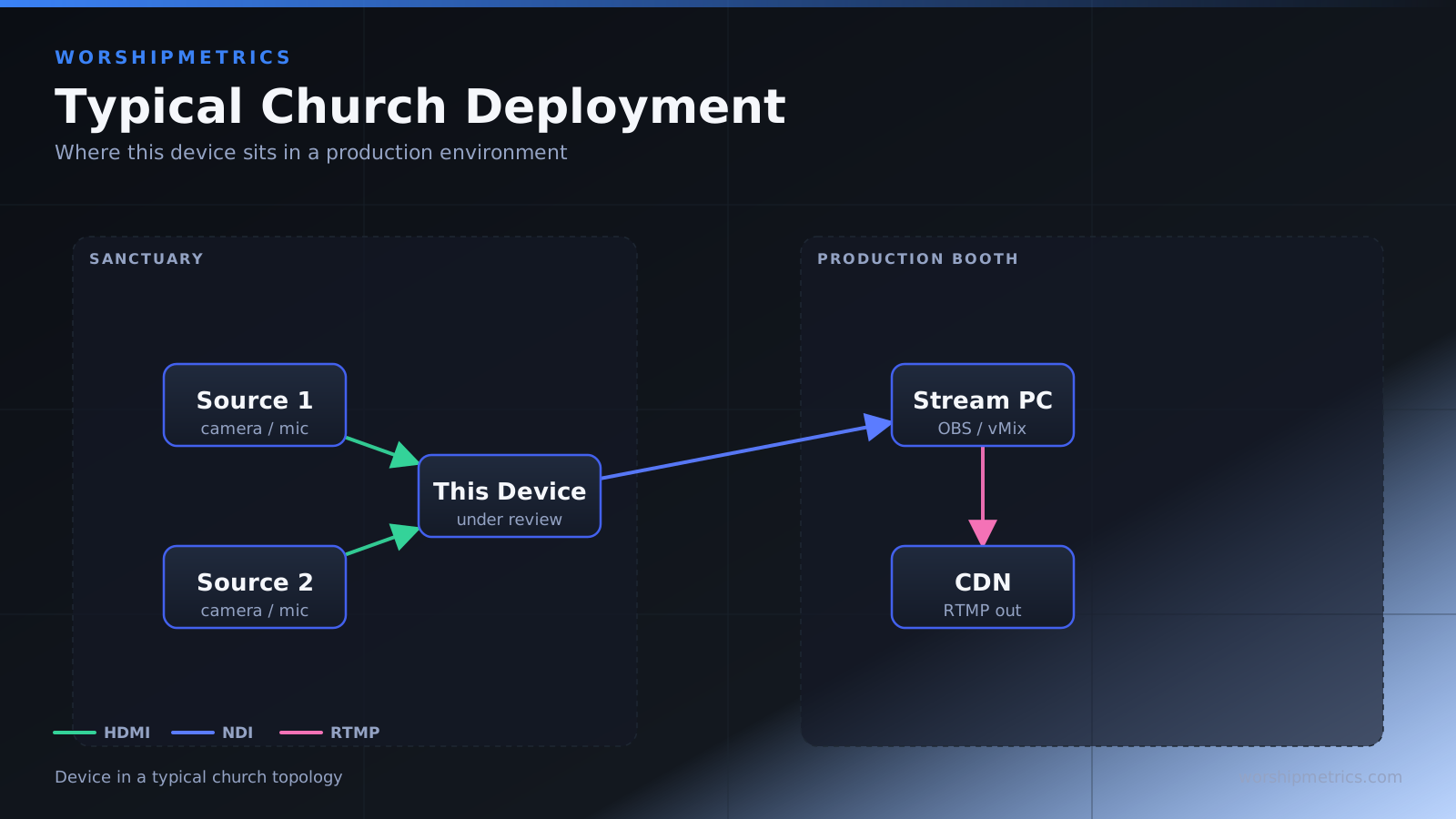
Connect an HDMI source (ProPresenter, a camera with HDMI output, a laptop) to the N2’s HDMI input. Connect the N2 to your church network via Ethernet. Power on the device.
The N2 is small and portable. It can sit next to your ProPresenter graphics PC or next to a camera.
Accessing the Web UI
Open a web browser on a PC on your network. Type the N2’s IP address (you’ll find this in your router’s connected devices list, or it’s printed on the N2’s label). This opens the N2’s web interface.
Navigate to the Stream settings to configure the N2’s NDI output name and properties.
Setting Output Resolution and Bitrate
The N2 can output at various resolutions and bitrates. It sends NDI|HX, a compressed form of NDI, at up to 40 Mbps, so it’s far lighter on your network than full NDI.
Higher bitrate = better quality but more network bandwidth. Choose based on your network capacity and quality needs.
NDI Output Discovery
Once the N2 is configured and streaming, it appears on your network as an available NDI source. Other devices (your switcher with NDI capability, OBS with NDI plugin, etc.) can discover and receive the N2’s feed.
The N2’s feed is named something like “Kiloview-XXXXXX” (with the device’s serial number). You’ll select this name when adding it as an NDI source in your switcher or OBS.
Testing the N2
Use OBS to test the N2’s output. In OBS, add an NDI Source. OBS will scan your network and find the Kiloview N2. Select it, and you should immediately see the HDMI video appearing in OBS.
This confirms that the N2 is encoding and transmitting correctly.
Connecting to Your Switcher
If your switcher has NDI input (software switchers such as vMix do; ATEM Minis and the Roland V-160HD don’t), configure it to receive the N2’s NDI feed. The feed will appear as an available input on your switcher, just like an HDMI camera.
Now you have a remote camera or graphics source integrated into your switcher’s input list.
Network Bandwidth Considerations
An NDI|HX stream from the N2 (up to 40 Mbps) still requires stable network connectivity. If your church network is congested or has long cable runs with poor quality, the N2’s stream might buffer or drop.
Test your network by streaming from the N2 for a few minutes and monitoring for dropped frames or quality issues.
Power Over Ethernet (PoE)
Some Kiloview models support PoE, meaning they draw power from the Ethernet cable and don’t need a separate power adapter. Check your specific N2 model—if it supports PoE, this simplifies cabling significantly.
Troubleshooting Network Issues
If your switcher or OBS can’t find the N2’s NDI output, verify that the N2 is streaming (check the web UI). Verify that both devices are on the same network (not different subnets blocked by a firewall).
If the stream appears but is pixelated or stuttering, check your network bandwidth. You might be exceeding available capacity.
Your Setup Workflow
Connect HDMI source to N2. Connect N2 to network via Ethernet. Open web UI and verify streaming is enabled. In your switcher or OBS, add the N2’s NDI output as an input source.
The remote HDMI feed now appears in your central production setup via network.
The Kiloview N2 is an elegant solution for distributing video over network rather than HDMI cables. For churches with remote graphics stations or multiple rooms, it’s a valuable tool.