Deploying multiple Kiloview N2 units across your church allows you to bring content from different rooms into a central production location via your network. This is useful for multi-room facilities where you want centralized video production control.
This guide covers planning and implementing a multi-N2 setup.
Multi-Room Scenario Example
Your main sanctuary has a camera feed you want to capture. Your fellowship hall has ProPresenter running for announcements. Your prayer room has a live feed. Each room has a Kiloview N2 encoding its HDMI content to NDI. Your main control room has OBS or a switcher receiving all three N2 feeds.
The main control room operator mixes all three sources into a single stream that goes to YouTube.
Network Requirements for Multiple N2 Units
Each N2 stream consumes bandwidth. A 1080p30 stream at 100 Mbps × 3 N2 units = 300 Mbps required. Your network must sustain this.
Most church networks can handle 2–3 N2 streams. Beyond that, network congestion becomes likely.
Test your network bandwidth before deploying multiple units. If you hit bandwidth limits, reduce individual N2 bitrates to stay within your network’s capacity.
Planning Placement
Place each N2 unit near its video source. For example, the N2 in the sanctuary sits next to the camera. The N2 in the fellowship hall sits next to the ProPresenter PC.
Each N2 connects to your church network via Ethernet. Run Ethernet cables to each location, or use Wi-Fi if your network supports it.
Naming and Identifying N2 Units
Each N2 has a unique serial number, but you can customize the display name in its web UI. Set descriptive names: “Sanctuary Camera”, “Announce Slides”, “Prayer Room”.
This makes it easy to identify which N2 is which when you’re adding them to OBS or your switcher.
Configuration Consistency
Set each N2 to output the same resolution and bitrate. This simplifies production—all sources have the same properties, making them easy to mix.
For example: all N2 units output 1080p30 at 50 Mbps.
Adding Multiple N2s to OBS
In OBS, add each N2 as a separate NDI source in your scene. Position them how you want: full-screen for one, picture-in-picture for another, or in a split-screen layout.
You might have separate OBS scenes for different production moments: “Main Service” (sanctuary camera + announcement slides), “Prayer Time” (prayer room feed full-screen), etc.
Audio Coordination Across Multiple Rooms
The N2 units encode video only. If you need audio from each room (pastor speaking in sanctuary, music in fellowship hall), each needs to feed audio separately to OBS/switcher.
This might mean running both HDMI (for N2 video) and a separate audio line from each location to your control room.
Alternatively, use a mixer at the main control room to blend audio from multiple sources.
Network Segmentation Concerns
If each N2 is on a different Ethernet segment or subnet, they might not be discoverable by OBS or your central switcher. Work with your IT team to ensure all N2 devices are on the same network segment for reliable discovery.
Backup Internet for Multi-Room Setup
If you’re streaming a central feed to YouTube using content from multiple N2 sources, internet failure is more critical. If the link between your main control room and YouTube goes down, your entire church’s stream fails.
Some churches add a cellular backup internet connection for redundancy.
Latency Between Rooms
NDI introduces latency. A feed from a remote room to your central control room via N2 might have 100–500 milliseconds of delay depending on network quality.
This is acceptable for non-interactive content. If you need realtime interaction between rooms, NDI latency might be noticeable.
Your Multi-Room Workflow
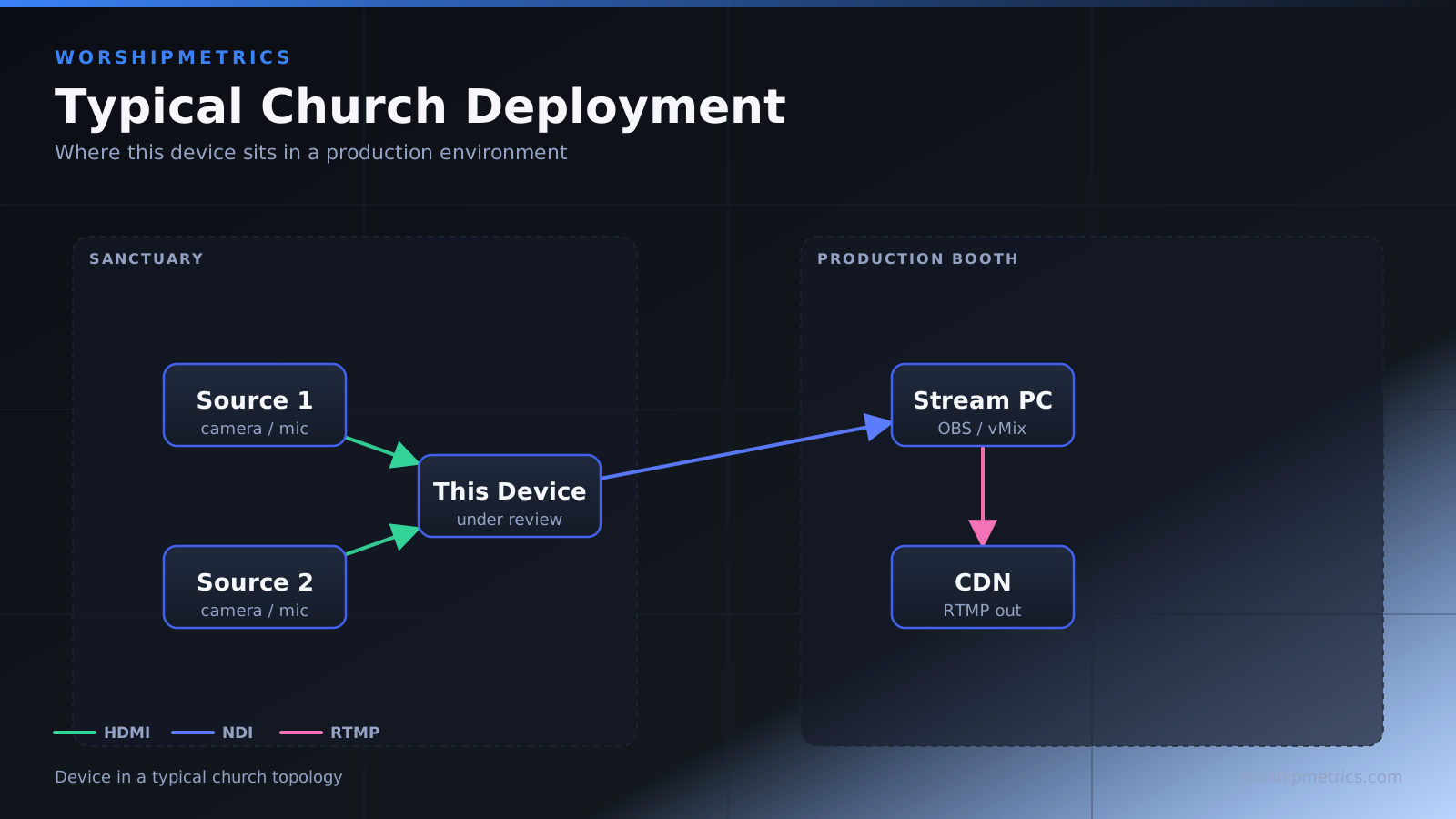
Main sanctuary: camera → N2 Encoder → network → OBS. Fellowship hall: ProPresenter → N2 Encoder → network → OBS. Prayer room: camera → N2 Encoder → network → OBS.
OBS receives three NDI sources. Control room operator composes them into a single broadcast to YouTube.
Each room’s content is available to the central production team without long cable runs or physical shuttling of content.
Scaling Considerations
Two N2 units is straightforward. Three works if your network is robust. Four or more units start exceeding typical church network capacity.
If you want more than three remote sources, consider whether centralized production is necessary or whether decentralized streaming (each room streams independently) might be simpler.
Cost and Infrastructure
Each Kiloview N2 is around $300. Three units = $900 plus network infrastructure (Ethernet cabling). The cost is modest compared to the infrastructure benefit.
For a church with multiple rooms, the Kiloview N2 is a cost-effective way to centralize video production.
Your Multi-Campus Strategy
Identify all the locations that need to contribute video content to your main broadcast. Place a Kiloview N2 in each. Run Ethernet to each location. Configure each N2 with a unique name and consistent resolution/bitrate. In your OBS or central switcher, receive all N2 streams and compose them.
The Kiloview N2 is the elegant solution for this workflow. It transforms multiple dispersed video sources into a unified network-based production system.