
The Yamaha TF3’s expanded auxiliary bus infrastructure, combined with control via the StageMix iPad app, creates a powerful platform for sophisticated monitor mixing. When you position your monitor mixer near the worship band using iPad control, you gain remarkable responsiveness to what musicians need to hear in real time. This article explores advanced monitor mixing techniques that transform how your worship team performs together.
Understanding the TF3’s Monitor Bus Architecture
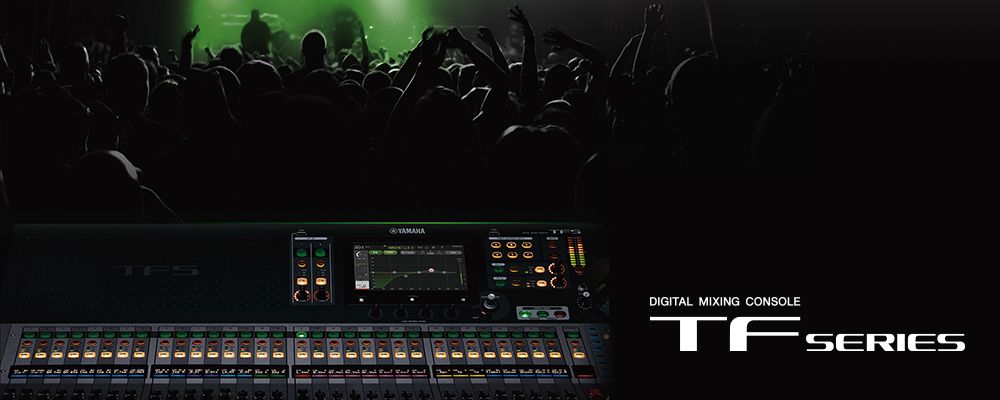
The TF3 provides eight stereo auxiliary buses, compared to the TF1’s four. This expanded capacity enables a nuanced approach to monitoring that goes beyond simple “one monitor mix for everyone” approaches. You can create individual monitor mixes for different musicians, each optimized for what that specific person needs to perform their best.
Consider how different band members think about their roles: The drummer thinks primarily about drums and timing. The keys player thinks about keyboard texture and reference vocals. The bass player focuses on bass guitar and kick drum interaction. The lead vocalist wants to hear their own vocal with the band underneath. Each person has different monitoring needs, and a good monitor engineer anticipates and fulfills these needs.
Setting Up Multiple Dedicated Monitor Outputs
Before service, configure which auxiliary buses feed which physical monitor outputs. AUX1 might feed your primary stage monitor speaker. AUX2 might feed a second monitor location. AUX3 might feed in-ear monitors if you use them. AUX4 might serve the choir or other secondary area.
With this physical infrastructure in place, you’re ready to create custom mixes for each location. Each auxiliary bus represents a complete, independent mixing space where you can create any combination of audio sources optimized for that specific location.
Creating Custom Mixes Using StageMix
Open the StageMix app on your iPad and position yourself in the band area during rehearsal. You now have control over the TF3’s complete mixing functionality from a position where you can hear exactly what the band hears through the monitor speakers.
Start with AUX1, your primary stage monitor feed. From the StageMix app, you can send different levels of different sources to AUX1. Begin by enabling the sources that the band collectively needs to hear: kick drum, bass, and lead vocal. Adjust levels so the band feels confident they can lock together.
Now create a second custom mix. Many churches find that setting up AUX2 as an “extended band” mix works well—perhaps for visiting musicians, extra percussionists, or the choir director. This mix might be similar to AUX1 but with different level emphases.
Individual Musician Preferences
As your monitoring sophistication grows, consider individual musician preferences. The drummer might need the kick drum very prominent in their mix to lock timing. A click track operator would want the click extremely prominent. The keys player might prefer more high-end presence to hear keyboard articulation clearly.
Using StageMix, you can adjust individual channel levels within each auxiliary mix independently. You’re not confined to “everyone in the band hears the same monitor mix.” You create nuanced, musician-specific mixes that enable everyone to perform confidently together.
The Power of Proximity Monitoring
Being positioned where you can hear the monitor speakers while mixing creates remarkable responsiveness. If a musician gestures that they need more drums in their monitor, you can instantly increase the kick drum level in their dedicated mix. If you notice the band sounds slightly out of time together, you might increase the click track slightly.
This responsive approach to monitoring creates a feedback loop where musicians feel heard and supported. They gain confidence in the monitoring they’re receiving, which enables more engaged, energetic performance. The worship team’s confidence in the monitoring infrastructure translates directly into more confident, unified worship leading.
Reverb and Effects in Monitor Mixes
Some churches add reverb or effects to monitor mixes to create cohesion and spatial awareness. A musician who hears dry, unprocessed audio might feel disconnected; adding subtle reverb can make the monitor mix feel more like the “real” room acoustics.
Consider creating a parallel reverb send. Route a small amount of your primary sources (kick drum, bass, vocal) to a reverb effect, then send the reverb output to AUX1 or another monitor bus. This approach adds space and cohesion to the monitor mix without muddying the direct audio.
Dealing with Feedback and Ringing
Monitor mixing occasionally encounters feedback—that screeching sound that occurs when monitor audio feeds back into the microphones picking it up. If you hear feedback during services, immediately reduce the level of the channel causing it in the monitor mix.
Use the graphic EQ on your monitor buses to identify and reduce problematic frequencies. If high-frequency feedback occurs, a gentle dip at 4-6 kHz often resolves it. If low-frequency feedback occurs, reduce below 200 Hz. These gentle EQ adjustments in the monitor bus prevent feedback without affecting your main mix.
Managing Multiple Simultaneous Monitor Changes
During an actual service, musicians might request monitor changes mid-song. The drummer needs more click. The keys player wants less bass. The lead vocalist needs more of their own voice. Using StageMix from your position in the band area, you can make these adjustments instantly without stopping the song.
This real-time responsiveness is where proximity monitoring shines. Rather than musicians feeling ignored when monitor requests go unmet, they experience their monitor engineer responding actively to their needs. This positive dynamic elevates the entire worship experience.
Coordinating with Your Main Mix Operator
Your monitor mixing doesn’t happen in isolation. Your main mix operator is making their own adjustments for the audience experience. Occasional coordination between your two roles prevents conflicts.
Establish simple communication: perhaps a gentle tap on the shoulder if you notice something needs adjustment in the main mix, or a quick text if situations require it. The goal is a collaborative workflow where both mixing operators focus on their specific responsibilities while remaining aware of the overall audio picture.
Using Scenes for Consistent Monitor Setups
Save your carefully crafted monitor mixes as Scenes on the TF3, just like your main mixes. Create scenes like “Worship Set 1 - Monitors” or “Sermon Portion - Minimal Monitors” that include all your auxiliary bus assignments and levels.
During services, when you transition between songs or service segments, recall the corresponding monitor scene. This automation ensures consistency and prevents accidental changes to your monitor setup during transitions.
Testing Your Monitor Mixes During Rehearsal
Before expecting your monitor setup to work during a live service, test it thoroughly during rehearsals. Have your worship band run through complete songs. Ask musicians for feedback about their monitor mixes. Did they hear everything they needed? Was any element too prominent or buried?
Make adjustments based on feedback. Perhaps the click track needs louder. Perhaps the band feels slightly separated in their mixes and would benefit from more common reference audio. This rehearsal testing catches issues before they affect actual worship services.
Training Backup Monitor Operators
If multiple people will operate your TF3 monitor mixing, ensure they understand the setup and have practiced using StageMix. Have backups observe during rehearsals. Have them practice recalling monitor scenes and making basic adjustments.
Documentation is crucial. Create a one-page reference showing your monitor setup: which auxiliary bus feeds where, what the typical mix looks like for different service segments, and how to handle common requests or problems.
Your Yamaha TF3’s advanced monitoring capabilities, combined with iPad control through StageMix, create a platform for professional-grade monitor mixing that transforms how your worship team performs together. Through thoughtful setup and responsive real-time mixing, you enable your musicians to focus on leading worship rather than worrying about whether they can hear what they need.