
For small churches with limited budgets, the Yamaha MG16XU bridges the gap between affordable traditional mixing and modern streaming capabilities. This is not a digital mixer—it’s a traditional analog console with built-in USB audio interface. What this means in practical terms is straightforward analog mixing with the added bonus of USB output that feeds your streaming computer. For churches running simple worship setups and wanting to start livestreaming without major investment, the MG16XU offers compelling value.
Understanding the MG16XU’s Strengths and Limitations
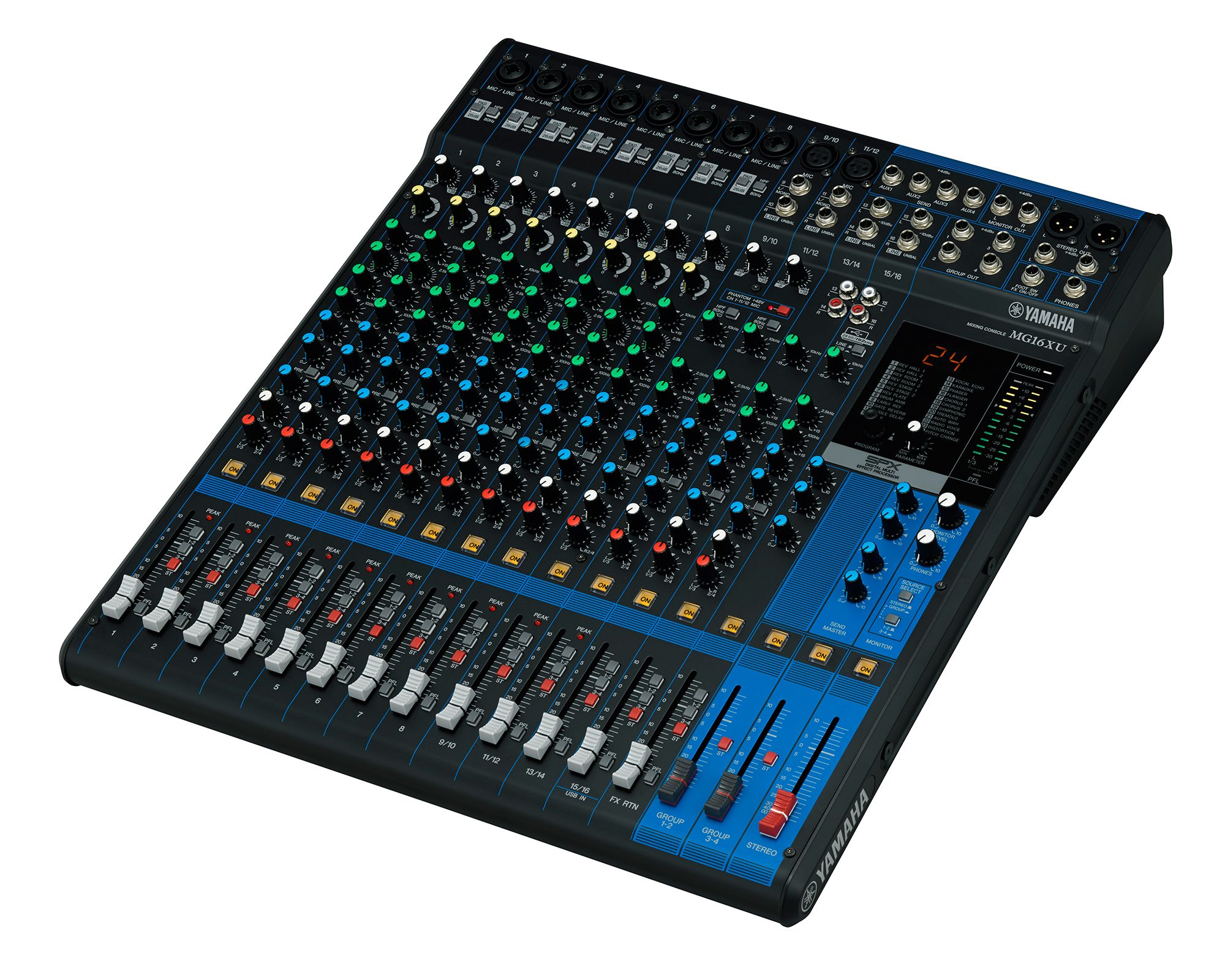
The MG16XU is fundamentally an analog mixer with 16 channels of input. It lacks the digital scene memory, touchscreen interface, and sophisticated processing of digital consoles. However, it includes essential professional features: balanced XLR inputs for microphones, compressions on channels, and a built-in USB audio interface.
This combination works beautifully for straightforward church workflows. Your microphones and instruments connect directly to the mixer. You mix using physical faders. Your mix flows both to your sanctuary speakers and via USB to your streaming computer. Simplicity is often strength.
Connecting Your Audio Sources
The MG16XU provides 16 channels of input via XLR and quarter-inch connectors. Connect your wireless microphone receivers to the first few channels using XLR cables. Connect your keyboard or other line-level instruments to subsequent channels.
Assign the input channels to your desired outputs. Most channels have a button or switch determining which output(s) they feed. On the MG16XU, you’ll typically route all channels to the main stereo output that feeds your PA system.
Setting Input Gains
Unlike digital mixers with visual gain meters on screens, the MG16XU uses a simple LED metering system. For each input, speak into the microphone or play the instrument, then adjust the input gain so the corresponding channel’s LED just lights on average, with occasional peaks reaching the top LED.
This simple visual feedback takes moments to understand. Spend a few minutes with each input getting comfortable with the meter, then move on. Consistent gain staging—getting input levels right at the source—makes all the difference in overall mix quality.
Setting Initial Mix Levels
Use the channel faders to set your initial mixing balance. Start with your backing track fader up around -6 dB, then bring your lead vocal fader up until it sits prominently above the music. Add remaining instruments at appropriate levels relative to your lead vocal.
Watch the main output meter on the right side of the console. Aim for average levels in the green zone with occasional peaks reaching just below the red “clip” indicator. This provides healthy headroom and prevents distortion.
USB Audio Connection and Configuration
Connect a USB cable from the MG16XU’s USB port to an available USB port on your streaming computer. The MG16XU will appear as a USB audio device in your computer’s sound settings within a few seconds.
Your computer should recognize the MG16XU automatically on most operating systems. If it doesn’t appear, restart the mixer and try a different USB port on the computer. Windows might require driver installation—check Yamaha’s website for the latest MG16XU drivers if needed.
Configuring OBS or vMix for USB Audio
Open your streaming software and select the MG16XU as your audio input device. In OBS, this appears in Audio Input Capture or Mic/Auxiliary Audio settings. In vMix, this appears in the Audio tab’s input device dropdown.
Once selected, you should see your audio meters responding in your streaming software. Adjust the input level in your streaming software until your MG16XU’s mixed audio feeds at appropriate level—average around -18 dB with peaks at -12 dB.
Testing USB Streaming Before Your First Service
Before livestreaming an actual service, run a complete rehearsal with USB audio engaged. Connect to your streaming software, start a test stream (even if not publicly), and monitor the audio for quality issues.
Listen for any audio dropouts, distortion, or unexpected noise. If problems appear, troubleshoot them during this rehearsal phase rather than discovering them during your first public broadcast.
Managing Streaming and PA Mix Simultaneously
The MG16XU’s main output feeds both your PA speakers and USB audio to your streaming computer. This means your PA mix and streaming mix are identical—you can’t optimize separately for each. This limitation is acceptable for simple worship setups where one consistent mix serves both audiences adequately.
If your online audience needs significantly different mix than your PA audience, you’d eventually want to upgrade to a digital console with multiple independent buses. However, for churches starting streaming, unified mixing is simpler and works fine.
Basic Protection for Your Setup
Connect the MG16XU to a quality power conditioner rather than directly to a wall outlet. This protects the mixer from power surges and provides cleaner power that improves audio quality.
Keep spare USB cables on hand. A failing USB cable is the most common cause of streaming audio problems. Having a backup ensures you can continue streaming even if your primary cable fails unexpectedly.
Expansion Possibilities
As your church grows beyond the MG16XU’s capabilities, you have clear upgrade paths. You might add a digital mixer like a Yamaha TF1 to gain scene memory and more sophisticated mixing. Or you might add networked audio devices to expand input capacity.
The MG16XU doesn’t lock you into a dead-end choice. It’s a capable starting point that you can expand from as your technical sophistication and budget allow.
Maintenance and Longevity
The MG16XU is mechanically robust and requires minimal maintenance. Periodically check that all cables remain properly connected. Occasionally wipe down the faders and switches if they accumulate dust.
These simple practices keep your mixer in reliable working condition for many years. The MG16XU is the kind of equipment that, properly maintained, still works perfectly a decade from purchase.
Your Yamaha MG16XU now provides streaming capability alongside traditional analog mixing simplicity. For small churches just starting their digital journey, this budget-friendly approach removes barriers to reaching online audiences while maintaining the straightforward mixing workflow that volunteers understand easily.