
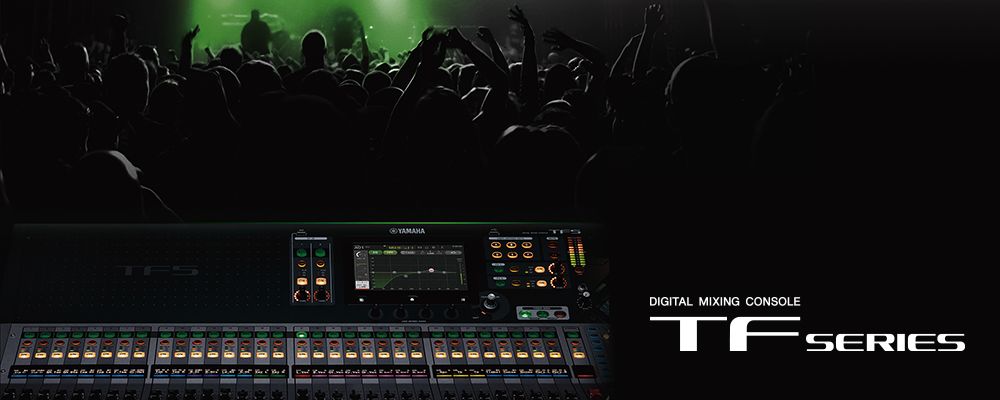
One of the Yamaha TF1’s most powerful features is its ability to be controlled remotely through the StageMix app on iPad. This capability transforms your mixing workflow by allowing you to manage audio from anywhere in your sanctuary or stage area. Rather than being confined to the physical console’s small touchscreen, you gain the flexibility to position yourself where you can best hear your mix and respond to real-time worship dynamics.
Understanding StageMix’s Capabilities
StageMix is Yamaha’s official remote control application for their digital mixers. On an iPad, it provides full access to all TF1 mixing functions: channel faders, mute buttons, effects controls, and scene recall. The connection happens over your local network using standard WiFi, meaning mixing latency is essentially zero—your iPad and TF1 remain perfectly synchronized in real time.
Many churches discover that remote mixing from a position near the musicians yields dramatically better results than mixing from a fixed control room location. You can hear exactly what your acoustic environment sounds like, respond instantly to performance nuances, and position yourself to observe multiple important audio sources simultaneously.
Network Configuration
Before installing StageMix, ensure your TF1 and iPad are on the same network. The TF1 connects to your network through an Ethernet port on its rear panel. Access the TF1’s System Settings through the touchscreen and navigate to Network settings.
You can configure the TF1 to obtain an IP address automatically from your network’s DHCP server, or assign a static IP address if your IT department prefers. For most churches, automatic DHCP works fine. Ensure your WiFi network has adequate range throughout your sanctuary and any stage areas where you might position the iPad.
If you’re concerned about security, consider creating a separate WiFi network dedicated to your AV equipment, isolated from your guest network and office network. This approach minimizes interference and prevents accidental access to your mixing controls from unintended users.
Installing StageMix on iPad
Open the Apple App Store on your iPad and search for “Yamaha StageMix.” You’ll find the official Yamaha application—download and install it. StageMix requires iOS 12 or later, so ensure your iPad runs a reasonably current operating system.
Once installed, open StageMix. The app will search for available Yamaha mixers on your local network. Your TF1 should appear in the list within a few seconds. If the mixer doesn’t appear, verify that both the iPad and TF1 are connected to the same WiFi network.
Connecting to Your TF1
Tap your TF1’s name in the StageMix app. If this is your first connection, the app might prompt you for authentication. If your TF1 has password protection enabled, enter the password. Once authenticated, StageMix connects to your mixer, and the remote interface appears on your iPad.
The interface displays your complete mixing layout: channel faders, mute buttons, effects, and all other controls. Move a fader on the iPad—you’ll see it move simultaneously on the physical TF1 console. Adjust a level on the physical console—the change appears instantaneously on your iPad. This bidirectional synchronization ensures perfect consistency between your remote control and the actual mixer state.
Creating Custom Layouts for Different Operators
StageMix allows you to customize what controls appear on the iPad screen, making it possible to create different layouts for different operators. A new volunteer might have a simple layout showing only essential controls, while your experienced operator might have access to every advanced function.
Access the Preferences section of StageMix on your iPad and look for Custom Layout options. You can drag controls, resize them, and create custom arrangements optimized for your workflow. Create a layout called “Volunteer Basic” showing only the channels your volunteers normally adjust, and another layout called “Advanced Operator” with complete access to all controls.
Monitor Mixing from Stage Position
One of the primary use cases for StageMix is creating monitor mixes from a position near your band or worship leaders. Rather than them relying on a static monitor mix from the TF1, you can create custom monitor sends using the iPad app.
Assign channels to the AUX1 and AUX2 auxiliary buses using the app. These auxiliary buses feed monitor speakers positioned near your musicians. By controlling the iPad, you can instantly adjust what the band hears—bringing up drums for the drummer, highlighting vocals for singers, or adding reference tones for timing.
This proximity monitoring is remarkably effective. Being positioned near the musicians, you hear exactly what they hear and can make intuitive adjustments that ensure they feel confident and together during worship.
Network Positioning and WiFi Strength
StageMix relies on consistent WiFi connectivity. If you experience lag, momentary disconnections, or sluggish response, network issues are likely the cause. Position your iPad within reasonable range of your WiFi router. If signal strength is weak, move closer to the router or consider adding a WiFi range extender to your facility.
If multiple devices are consuming bandwidth on your network—people streaming video, downloading files on their phones—your mixing app might suffer. If you’re experiencing performance issues, ask people to minimize non-essential network activity during services.
For critical services, consider using your TF1’s built-in WiFi functionality if available, or purchasing a dedicated access point for your AV equipment. These investments in network infrastructure pay dividends in reliability and peace of mind.
Using StageMix for Scene Recall
While the primary use case is live mixing from a remote location, StageMix also enables you to recall scenes from anywhere. If your primary mixing operator needs to step away momentarily, you can recall your saved scenes using the iPad app, ensuring audio remains stable.
This flexibility is particularly valuable if your TF1 is located in a control booth or rack mount position that’s inconvenient to access during services. A backup operator with StageMix on an iPad can handle scene recalls and emergency adjustments from anywhere in the facility.
Backup and Redundancy
Having tablet control doesn’t mean abandoning your physical TF1 console. Your physical console remains your primary control surface during normal operation. The StageMix app serves as a flexible backup and provides positional advantages you can’t get from a fixed mixing location.
Some churches keep the physical console available and have the StageMix operator take over if the primary operator at the console experiences problems. This redundancy approach—two operators with two different control methods—provides reliable, fault-tolerant audio mixing.
Troubleshooting Connection Issues
If your iPad loses connection to the TF1 during a service, close the StageMix app completely and reopen it. The app will reconnect within a few seconds. During rehearsal, test network reliability by intentionally moving the iPad throughout your sanctuary and verifying that connection remains strong.
If connection problems persist, restart both the TF1 and the iPad. Check your network password if the app won’t authenticate. Move closer to your WiFi router to verify signal strength isn’t the issue.
Combining Physical and Remote Control
Your optimal workflow likely involves both the physical TF1 console and the StageMix iPad app. Your primary operator might work from the physical console while a backup operator uses StageMix to monitor levels and provide support. Or your operator might divide time between both—using the console during song transitions and the iPad when positioned near the band during actual songs.
Experiment with different workflows during rehearsals to discover what works best for your team. There’s no single correct approach—the flexibility of having both control methods available lets you optimize for your specific ministry’s needs.
Your Yamaha TF1 with StageMix now offers sophisticated remote mixing capability that transforms how you approach worship audio, bringing flexibility and responsiveness that purely fixed-location mixing simply cannot match.