Introduction
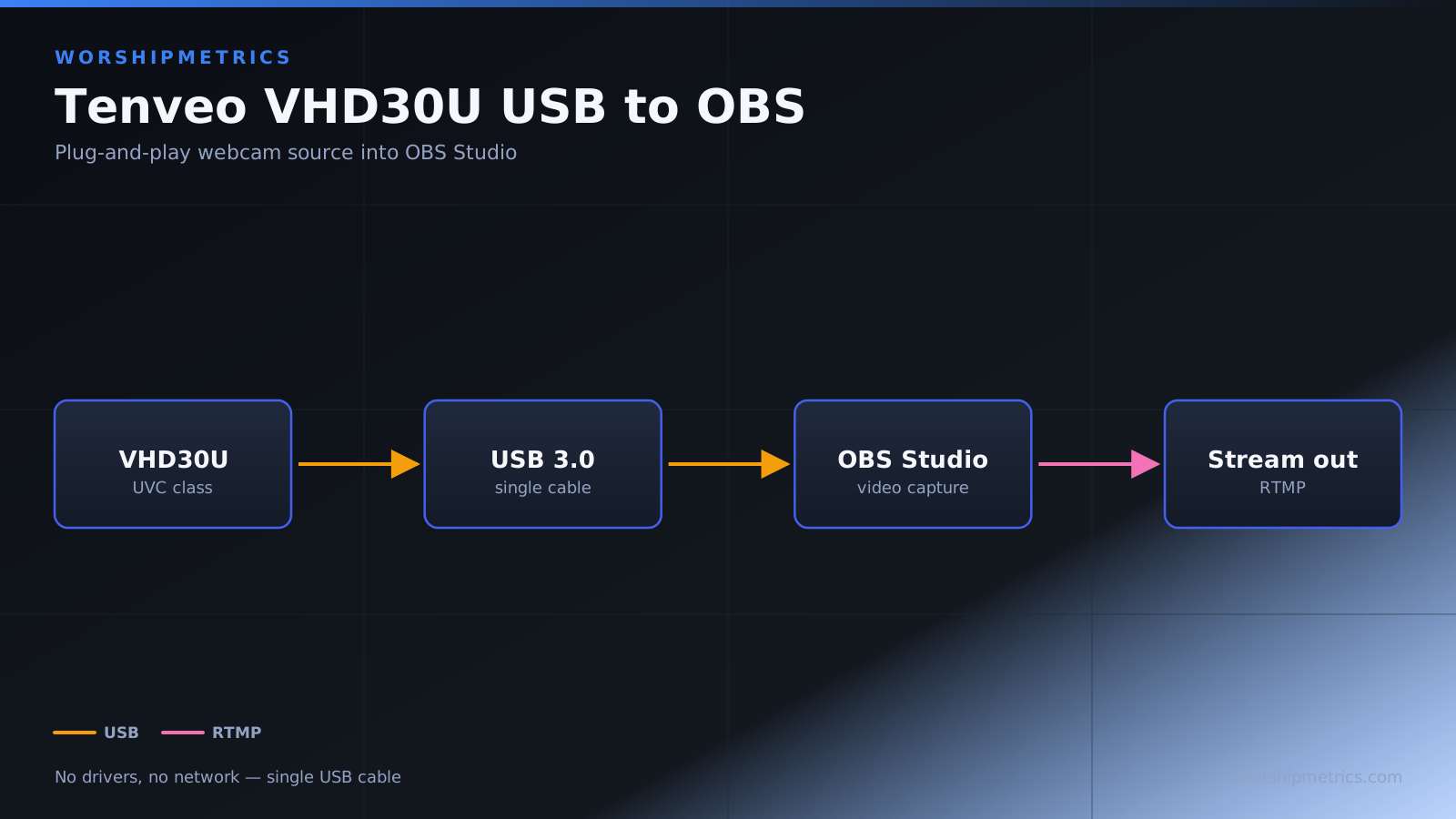
The Tenveo VHD30U appears to OBS as a standard USB webcam, making integration remarkably simple. Unlike network-based cameras that require complex configuration, the USB connection means the camera is immediately available to OBS once the USB driver is installed.
This guide covers adding the VHD30U as a video source in OBS, configuring resolution and frame rate, and optimizing the camera for your church production workflow.
Connect USB and Install Drivers
Before opening OBS, connect the Tenveo VHD30U to your production computer via USB cable. The operating system automatically detects the camera and installs the necessary driver. On Windows, you may see a notification during driver installation. On macOS and Linux, installation is automatic for most models.
Once the driver is installed, the camera is available to all applications on your computer, including OBS. You do not need proprietary software to use the camera in OBS—the USB driver is sufficient.
Add the Tenveo as a Video Capture Device Source in OBS
Open OBS and navigate to the scene where you want to add the camera. Click the + button under the Sources panel and select Video Capture Device. A dialog appears with available video input devices.
Select the Tenveo VHD30U from the dropdown list. If the camera does not appear, ensure the USB cable is connected and the system recognizes the device. You can also try restarting OBS if the camera was plugged in before OBS launched.
Once selected, OBS adds the source to your scene and the camera’s video appears in the preview. The 1080p video from the Tenveo should be clean and sharp.
Configure Resolution and Frame Rate
After adding the source, right-click it and select Properties to access advanced configuration. The Resolution dropdown allows you to select from available resolutions. Most Tenveo cameras support 1080p, 720p, and 480p. For church production, 1080p is standard unless bandwidth is limited.
The Frame Rate setting controls whether the camera sends 30 fps or 60 fps. Modern church production typically uses 60 fps for smooth motion, but 30 fps is acceptable if CPU resources are limited on your production computer.
Select appropriate settings for your workflow, click OK, and confirm the video quality in your preview. The camera should deliver clear video at your chosen resolution and frame rate.
Optimize for Your Production Workflow
Once the camera is added to OBS, treat it like any other source. You can crop it, resize it, apply filters, or add multiple instances of the camera in different scenes if your workflow requires it.
Position the camera in your scenes using the same design principles as with any other video source. The advantage of the Tenveo is the 30x zoom that allows you to frame different parts of your sanctuary from a single camera position.
Test USB Stability During Extended Use
Run a test broadcast that lasts 20 to 30 minutes, simulating a real service. Monitor whether the camera remains connected, whether video quality remains consistent, and whether OBS handles the source without stuttering or CPU overload.
USB connections can occasionally be interrupted by other high-bandwidth USB traffic (external drives, printers, or other devices). If your camera disconnects during the test, check for USB conflicts. Try using a different USB port or limiting other USB device activity during broadcasts.
If the camera connection is stable during your test, it should be stable during services as well.
Configure Default Camera Settings
When the VHD30U powers on, it starts at a default zoom level and pan/tilt position. You can configure what this default position is using the camera’s control software or remote. For most churches, setting the default to a slightly zoomed view (not full wide, not fully zoomed in) is a good starting point.
Once you have configured your default position, your operator does not need to adjust anything at camera startup. The camera powers on ready to use.
Create OBS Scenes for Your Service
Design your OBS scenes to use the Tenveo effectively. You might have a worship scene where the camera is zoomed to frame the worship team, a teaching scene where the camera is zoomed to frame the pulpit, and perhaps an announcements scene that uses a different framing.
If your production software supports it, you can link scene changes to camera preset recalls through scripts or plugins. This keeps the camera and scene composition in sync automatically.
Monitor CPU Usage
The Tenveo’s USB video stream consumes CPU resources on your production computer. Monitor your CPU usage while the camera is active in OBS. If CPU usage is very high (above 80%), you may need to reduce resolution, reduce frame rate, or reduce the number of other sources active simultaneously.
Most modern computers handle 1080p 60 fps USB video without issue, but older computers or computers with many other applications running may struggle.
Troubleshoot USB Connection Issues
If the camera stops appearing in OBS or the video feed drops during a broadcast, check these common issues:
USB cable: Ensure the cable is fully seated at both the camera and the production computer. Try a different cable to rule out cable damage.
USB port: Try plugging the camera into a different USB port. Some ports may be on the same USB hub and can experience bandwidth contention.
USB power: The camera draws power from the USB cable or from its power adapter. If the camera is using USB power, ensure the computer provides adequate power. If the computer cannot supply enough power, the camera may become unreliable. Use the camera’s power adapter instead of relying on USB power.
Driver status: On Windows, check the Device Manager to confirm the camera driver is installed and operating normally. If you see error indicators, reinstall the camera driver.
OBS configuration: Restart OBS and try adding the camera source again. Sometimes OBS needs to refresh its device list.
Conclusion
Tenveo VHD30U integration with OBS through USB is one of the simplest camera setups for church production. The camera appears immediately as a standard video input device, requiring no network configuration or complex setup.
Once the USB camera is added to OBS, it operates like any other video source. The real advantage is the 30x zoom, which allows you to frame different service areas from a single stationary camera location.