Introduction
Tenveo NDI camera network configuration determines whether the camera integrates smoothly into your production system or becomes a source of frustration. Proper network planning means the camera is always discoverable, always stable, and operates predictably week after week.
This guide covers IP addressing strategy, static IP assignment, multicast verification, network bandwidth planning, and long-term network documentation so your Tenveo NDI camera operates reliably.
Plan Your IP Addressing Scheme
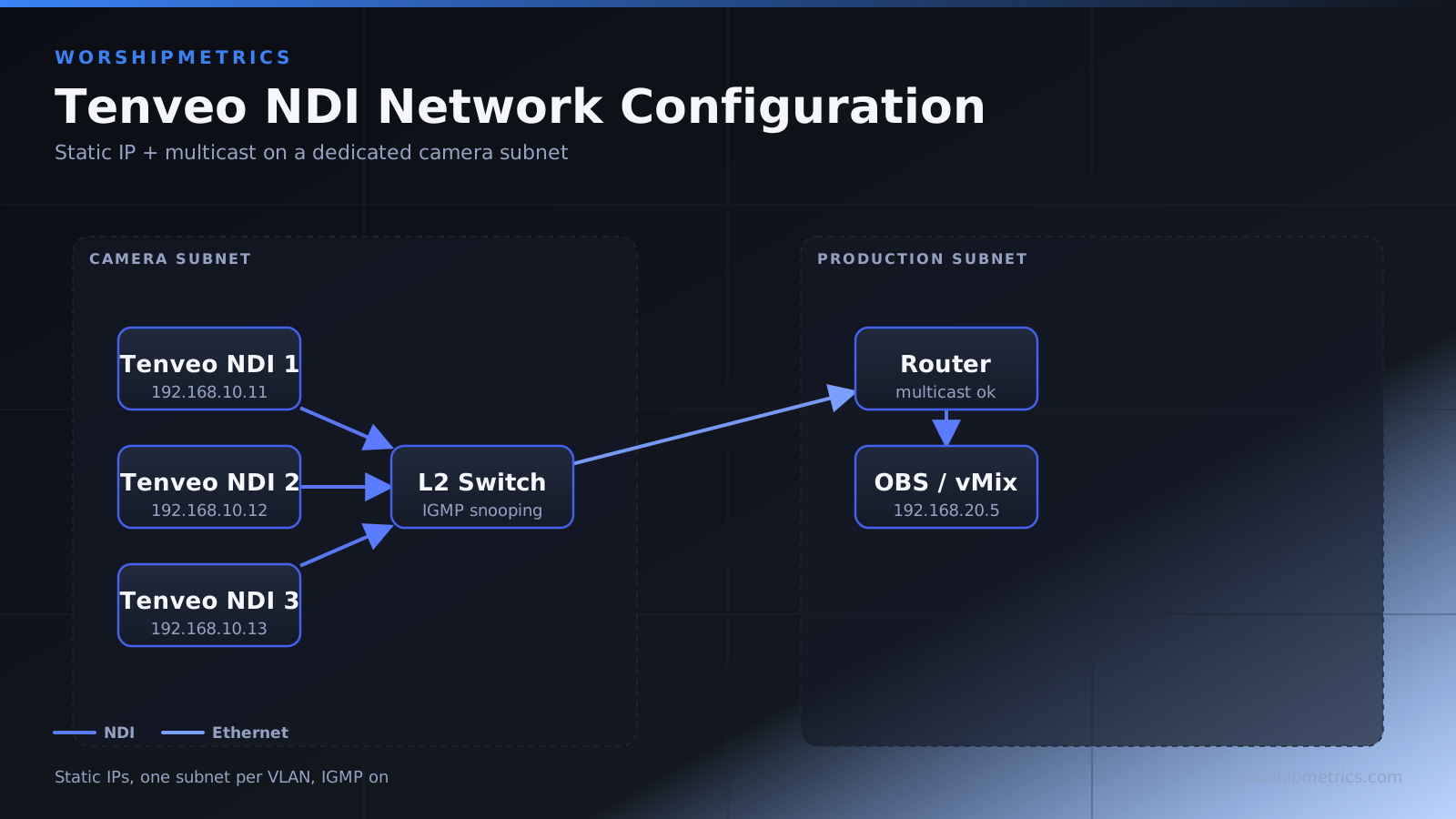
Before connecting a Tenveo NDI camera to your network, plan your IP addressing. Decide what address range you will use for cameras and other AV equipment. A common approach is to reserve a range like 192.168.1.50 through 192.168.1.100 specifically for AV devices.
If you have multiple Tenveo cameras, assign consecutive addresses: 192.168.1.50 for the first camera, 192.168.1.51 for the second, and so on. This makes it obvious when you see an address which camera it belongs to.
Consult with your IT administrator about the appropriate address range for your church network. Some networks have formal device management policies that require IT approval for address assignments. Following your IT policy prevents conflicts and ensures long-term network stability.
Assign Static IP Addresses
The Tenveo defaults to DHCP, which means it acquires an IP address from your DHCP server temporarily. While this works initially, DHCP addresses can change, causing the camera to become unreachable at the address you thought it was assigned to.
After the camera boots and acquires a DHCP address, log into its web interface and change to a static IP address. Enter the static address, gateway, subnet mask that match your network, and save. The camera reboots and connects using the new static address.
Document the static IP address in a spreadsheet or text file that you maintain for reference. If someone new needs to configure the camera or troubleshoot a network issue, they can look up the intended address immediately.
Verify Multicast Is Enabled on Your Network
NDI depends on multicast traffic for device discovery. Your network switches must allow multicast to flow, and your firewall must not block multicast packets. Multicast is enabled by default on most networks, but enterprise networks sometimes disable it for security.
Ask your IT administrator whether multicast is enabled on your network. If it is disabled on your segment, NDI will not discover the camera even if it is powered and networked. Your IT administrator may be able to enable multicast or move your camera to a network segment that allows it.
Configure Multicast Address if Required
Some networks use custom multicast addresses or require specific multicast configuration. If your IT administrator mentions that you need to configure a specific multicast address for your camera, enter it in the camera’s network settings. The standard NDI multicast address is 239.255.0.x, but custom configurations exist.
Check your Tenveo documentation for how to configure a custom multicast address, and work with your IT administrator to ensure the address is correct.
Test NDI Discovery on Your Network
Once the camera is assigned a static IP address and multicast is confirmed, test that your production computer can discover it. Open OBS or vMix and add an NDI source. Look for the Tenveo in the available sources list. If it appears immediately, your network configuration is correct.
If the camera does not appear, verify that both the camera and production computer are on the same subnet and that multicast is not blocked. If they are on different subnets, NDI multicast will not work.
Plan Network Bandwidth for Multiple Cameras
Each Tenveo NDI camera consumes approximately 150-200 Mbps of bandwidth when streaming full 1080p 60 fps video. If you deploy multiple cameras, sum their bandwidth usage and confirm your network can sustain it.
A gigabit switch (1000 Mbps) can theoretically handle five or six simultaneous NDI streams, but real-world conditions—competing network traffic, wireless devices, background data synchronization—reduce available capacity. Be conservative in your bandwidth estimates.
If bandwidth is limited, reduce NDI resolution or frame rate at the camera to fit within your available capacity. A 720p 60 fps stream consumes roughly half the bandwidth of a 1080p 60 fps stream.
Document Your Network Configuration
Create and maintain documentation of your Tenveo NDI camera network configuration:
Camera 1: IP address 192.168.1.50, located at back wall above audience Camera 2: IP address 192.168.1.51, located at side wall stage left Multicast status: Enabled, using standard NDI addresses (239.255.0.x) Network switch: Cisco managed switch, port 5 Bandwidth allocation: Two cameras at 1080p 60 fps, total 300+ Mbps
Store this documentation in your shared network folder or in a printed sheet near your equipment. This documentation becomes invaluable when you need to troubleshoot or when someone new needs to understand your setup.
Monitor Network Performance During Services
During your first few services with the Tenveo on the network, monitor network performance. Watch for NDI source drops, video quality degradation, or any instability. If you notice issues, they are usually network-related and fixable.
Use your network monitoring tools to check bandwidth usage. If multiple Tenveo cameras are using more bandwidth than you anticipated, you may need to adjust resolution or frame rate or add network capacity.
Plan for Network Redundancy if Critical
For mission-critical broadcasts, consider network redundancy: two network cable paths to the camera, or a camera that can operate on Wi-Fi if the wired connection fails. Redundancy adds complexity but provides reliability if your primary network path fails.
For most churches, single-path networking is acceptable, and brief interruptions are tolerable. But if your broadcast is absolutely mission-critical, discuss redundancy options with your IT team.
Update Network Documentation When Changes Occur
When you add a second camera, change a camera’s IP address, or make any network change, update your documentation immediately. Out-of-date documentation creates confusion and makes troubleshooting much harder.
Assign someone responsibility for maintaining network documentation—this could be your IT administrator, your AV team lead, or whoever manages your camera system.
Coordinate with IT Department
Establish ongoing communication with your IT department. Inform them about your Tenveo cameras, the network resources they consume, and your future plans. Good communication prevents IT from making network changes that inadvertently break your camera system.
Similarly, ask your IT department to notify you if they make changes that might affect your cameras—switch upgrades, security policy changes, network reconfiguration, etc.
Conclusion
Tenveo NDI camera network configuration requires planning and documentation but is straightforward once understood. Static IP addressing, multicast confirmation, and bandwidth planning create a foundation for reliable operation.
The investment in proper network planning and documentation pays dividends in stable, trouble-free operation and in the ability to quickly resolve issues when they arise.