Introduction
The Tenveo VHD20U remote control is your primary interface for operating the camera during service. A well-trained operator who is comfortable with the remote becomes invisible—the congregation never thinks about the camera because it is positioned correctly for every moment. A poorly trained operator who fumbles with the remote becomes a distraction.
This guide covers setting up the remote, configuring batteries, training your operator, and establishing an operator runsheet that ensures consistent, confident camera operation.
Install and Verify Remote Batteries
The remote requires batteries to operate, typically AA or AAA depending on the model. Check your documentation for the battery type. Install fresh batteries, ensuring correct polarity (+ and - markings aligned).
Test the remote by using it to pan or zoom the camera. The camera should respond immediately to remote commands. If the remote does not control the camera, ensure the batteries are installed correctly and are actually fresh.
Replace remote batteries monthly or at the start of each month to ensure the remote is always in good working order. A remote with dying batteries will fail unexpectedly mid-service, which is worse than no remote at all. Keep spare batteries in your equipment cabinet.
Program Remote Presets
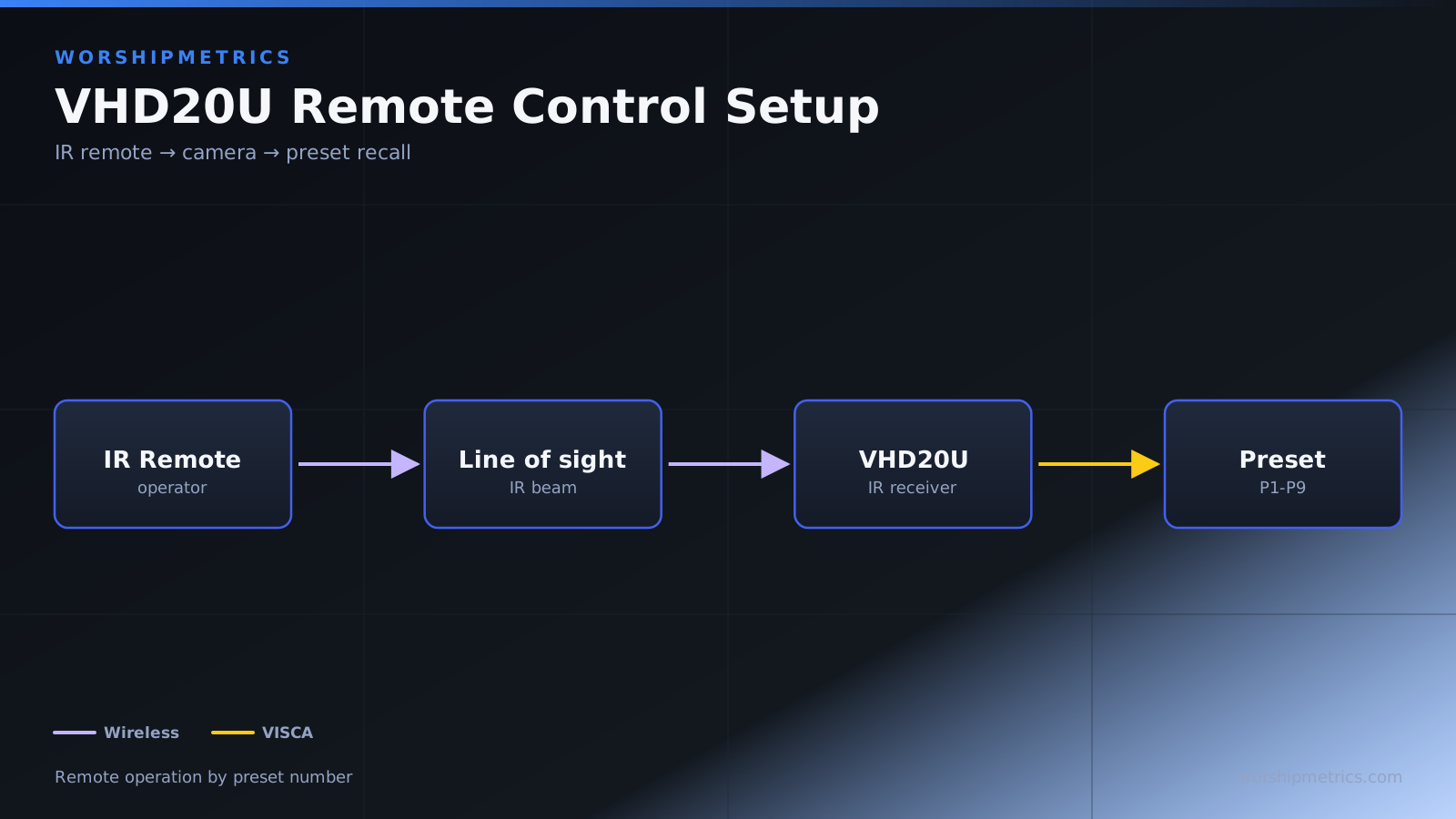
Most Tenveo remotes have buttons that correspond to preset positions. To save a preset, position the camera at the desired framing, then press the Save or Program button and select a preset number. Your documentation will specify the exact button sequence for your model.
Program your presets into the remote before your first service. For example:
Preset 1: Wide stage shot Preset 2: Pulpit speaker position Preset 3: Worship team position Preset 4: Announcements position
Test each preset by moving the camera to a different position and recalling the preset. The camera should return to the exact saved position.
Create an Operator Runsheet
An operator runsheet is a simple written guide showing the service order with camera preset calls alongside. Your runsheet might look like:
Opening song begins → Preset 3 (Worship) Teacher walks to pulpit → Preset 2 (Pulpit) Teaching continues → Preset 2 Worship team steps forward → Preset 3 (Worship) Announcements → Preset 4 Prayer → Preset 1 (Wide) Dismissal → Preset 1 (Wide)
Print the runsheet and laminate it or place it in a clear sleeve so the operator can reference it during service. The runsheet is the operator’s script—they follow it, using the remote to recall presets at the right moments.
Train Your Operator to Use the Remote
Successful remote operation depends on operator training and muscle memory. Walk your operator through each preset, showing them which button corresponds to which shot. Have them practice recalling presets repeatedly until the motion becomes automatic.
Make sure your operator understands the difference between being ready for the next cue and executing it. The operator needs to recall a preset before the moment it is needed, not after. For example, if the worship team is about to step forward, the operator should recall Preset 3 (Worship) just before that moment, not after they have already stepped forward.
Reduce Operator Cognitive Load Through Clear Documentation
The better documented your preset system, the less your operator has to remember. Clear button assignments, service runsheet, and written descriptions of what each preset shows all reduce the chance of mistakes.
If your operator is new to camera control, spend extra time walking them through the presets and the runsheet. Have them practice during a rehearsal with the full service flow, not just in isolation with the camera.
Manage Remote Control Backup and Failures
You may want a second remote as backup in case the primary remote fails. If you have two remotes, program the same presets into both so either remote can be used if needed. Test both remotes before service to ensure they work.
If the remote fails mid-service (no response to commands), check the battery first. Install fresh batteries and try again. If fresh batteries do not resolve the issue, the remote may have a hardware failure. This is why a backup remote is valuable.
If no backup remote is available and the remote fails, your operator can revert to using the camera’s web interface (if available) or joystick controller (if available) to control the camera manually. This is less ideal but allows operation to continue.
Understand Preset Button Organization
Most Tenveo remotes have multiple preset buttons. Organize your presets in a logical sequence. Starting with Preset 1 for your most-used position (usually Wide or default) and progressing through your other presets in service order is typically clearest.
Some remotes have 10 or more preset buttons, giving you room for flexibility, but you do not need to use them all. Use only the presets that correspond to actual service moments.
Practice Timing and Response
The operator needs to understand that preset recalls take time. A preset does not appear instantly; the camera takes a moment to pan and tilt to the saved position. The operator must recall a preset ahead of the moment when it is needed, not at the exact moment.
During rehearsal, time your preset recalls to match the actual service timing. If it takes two seconds for the camera to move from Preset 2 to Preset 3, the operator needs to recall Preset 3 two seconds before that movement should be complete.
Establish Clear Authority and Communication
If multiple people have access to camera remotes, establish clear authority: only one person moves the camera during service. Multiple people trying to control the camera simultaneously results in jerky, confused movement.
If your operator needs support (someone monitoring the broadcast and sending cues), establish clear communication. A radio headset, a simple hand signal, or a service runsheet printed for both the operator and the cue person all work.
Rotate Operators to Build Depth
Train multiple operators on the remote so the camera system survives if one operator is absent. Cross-training also improves team depth and prevents single-point-of-failure dependency.
When training a new operator, have them shadow the experienced operator during service first. Then have them operate while the experienced operator observes and provides feedback.
Conclusion
The Tenveo VHD20U remote control, when properly programmed and carefully used, enables reliable camera operation that requires no manual adjustment. An operator who has practiced preset recalls and understands service timing becomes confident and requires no conscious thought during operation.
Invest time in clear documentation, operator training, and practice with actual service flow. That investment pays off in professional-looking camera work that supports rather than distracts from your service.