Introduction
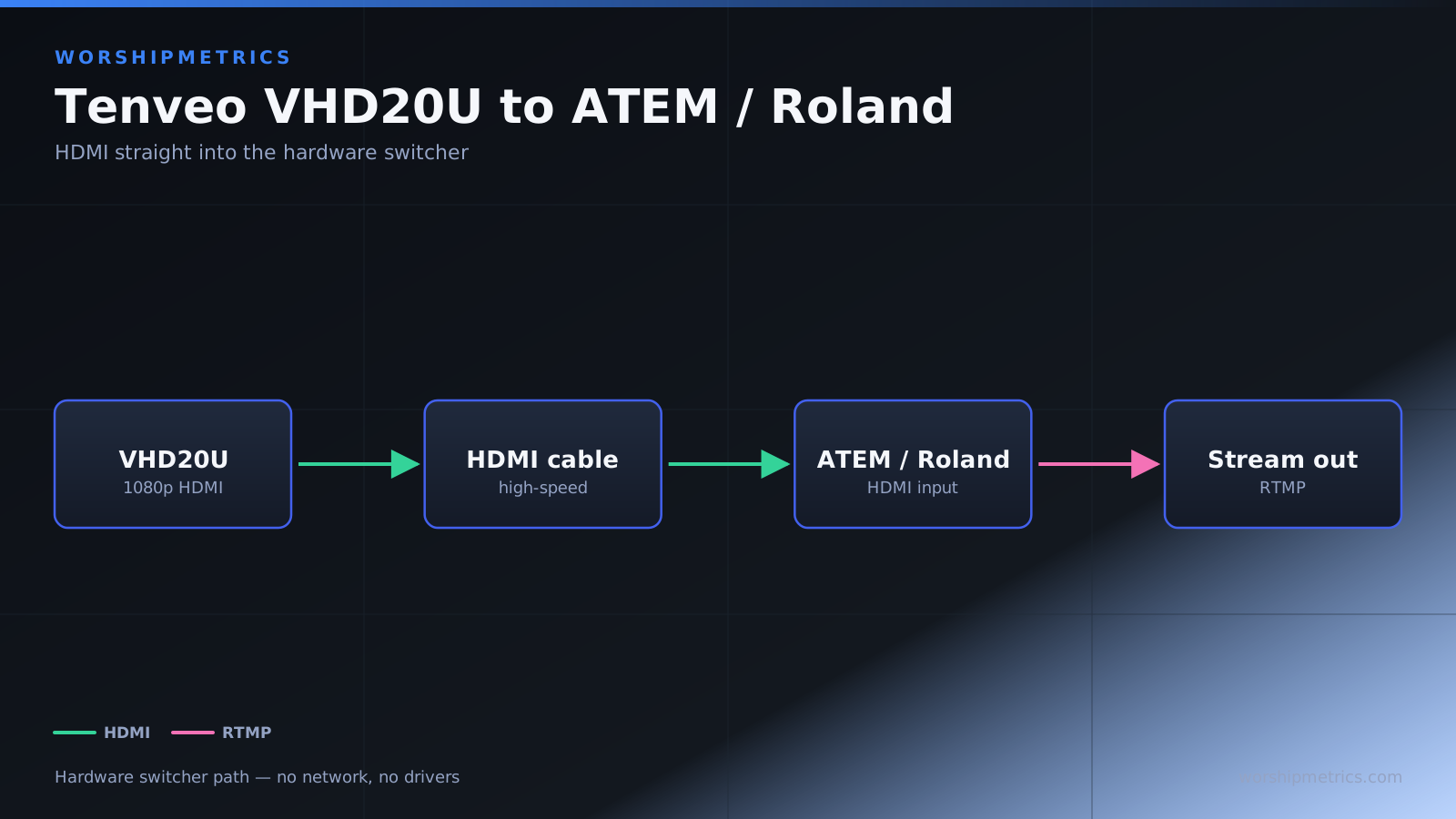
The Tenveo VHD20U integrates seamlessly with hardware switchers like ATEM Mini and Roland V-Mixer through HDMI connection. Unlike software-based switching, hardware switchers provide real-time switching without relying on computer processing power. This makes them reliable for live broadcasts where multiple cameras need to be switched quickly.
This guide covers connecting the VHD20U to common church switchers, configuring inputs properly, and optimizing your switching workflow.
Connect VHD20U to ATEM Mini or ATEM Mini Pro
The ATEM Mini has four HDMI inputs for camera or source connection. Connect the Tenveo VHD20U to any available HDMI input using a quality HDMI cable. The ATEM Mini automatically detects the video signal and makes it available for switching.
In the ATEM Software Control (if using the software control application on your production computer), the camera appears as an available input. You can name it something meaningful like Camera 1 or Stage Camera to keep track of which input is which.
The ATEM Mini does not provide power to the camera via HDMI, so ensure the camera has its own power adapter connected and powered on before connecting the HDMI cable.
Test the input by selecting it in the ATEM switcher. You should see the live video from the Tenveo on your preview monitor. If you do not see video, check the HDMI cable connection and ensure the input is actually selected.
Connect VHD20U to Roland V-Mixer or V-60HD
The Roland V-Mixer accepts HDMI inputs similarly to the ATEM. Connect the Tenveo to an available HDMI input port on the back of the device. The Roland recognizes the video automatically.
Once connected, select the input in your Roland’s switching interface. The video from the Tenveo becomes available for switching between your camera sources.
The Roland V-Mixer also does not provide power to the camera via HDMI, so ensure the Tenveo has separate power as with the ATEM.
Configure Input Naming and Organization
Both ATEM and Roland switchers allow you to name inputs for clarity. In your switcher settings, rename the input from generic names like Input 1 or Camera 1 to something meaningful like Stage Camera or Main Camera.
Input naming matters because it removes confusion during service. Your operator knows that pressing the Stage Camera button means switching to that specific Tenveo, not to some unnamed input.
Optimize Video Resolution and Timing
The ATEM and Roland switchers typically auto-detect the video format from connected sources. Confirm that the detected format matches what the Tenveo is sending (usually 1080p 60 fps or 1080p 30 fps).
If the switcher detects a different format than expected, check the Tenveo’s output settings or try a different HDMI cable. Most switchers will display the detected format in their settings, making troubleshooting easier.
Use Multiple Cameras with a Single Switcher
Once you have the Tenveo successfully connected to your switcher, you can add additional cameras to other inputs. The Tenveo becomes one source among several. This allows you to switch between multiple cameras, graphics, or other inputs during service.
A typical church setup might be: Tenveo on Input 1, another camera on Input 2, graphics or lower-thirds on Input 3, and possibly a recording or backup source on Input 4.
Configure Preset Integration with Switcher Control
Some ATEM and Roland switchers support macro recording, which allows you to automate sequences of switching and control commands. If your switcher supports macros, you can create a macro that switches to the Tenveo and simultaneously triggers a preset on the camera.
Check your switcher’s documentation for macro or automation features. Setting up integration between switching and camera control creates a more professional workflow where scene changes and camera framing are synchronized.
Monitor HDMI Cable Quality and Length
HDMI cables have practical limitations. A quality HDMI cable can run reliably up to about 50 feet, after which signal degradation becomes noticeable. If you need to run HDMI a long distance, use a high-quality cable rated for video, or consider using an HDMI extender.
Avoid coiling HDMI cables tightly or bending them at sharp angles, as this can damage the cable internally and result in intermittent video loss.
Verify the HDMI cable is fully seated at both the camera and the switcher. A loose connection can result in intermittent video dropout.
Test Complete Switching Workflow
Before service, run through your complete switching sequence using the Tenveo and other sources. Test switching between inputs, confirm that all sources are clean and stable, and verify that your operator feels comfortable with the switcher controls.
Monitor the ATEM or Roland’s display and look for any status indicators that show the Tenveo video is clean and properly synced. Most switchers display signal quality information for each input.
If the Tenveo drops out during switching or shows signal loss, check the HDMI cable and switcher input settings. HDMI issues are usually cable-related and are resolved by reseating or replacing the cable.
Configure Backup Inputs if Desired
If the Tenveo becomes unavailable for any reason, having a backup input ready (another camera, a static image, or a fallback source) allows you to continue broadcasting without significant downtime. You do not need the backup every week, but it provides a safety net when primary equipment fails.
Manage Multiple Tenveo Cameras on One Switcher
If you have multiple Tenveo cameras, connect each to a different input on your switcher. Name each input clearly so your operator knows which Tenveo is which. The preset system on each camera can be independent, or you can standardize presets across cameras for consistency.
Conclusion
Tenveo VHD20U integration with ATEM and Roland switchers is straightforward: connect via HDMI, name the input clearly, and test the connection before service. The hardware switcher provides reliable, low-latency switching between the Tenveo and other sources.
HDMI integration removes software complexity from your broadcast setup, which increases reliability. Combined with the Tenveo’s 20x zoom capability, hardware switching with the VHD20U creates a capable and affordable multi-camera production system for churches.