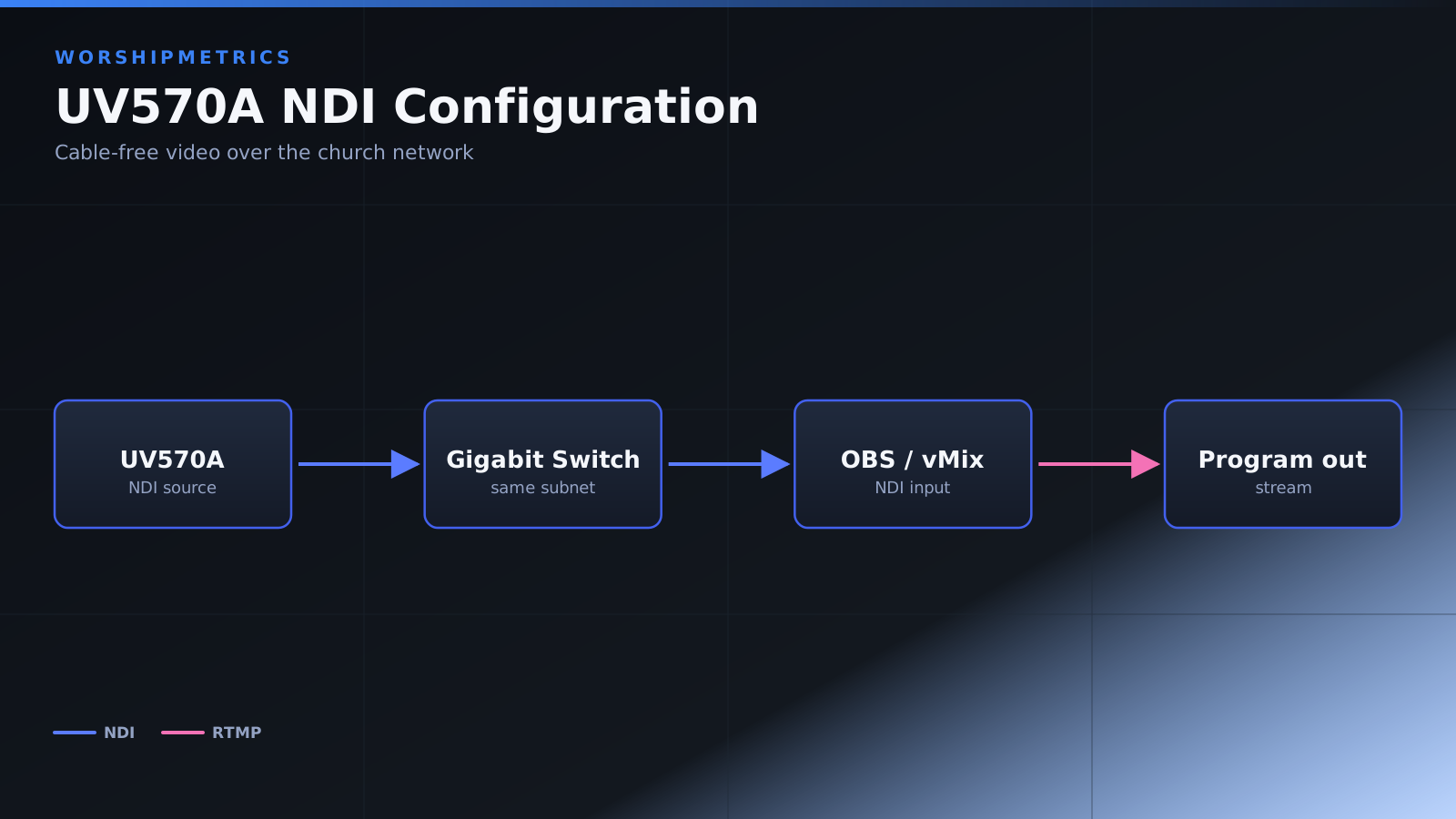
The Minrray UV570A’s NDI support makes it an excellent choice for modern church broadcast infrastructure. NDI eliminates the need for HDMI cables running across your sanctuary, instead sending video over your existing network. This guide covers complete NDI configuration and optimization.
NDI Network Requirements
NDI requires a gigabit network switch and a stable network connection. Each UV570A using NDI consumes approximately 150 megabits per second of bandwidth. Your network should have adequate capacity to support this.
Both the camera and your broadcast computer must be on the same network segment or have inter-segment communication enabled. If your church uses VLANs, place the camera and broadcast computer on the same VLAN, or ask your IT administrator to enable inter-VLAN routing.
Configuring NDI Source Name
In the camera’s web interface, navigate to the NDI configuration section. The source name is critical—this is what your team sees when adding the camera as a source in OBS or vMix.
Choose a name that immediately identifies the camera’s location or purpose. “Sanctuary Main NDI,” “Stage 30x,” or “Pulpit Close-up” are better than generic names like “Camera 1.” Clear naming prevents operator confusion and speeds up production.
Enabling NDI and Optimization Settings
Enable NDI in the web interface. Most cameras ship with NDI enabled by default, but verify this. Save your settings and allow the camera a few seconds to restart its network services.
Review any NDI optimization options available. You can often adjust quality or bandwidth usage. For most churches, the default settings provide excellent quality while using reasonable bandwidth.
NDI Source Discovery in OBS
Open OBS and add a new source. Select “Network Device Interface (NDI)”. If this option doesn’t appear, install the free OBS NDI plugin from the NDI website.
In the dialog that appears, your UV570A should appear in the list by the name you configured. Select it and click OK. OBS will connect to the camera and video should appear in your scene.
If the camera doesn’t appear, verify that NDI is enabled in the web interface. Ensure both devices are on the same network. Restart OBS and try again.
NDI Source Discovery in vMix
In vMix, click “Add Input” at the bottom left. Select “Network (NDI)” from the input types. Your UV570A should appear in the list.
Select the camera and click “Add Input”. vMix will establish the connection and video will appear in your inputs panel. vMix has native PTZ support, so you might see additional camera control options available.
Configuring vMix PTZ Controls
Once your UV570A is added as an NDI input in vMix, look for PTZ control options. vMix can send pan, tilt, zoom, and preset commands to compatible cameras.
If your UV570A supports these controls through vMix, you can control the camera directly from vMix without opening the web interface. This integration keeps your entire workflow in one software interface.
Multi-Camera NDI Deployment
If you’re running multiple UV570A cameras or other NDI sources, add each one as a separate source. Give each camera a unique, descriptive name.
Monitor your network bandwidth carefully. Three full-quality 1080p cameras consume about 450 megabits per second combined, which approaches the limits of a gigabit network while leaving adequate bandwidth for other network activities.
If bandwidth is tight, reduce camera resolution to 720p or frame rate to 30 fps on one or more cameras. This reduces bandwidth usage while maintaining acceptable video quality.
Quality of Service (QoS) Configuration
For professional multi-camera deployments, configure QoS on your network switch. QoS prioritizes video traffic, ensuring your broadcast cameras get the bandwidth they need even if other network activities spike.
Work with your IT administrator to enable QoS. Typically, you’d set QoS to prioritize traffic from your camera IP addresses and broadcast computer.
Network Monitoring and Diagnostics
Periodically monitor your network performance during broadcasts. If you experience video dropout or artifacts, network congestion is likely.
Check your network switch for any error indicators. Ask your IT team to verify that your switch ports are functioning properly and that no cables are degraded or improperly connected.
Firewall and Network Security
Some firewalls block UDP multicast traffic, which NDI uses for device discovery. If your camera doesn’t appear in the NDI source list even though it’s on your network, ask your IT administrator to verify that UDP multicast isn’t being blocked.
In some cases, you might need to manually specify the camera’s IP address instead of relying on automatic discovery. This is a workaround while you resolve the underlying network issue.
Bandwidth Optimization Techniques
If you have limited bandwidth, several techniques can help. First, reduce the camera’s output resolution from 1080p to 720p. Second, reduce frame rate from 59.94 to 30 fps. Third, reduce video quality in the camera’s NDI settings.
These optimizations reduce bandwidth usage at the cost of image quality. Balance quality and bandwidth based on your specific needs.
Recording NDI Sources
Both OBS and vMix can record NDI streams directly. This captures the raw video before any production elements are added, giving you clean archive footage.
Record to local storage with adequate capacity. A one-hour 1080p recording requires roughly 30 to 40 GB of storage depending on compression.
Troubleshooting Persistent Issues
If you experience frequent NDI problems, document what you’ve tried. Check that the camera is powered on and connected to the network.
Verify both the camera and broadcast computer are on the same network segment. Power cycle both devices. Restart your broadcast software after reconnecting the camera.
If problems persist, check with your IT administrator about network configuration issues like VLANs, firewall rules, or network congestion.
Documentation and Backup
Document your NDI camera names, IP addresses, and their physical locations. Keep this accessible to your AV team.
Periodically verify that NDI discovery is working. If a camera disappears from the NDI source list, check the web interface to ensure NDI is still enabled.
Conclusion
The Minrray UV570A’s NDI capability provides flexible, network-based video distribution without HDMI cables. With proper network configuration and bandwidth planning, NDI provides excellent reliability for modern church productions. Your camera system will benefit from the flexibility that network-based video offers.