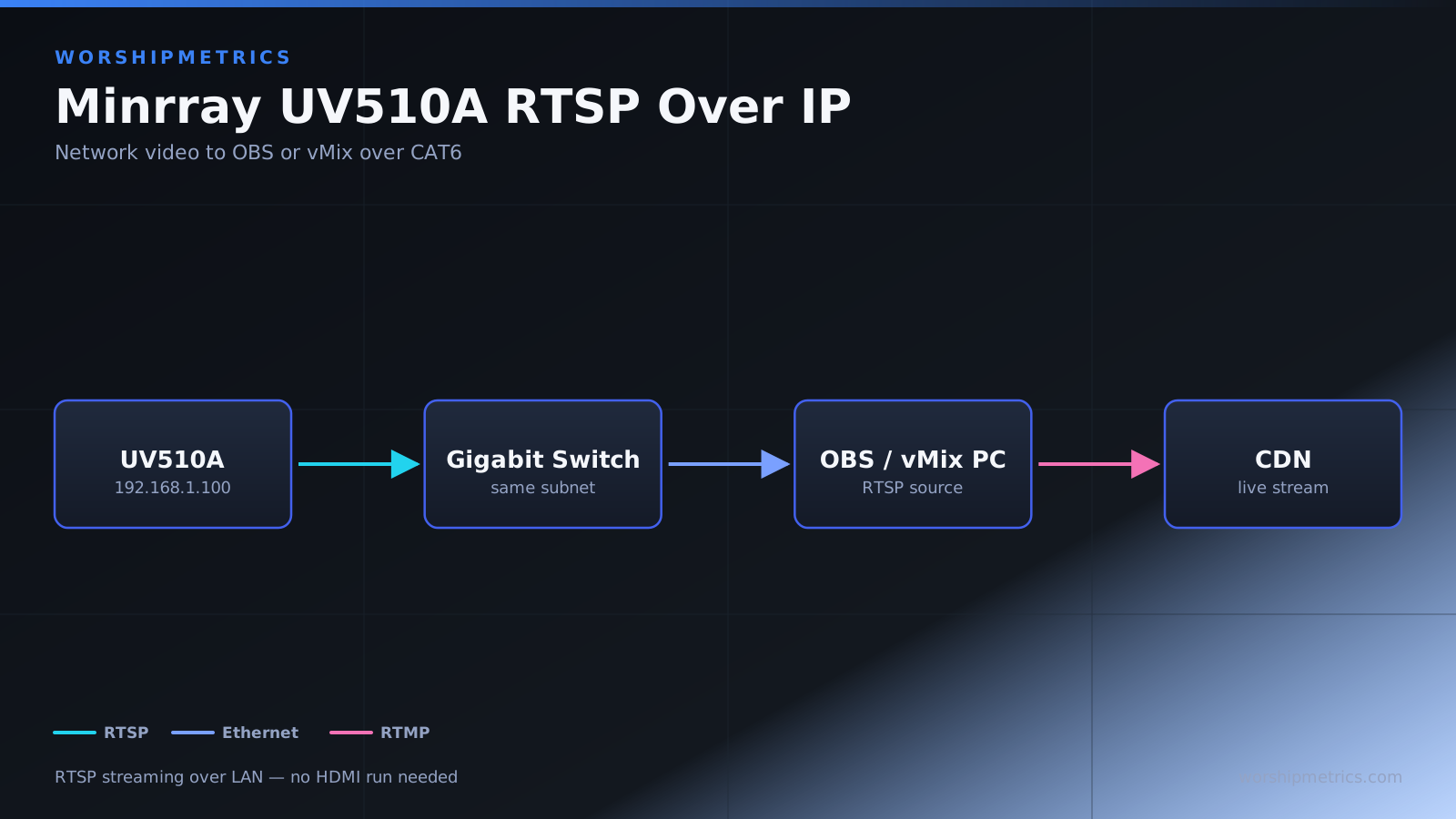
The Minrray UV510A supports IP streaming via RTSP (Real Time Streaming Protocol) and other network protocols, allowing it to send video over your church network to OBS, vMix, or directly to your streaming service. This provides an alternative to HDMI for situations where network-based video is preferable.
Understanding RTSP and IP Streaming
RTSP is a protocol for streaming video over network connections. Unlike NDI which is proprietary to NewTek/Vizrt, RTSP is an open standard supported by most broadcast software. The UV510A outputs RTSP streams that can be accessed from any application that supports RTSP.
The advantage of RTSP over HDMI is that the video travels over your network, eliminating the need for long HDMI cable runs. The disadvantage is that RTSP can be slightly more complex to configure than HDMI.
Accessing Camera Network Settings
Log into the camera’s web interface and navigate to the Network settings or Streaming configuration section. Look for options related to RTSP or IP streaming.
You should see options to enable RTSP streaming and to configure the streaming parameters. The default settings usually work for most churches, but you might want to adjust quality or resolution based on your network.
Configuring RTSP Output
Enable RTSP streaming in the camera settings. The camera will output its video stream over the network at a default port (usually 554, the standard RTSP port).
Note the RTSP URL that the camera provides. This will look something like “rtsp://192.168.1.100:554/stream” where 192.168.1.100 is the camera’s IP address. You’ll need this URL to connect to the camera from OBS or vMix.
Some cameras allow you to configure multiple RTSP streams at different resolutions or bitrates. You might have a high-quality stream for recording and a lower-quality stream for live streaming to the internet.
Adding RTSP Stream to OBS
In OBS, add a new source and select “Media Source.” In the file path field, enter the RTSP URL of your camera.
Click OK and OBS will connect to the camera’s RTSP stream. Video should appear in your scene within a few seconds. If it doesn’t appear, verify that the RTSP URL is correct and that the camera is on the same network as your broadcast computer.
Adding RTSP Stream to vMix
In vMix, click “Add Input” and select “Streaming” or “Network Stream.” Depending on your vMix version, you might need to select a different input type for RTSP streams.
Enter the RTSP URL in the input field. vMix will connect to the stream and video will appear in your inputs list.
Network Bandwidth Considerations
RTSP streams consume significant bandwidth. A 1080p RTSP stream at high quality uses approximately 5 to 10 megabits per second on your local network. This is much less than NDI or direct switching, but still significant.
If you’re streaming the same camera to the internet while simultaneously using it for local broadcasting, bandwidth can become a concern. Plan your network accordingly.
Optimizing RTSP Quality
In the camera’s settings, you can often adjust the bitrate or quality of the RTSP stream. Lower bitrate reduces bandwidth usage but reduces image quality.
For church applications, a balance between quality and bandwidth usually works best. Medium quality RTSP streams provide excellent visual fidelity while consuming reasonable bandwidth.
Using Multiple RTSP Streams
Some cameras allow you to create multiple RTSP streams at different resolutions. You might use a high-quality 1080p stream for local recording while streaming a lower-quality 720p stream to the internet.
This approach maximizes the visual quality your on-site viewers experience while managing internet bandwidth usage efficiently.
Troubleshooting RTSP Connection Issues
If OBS or vMix can’t connect to the camera’s RTSP stream, verify that the RTSP URL is correct. Double-check the camera’s IP address and that the port number (usually 554) is correct.
Verify that both the camera and broadcast computer are on the same network. If they’re on different network segments, they might not be able to communicate.
Check if a firewall is blocking RTSP traffic. RTSP uses TCP/UDP port 554 by default. Ask your IT administrator to verify that this port isn’t blocked.
Testing Streaming During Rehearsal
Before relying on RTSP streaming during a live service, test it thoroughly. Have someone operate the camera while another person monitors the RTSP stream in OBS or vMix.
Watch for any dropout, latency, or quality issues. Network congestion during your rehearsal might not be representative of conditions during a live service, so test at different times of day.
Integration with Your Broadcast Workflow
RTSP streams appear as regular video sources in OBS or vMix, so once connected, they work like any other video source. You can apply effects, resize them, or integrate them into multi-camera layouts.
The lag between camera movement and the update in your broadcast software is typically one to two seconds, which is acceptable for most church applications.
Recording RTSP Streams
OBS can record RTSP streams directly. The recording will be independent of your broadcast output, allowing you to record at higher quality than you’re streaming to the internet.
Record to a local hard drive with adequate space. A one-hour 1080p recording requires roughly 30 to 40 GB of storage depending on compression.
Firewall and Security Considerations
RTSP streams travel over your network, potentially visible to anyone on that network if not secured. For most churches, this isn’t a concern because broadcast content is public.
However, if you want to secure RTSP streams, some cameras support authenticated RTSP connections. Check your camera documentation for security options.
Comparing RTSP to HDMI
RTSP is ideal if you need to stream from a camera far from your broadcast station, or if you want to use the camera with multiple broadcast computers or software packages simultaneously.
HDMI is simpler to set up and requires no network configuration, making it preferable for straightforward single-camera installations. Choose whichever method fits your infrastructure better.
Conclusion
The Minrray UV510A’s IP streaming capability provides flexibility for modern broadcast workflows. Whether you prefer the simplicity of HDMI or the flexibility of network-based streaming, the UV510A supports your needs. RTSP streaming allows you to leverage your network infrastructure for video distribution without complex NDI configuration.