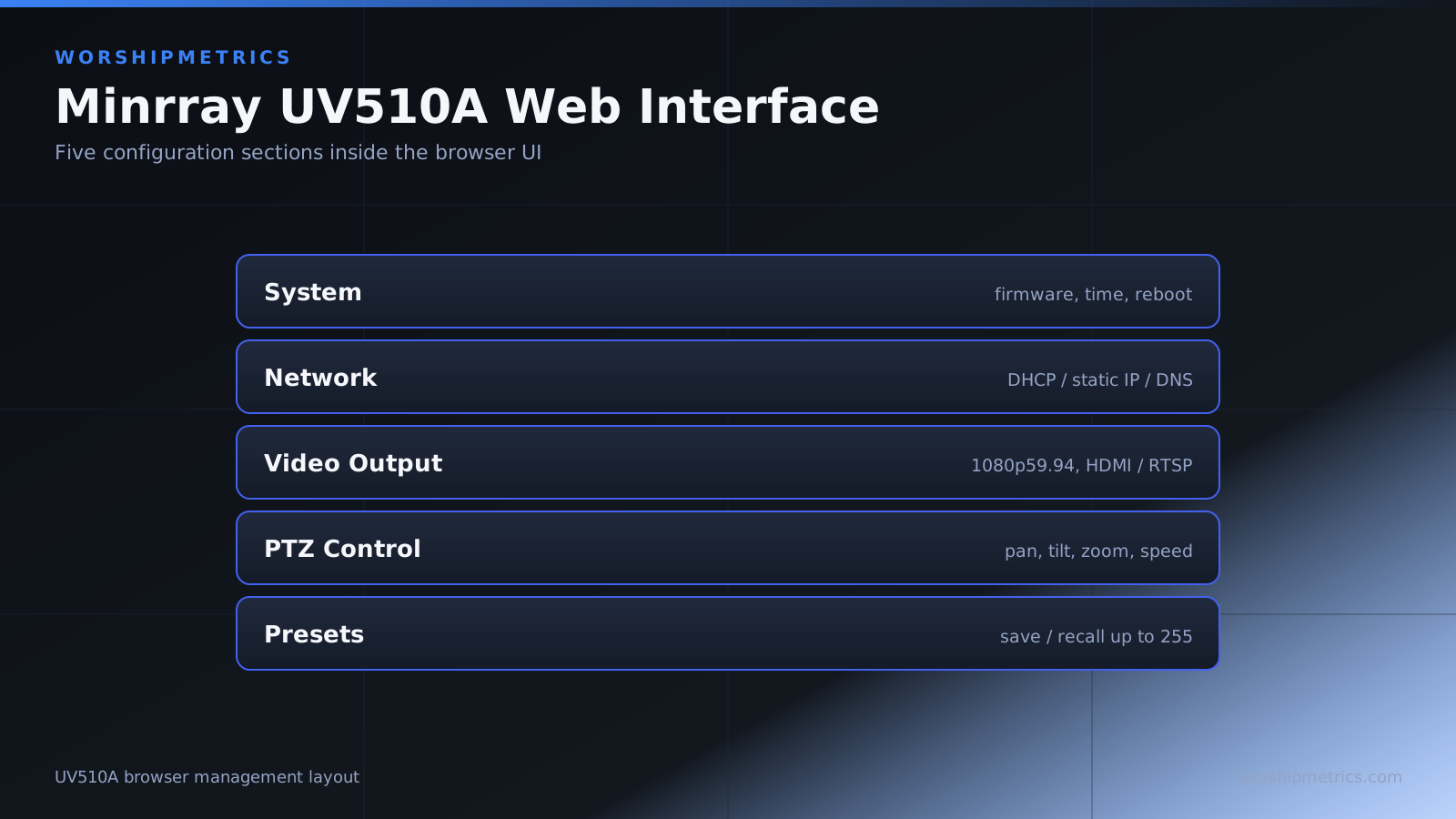
The Minrray UV510A’s web management interface is where you handle most configuration tasks, from network setup to video output selection to preset management. Understanding the interface helps you configure the camera efficiently and troubleshoot problems. This guide covers the major sections.
Accessing the Web Interface
Open a web browser on a computer connected to the same network as the camera. Type the camera’s IP address into the address bar. The login page will appear.
Log in with your admin credentials. If you haven’t changed the default password, check your documentation for the default login information. We strongly recommend changing the password immediately after first login.
Modern browsers might show a security warning when accessing the camera’s web interface, especially if it uses a self-signed SSL certificate. This is normal for network devices and not a cause for concern. You can safely proceed.
Dashboard and Navigation
The main dashboard shows live video from the camera and provides access to major settings sections. The navigation menu, typically on the left side, shows the major configuration categories.
Take a moment to understand the menu structure. You’ll typically see sections for System, Network, Video Output, PTZ Control, and Presets. Knowing where things are located makes configuration faster.
Network Configuration Section
The Network section is where you configure how the camera connects to your church network. Here you can view the camera’s current IP address, configure static IP addressing, and set gateway and DNS settings.
For most church setups, DHCP works well and requires no configuration. However, if you want a consistent IP address for web interface access and integration with control systems, configure a static IP here.
Discuss IP addressing with your IT team to ensure you choose an address that won’t conflict with other devices. If using static IP, enter the IP address, gateway, and DNS settings provided by your IT administrator.
Video Output Configuration
In the Video Output section, you configure the HDMI output resolution and frame rate. The default is 1080p at 59.94 frames per second, which is excellent for most church applications.
If your switcher or broadcast equipment requires a different format (720p, 1080i, etc.), you can change it here. However, 1080p at 59.94 fps is the recommended standard unless you have a specific reason to use a different format.
IP Streaming and RTSP Configuration
If you want to use the UV510A’s IP streaming capability, configure RTSP output in this section. Enable RTSP streaming and note the RTSP URL that the camera provides.
You can often create multiple RTSP streams at different resolutions. For example, one stream at full 1080p for local recording, and another at 720p for internet streaming to conserve bandwidth.
Audio Configuration
The UV510A can output audio through HDMI, though audio from the camera is rarely used in church broadcasts. You can mute the audio or adjust levels if needed.
In most church setups, audio comes from a separate mixing console, not from the camera. The audio configuration is typically left at default settings.
PTZ Control Interface
The web interface includes a PTZ (pan-tilt-zoom) control section with live video and manual controls for moving and zooming the camera. Use these controls to test camera movement and to position the camera for preset saving.
The interface usually shows arrow buttons for pan and tilt, a zoom slider, and buttons for preset saving and recall. Take time to become familiar with these controls.
Fan and Temperature Monitoring
Many professional cameras include temperature sensors and status indicators. The System section might show the camera’s operating temperature and fan status.
This information is useful for monitoring the camera’s health. If the camera runs unusually hot, it might indicate a problem. Ensure the camera has adequate ventilation.
System Information
The System Information section displays details about your camera including the firmware version, hardware specifications, and system status. Note the current firmware version.
Periodically check the Minrray website to see if newer firmware is available. Firmware updates sometimes include important fixes or new features. However, only update firmware if a change is recommended or if you’re experiencing issues that the update addresses.
Security Settings
Access the Security section to manage user accounts and change your login password. The default admin account is typically the only account initially configured.
Change the default password immediately after initial setup. Use a strong password with at least 12 characters including letters, numbers, and symbols. Document the password in a secure location accessible to your AV team.
Network Settings Deep Dive
If your church uses advanced network configurations (VLANs, QoS, etc.), the Network section might have additional settings for managing network behavior. Most churches don’t need these advanced settings.
Discuss network configuration with your IT administrator if your church uses sophisticated network management. They can advise on any special settings that might benefit your video deployment.
Saving and Applying Changes
After making configuration changes, look for a Save button or similar control. Some settings apply immediately, while others might require the camera to restart.
If the camera restarts after configuration changes, you’ll temporarily lose the web interface connection. This is normal—just refresh your browser after a few seconds to reconnect.
Preset Management Through Web Interface
The PTZ Control section allows you to save and recall presets directly through the web interface. Position the camera where you want it, then click “Save Preset” or a similar button.
Presets can also be controlled through dedicated control software if available, but the web interface provides a simple method for preset management.
Backup and Documentation
Document your camera configuration in a spreadsheet. Record the IP address, static gateway and DNS if used, RTSP URL if streaming, and any custom settings you’ve configured.
Some cameras allow you to export configuration settings through the web interface. If this feature is available, periodically save configuration exports as backups.
Troubleshooting Through the Web Interface
If the camera is behaving unexpectedly, check the web interface for error messages or warnings. The System section often displays diagnostic information that can help identify problems.
Most cameras have a reboot option in the System settings. If you encounter persistent problems, a web interface reboot often clears them. Allow the camera to restart fully before reconnecting.
Conclusion
The Minrray UV510A’s web interface provides comprehensive control over the camera. By understanding the major sections and taking time to explore the interface, you’ll be able to configure the camera efficiently and troubleshoot problems effectively. Your church’s broadcast will benefit from a properly configured camera that operates reliably.