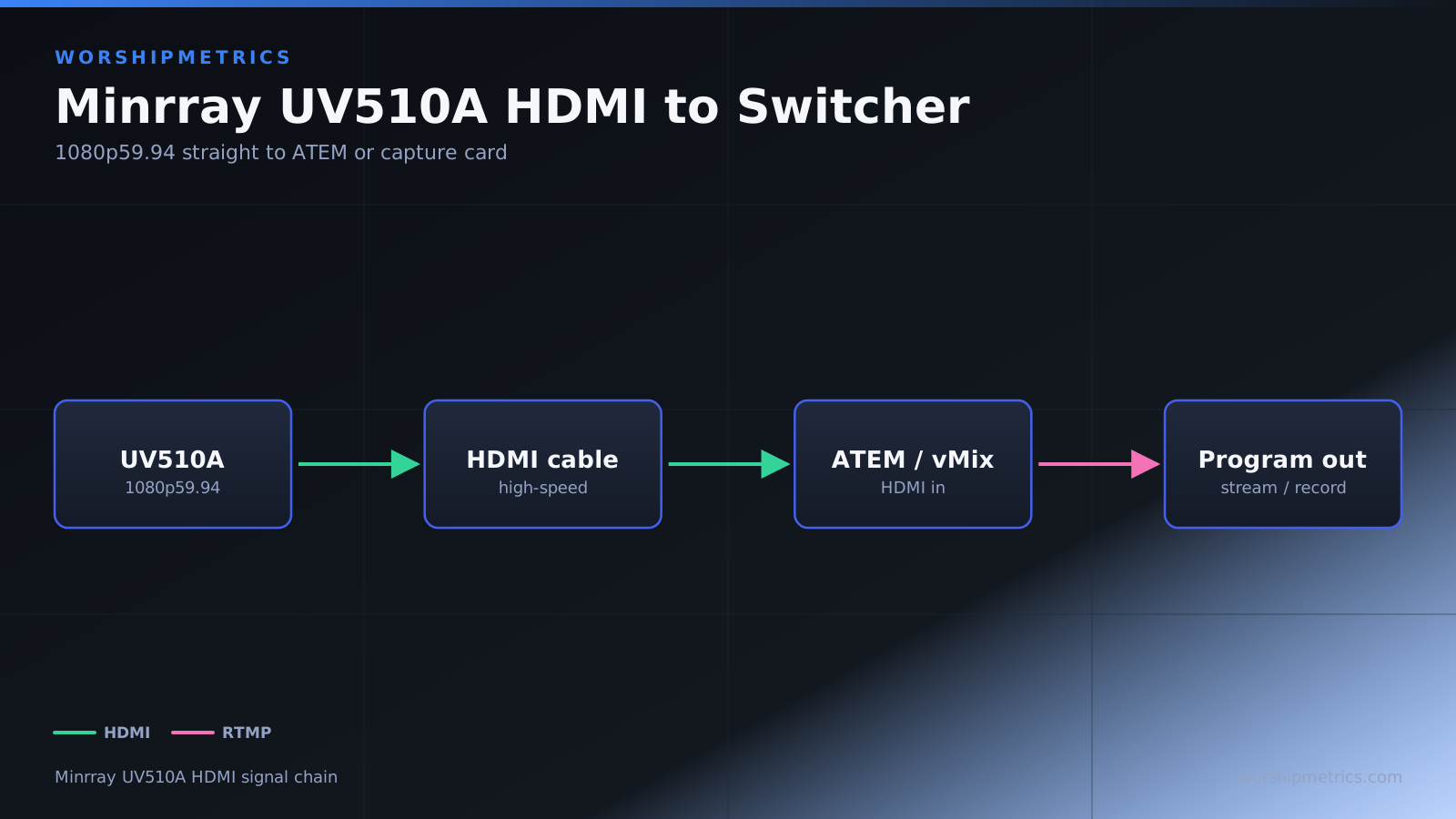
HDMI is the most straightforward way to connect the Minrray UV510A to your broadcast switcher or capture device. This guide covers HDMI output configuration, cable selection, and integration with your broadcast infrastructure.
HDMI Output Specification
The UV510A outputs HDMI at 1080p resolution, 59.94 frames per second by default. This is the broadcast standard format compatible with virtually all modern switchers, capture cards, and video equipment.
HDMI carries both video and audio. While audio from the camera isn’t typically used in church broadcasts (audio comes from your mixing console instead), the HDMI output does include an audio channel.
Verifying HDMI Output is Enabled
In the camera’s web interface, navigate to the video output or HDMI settings section. Verify that HDMI output is enabled. Some cameras ship with HDMI disabled, so this is an important check.
Confirm that the output resolution is set to 1080p at 59.94 frames per second, which is the standard for most church broadcast infrastructure. If your switcher uses a different format, you can change it here.
Cable Selection for HDMI
Use quality HDMI cables for professional applications. Cables rated for video broadcast or high-speed HDMI are preferable to consumer-grade cables. Look for cables with better shielding and more reliable connectors.
For short cable runs (under 25 feet), standard quality HDMI cables work fine. For longer runs, use active HDMI extenders or higher-grade cables to prevent signal degradation.
Cable Routing Best Practices
Plan your HDMI cable run from the camera to your switcher or broadcast booth before you mount the camera. Route cables through cable trays, conduit, or organized cable management systems.
Never create tripping hazards with cables. Ensure cables are secured and don’t create visual clutter visible in your broadcast. Some churches route cables through the ceiling above suspended ceilings, keeping them completely hidden.
Connecting to a Video Switcher
Connect the HDMI cable from the UV510A directly to an HDMI input on your Blackmagic ATEM, vMix, or other broadcast switcher. The switcher should recognize the input immediately.
Select the appropriate HDMI input on your switcher, and you should see live video from the camera. Verify that the video quality looks good and that the resolution and frame rate match what you expect.
Connecting to a Capture Card
If you’re using a capture card instead of a switcher, connect the HDMI output to the card’s HDMI input. Install appropriate drivers for the capture card on your broadcast computer.
In OBS or other broadcast software, select the capture card as a video source. Video should appear in your broadcast software.
Testing HDMI Connection Stability
Test the HDMI connection by running video for an extended period (at least 15 minutes) during your rehearsal. Watch for any signs of dropout or connection problems.
Some HDMI connections work initially but degrade after prolonged operation. Running a full rehearsal helps identify these issues before they affect your live broadcast.
Troubleshooting No Video Signal
If no video appears after connecting HDMI, first verify that you’ve selected the correct input on your switcher or capture device. Many switchers have multiple inputs, and it’s easy to be looking at the wrong one.
Try a different HDMI cable. HDMI cables can fail, and a faulty cable is one of the most common causes of video problems.
Power cycle the camera by turning off the power supply, waiting 10 seconds, and turning it back on. After the camera fully boots, try the HDMI connection again.
Resolving Video Artifacts or Color Issues
If video appears with strange colors, horizontal lines, or artifacts, the video format might be mismatched. In the camera’s web interface, verify that the HDMI output format matches what your switcher expects.
Try a different HDMI cable to rule out cable degradation. Sometimes a marginal cable produces corrupted video rather than no video at all.
If colors appear wrong, check the white balance or color temperature settings in the camera’s web interface. You can adjust these to match your stage lighting.
Using Both HDMI and IP Streaming Simultaneously
The UV510A can output via HDMI and RTSP/IP streaming simultaneously. You might use HDMI to your main broadcast switcher and RTSP streaming to a secondary system or for archival recording.
Both outputs carry the same video at the same resolution, so they’re interchangeable from a quality perspective. Use whichever connection method fits your infrastructure better.
HDMI Cable Length Limitations
HDMI works reliably up to about 25 feet with standard quality cables. Beyond that, signal degradation becomes possible. If your camera is more than 25 feet from your switcher, use an active HDMI repeater or extender.
Active extenders regenerate the HDMI signal, allowing reliable transmission over much longer distances. They’re relatively inexpensive and worth investing in if your installation requires long cable runs.
HDMI Handshake and Resolution Negotiation
HDMI uses a handshake process between the source (camera) and the destination (switcher) to negotiate the resolution and refresh rate. Occasionally, this handshake fails, preventing video from appearing.
If you encounter handshake problems, try power cycling both the camera and the switcher. Sometimes the handshake succeeds after a fresh restart.
Monitoring Video Quality
During broadcasts, monitor the video quality from your UV510A continuously. Watch for any signs of dropout, artifacts, or degradation. If problems occur, they’re usually related to the HDMI cable or connection.
Having a backup HDMI cable connected to a secondary input on your switcher provides immediate failover if the primary HDMI connection fails.
Conclusion
HDMI output on the Minrray UV510A provides a straightforward, reliable connection to your broadcast switcher. With quality cables, proper routing, and thorough testing, HDMI provides stable video for years. For churches with traditional HDMI-based broadcast infrastructure, HDMI is the ideal connection method.