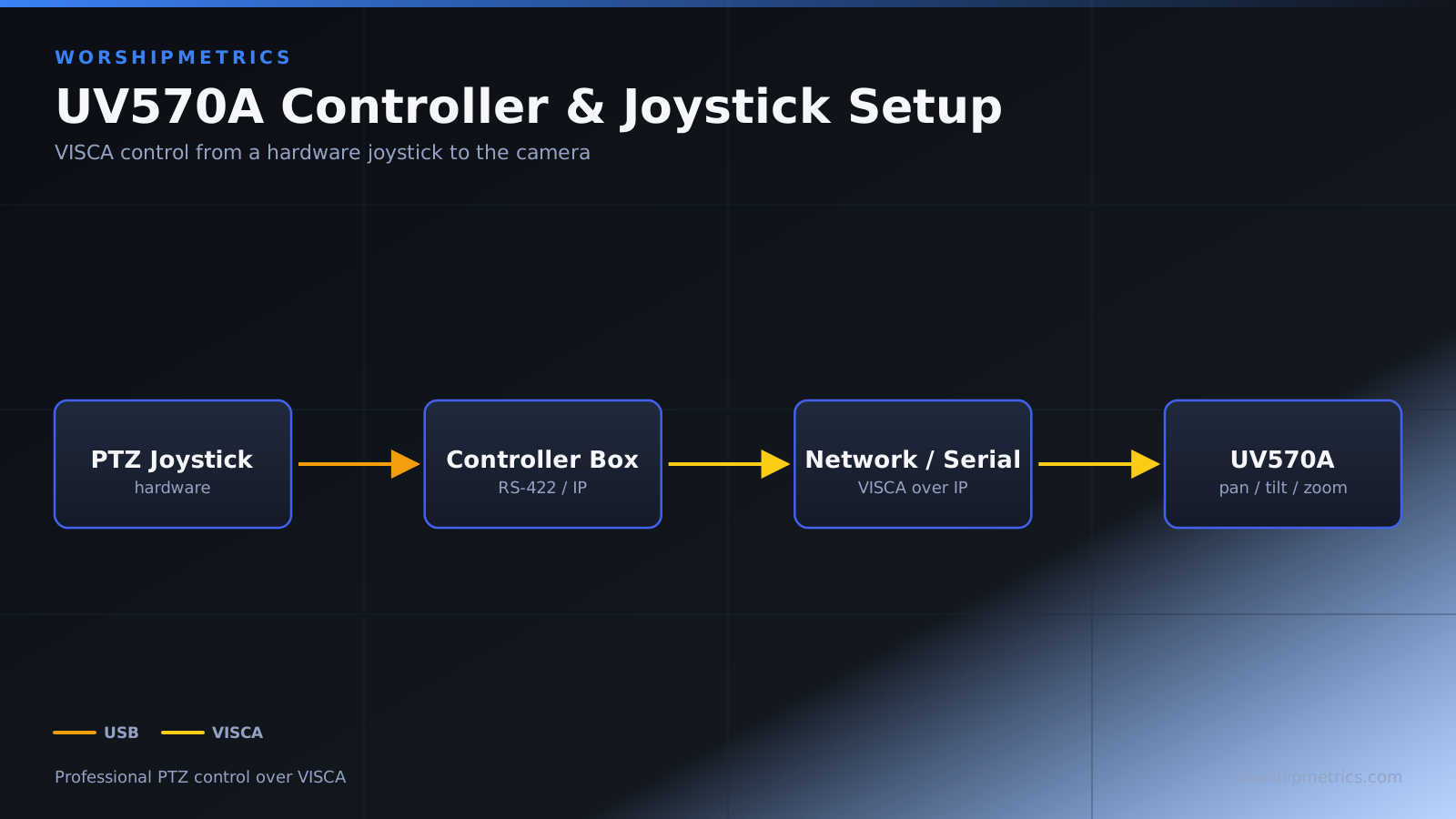
While the Minrray UV570A can be controlled through its web interface or through broadcast software like vMix, a dedicated PTZ controller or joystick provides a more intuitive, professional operating experience. This guide covers controller setup and integration options.
Types of PTZ Controllers
Minrray supports several types of controllers. Standard PTZ joysticks provide analog joystick control for pan and tilt, plus buttons for zoom and preset recall. These are the most common professional PTZ control devices.
Advanced controllers might include dedicated buttons for specific functions, LCD screens showing camera status, or programmable buttons for custom workflows. Some controllers support both wired and wireless connectivity.
Wired Controller Connection
Connect your PTZ controller to the camera using the appropriate connection method. Most Minrray cameras support RS-232, RS-485, or IP-based controller connectivity.
Check your camera documentation to identify which controller connection type your UV570A supports. Most modern controllers use IP connectivity, which means the controller connects to your network and communicates with the camera over Ethernet.
For IP-based controllers, connect both the controller and the camera to your network switch. Assign static IP addresses to both for consistent connectivity.
Configuring Controller Parameters
In the camera’s web interface, navigate to the controller settings section. Verify that the controller interface (RS-232, RS-485, or IP) is enabled.
Configure the appropriate communication protocol and parameters if required. For IP controllers, this is usually automatic—the controller and camera discover each other on the network.
Wireless Controller Options
Some modern PTZ controllers support wireless connectivity via WiFi. A wireless controller offers convenience, allowing your camera operator to move around your sanctuary rather than being tethered to a control point.
If using a wireless controller, ensure your church WiFi is strong and stable in the areas where the operator will work. WiFi disruptions will cause control lag or loss of connection. Test the wireless range and stability before relying on it for a live service.
Joystick Control Functionality
The joystick provides smooth analog control of pan and tilt. Moving the joystick left pans the camera left, moving it right pans right, etc. The farther you move the joystick from center, the faster the camera moves.
Zoom is typically controlled with buttons or a rocker switch. Some operators prefer a separate zoom speed control so they can zoom quickly when needed or slowly for subtle adjustments.
Preset Recall Buttons
Most controllers include numbered buttons for preset recall. Button 1 recalls preset 1, button 2 recalls preset 2, etc. This allows the camera operator to transition between shots instantly.
During your rehearsal, practice using the preset buttons in the order you’ll use them during your service. Develop muscle memory so you can recall presets smoothly without thinking about which button is next.
Focus and Iris Control
Some controllers include buttons for manual focus and iris (aperture) adjustment. These functions are rarely needed in church productions because most cameras have excellent autofocus and automatic iris adjustment.
However, in situations with challenging lighting or specific creative needs, manual focus or iris control can be useful. Check if your controller supports these functions.
Testing Controller Functionality
Before your first live service, test every control function on your controller. Verify that pan, tilt, zoom, and all preset buttons work correctly.
Test the controller at the distance from the camera where the operator will actually be located. Some wireless controllers have range limitations—verify that the operator’s location has adequate signal strength.
Multiple Operator Scenarios
Some churches want to support operation by different people in different locations. If multiple operators need to use different controllers simultaneously, coordinate how they’ll take turns or which operator has priority.
Most systems support only one active controller at a time. You can have multiple controllers, but typically only one operates the camera at a given time to prevent conflicting commands.
Integrating with Broadcast Software Control
You can use both a dedicated controller and broadcast software (like vMix) to control the camera. The software and controller coexist—whichever sends a command last controls the camera.
Some operators prefer to use their broadcast software for basic switching between presets and the controller for fine adjustments. Other operators prefer to keep all control in one place, either the software or the controller.
Cable Management for Wired Controllers
If using a wired controller, plan the cable routing carefully. The controller cable should not create tripping hazards or be a distraction in your sanctuary.
Use cable management systems to organize the controller cable alongside other cables. Keep the operator’s station organized so they can focus on operating the camera without being surrounded by clutter.
Troubleshooting Controller Connection Problems
If the controller doesn’t communicate with the camera, verify that the camera’s controller interface is enabled in the web interface.
Check that all cables are properly connected. Try restarting both the controller and the camera.
For wireless controllers, verify that the controller is powered on and within range of the camera. Check for WiFi signal strength and interference.
Alternative Control Methods
If a dedicated controller isn’t available, the camera operator can control the camera through the web interface or through broadcast software like vMix. These methods are less convenient than a dedicated controller but work adequately for single-camera operations or smaller productions.
The web interface requires opening a browser, which is impractical during a broadcast. vMix control is more practical, allowing the operator to switch between camera control and broadcast switching within the same software.
Documentation and Training
Document how to use the controller, including button locations and functions. Create a quick reference guide that your camera operators can reference during rehearsals.
Train all operators on the controller before they operate the camera during a live service. Practice using the presets and all control functions so operators develop confidence and muscle memory.
Conclusion
A dedicated PTZ controller provides the most intuitive, professional camera operating experience. Whether you choose a wired or wireless controller, proper setup and operator training ensure smooth, reliable camera operation. Your broadcast will benefit from the professional control that a quality PTZ controller provides.