The Roland V-1HD is a compact four-channel video switcher designed for small to medium productions. Unlike Blackmagic’s ATEM family, Roland switchers are simpler, with fewer features but also fewer things that can go wrong. If your church needs a straightforward switcher without the complexity of ATEM Software Control, the Roland V-1HD is worth considering.
This guide covers physical setup, T-bar operation, and integration with OBS for streaming.
Physical Connectivity
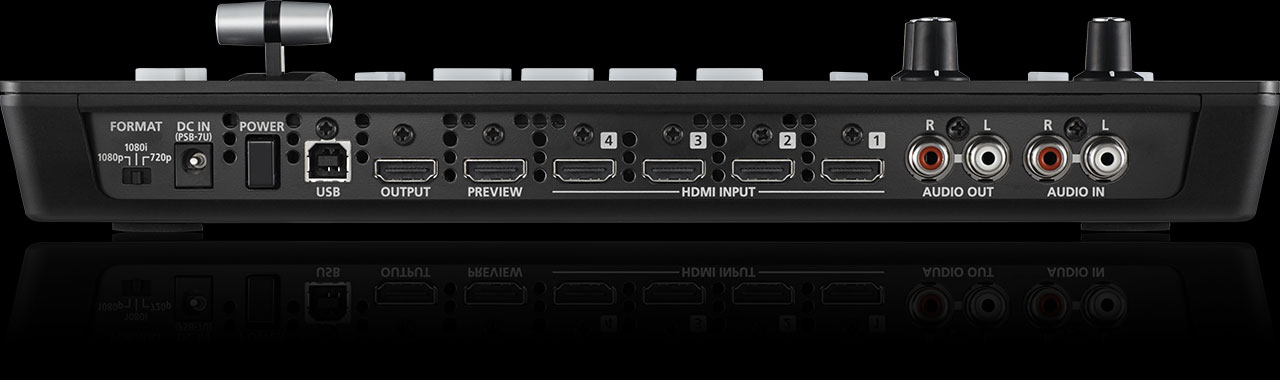
The Roland V-1HD has four HDMI inputs and one HDMI output. Connect your cameras or video sources to inputs 1–4. Connect an HDMI cable from the output to your streaming PC (using a capture card) or to your projection system.
Audio inputs are 3.5mm stereo jacks. Connect your mixer’s output to the audio in. Audio is mixed on the V-1HD and embedded in the HDMI output, or you can route it separately.
The V-1HD has a built-in touchscreen on the top panel and physical buttons for switching. It’s immediately operational—no PC required.
Basic Switching Operation
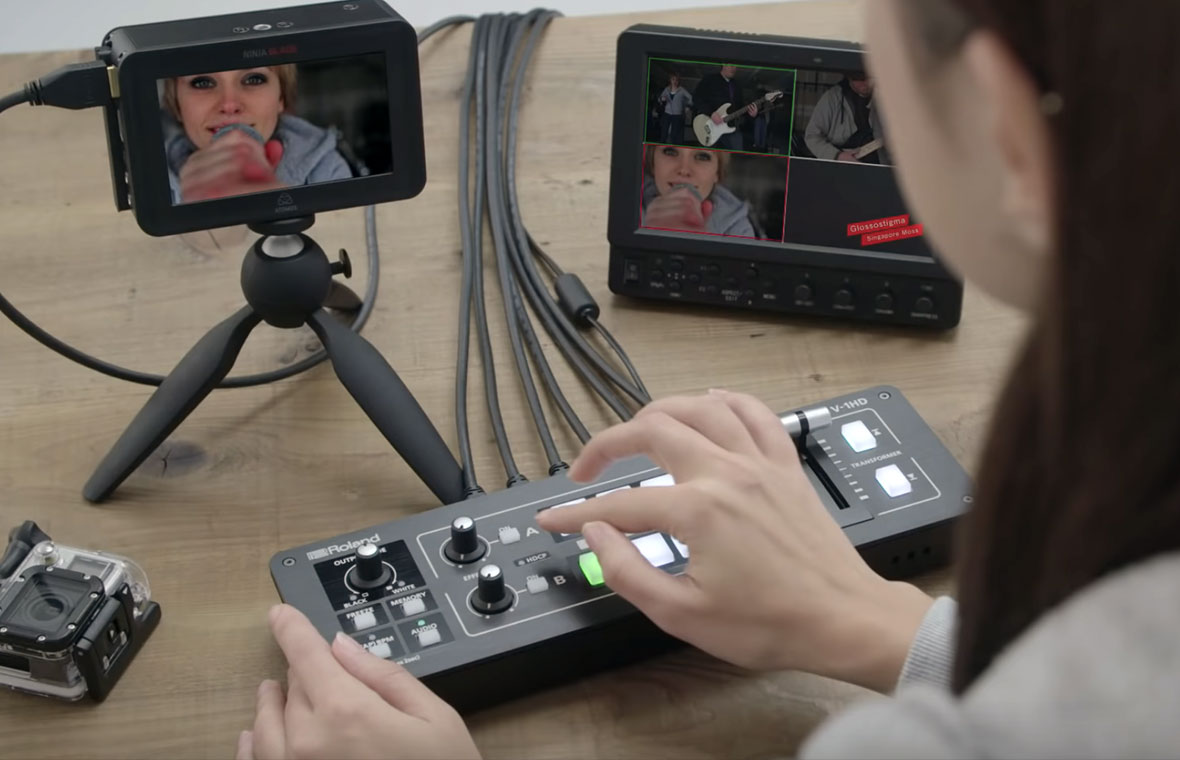
The V-1HD has four large buttons on the front panel, one for each input. Press a button to select that input for preview (you see it on the small preview screen on the device). Push the T-bar to execute the transition from program to preview.
The T-bar controls transition speed and type. Push the T-bar smoothly for a fade. Push it quickly for a cut. Some V-1HDs have transition effect buttons for different wipe patterns.
This operation is intuitive and requires no learning curve if you’ve used any other video switcher.
Audio Follow Video (AFV)
The Roland V-1HD has an “Audio Follow Video” feature. When enabled, switching cameras also switches the audio input. If your cameras have built-in microphones and you want the audio to follow the camera you’re watching, enable AFV.
In most churches, you’ll disable AFV because your audio comes from a mixer, not from cameras. You control audio levels independently of which camera is live.
Connecting to OBS for Streaming
The Roland V-1HD’s HDMI output needs to be captured by a video capture card on your streaming PC. Roland doesn’t provide direct USB video output like Blackmagic does.
Install a capture card (any HDMI-to-USB capture card) on your streaming PC. Connect the V-1HD’s HDMI output to the capture card’s input. The capture card appears as a USB video device in OBS.
Open OBS and add the capture card as a Video Capture Device source. The V-1HD video feed immediately appears in OBS.
Audio Configuration
The V-1HD has 3.5mm audio inputs. Connect your mixer’s stereo output to the audio input. The audio is embedded in the HDMI output and arrives at your streaming PC alongside the video.
In OBS, the audio from the V-1HD is captured along with the video. Make sure the audio level is appropriate—test before going live to verify sync and level.
Resolution and Frame Rate
The Roland V-1HD supports 1080p30 and 1080p60 output. Set this in the device’s menu. Most churches use 1080p30 because it’s a good balance between quality and bitrate.
Configure your streaming bitrate in OBS accordingly. 1080p30 at 4000–5000 Kbps looks good for YouTube.
Transition Effects
The Roland V-1HD has built-in transition effects: cuts, fades, wipes, and others. You can select different effects via buttons or the touchscreen. The T-bar speed controls the transition duration.
For most churches, a simple fade or cut is sufficient. The built-in effects are useful for special moments or opening/closing moments where you want visual polish.
Operating During Service
During your service, press the button for the next camera you want (previewing it on the small V-1HD screen). When you’re ready, move the T-bar to switch. It’s that simple.
Many churches run their entire service without a PC or ATEM Software Control—just the V-1HD, a T-bar, and button presses. This simplicity is one of the V-1HD’s greatest strengths.
Comparison to ATEM Mini
The ATEM Mini has six inputs; the V-1HD has four. The ATEM Mini streams directly to YouTube; the V-1HD requires a capture card and OBS. The ATEM Mini has more effects and keying capability; the V-1HD is simpler.
For churches with fewer camera sources and simpler productions, the Roland V-1HD is often the better choice because of its simplicity.
Troubleshooting
If the V-1HD doesn’t output video, check the HDMI cable and the input/output assignments. Verify that you’ve pressed the button for the camera you want to select.
If OBS doesn’t detect the capture card, verify that the capture card is properly installed and that the HDMI cable from the V-1HD is connected.
If audio is missing, verify that your mixer is connected to the V-1HD’s audio input and that audio is enabled in the device menu.
Your First Service
Connect your cameras to the four HDMI inputs. Connect your mixer to the audio input. Connect the HDMI output to a capture card on your streaming PC. Open OBS and add the capture card as a video source. Configure your bitrate and streaming destination.
During service, select cameras using the buttons and execute transitions with the T-bar. Your broadcast flows through OBS to YouTube.
The Roland V-1HD is the simple choice for churches that want a straightforward, reliable switcher without complexity.