Using the Roland V-02HD with OBS gives you the switcher’s simplicity combined with OBS’s graphics and scene flexibility. You switch cameras on the V-02HD, and OBS handles everything else: streaming, graphics overlays, lower-thirds, and archival recording.
This guide covers this effective workflow for small churches.
Hardware Setup
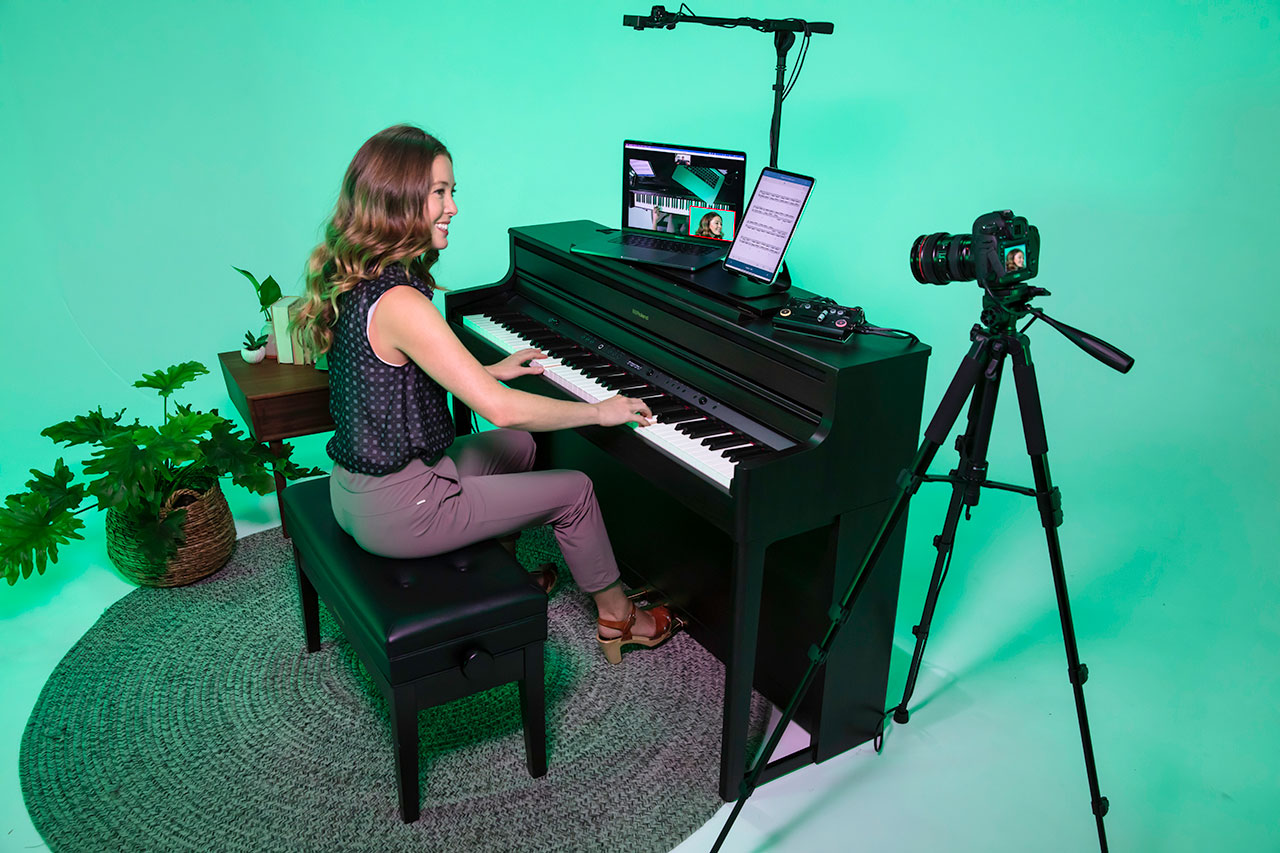
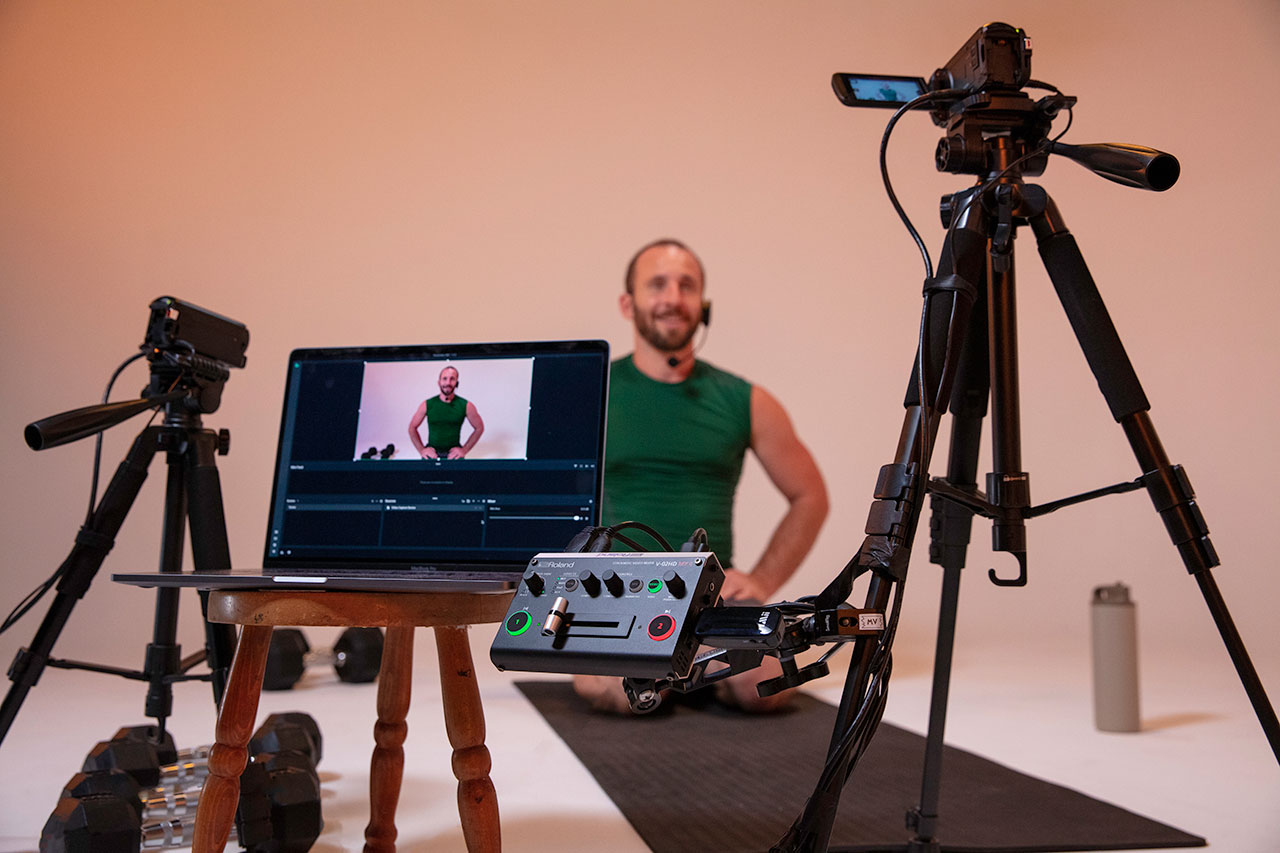
Connect the V-02HD to a capture card (HDMI-to-USB). Connect the capture card to your streaming PC. Install capture card drivers and open OBS.
In OBS, add the capture card as a Video Capture Device source. The V-02HD video immediately appears in OBS.
Creating Scenes in OBS
Create separate OBS scenes for different moments in your service. Your “Sermon” scene might have the V-02HD video as the main source with text overlays showing the pastor’s name. Your “Song” scene might have the V-02HD video with lyrics displayed.
Switch between OBS scenes as your service flow changes, independent of which camera the V-02HD is showing.
Adding Graphics and Overlays
Add text sources, image sources, or lower-thirds in OBS on top of your V-02HD video feed. Common additions: church logo, sermon title, speaker name, Bible verses, or song lyrics.
Position these overlays where they don’t obscure important parts of your camera feed. Most churches place text in the lower third of the screen.
Streaming Configuration
Configure OBS to stream to YouTube (or Facebook, or both). Set your bitrate based on your internet upload speed. Test with an unlisted stream before going live.
The V-02HD video, plus any OBS graphics, all flow to YouTube as a single stream.
Recording Locally
Enable local recording in OBS while simultaneously streaming to YouTube. This creates a backup copy of your service on your PC.
Go to Settings > Output > Recording and select your recording location and codec.
Workflow During Service
Operate the V-02HD normally: press button 1 or 2 to select your camera, move the T-bar to switch. Meanwhile, your OBS operator switches between OBS scenes as needed (e.g., from “Sermon” to “Song”).
Both operators work independently—the V-02HD operator focuses on cameras, the OBS operator focuses on graphics and scenes.
Audio Management
Audio from the V-02HD comes through the capture card to OBS. Set the audio level in OBS’s mixer. If you need additional audio sources (music, background audio), add them as separate audio sources in OBS.
Testing the Integration
Do a full test with both the V-02HD operator and the OBS operator working together. Have them simulate a service: V-02HD operator switches cameras while OBS operator switches scenes and adjusts graphics.
Verify that the workflow is smooth and that graphics appear correctly in the context of the camera feed.
Troubleshooting Common Issues
If graphics appear distorted or stretched, check that your OBS canvas resolution matches your V-02HD output resolution (usually 1080p).
If audio is out of sync with video, check your audio configuration in OBS. Audio might be coming from a different source than the V-02HD video, creating a sync issue.
If one operator’s actions interfere with the other (graphics disappear when camera switches), verify that your OBS scenes are configured independently of the V-02HD.
Your Setup
Two-person team: one operates the Roland V-02HD, switching cameras. One operates OBS, managing graphics and scenes. Together, they deliver a polished, multi-layered broadcast.
This is efficient for small churches. You get professional appearance without the complexity of a larger switcher like an ATEM.
The V-02HD is simple and reliable. OBS adds the flexibility. Together, they’re a powerful combination for small church streaming.