The Roland V-02HD outputs HDMI, which means you need an encoder or capture card to stream it. This guide covers the two most common approaches: using OBS with a capture card, or using a dedicated streaming encoder.
Approach 1: OBS with HDMI Capture Card (Recommended)
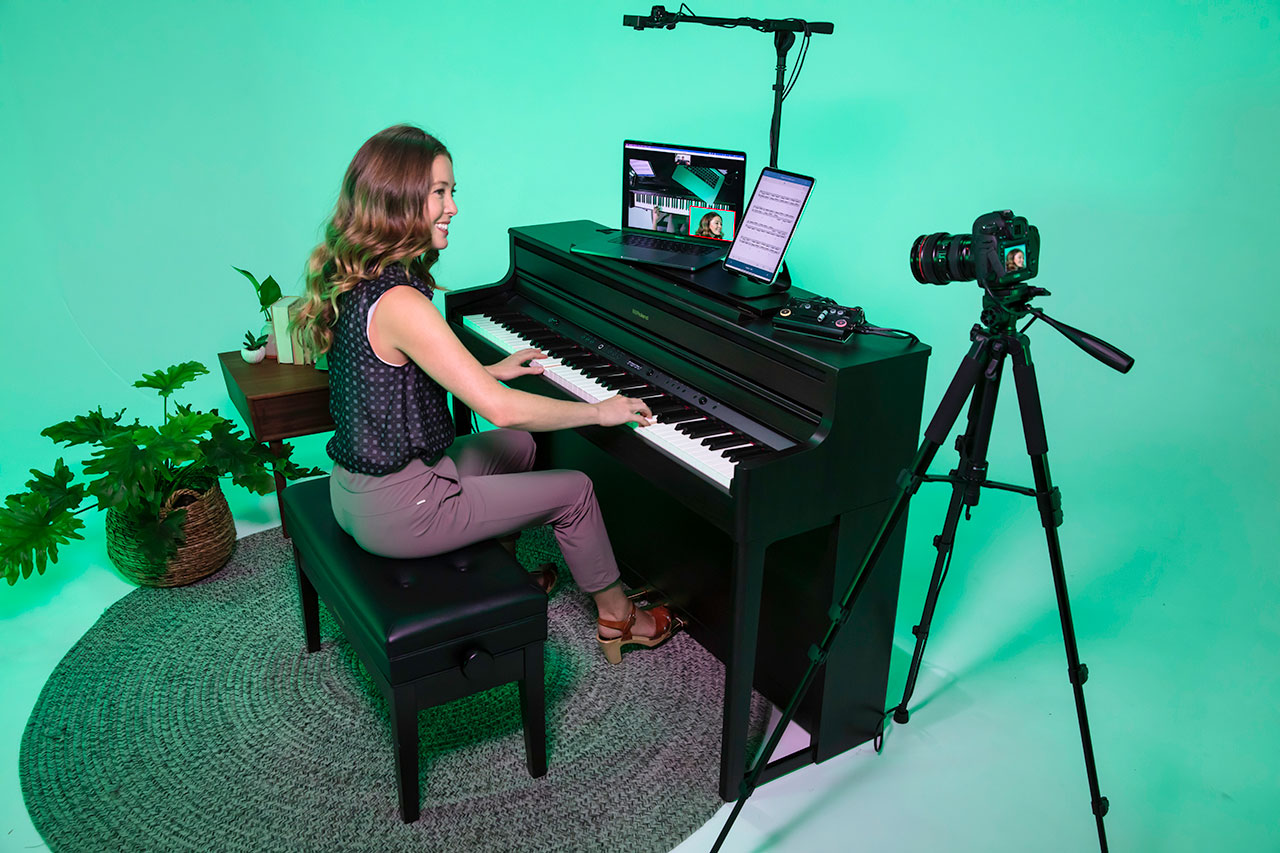
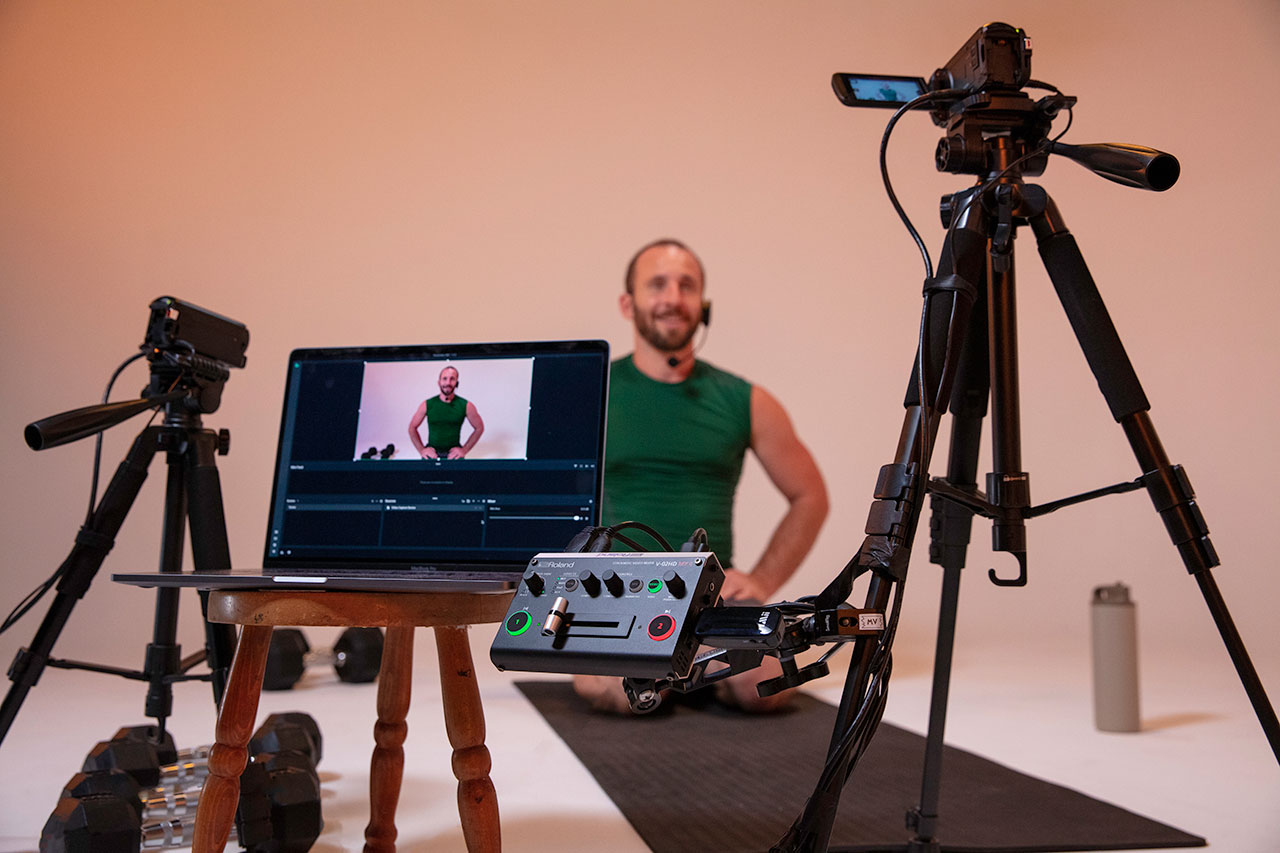
Connect the V-02HD’s HDMI output to an HDMI-to-USB capture card (like Elgato Cam Link 4K or Magewell USB Capture HDMI). Connect the capture card to your streaming PC via USB.
Open OBS, add the capture card as a Video Capture Device source, and stream to YouTube. This is the most flexible approach—you can add graphics, text overlays, and other effects in OBS.
Cost: capture card ($100–300) plus a PC (if you don’t already have one).
Approach 2: Dedicated Streaming Encoder
Some churches use dedicated streaming encoders like a Kiloview E1 or similar device. The V-02HD HDMI output connects to the encoder’s HDMI input. The encoder connects to your internet via Ethernet and streams directly to YouTube without needing a PC.
This is simpler (fewer devices) but less flexible (no ability to add graphics or multiple scenes in OBS).
Cost: encoder ($400–800), no PC required.
Configuring Bitrate and Quality
For two-camera streaming at 1080p30, target a bitrate of 3000–4500 Kbps. Lower bitrates (2000 Kbps) work if your internet upload speed is limited but quality will be modest.
Test your bitrate before going live. Start with 4000 Kbps and reduce if you experience drop-outs or buffering.
Audio Configuration
The V-02HD embeds audio in its HDMI output. When you capture via a capture card to OBS, the audio comes along with the video.
Verify that audio levels are appropriate before streaming live. Test with someone speaking into a microphone to ensure sync and level.
Testing Streaming Setup
Do a full test stream to an unlisted YouTube video before your first live broadcast. Let it run for 10 minutes. Check YouTube on a different device to verify quality and that audio is synced.
Look for: pixelation or blocky video (bitrate too low), audio lag (sync issue), missing audio (audio not routed correctly), or stream dropouts (internet issues).
Streaming to Multiple Platforms
If using OBS, you can stream simultaneously to YouTube and Facebook by adding the free Multiple RTMP Outputs plugin or by using a relay service like Restream.
Reducing Latency
HDMI capture cards add 100–300 milliseconds of latency. This is acceptable for streaming. YouTube’s own buffering adds 5–30 seconds of additional latency to viewers.
If you need extremely low latency (for interactive streaming), consider a dedicated streaming encoder that supports SRT (Secure Reliable Transport).
Recording While Streaming
Enable local recording in OBS while streaming. This gives you a high-quality copy stored on your PC, separate from your YouTube recording.
Go to Settings > Output > Recording and select a folder for local files. Both streaming and recording happen simultaneously.
Your Streaming Workflow
V-02HD HDMI output → Capture card → PC with OBS → YouTube. Or: V-02HD HDMI output → Dedicated encoder → Internet → YouTube (no PC required).
Choose the approach that fits your infrastructure and budget. Both work reliably for small church streaming.