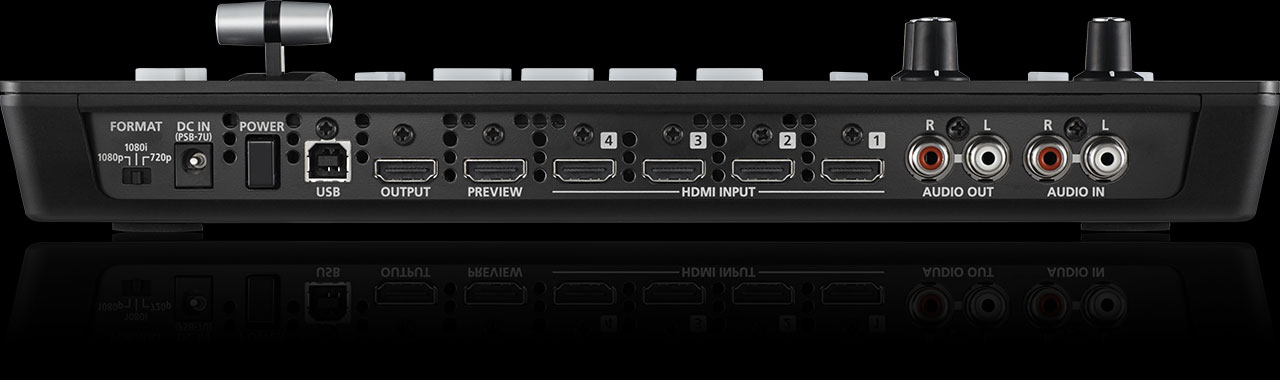
The Roland V-1HD outputs HDMI but not USB, so you can’t plug it directly into OBS like you would an ATEM Mini. Instead, you use an HDMI capture card to convert the V-1HD’s HDMI output into a USB video source that OBS recognizes.
This guide covers choosing a capture card, installing it, and integrating the Roland V-1HD with OBS.
Choosing a Capture Card
You need an HDMI-to-USB capture card. Popular options include: Elgato Cam Link 4K, Blackmagic Intensity Shuttle, Magewell USB Capture HDMI, or others. Most work similarly—HDMI in, USB out, recognized as a video device by Windows and Mac.
For church use, any capture card supporting 1080p30 or higher is sufficient. Price ranges from $100–400. Budget capture cards work fine for churches.
Installing the Capture Card
Install the capture card on your streaming PC according to its instructions. This usually involves: download drivers from the manufacturer’s website, install drivers, restart your PC, plug in the card (if it’s external USB), and verify it appears in Windows Device Manager or Mac System Information.
Once installed, connect an HDMI cable from the Roland V-1HD’s HDMI output to the capture card’s HDMI input.
Detecting the Capture Card in OBS
Open OBS. Create a new scene (or use an existing one). Add a new Video Capture Device source. A dropdown list will show all video devices on your PC. The capture card should appear as “HDMI Capture Device” or “Elgato Cam Link” or whatever your specific card is.
Click on the capture card from the dropdown. OBS immediately displays the Roland V-1HD’s video feed.
Configuring Video Properties
In OBS, you can adjust the video properties of your capture card source: resolution, frame rate, color space, etc. In most cases, the defaults work fine.
If the video looks stretched or compressed, check the resolution setting. Make sure it matches your Roland V-1HD’s output resolution (1080p, 1080i, 720p, etc.).
Audio Configuration
The Roland V-1HD’s audio is embedded in the HDMI output. When you capture the video via the capture card, the audio comes along with it.
In OBS, this audio appears as a separate audio track. The audio mixer at the bottom of OBS shows it. Verify that the level is appropriate—not too quiet or too loud.
If you want to use a separate audio input (from your mixer directly to your PC via USB audio interface), you can add a second audio source in OBS and mix the two together.
Managing Multiple Video Sources
If you’re using the Roland V-1HD alongside other video sources (like a document camera or a second encoder), add each as a separate Video Capture Device source in OBS. Position and scale them as needed in your scene.
OBS can handle multiple capture cards simultaneously without issue.
Streaming to YouTube
Once your Roland V-1HD appears in OBS, configure streaming to YouTube. Go to Settings > Stream, select YouTube, authenticate with your church’s Google account, and configure bitrate and resolution.
Your streaming flow is: Roland V-1HD HDMI output → Capture card → OBS → YouTube. The Roland V-1HD video and audio flow through this pipeline to your stream.
Latency Considerations
The capture card adds some latency (typically 100–300 milliseconds, depending on the card and settings). This is acceptable for streaming. YouTube also buffers video, so total latency from your camera to a viewer’s screen is usually 5–30 seconds.
If you need extremely low latency (for interactive streaming or control room monitoring), capture cards might introduce too much delay. But for worship services and standard streaming, the latency is unnoticeable.
USB Bandwidth
If you’re using multiple high-bandwidth USB devices (capture card, ATEM Mini, Kiloview encoder, external hard drives), you might hit USB bandwidth limits on your streaming PC.
For the Roland V-1HD with a capture card, USB bandwidth is usually not an issue. But if you’re adding more USB devices, monitor your system to ensure stable operation.
Testing Your Setup
Do a test stream before going live. Start OBS streaming to an unlisted YouTube video. Let it run for 10 minutes while you switch cameras on the Roland V-1HD. Check the YouTube stream on a different device to verify quality and that audio is synced.
Common issues: Video quality is pixelated (bitrate is too low, or USB connection is unstable), audio is missing (verify audio source settings in OBS), video is delayed (normal for streaming, but excessive delay suggests a problem).
Troubleshooting Capture Card Issues
If OBS doesn’t detect the capture card, restart OBS after installing the card’s drivers. Sometimes a restart is needed for OBS to recognize new devices.
If the video appears but is blank or shows “no signal,” verify that the HDMI cable from the Roland V-1HD is connected and that the V-1HD is powered on and has a video input selected.
If the video is extremely pixelated or frozen, the USB connection might be unstable. Try a different USB port, a different cable, or check for USB bandwidth conflicts with other devices.
Your OBS Workflow
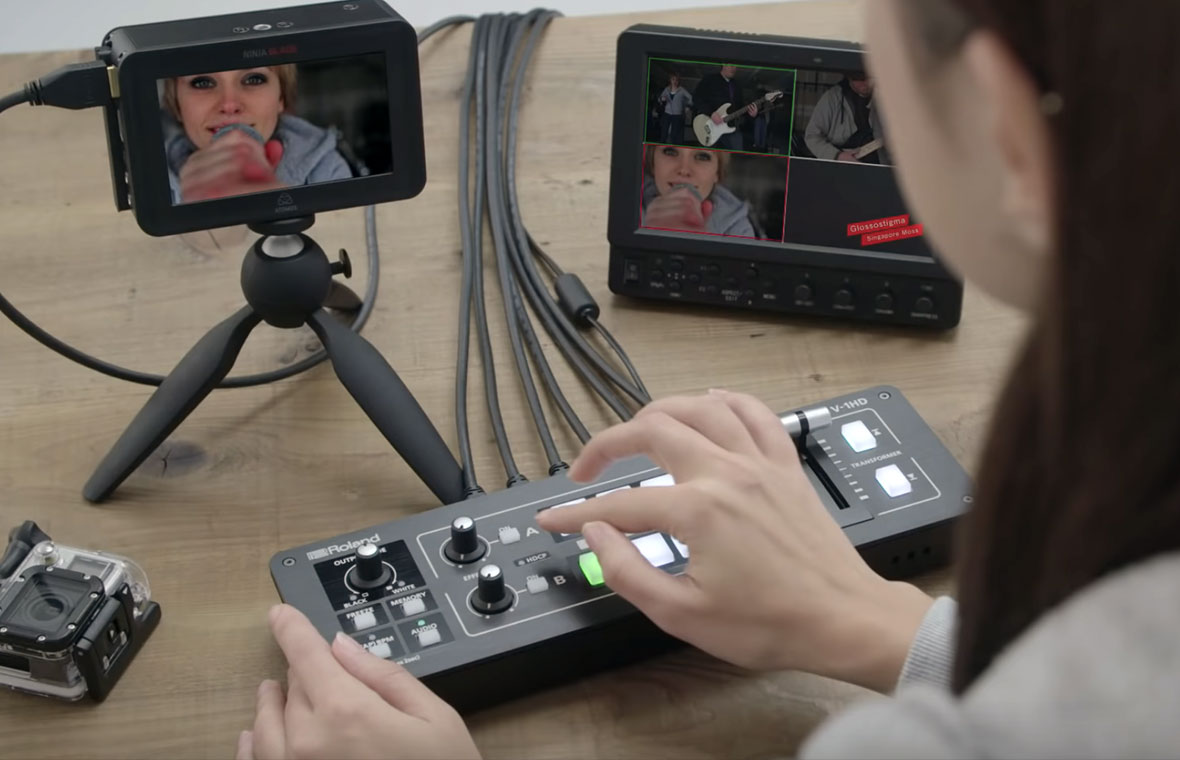
Connect Roland V-1HD HDMI output to capture card. Install capture card drivers. Open OBS and add the capture card as a Video Capture Device source. Verify audio is captured. Configure YouTube streaming. Start streaming. Operate your Roland V-1HD normally—switching cameras, controlling audio level, etc. Everything flows through the capture card to OBS to YouTube.
The capture card approach is slightly more complex than ATEM’s direct USB, but it works reliably and is standard across the video industry.