EasyWorship is presentation software designed for churches. It has long been a Windows favorite, and EasyWorship 8 added native support for Apple Silicon Macs in 2026. EasyWorship displays lyrics, scripture, and graphics to your congregation while feeding output to your streaming software. The interface is intuitive, the learning curve is gentle, and churches using EasyWorship often stick with it for years.
This guide walks you through installing EasyWorship 7, creating your first service, managing content, configuring output screens, and getting comfortable with the software.
Installing EasyWorship 7
Purchase a license from easyworship.com (around $100 per license). Download the installer and run it on your Windows presentation computer. The installer is straightforward—default options are fine for most churches.
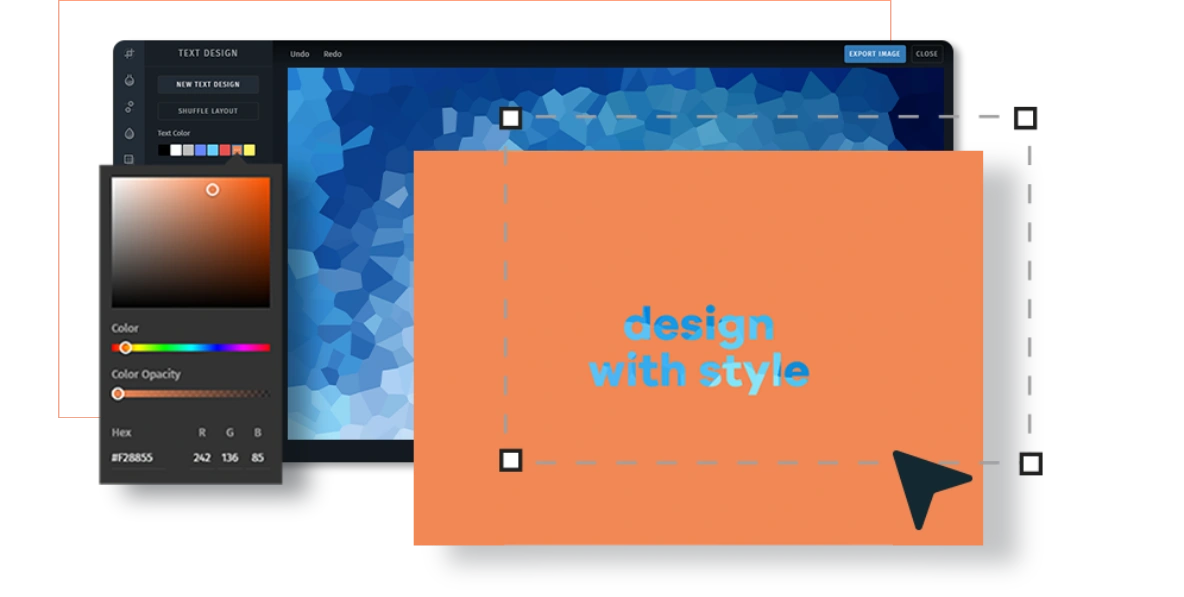
Launch EasyWorship and you’re greeted with a welcome screen. The software will guide you through initial setup: choosing your theme colors (these color your entire UI), configuring your displays (how many monitors and what they show), and importing your first songs.
The EasyWorship interface has a familiar layout: left sidebar with your song library and service plan, center area showing the current slide, and right panel for output configuration.
Configuring Your Displays
Like ProPresenter, EasyWorship sends output to multiple screens. Go to Settings → Display to configure your display layout. Assign monitors to “Main Display” (what the congregation sees) and optionally “Stage Display” (what your worship leader sees).
If you have one monitor, that monitor is your main display. Your worship leader can use a secondary app on a tablet or phone for stage display information (EasyWorship supports this).
Configure what appears on each display. Main Display typically shows lyrics and graphics (what the congregation sees). Stage Display can show the current slide, next slide, speaker notes, and time information (helpful for your worship leader).
Building Your Song Library
EasyWorship includes a large library of contemporary and traditional songs. To access them, go to the Songs tab in the left sidebar. You’ll see categories of songs organized by song name, artist, or keyword.
Search for a worship song by title or artist. EasyWorship will show matching songs from its database. Click a song to preview it (lyrics appear on screen with chord information if available). Click “Add to Library” to import it to your personal library.
You can also add custom songs. Click “Create New Song” and type in the lyrics, chords, and any notes. EasyWorship will format it and add it to your library.
Songs are the foundation of your library. Spend an hour importing 50–100 songs your church commonly uses. You’ll build a resource you use for years.
Creating Your First Service
A service in EasyWorship is your Sunday order of worship. Create a new service by clicking “New Service” (or File → New Service). A blank slide list appears.
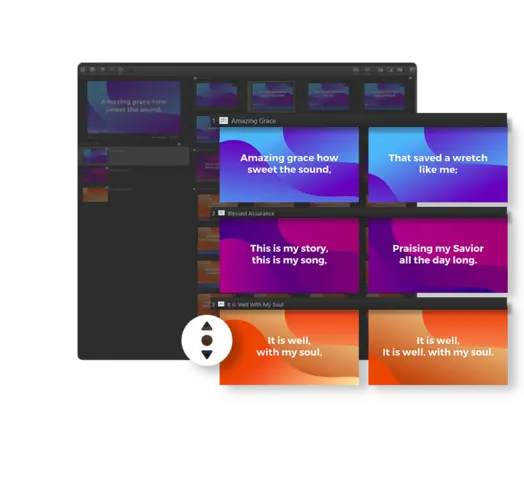
Build your service by adding songs from your library. Click the song in your library and drag it into the slide list. EasyWorship inserts all slides for that song (lyrics, chord sheets, and any custom slides).
Add multiple songs in order. Then add scripture slides by searching your Bible library (EasyWorship includes multiple Bible translations). Type a verse reference (“John 3:16”) and EasyWorship inserts the verse. Add graphics, announcements, or videos.
Continue until your entire service is in order: opening worship song, second worship song, scripture, sermon, offering, closing prayer, etc.
Understanding Slide vs. Song Structure
In EasyWorship, a song contains multiple slides. A typical worship song has slides for verse, chorus, verse, chorus, bridge, chorus. Each slide displays when you advance. You don’t manually create these slides—EasyWorship automatically formats them from the song lyrics.
You can customize how songs are formatted. If you want a slide to show the chorus twice (on one slide), edit the song and adjust the slide breaks.
Adding Multimedia
Add videos by clicking “Add Video” and selecting a file. EasyWorship supports common formats (MP4, AVI, etc.). Position the video in your service where you want it to play (during offering, for example).
Add background images behind text by clicking “Background” and selecting an image file. EasyWorship applies the background to all slides in that section.
Add graphics (your church logo, announcement graphics) by clicking “Insert Graphic” and selecting an image. Resize and position it on the slide.
Configuring Streaming Output
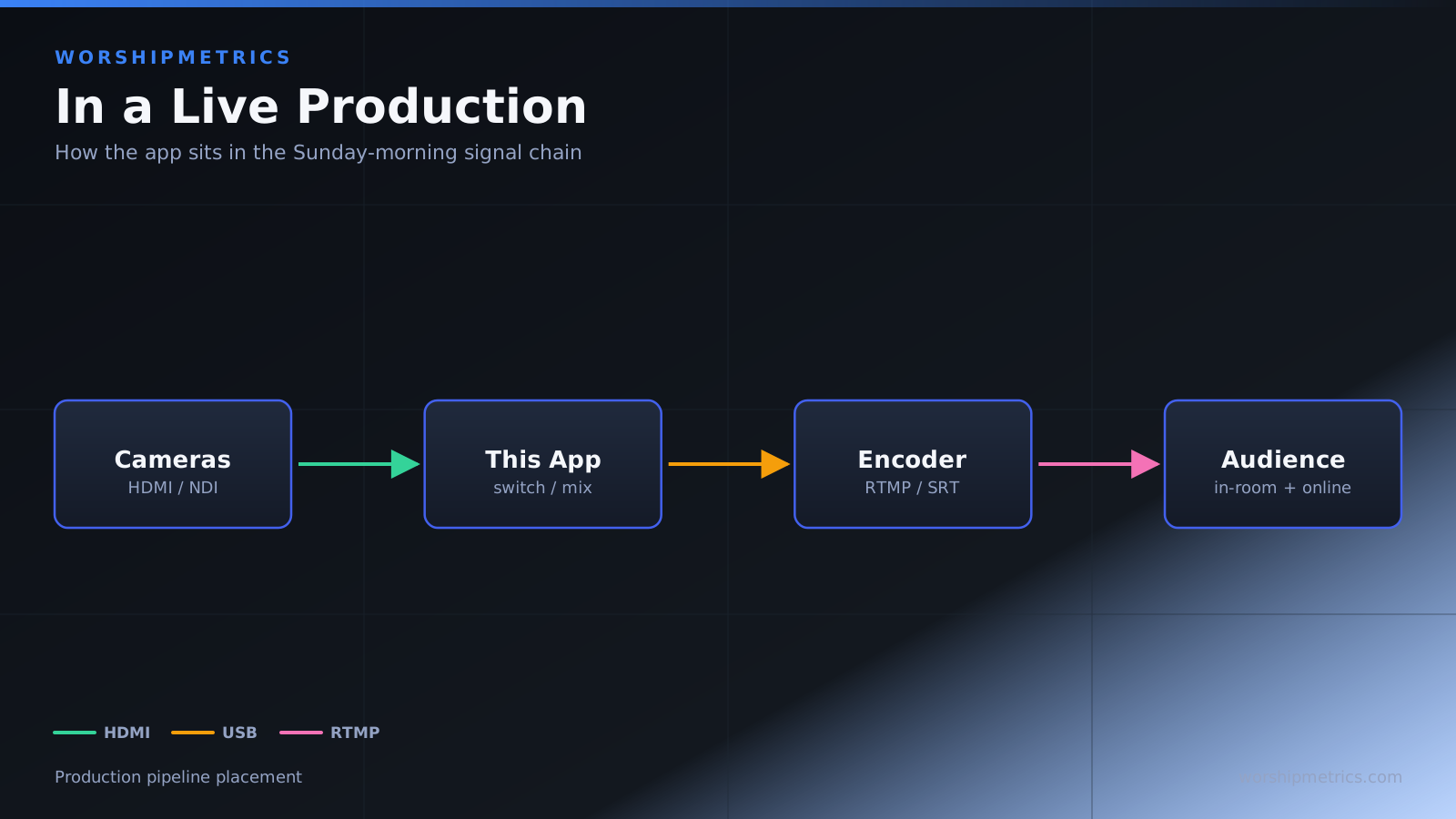
EasyWorship can send NDI output (like ProPresenter) to OBS or vMix for streaming. Go to Settings → NDI and enable “Send NDI Output.” EasyWorship will broadcast its presentation as an NDI source on your network.
Your streaming software (OBS/vMix) can then receive this NDI source and layer it in your production. The integration is identical to ProPresenter’s NDI approach.
Some churches prefer to output via USB video capture cards instead of NDI. EasyWorship supports this too—you can send video to a USB capture device that connects to your OBS/vMix computer.
Managing Scripture and Bibles
EasyWorship includes multiple Bible translations (KJV, NIV, ESV, etc.). Add a verse by typing the reference. EasyWorship searches its library and displays the verse. You can customize the font size, color, and background for scripture slides.
If you want a specific translation that isn’t included, EasyWorship’s Pro version supports importing additional translations.
Stage Display for Worship Leaders
Like ProPresenter, EasyWorship can show information on a stage monitor or iPad. Set this up in Settings → Display → Stage Display.
If using an iPad, download the EasyWorship Stage Display app from the App Store. Connect it to the same network as your EasyWorship computer, and the iPad automatically displays stage information.
Configure what appears on stage display: current slide (large), next slide (preview), speaker notes, and timer. Your worship leader can see everything they need without turning around.
Saving and Organizing Services
Save your first service with a meaningful name: “Sunday Service - March 15, 2024.” EasyWorship saves the service as a file. You can open it later to reuse it or modify it for next week.
Organize services by date or service type. Create folders (Sunday 10:30 AM, Sunday 6:00 PM, Wednesday Night) and save services inside them. As weeks pass, your library of saved services grows—you can reuse and modify services from previous months.
Transitioning from PowerPoint or Other Software
If your church previously used PowerPoint for presentations, EasyWorship makes the transition smooth. PowerPoint files don’t import directly into EasyWorship, but you can manually recreate presentations in EasyWorship (often just importing songs and adding minimal customization).
Most churches find that recreating presentations in EasyWorship (which takes a few hours) is faster than trying to convert legacy PowerPoint files. The benefit is that you’re building your library in software designed for worship, not office presentations.
First Service Rehearsal
Before your first real service, do a full rehearsal. Open your first service in EasyWorship and go through every slide, practicing advancing at the right pace. Check that lyrics are readable, graphics display correctly, and videos play properly.
Connect your stage display (physical monitor or iPad) and confirm your worship leader can see the information they need. Have them walk through their song set while watching the stage display, ensuring they can read everything easily.
EasyWorship vs. ProPresenter
Both EasyWorship and ProPresenter now run on Windows and Mac, and both are sold as subscriptions. EasyWorship’s campus license covers every computer at one location, which usually makes it the less expensive choice for a church with several computers; ProPresenter is more feature-rich for advanced productions. See EasyWorship vs ProPresenter: Which Fits Your Church? for current prices.
For most Windows-based churches, EasyWorship is the perfect fit. It’s purpose-built for church use, intuitive, and powerful enough for any Sunday service.
Next Steps
After your first service, you’ll understand EasyWorship’s basics. Spend time building your library, adding songs you use regularly, and creating service templates you can reuse and customize week to week.
EasyWorship becomes easier as you use it. After a few weeks, the workflow is second nature, and you’ll wonder how you ever produced without it.