EasyWorship sends lyrics and graphics directly to your streaming software via NDI. Instead of managing separate graphics on your streaming computer, you display them in EasyWorship and OBS or vMix receives them automatically. This integration simplifies production: your director manages one unified flow in OBS/vMix while your EasyWorship operator manages the presentation independently.
This guide covers enabling NDI in EasyWorship, receiving it in your streaming software, troubleshooting issues, and optimizing for reliable streaming.
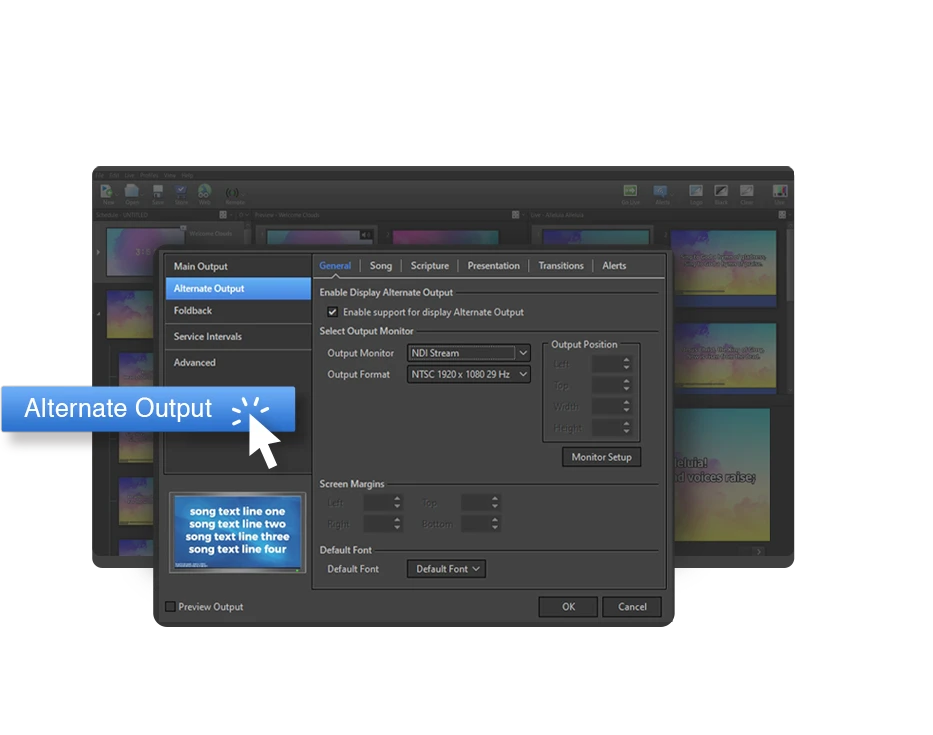
Enabling EasyWorship NDI Output
Open EasyWorship and go to Settings (or Preferences, depending on version). Look for Network or NDI options. Enable “Send NDI Output” or “Broadcast as NDI Source.” EasyWorship will now transmit its presentation as an NDI source on your network.
Confirm NDI is transmitting by opening your streaming software (OBS or vMix) and checking whether EasyWorship appears in the NDI source list. It should appear within 10–15 seconds. If it doesn’t appear, see the troubleshooting section.
Once enabled, EasyWorship will continuously broadcast its presentation as NDI. Every time you advance a slide in EasyWorship, the new slide appears via NDI in OBS/vMix within 50–100 milliseconds (imperceptible latency).
Receiving EasyWorship NDI in OBS
In OBS, right-click in the Sources panel and select “Add Source,” then “NDI Source.” Look for EasyWorship in the dropdown (it will be named after your computer, like “CHURCH-PRESENTATION”). Select it and OBS immediately begins receiving video.
Position the EasyWorship source in your scene. Most churches position it as a lower-third overlay—EasyWorship lyrics occupy the bottom third of the screen while cameras fill the upper portion.
Alternatively, create a dedicated full-screen scene where EasyWorship fills the entire output. Switch OBS to this scene during songs and back to camera scenes during sermon or announcements.
Receiving EasyWorship NDI in vMix
In vMix, click “Add Input” → “NDI” and select EasyWorship from the list. vMix immediately receives video. Drag the EasyWorship input into your preview to position it alongside cameras and other sources.
vMix’s approach is slightly easier than OBS—you can layer EasyWorship with multiple cameras in the same layout without scene switching. However, both approaches work well.
Network Requirements for EasyWorship NDI
EasyWorship NDI requires your EasyWorship computer and OBS/vMix computer on the same network. Both should be wired Ethernet for stability (WiFi introduces latency and dropout risk).
EasyWorship NDI is less bandwidth-intensive than camera NDI. It uses 30–50 Mbps, well within gigabit network capacity. Even if you have multiple NDI cameras, EasyWorship NDI adds little additional load.
Positioning and Resizing EasyWorship Source
In your streaming software, resize EasyWorship to fit your layout. If using a lower-third overlay, make EasyWorship approximately 25–30% of your frame height and 80% of frame width, positioned in the lower third.
Ensure text is readable at the size you’re using. Test by watching a stream on a phone (how most viewers watch) and confirming you can read song lyrics comfortably.
Some churches position EasyWorship as a PIP (picture-in-picture) in the corner instead of a full lower third. This works if lyrics are your secondary focus and cameras are primary. Adjust based on your production style.
Handling Multiple Screens in EasyWorship
EasyWorship sends output to multiple displays: main sanctuary screen, stage monitor, and potentially others. The NDI output sends the main screen only (what the congregation sees in-person). Your streaming software receives this NDI stream.
This means your online viewers see the same lyrics as your in-person congregation—perfect sync and consistency.
Troubleshooting EasyWorship NDI Not Appearing
If EasyWorship is running but doesn’t appear in your NDI list, the issue is almost always network separation. Confirm both computers are on the same network. Check that neither is on WiFi (both should be wired).
Restart EasyWorship and wait 20 seconds. Sometimes NDI discovery is slow on initial startup. Refresh your NDI source list in OBS/vMix if it’s already open.
If EasyWorship still doesn’t appear, check Settings to confirm NDI output is actually enabled. In some versions, NDI is disabled by default.
If NDI is enabled and both computers are on the same network, restart both machines. Sometimes the network stack needs a reset.
EasyWorship NDI Dropout During Service
If EasyWorship NDI suddenly disappears (video goes black), the network connection has probably dropped. Check the Ethernet cable connecting the EasyWorship computer to your network. Reseat it firmly.
If the cable is fine, restart EasyWorship. Close it completely and reopen it. EasyWorship will resume NDI broadcasting within 10 seconds.
If neither fixes it, the problem is likely your network switch. Try connecting EasyWorship to a different switch port using a different Ethernet cable.
Backup Plan for NDI Failure
If EasyWorship NDI fails mid-stream, your online viewers won’t see lyrics. Have a contingency: a USB-connected graphics source showing static lyrics, or a full-screen black/branded image while you troubleshoot.
Some churches maintain a USB video capture device with lyrics pre-loaded as a backup. If EasyWorship NDI fails, switch OBS to the backup source temporarily while you restart EasyWorship.
Syncing EasyWorship with Your Streaming
Your EasyWorship operator controls when lyrics appear. Ideally, they advance slides simultaneously with your in-person presentation. This requires clear communication.
Some churches use a clicker or wireless presenter to advance EasyWorship, letting the EasyWorship operator stay at their station and advance slides on cue from the worship leader or director.
Other churches have the EasyWorship operator watch the sanctuary screens and manually advance to match. This requires attention but is reliable if done carefully.
Testing EasyWorship NDI Before Service
Before your first Sunday with EasyWorship NDI, do a full test. Open EasyWorship, launch your service, and advance through a few songs. Simultaneously, open OBS/vMix and confirm EasyWorship appears as an NDI source and video is flowing. Practice advancing EasyWorship while watching the streaming output.
This rehearsal confirms everything works and helps your EasyWorship operator understand timing and flow.
Best Practices for EasyWorship NDI Streaming
Test NDI before every service. Open both EasyWorship and your streaming software, confirm NDI is flowing, and monitor for 30 seconds. This quick check catches problems before they affect your live stream.
Keep EasyWorship and streaming computers on the same network switch. Long network runs introduce latency. Dedicated gigabit switch for presentation equipment is ideal.
Update EasyWorship regularly. Newer versions include NDI stability improvements.
Have clear communication between your EasyWorship operator and streaming director. Whether via radio, hand signals, or verbal cues, they need to coordinate slide advancement.
EasyWorship NDI is a powerful integration that simplifies graphics management. When working well, online viewers see the same lyrics as your congregation, and your director manages one unified production. Set it up correctly and test thoroughly before relying on it for real services.