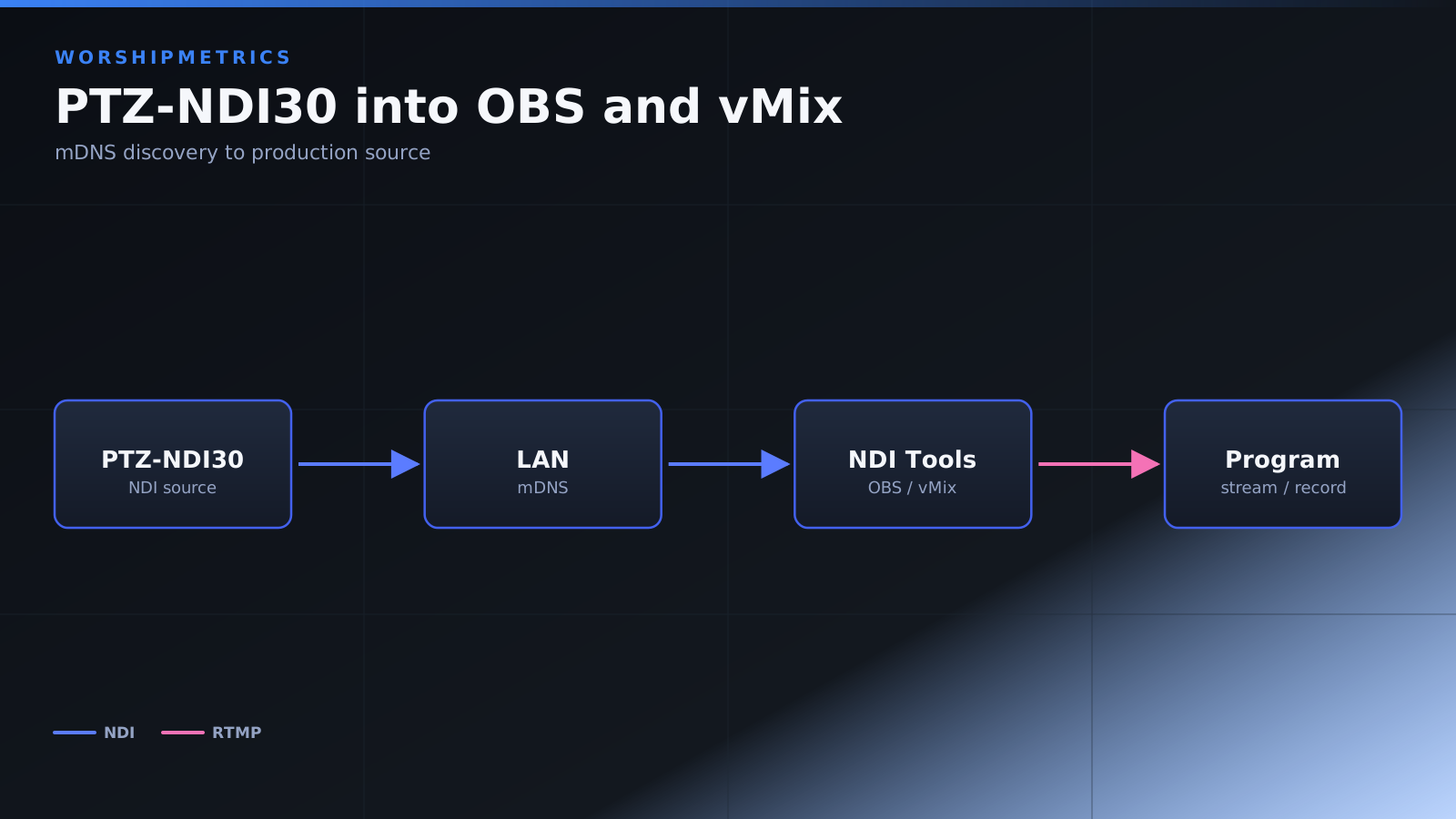
The TONGVEO PTZ-NDI30 sends video directly over your church network, making it a perfect fit for modern streaming workflows in OBS Studio and vMix. Once your camera is on the network, adding it to your broadcast software is straightforward. This guide covers the specific steps for both platforms, along with tips for managing multiple camera sources in a church production.
Understanding NDI in Your Broadcast Software
NDI technology allows video to travel over standard network cables without requiring dedicated HDMI infrastructure. When you add the TONGVEO as an NDI source in OBS or vMix, your broadcast software looks for the camera on the network using a protocol called mDNS discovery. This means the camera and your broadcast computer need to be on the same network and able to communicate with each other. Most church networks are set up this way by default, but if you’ve recently added a new switch or VLAN, double-check with your IT team that your broadcast computer can see network devices.
Before you start, make sure your TONGVEO is powered on, connected to the network via Ethernet, and that NDI is enabled in its web settings. If you haven’t done this yet, follow the setup guide for your model first. Also verify that you have the latest version of OBS Studio or vMix installed on your broadcast computer.
Adding the Camera to OBS Studio
Open OBS Studio and navigate to a new scene or an existing one where you want to add your camera. In the sources panel at the bottom of the screen, click the plus icon to add a new source. From the dropdown menu, look for an option labeled “Network Device Interface (NDI)” or simply “NDI Source”. If you don’t see this option, you may need to install the NDI plugin for OBS, which is a free download from the NDI website.
Once you select the NDI source option, OBS will open a dialog box asking you to select which NDI device you want to use. In the dropdown list, you should see your TONGVEO camera listed by the name you configured in its web interface, such as “Sanctuary Main Camera” or “Pulpit PTZ 1”. Select the camera from the list and click OK or Confirm.
OBS will now connect to the camera and begin pulling in the video stream. You should see the live video from your TONGVEO appear in the preview window. The camera might be at full zoom or in an odd position if presets haven’t been set yet, but the connection is working. You can resize the source in your canvas to fit your layout, apply any filters you need, and proceed with your production workflow.
Adding the Camera to vMix
In vMix, click the “Add Input” button, which is usually located at the bottom left of the software. A dialog box will appear with various input types. Look for the option labeled “Network (NDI)” or “NDI Input”. Click on it to see the list of available NDI devices on your network.
Your TONGVEO should appear in this list by its configured name. Select it and click “Add Input”. vMix will establish a connection to the camera, and the video will begin streaming into your project. The input will appear in the inputs panel on the left side of vMix, and you can drag it onto the canvas or into your mix as needed. Unlike OBS, vMix gives you additional built-in controls for PTZ cameras, including preset recall buttons if the camera supports it through vMix’s native protocol.
Configuring Source Properties
Once your TONGVEO is added to either OBS or vMix, you may want to adjust how the source appears in your broadcast. In OBS, you can right-click on the NDI source to access properties such as bandwidth optimization and latency settings. For church productions, we generally recommend leaving these at default settings unless you’re experiencing problems. If your network is congested and the video appears choppy, you can reduce the bandwidth slightly, but this will also reduce the resolution of the incoming stream.
In vMix, the NDI input automatically adjusts to the camera’s native resolution and frame rate, which is typically 1080p at 59.94 frames per second. You can adjust the size and position of the source on your canvas, but the video quality settings are handled by the camera itself through its web interface.
Managing Multiple TONGVEO Cameras
If you have more than one TONGVEO PTZ-NDI30 in your production, the process is the same for each camera. Add each one as a separate NDI source, giving each camera a unique and recognizable name in its web settings. In OBS, you’ll add multiple NDI sources to different scenes or to the same scene positioned at different locations. In vMix, you can have multiple NDI inputs available in your inputs list and switch between them using your control interface.
When managing multiple cameras, pay attention to your network bandwidth. Each NDI stream uses roughly 100 to 150 megabits per second depending on resolution and frame rate. If you’re running three or four cameras, ensure your network switch can handle this throughput. A gigabit network (1000 Mbps) can comfortably handle multiple 1080p streams, but if you’re approaching your network’s limits, consider upgrading your switch or consulting with your IT administrator about network optimization.
Troubleshooting Connection Issues
If your TONGVEO doesn’t appear in the NDI source list, first verify that the camera is powered on and connected to the network. Check the network indicator light on the back of the camera. If it’s not lit or blinking, the Ethernet cable may not be properly inserted, or your network switch might not have power.
Next, verify that your broadcast computer is on the same network as the camera. If you have a firewall or separate network segments, NDI discovery might not work. Ask your IT administrator to ensure that NDI traffic isn’t being blocked by firewall rules. In some cases, you may need to manually enter the camera’s IP address instead of relying on automatic discovery.
If the video connects but appears to freeze or drop frequently, check that your Ethernet cables are not damaged and that your camera is using a dedicated port on your network switch rather than sharing bandwidth with other heavy network users. Sometimes a wireless connection for your broadcast computer can also cause latency issues—if possible, use a wired Ethernet connection.
Conclusion
Your TONGVEO PTZ-NDI30 is now integrated into your broadcast workflow. From this point, you can focus on building your scene layouts, setting up camera presets for different shots, and optimizing your production flow for Sunday services. The camera will remain connected as long as the network is stable and the Ethernet cable stays connected, making it a reliable solution for churches that want simple, modern video streaming.