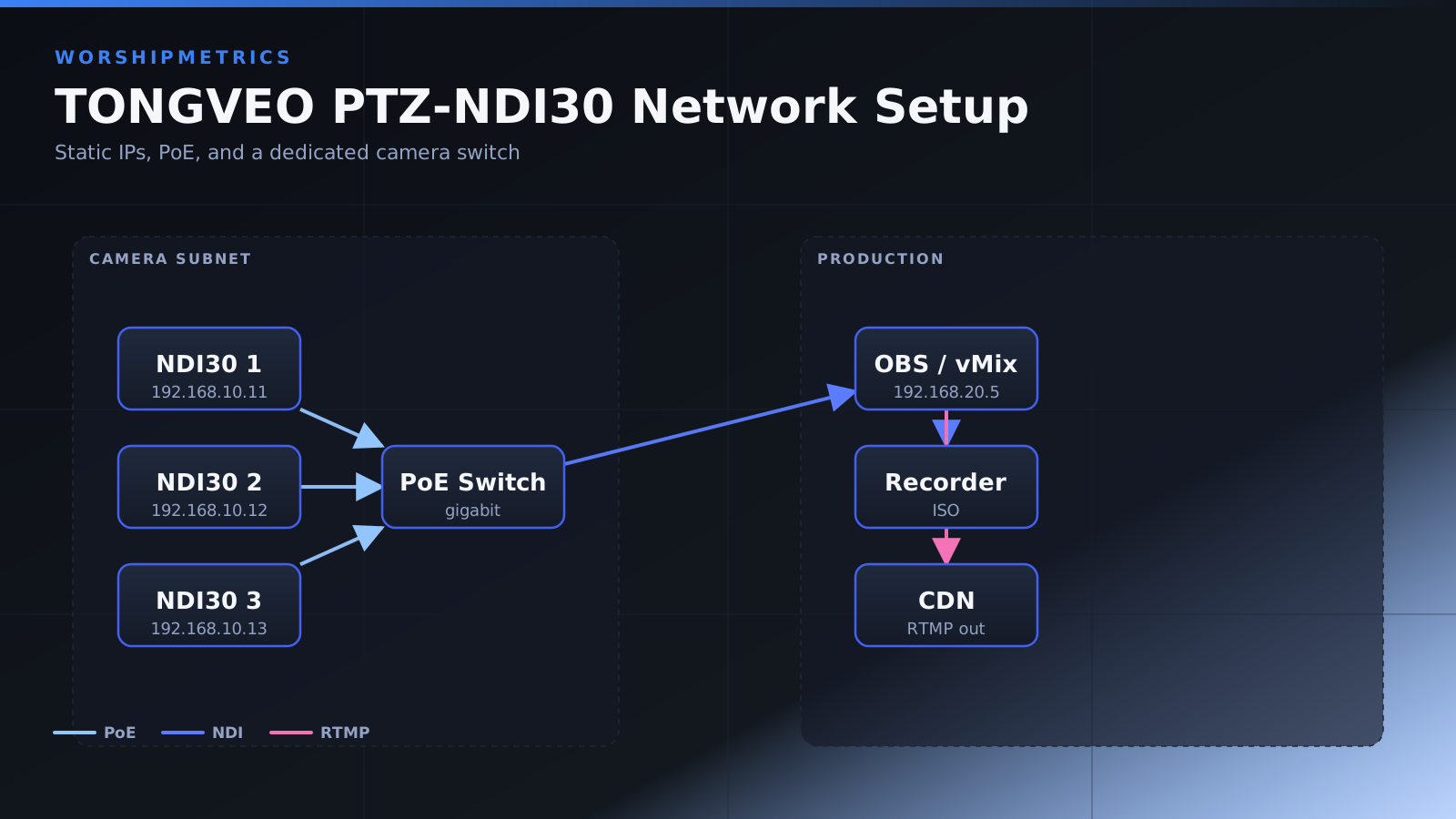
While the TONGVEO PTZ-NDI30 can be added to your network with basic DHCP setup, churches with multiple cameras or existing network infrastructure benefit from more deliberate configuration. This guide covers IP addressing strategies, static IP assignment, basic VLAN concepts, and power management considerations for a professional PTZ camera installation.
DHCP Versus Static IP Addressing
When you first power on the TONGVEO, it automatically requests an IP address from your DHCP server—the device on your network that automatically hands out IP addresses. This is convenient for quick testing, but it creates a problem over time. If the camera is rebooted, your DHCP server might assign it a different IP address. If your broadcast software tries to reconnect and the IP has changed, you’ll need to manually update your connection settings.
For a permanent church installation, assigning a static IP address to the camera is more reliable. A static IP means the camera always has the same address on your network, so your broadcast software, web interface bookmarks, and any control systems will always know where to find it. To decide between static IP and DHCP, consider how often you restart your network equipment and whether your IT team is comfortable managing static IP reservations.
Assigning a Static IP Address
To set a static IP, you’ll need access to the camera’s web interface. Open a browser and navigate to the camera’s current IP address. If you don’t know the IP address, ask your network administrator or use a network scanner tool to find it. The camera’s MAC address is printed on the back panel and can help you identify it in a network device list.
Log in with your admin credentials, then navigate to the Network settings section. Look for an option to change from DHCP to static IP configuration. You’ll need to enter several pieces of information: the static IP address you want to assign, the subnet mask (usually 255.255.255.0 for most church networks), and the gateway IP address (typically the address of your network router, like 192.168.1.1 or 10.0.0.1).
Choose an IP address that won’t conflict with other devices on your network. A common approach for church AV equipment is to use a reserved range starting at 192.168.1.100 or similar, keeping your cameras well separated from regular computers and guest devices. Document the IP addresses you assign to each camera in a spreadsheet or network diagram so your IT team has a reference.
Understanding VLAN Basics for PTZ Cameras
If your church has a larger or more complex network, you might have separate network segments called VLANs. A VLAN allows you to logically separate devices on the same physical switch. For example, you might have a VLAN for guest WiFi, one for office computers, and one dedicated to streaming and AV equipment.
If you’re using VLANs, ensure that your PTZ camera and your broadcast computer are on the same VLAN, or that VLANs are configured to communicate with each other. NDI video uses network traffic that needs to travel between devices, and VLAN misconfiguration is a common reason NDI sources don’t appear in broadcast software.
Talk with your IT administrator about your church’s VLAN setup. If they’re using VLANs, ask them to place the TONGVEO on the same VLAN as your broadcast computer, or to enable inter-VLAN routing so the devices can communicate. This is a technical conversation, but it’s worth clarifying before you struggle with mysterious connection problems.
Power Management and PoE
The TONGVEO PTZ-NDI30 comes with a standard power adapter, so you’ll be plugging it into a regular outlet. Ensure the outlet you choose is convenient for your cable routing and that you’re not creating a tripping hazard with the power cord. If your camera is mounted high in your sanctuary, you might route the power cable alongside your network cable through the same conduit or cable tray.
Some church AV professionals prefer to use Power over Ethernet (PoE), which allows a switch to deliver both network connectivity and power through a single Ethernet cable. The TONGVEO PTZ-NDI30 doesn’t have native PoE support, but you can use a PoE injector—a small device that adds power to the Ethernet line—if you want to simplify your installation. If you go this route, verify that your PoE injector provides adequate wattage for the camera, and have your IT team test the installation to ensure it’s working correctly.
Network Bandwidth Considerations
NDI video streams require significant bandwidth, typically 100 to 150 megabits per second depending on resolution and frame rate. If you’re running multiple PTZ cameras over NDI, or if your church network is also handling WiFi, internet, and office traffic, you want to ensure your network switch can handle the load.
A modern gigabit switch (1000 Mbps capacity) can handle several NDI streams, but congestion is possible if you’re already using most of your bandwidth for other purposes. If you’re planning to add multiple TONGVEO cameras, discuss this with your IT team before installation. They may recommend upgrading your switch to a managed model that supports Quality of Service (QoS) settings, which can prioritize video traffic over less important network activities.
Firewall and Firewall Rules
If your church has a hardware firewall, firewall software on your broadcast computer, or network-based firewall policies, ensure that NDI discovery and streaming traffic isn’t being blocked. NDI uses UDP multicast packets for discovery, which some firewalls block by default. If your camera appears on the network initially but then disappears, or if you can find it using a manual IP entry but not through automatic discovery, a firewall rule might be the culprit.
Ask your IT administrator to verify that UDP traffic on the ports used by NDI isn’t being blocked. This is a quick check they can perform on your firewall device. In some cases, you might need to manually add an exception for your broadcast computer or camera.
Documenting Your Setup
Create a simple document or spreadsheet that records the IP addresses, gateway, and subnet mask for each PTZ camera you install. Include the camera model, its physical location in your sanctuary, and any notes about its configuration. Keep this documentation accessible to whoever manages your AV system, as it becomes invaluable if you need to troubleshoot problems or add additional cameras later.
Conclusion
Proper network configuration is the foundation of a reliable PTZ camera system. By assigning static IPs, understanding your network’s VLAN structure, and ensuring adequate bandwidth, you set your TONGVEO PTZ-NDI30 up for stable, long-term operation. A little planning at the beginning saves hours of troubleshooting later.