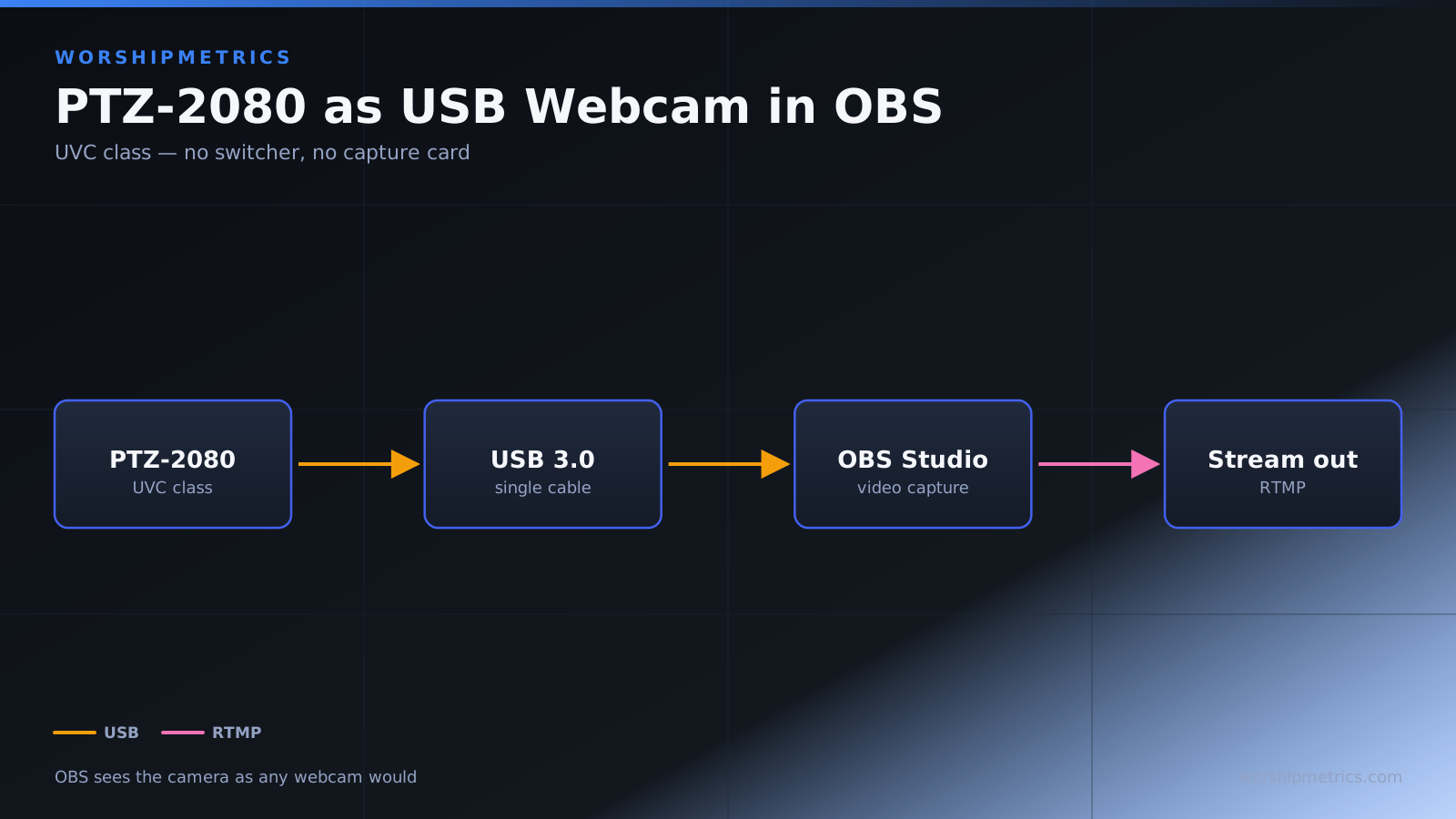
One of the best features of the TONGVEO PTZ-2080 is its USB connectivity, which makes it work like a standard webcam when connected to your computer. This simplicity is ideal for churches that want to use OBS Studio without needing a separate HDMI switcher or capture card. Once you connect the camera via USB and install any necessary drivers, adding it to OBS is just like adding any other video input.
Installing Drivers and Software
Before you connect the camera via USB, check the TONGVEO website for any drivers or software that might be needed for your operating system. Windows users typically need to download and install drivers, while Mac systems often recognize the camera automatically. Download the appropriate driver package and follow the installation instructions.
Some camera models also include dedicated control software that makes it easier to adjust zoom, pan, and tilt from your computer. While this software isn’t required for basic operation in OBS, it can be helpful for testing the camera before you integrate it into your stream. Install any included software before connecting the camera.
Connecting the Camera to Your Computer
Connect the camera to your broadcast computer using a USB cable. Plug the USB connector on the camera into an available USB port on your computer. If you have the option, use a USB 3.0 port (usually blue) rather than a USB 2.0 port (usually black), as USB 3.0 provides better bandwidth for video. If your computer is far from where you want to mount the camera, you might use a USB extension cable or an active USB repeater for longer runs.
Windows will automatically search for and install drivers. If it finds the driver you pre-installed, it will use that. If not, you might see a notification asking you to install hardware. Follow the prompts to complete the installation. Once the installation is finished, your computer will recognize the camera as a video device.
On Mac, the camera should be recognized immediately with no additional steps. You might need to grant permissions for OBS to access the camera—if you see a permission prompt, allow it.
Adding the Camera as a Video Source in OBS
Open OBS Studio and create or open a scene where you want to add the camera. At the bottom of the screen, you’ll see the Sources panel. Click the plus icon to add a new source. From the dropdown menu, select “Video Capture Device” if you’re on Windows, or “Video Device” if you’re on Mac.
A dialog box will appear asking you to select which video device to use. If the TONGVEO is properly connected and drivers are installed, it should appear in the dropdown list. Select it and click OK. OBS will now attempt to connect to the camera and display its video.
Configuring Video Properties
Once the video appears in your scene, you might notice the resolution or frame rate isn’t what you expected. Right-click on the camera source in the Sources panel and select Properties. Here you can adjust the resolution, frame rate, and other settings.
The TONGVEO PTZ-2080 typically outputs video at 1080p and 59.94 frames per second, which is ideal for most church streaming. If you’re streaming to YouTube or Facebook, these settings work perfectly. If you’re recording to a file for archival, you might prefer 30 frames per second to reduce file sizes, though 59.94 is also acceptable.
Check the “Deactivate” option if you want OBS to stop requesting video from the camera when this source isn’t being used. This can reduce CPU load on your computer. Click OK to save your settings.
Controlling Pan, Tilt, and Zoom
While the camera is connected via USB to OBS, you can control pan, tilt, and zoom in several ways. If you installed the dedicated control software that came with your camera, you can use that software in a separate window. Alternatively, some USB PTZ cameras respond to standard keyboard shortcuts or MIDI commands, though this varies by model.
Check your TONGVEO documentation to see what control options are available. Some models support arrow key controls or Page Up/Page Down for zoom. Others might require the dedicated control software. Your camera operator will need to learn which method works best for your setup.
Managing Multiple USB Cameras
If you want to add a second TONGVEO or another USB camera to your OBS setup, you can add it as a separate source following the same process. OBS can handle multiple USB cameras simultaneously, though each one consumes CPU and USB bandwidth. If you’re running multiple cameras from the same computer, ensure your computer has sufficient processing power and that your USB ports aren’t overloaded.
A general rule of thumb is that one high-performance computer can handle up to three USB video sources comfortably, depending on resolution and frame rate. If you’re planning a multi-camera setup, discuss hardware requirements with your AV team before purchase.
Resizing and Positioning the Source
Once the camera source is in your OBS scene, you can resize and position it on your canvas just like any other source. Click and drag the corners to resize, or click and drag within the source to move it. You might want the camera to fill your entire canvas, or you might want multiple camera sources visible simultaneously.
Test different layouts during your rehearsal to see what works best for your broadcast. Some churches prefer a large center frame with smaller picture-in-picture windows, while others use a multi-view layout where all cameras are visible at once.
Troubleshooting Connection Issues
If the camera doesn’t appear in your OBS video device list, first verify that the USB cable is fully inserted into both the camera and your computer. Try using a different USB port. If you’re using a USB hub, try connecting directly to a port on your computer instead.
If your computer still doesn’t recognize the camera, reinstall the drivers. Go to your device manager, look for the camera in the list, right-click, and select “Uninstall device.” Then disconnect the USB cable, restart your computer, reinstall the drivers from the TONGVEO website, and reconnect the camera.
If the video appears frozen or choppy, check your CPU usage in OBS. If your computer is running at high CPU load, you might need to reduce the resolution or frame rate of the camera, or close other applications to free up processing power. You can also try moving the camera to a USB 3.0 port if you haven’t already.
Performance Optimization for Streaming
USB video can be CPU-intensive, especially at high resolutions. If you’re experiencing performance issues while streaming, try these optimizations. First, reduce the camera resolution to 720p instead of 1080p in the camera properties. Second, reduce the frame rate to 30 frames per second if your stream or recording doesn’t require 59.94. Third, disable any OBS filters or effects on the camera source that aren’t essential.
You can also enable hardware acceleration in OBS, which offloads some of the video processing to your graphics card. This can significantly improve performance, especially on computers with dedicated graphics cards.
Conclusion
Your TONGVEO PTZ-2080 is now integrated into OBS Studio as a USB video source. The camera can be controlled through your dedicated control software or keyboard shortcuts, and it’s ready for streaming and recording. As you become more familiar with the camera and OBS, you’ll develop a workflow that works best for your church’s production needs.