A properly configured network is the foundation of reliable PTZ camera operation. Whether you’re using NDI, RTSP, or IP-based control, your church network must provide adequate bandwidth, stable connectivity, and appropriate infrastructure. This guide covers network planning and configuration for PTZ camera deployments.
Assessing Your Current Network
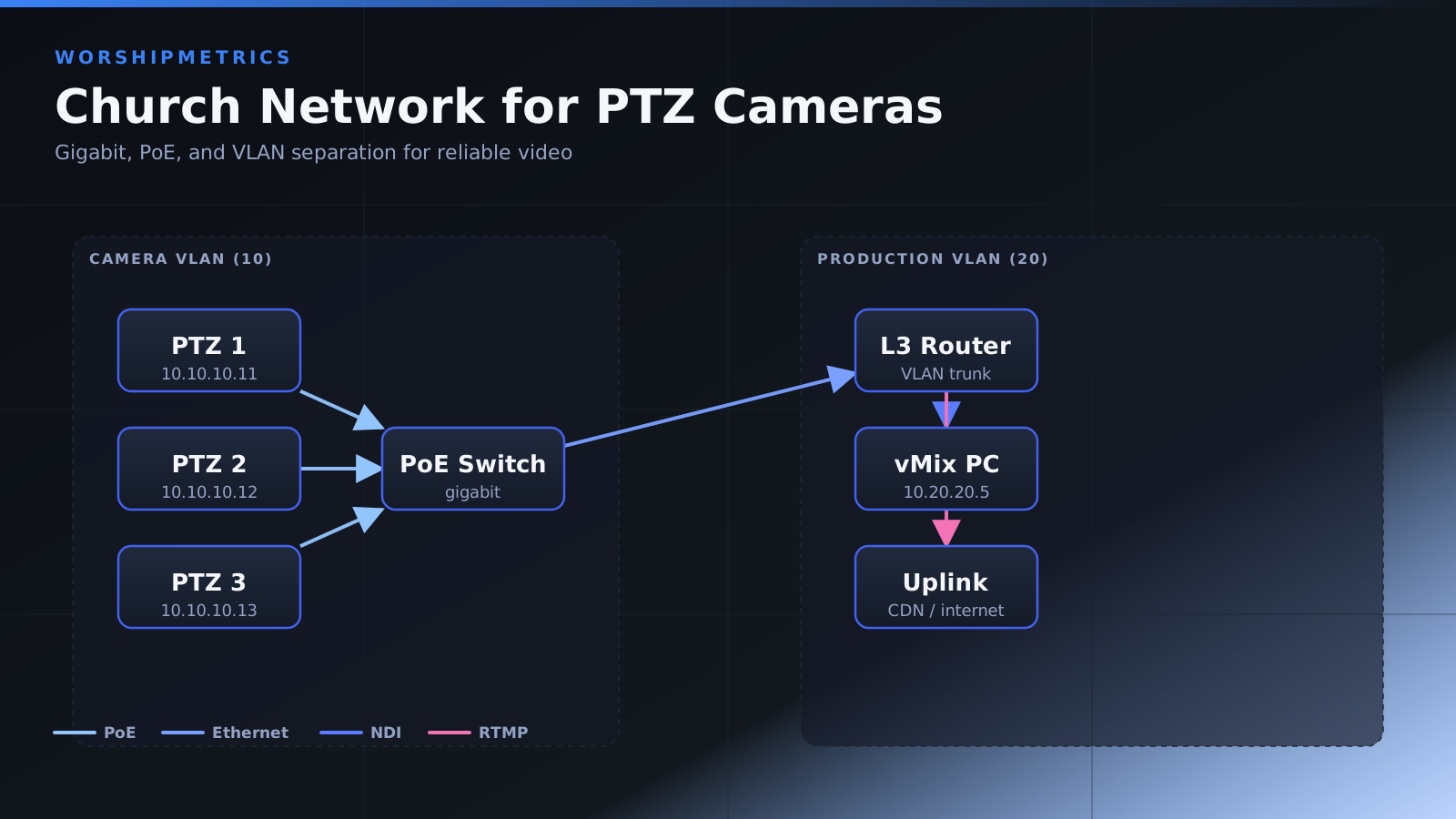
Before adding PTZ cameras, evaluate your existing network infrastructure. Identify your network switch model and verify it’s a gigabit switch (1000 Mbps minimum). Older Fast Ethernet switches (100 Mbps) cannot reliably handle video.
Count available ports on your switch. PTZ cameras use one port each, plus you need ports for computers, WiFi access points, and other network devices. Most churches benefit from upgrading to a larger switch as they grow.
Check your internet bandwidth. If you’re streaming to YouTube or Facebook, adequate internet speed is crucial. Most churches need at least 10 Mbps upload speed for reliable streaming.
IP Address Planning
Develop an IP addressing scheme for your video equipment. Reserve a range of consecutive addresses for your PTZ cameras. For example, reserve 192.168.1.100 through 192.168.1.120 for video equipment.
This organized approach prevents IP address conflicts and makes documentation easier. Work with your IT administrator to implement this scheme, whether using static IP assignment or DHCP reservations.
Static IP vs DHCP
DHCP automatically assigns addresses to devices, making setup easier. However, if the camera’s IP changes after a reboot, your broadcast software and web interface bookmarks become invalid.
Static IP assignment ensures your camera always has the same address. This is preferable for professional installations where consistency is important. Discuss with your IT administrator whether to use static assignment or DHCP reservations.
Subnet Mask and Gateway Configuration
The subnet mask (usually 255.255.255.0) determines which addresses are on your local network. The gateway address (usually your router’s IP, like 192.168.1.1) allows devices to communicate with other networks.
These values are typically configured by your IT administrator. If you’re setting up static IP manually, obtain these values from your IT team before configuring the camera.
VLAN Considerations
Virtual LANs allow you to segment network traffic logically. If your church uses VLANs, ensure your PTZ cameras are on the same VLAN as your broadcast computer, or that inter-VLAN routing is enabled.
NDI and other video protocols use multicast discovery, which works only on the same network segment. VLAN misconfiguration is a common cause of “camera won’t appear in broadcast software” problems.
Network Switch Selection and Upgrade
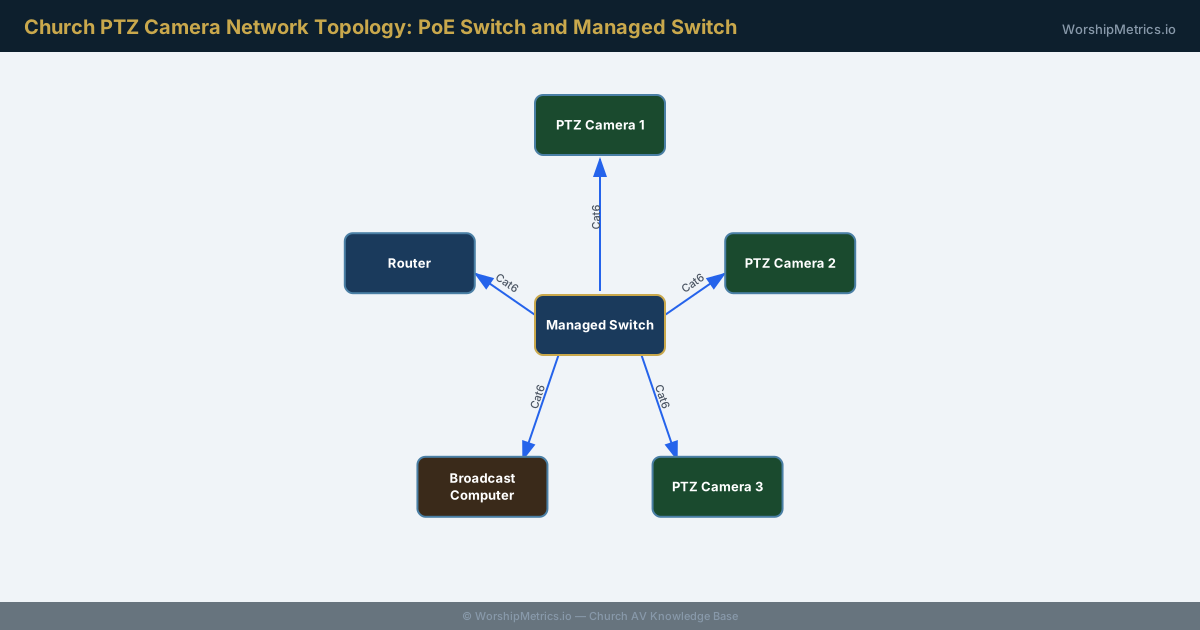
For single camera deployments, any modern gigabit switch works adequately. As you add cameras, upgrade to a managed switch with Quality of Service (QoS) capabilities.
Managed switches allow you to prioritize video traffic, ensuring your broadcast cameras get bandwidth even when other network activities spike. Look for switches with at least 24 ports and VLAN support.
Quality of Service (QoS) Configuration
QoS allows you to prioritize certain types of traffic. Configure QoS to give highest priority to video traffic from your cameras and broadcast computer.
This ensures that even if someone is streaming movies or downloading large files elsewhere on the network, your PTZ cameras and broadcast equipment get the bandwidth they need for reliable operation.
PoE Considerations
Some PTZ cameras support Power over Ethernet (PoE), which delivers power through the Ethernet cable. Other cameras require separate power supplies. Verify whether your cameras support PoE before planning power infrastructure.
If using PoE, install a PoE switch (or add a PoE injector to your existing switch) and ensure it provides adequate wattage for your cameras. PoE simplifies installation by eliminating separate power cables.
Network Cable Quality
Use quality Ethernet cables (Cat 6 or better) for your video connections. Poor cable quality can cause intermittent connection problems that are frustrating to troubleshoot.
For long cable runs (over 100 feet), upgrade to Cat 6A cable, which handles longer distances better. Label all cables at both ends for easy identification during troubleshooting.
Firewall Configuration
If your church has a firewall, ensure it isn’t blocking video traffic. NDI uses UDP multicast, which some firewalls block by default. Other video protocols use different ports that might also be blocked.
Ask your IT administrator to verify that video traffic is permitted through your firewall. This is a quick check that can prevent hours of troubleshooting frustration.
Bandwidth Calculation
Calculate your total bandwidth needs. Each 1080p NDI camera uses roughly 150 Mbps. Three cameras use 450 Mbps, leaving only 55% of your gigabit network available for other traffic.
With multiple cameras, you need either a robust network infrastructure or to reduce camera resolution/frame rate. Discuss bandwidth requirements with your IT team before expanding your camera system.
Network Monitoring
Once your network is carrying video, monitor it periodically. Check for errors on your switch ports and verify that network connections remain stable.
Many managed switches provide web interfaces where you can view port status, error counts, and other diagnostic information. Regular monitoring catches problems before they affect your broadcast.
Documentation
Document your network configuration including IP addresses, gateway, DNS servers, and any VLANs used. Create a network diagram showing how your cameras and broadcast equipment connect.
Keep this documentation accessible to your IT team and updated whenever you make changes. Good documentation makes troubleshooting much faster.
Future Expansion Planning
Plan your network for future growth. If you might add more cameras later, ensure your current switch has expansion capability or budget for a larger switch upgrade.
Building with future growth in mind prevents expensive re-configurations and disruptions down the road.
Conclusion
Proper network configuration is as important as the cameras themselves. A well-planned network with adequate bandwidth, appropriate devices, and proper configuration ensures that your PTZ cameras operate reliably. Invest time in network planning and maintenance—it pays dividends in reliable, consistent broadcasts.