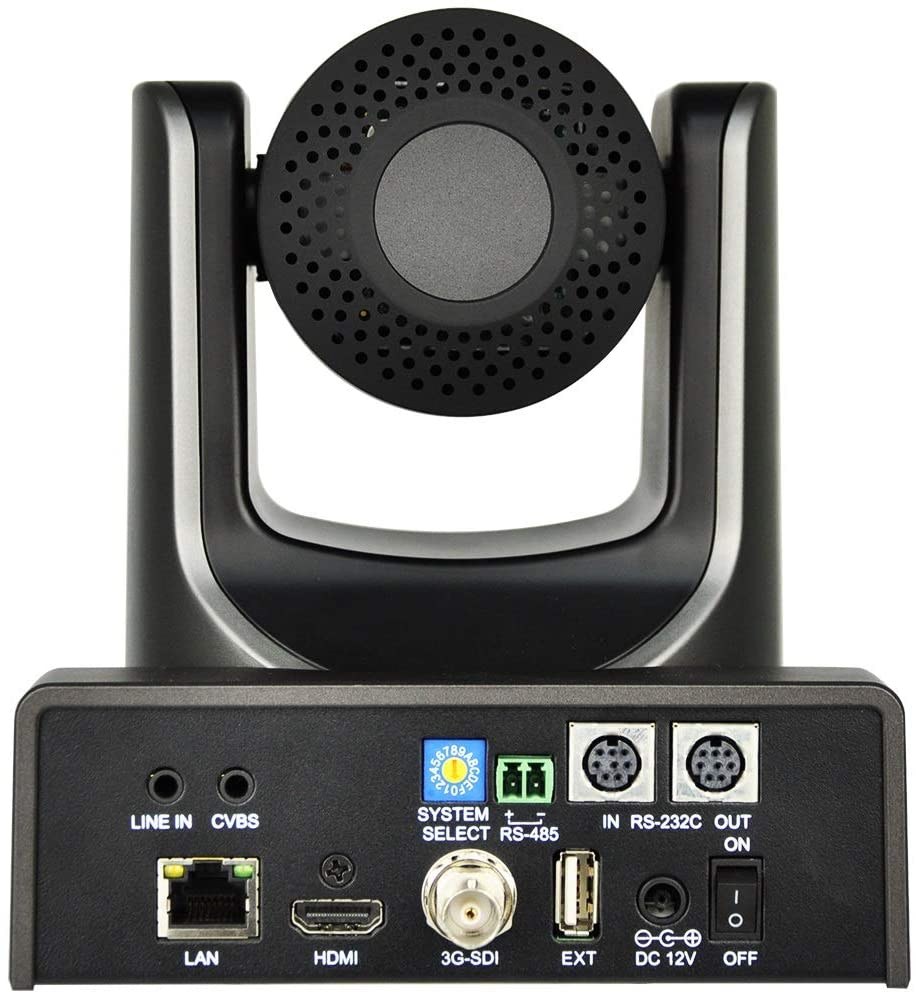
Introduction
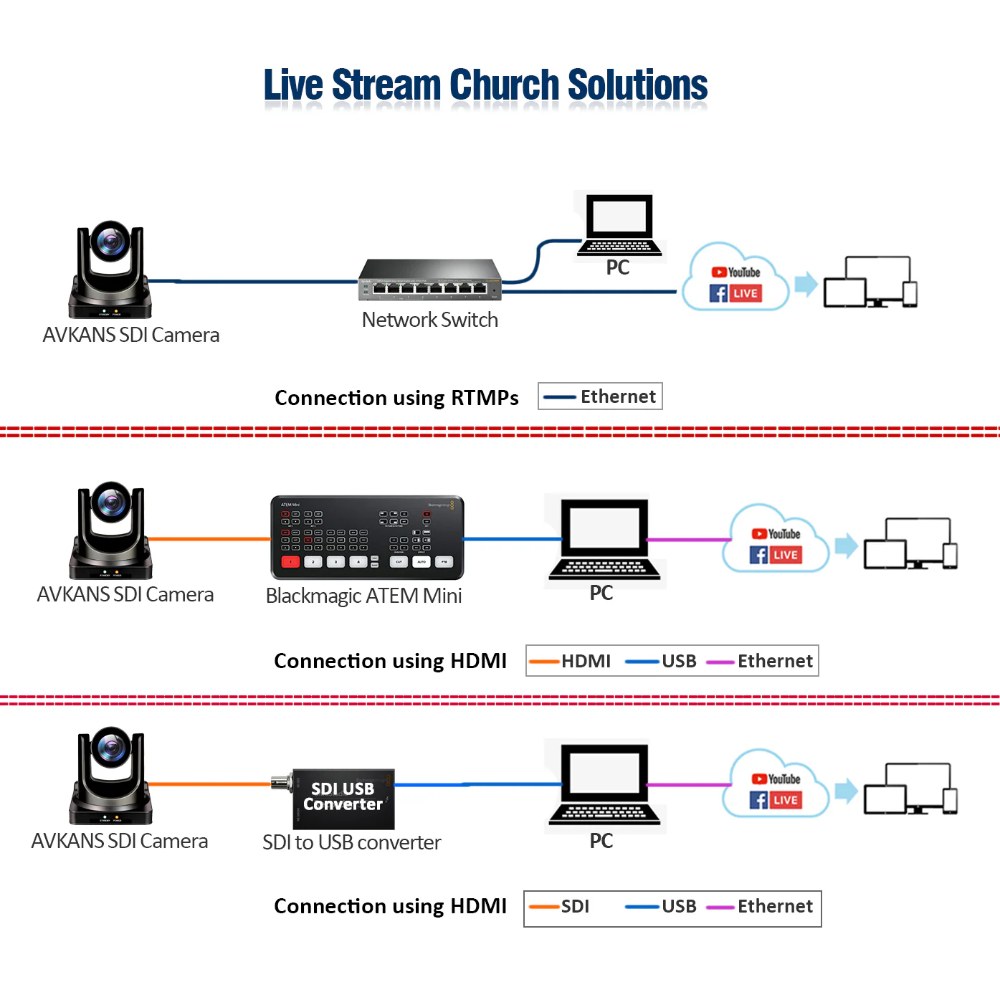
OBS Studio can accept NDI sources from network cameras like the AVKANS PTZ-U100, but the setup requires NDI plugins and proper network configuration. When it works, the experience is seamless: a single OBS interface controlling video composition while network sources appear just like USB cameras. When it does not work, it can be frustrating because troubleshooting involves both OBS configuration and network layer diagnostics.
This guide covers installing NDI support in OBS, discovering and adding the AVKANS camera as a source, and fixing the most common issues that prevent NDI sources from appearing when you need them.
Install NDI Support in OBS
OBS does not include NDI functionality by default. You must install the NDI plugin, which is available as a free download from the Newtek (now part of Vizrt) website or through package managers depending on your operating system.
On Windows, download the NDI Runtime and the obs-ndi plugin from the official Newtek repository. The installation process is straightforward: run the NDI Runtime installer first, then the OBS plugin installer. OBS will integrate the NDI plugin automatically during installation. If you installed OBS before installing the NDI Runtime, you may need to uninstall and reinstall the OBS plugin after the runtime is in place.
On macOS and Linux, the process is similar but may involve additional package management steps. Ensure you install both the NDI Runtime (the underlying system library) and the OBS plugin that sits on top of it. Without the runtime, the OBS plugin will not function even if it appears installed.
Once installed, restart OBS to activate the plugin. The next time you add a source, you should see NDI Source as an available option in the source menu.
Configure Your Network for NDI Discovery
NDI uses multicast discovery to find devices on the network. This means the camera and the production computer must be able to communicate with broadcast packets, which requires:
Your production computer and the AVKANS camera on the same network subnet. If they are on different subnets, multicast may not reach between them, and NDI discovery will fail. Check with your IT administrator if you are unsure whether your network segments allow multicast.
No aggressive firewall rules blocking multicast traffic on port 5353 or the NDI discovery port range. Enterprise firewalls sometimes disable multicast for security reasons, which breaks NDI discovery even when devices are networked.
Adequate network bandwidth. While NDI streams consume bandwidth (typically 150-200 Mbps for 1080p60), the real issue is usually the network path. If your production computer and camera are on wireless or a congested network segment, NDI may discover the device but fail to stream cleanly.
If NDI discovery is not working, the first step is confirming that both devices are on the same network subnet and that your firewall is not blocking multicast. You can test this with network tools like ping or by checking if your device management tools can see both devices on the same network.
Add AVKANS Camera as an NDI Source in OBS
Once the NDI plugin is installed and your network is configured, adding the camera to OBS is simple. Click the + button under the Sources panel, select NDI Source, and look for your AVKANS camera in the source list. The camera appears by its hostname or IP address, depending on your network configuration. Select it, and OBS immediately begins receiving the NDI stream.
At this point, the camera appears in your OBS preview. You can resize it in your scene, apply filters, crop it, or use it like any other video source. The key difference from a USB camera is that the network connection is maintained in real-time, so if the camera network connection drops, your OBS source will reflect that immediately.
If the camera does not appear in the NDI source list, do not proceed until you resolve the discovery issue. Check that the camera is powered on, connected to the network, and accessible via its web UI. If the camera itself is unreachable, OBS cannot discover it even if the plugin is correctly installed.
Handle NDI Source Refresh and Latency
NDI sources in OBS may take a few seconds to initialize and start streaming. This is normal. However, if you are adding the camera as a scene source for the first time, you may notice a brief delay or a blank preview before the video appears. This is not a problem during service because the source stays active once initialized.
If you repeatedly add and remove the same NDI source during a service, OBS may cache the source and fail to rediscover it until you reload the scene collection. To avoid this, add the camera source once during setup and leave it in your scene collection, even if you are not using it immediately. Toggle visibility instead of deleting and re-adding the source.
NDI streams have inherent latency, typically 100-300 milliseconds depending on network speed. This is significantly lower than streaming services like RTMP, but higher than USB cameras connected directly to the production computer. For most church applications, this latency is unnoticeable, but it matters if you are running a tightly coordinated multi-camera shoot where sync matters.
Troubleshoot NDI Sources Not Appearing
If the NDI plugin is installed, OBS is restarted, and the camera is networked but not appearing in the source list, the issue is usually one of three things:
The camera is not actually connected to your network. Log into the camera’s web UI directly from your production computer to confirm it is reachable. If you cannot access the web UI, the camera is not on the network you think it is.
Multicast is blocked between the devices. Some networks, especially enterprise networks with heavy security, disable multicast or restrict it. You may need to work with your IT administrator to allow NDI multicast traffic or assign the camera and production computer to a network segment that allows it.
The NDI Runtime is not installed or not working. Even if the OBS plugin appears installed, it requires the NDI Runtime to function. Reinstall both the Runtime and the plugin, restart OBS, and try again. On some systems, you may need to restart your computer entirely for the NDI libraries to load.
If none of these resolve the issue, try adding the camera as an NDI source using its IP address directly. Some NDI implementations allow you to specify a source by IP rather than relying on multicast discovery. Check your OBS NDI plugin documentation for the syntax.
Optimize NDI Stream Quality and Bandwidth
Once the AVKANS camera is streaming into OBS, consider whether you want full-resolution NDI or a reduced bandwidth version. The camera can stream at different bitrates depending on your network capacity. If you have limited bandwidth or older network infrastructure, reducing the NDI stream resolution or frame rate at the camera can improve stability without sacrificing much visual quality.
Check the AVKANS camera’s web UI for NDI bitrate options. Many cameras offer a reduced-bitrate NDI profile that is suitable for networks with limited capacity. For most church applications, the default NDI settings work fine, but if your stream is stuttering or the camera is disconnecting frequently, this is one of the first settings to adjust.
Conclusion
AVKANS PTZ-U100 integration with OBS through NDI opens up flexible multi-source production workflows without the complexity of hardware switching. The setup process is straightforward once the NDI plugin is installed and your network is configured for multicast.
Take time to test the NDI source integration during a normal service day, not just in an empty building during setup. Real network load will show you whether the bandwidth and latency are suitable for your production needs. Once you confirm stability, your OBS workflow becomes much more flexible because the camera is just another network source, no different from a USB webcam or a screen capture.