Introduction
The AVKANS PTZ-U100 is one of the most accessible NDI cameras available for church production. It offers a 20x optical zoom, full NDI support, and clean integration with OBS and vMix at a price point that works for budget-conscious congregations. Unlike USB cameras that tie you to a single computer, the PTZ-U100 connects to your network and appears as an NDI source to any production software on the same system.
The initial setup is straightforward, but it requires careful attention to network addressing and NDI discovery. This guide walks through unboxing, network connection, NDI configuration, and your first preset positions so you can move from opening the box to live operation within an hour.
What Comes in the Box
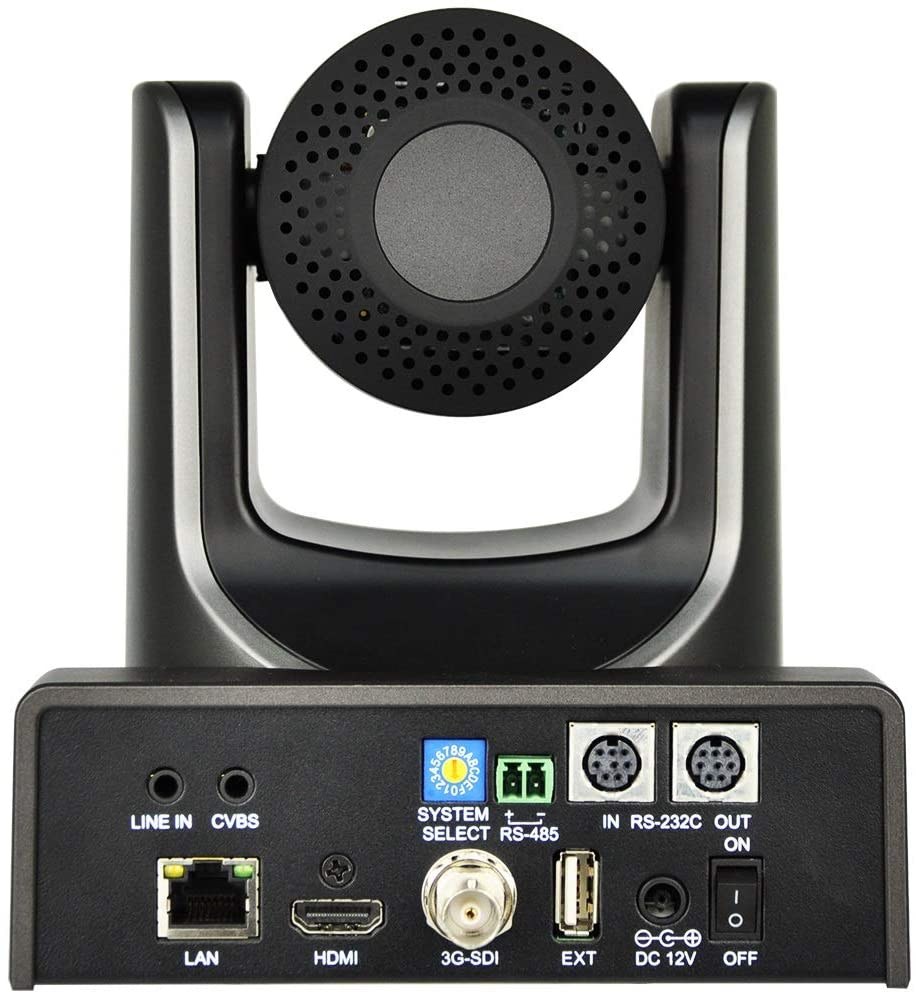
The PTZ-U100 arrives with the camera unit, a compact power adapter, a USB cable for control and initial configuration, network cable, and basic quick-start documentation. The real setup work happens in the network layer rather than in complex hardware assembly. The camera ships with default settings, which means you will need to assign it a static IP address and enable NDI before it becomes useful in your production system.
Unbox everything carefully and keep the power adapter and cables in a safe place. You will use the power supply immediately, and the USB cable will help with initial configuration if your network needs troubleshooting. The network cable is your primary connection once the camera is on your system.
Connect to Network and Assign IP Address
The AVKANS PTZ-U100 starts with a default IP address, usually something like 192.168.1.100 or 192.168.0.100 depending on the firmware version. You must either know this address or access the web UI using the USB connection to discover it. Most church networks use a different subnet, so the default address often will not work immediately on your system.
Connect the camera to your network using the provided ethernet cable. Plug it into your church network switch, preferably on the same network segment as your production computer. If your network is segmented or heavily secured, alert your IT administrator that you are adding a network device. Once connected, you will need to access the web-based configuration interface to assign a static IP address that matches your network range.
If the camera does not appear on your network immediately, use the USB cable to connect it directly to your production computer. This gives you access to the web UI even if the camera and the network are not yet talking. Some church IT setups require DHCP configuration or static assignment through a management portal, so check with your administrator before assuming the camera settings are wrong.
Access the Web UI and Configure Settings
Open a web browser and navigate to the camera’s IP address. This brings up the configuration dashboard where you can set network parameters, enable NDI output, and configure video resolution and frame rate. The interface is straightforward but requires care during initial setup because wrong settings can make the camera invisible to your production software.
Login with the default credentials (usually admin/admin or similar, check your documentation). Once logged in, navigate to the Network section and assign a static IP address in your network range. Choose something memorable like 192.168.1.200 or 192.168.1.250, and use your gateway and DNS settings that match the rest of your network. Write down this IP address because you will need it when configuring NDI sources in OBS.
In the Video section, confirm your output settings. For church production, 1080p at 60fps is standard, though some networks or production software may prefer 1080p at 30fps for lower bandwidth. NDI can handle both, so choose based on your internet capacity and production needs. If bandwidth is tight, 720p at 60fps can still look professional in most church streaming scenarios.
Most importantly, locate the NDI settings and confirm that NDI output is enabled. Some cameras ship with it disabled by default. If NDI is disabled, enable it and save your settings. The camera may reboot, which is normal. Once NDI is enabled, your production software will be able to see and use the camera.
Set Up Initial Presets for Sunday Service
Before you go live, create a few basic preset positions so the operator has reliable shots to recall. Most churches need at least three presets: a wide shot of the stage, a pulpit or speaker shot, and a worship team or band position. You do not need an elaborate preset library at this point. You just need enough positions so the operator can move through the service without hunting for shots.
Access the preset control from the web UI or use the AVKANS control software (if available) to position the camera at each preset location. Save each preset with a clear name: Wide, Pulpit, and Worship are better names than Preset 1, Preset 2, and Preset 3. Once saved, these presets can be recalled instantly from your production software or from a connected remote control device if you add one later.
Test each preset by recalling it a few times. Make sure the pan and tilt move smoothly and the zoom returns to the same framing each time. If a preset recalls to a slightly different position, the camera may have calibration issues, but this is rare with new units.
Confirm NDI Discovery in OBS or vMix
With the camera networked, configured, and NDI enabled, your production software should see it as an available source. In OBS, add a new source, select NDI Source, and look for the PTZ-U100 in the source list. If it does not appear immediately, wait a few seconds and refresh the list. NDI discovery can take 10 to 15 seconds on some networks.
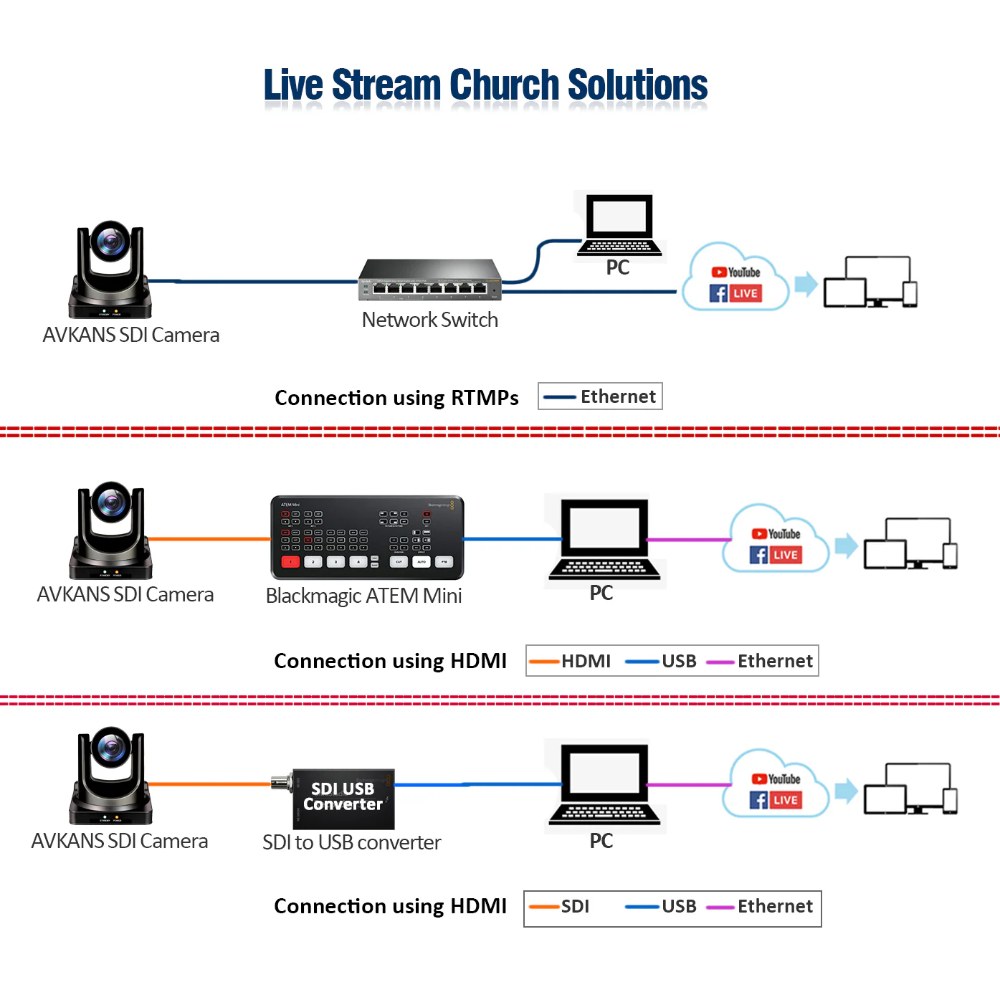
In vMix, the process is similar: add an input, select NDI, and select the camera from the available devices. Once the camera appears as a source, you are ready to use it in your production scenes. The camera will stream video directly over your network, which means your production computer sees a full NDI signal without any USB cables or capture cards.
Test Your First Broadcast Setup
Before Sunday service, run through a complete test: load your production software, confirm the camera appears as an NDI source, navigate through your preset positions, and verify that the signal is clean and stable. Do this during normal network usage, not in an empty building. A real test includes other computers, internet traffic, and typical network load.
If the camera video stutters, drops frames, or becomes unavailable during the test, you may have a network bandwidth issue or a conflict with other network devices. Check with your IT administrator about network segmentation and quality-of-service settings. Most modern church networks can handle one or two NDI cameras without congestion, but older or overloaded networks may struggle.
Conclusion
The AVKANS PTZ-U100 becomes production-ready within an hour of setup if you follow careful network configuration and confirm NDI discovery before your first service. The investment in clear IP addressing and preset naming at the start pays off in reliable weekly operation.
Take time now to document your camera’s IP address, preset names, and network connection point. That small amount of documentation will save hours of troubleshooting when someone new needs to operate the camera or when you add a second unit to your system.