Introduction
The AVKANS PTZ-U30 is a professional-grade PTZ camera with 30x optical zoom, making it suitable for larger churches where extreme zoom capability is essential. Unlike the U100 and U200 which are optimized for NDI networking, the U30 emphasizes video output through SDI and HDMI connections, giving you flexibility in how you integrate it into larger or more complex production systems.
The 30x zoom capability means the camera can frame a distant speaker or worship team member with precision from a single fixed location. This makes it invaluable in large sanctuaries where a single camera position needs to cover multiple areas of the stage or audience.
This guide covers initial setup, configuring video output, assigning IP addresses for network control, and creating your first presets so the camera is ready for production use.
What Comes in the Box and System Requirements
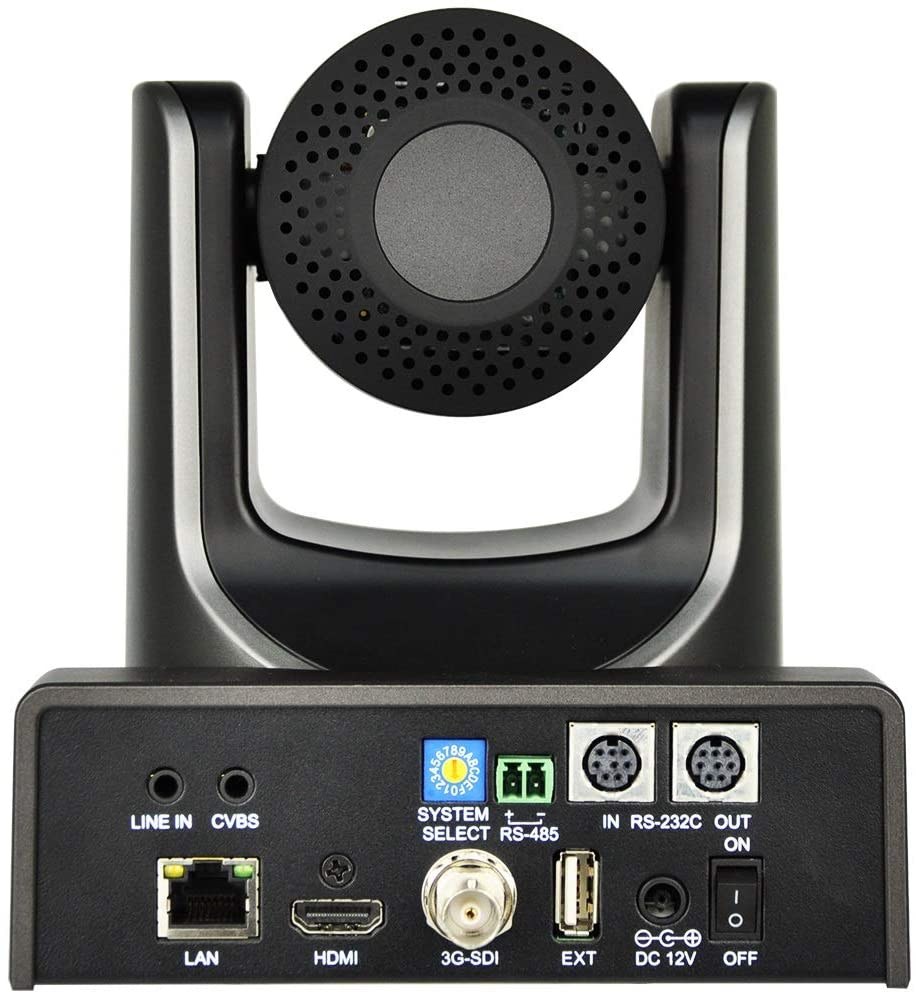
The PTZ-U30 arrives with the camera unit, a power adapter, cables for SDI/HDMI output, network cable, and control hardware depending on your configuration. Unlike the U100 and U200, the U30 requires a separate power supply, so plan for a power outlet or power distribution system near your camera mounting location.
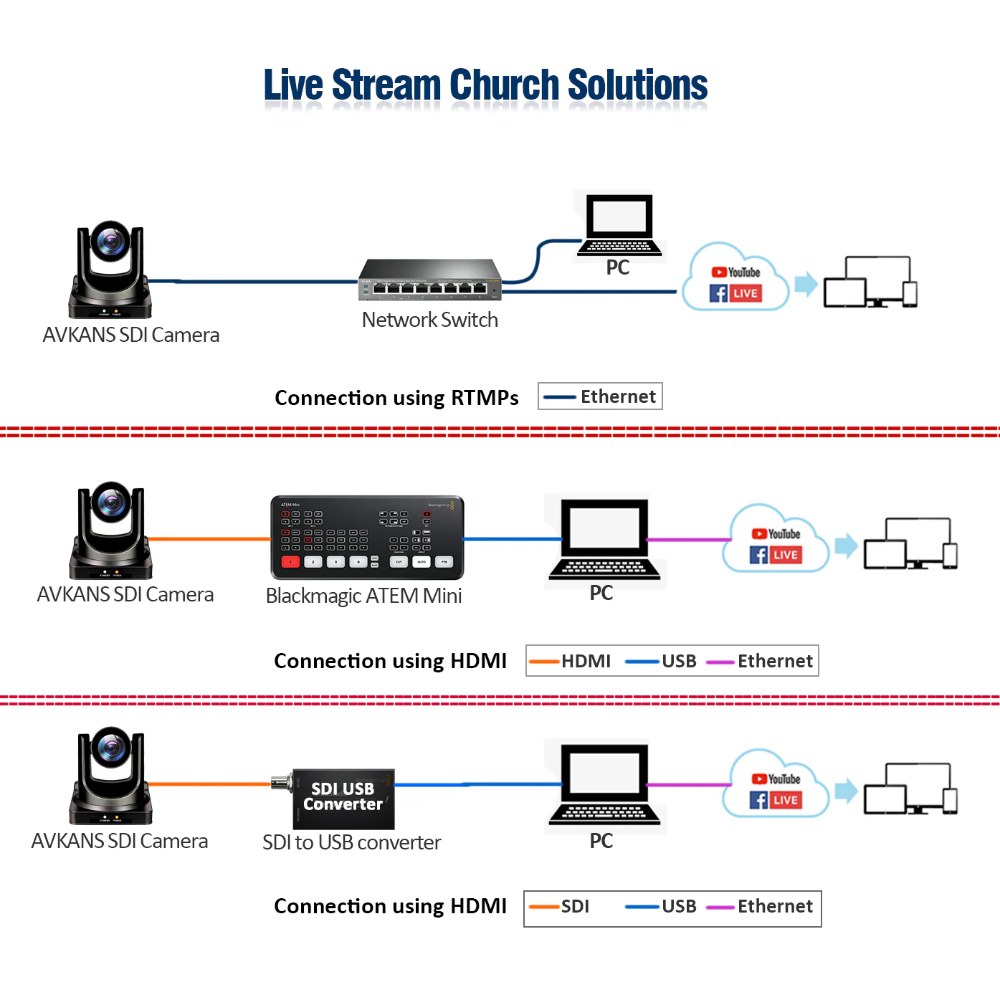
You will need either an SDI capture device or an HDMI switcher/capture card to integrate the U30 into your production system. The camera outputs video through SDI or HDMI, not NDI. If you are using OBS with an HDMI capture card, or if you are using a hardware switcher like ATEM or Roland, the U30 integrates through its video outputs rather than through network protocols.
Connect Power and Video Cables
Locate a power outlet or power strip near your camera mounting location. The U30 draws moderate power, so a standard outlet is sufficient. Plug in the power adapter and connect the power cable to the camera. Wait a moment for the camera to boot.
Connect the SDI or HDMI output from the camera to your production system. Most churches using an AVKANS U30 use HDMI because SDI infrastructure requires more specialized equipment and expertise. Connect the HDMI cable from the camera to your capture card or switcher input.
Power on your capture device or switcher and confirm that video appears. You should see a full-screen camera feed showing whatever the camera is pointed at. If you see no video, check that the HDMI cable is fully seated and that the input device is set to the correct input port.
Access the Web UI for Network Control
The PTZ-U30 includes a built-in web interface for remote control and configuration. You can control the camera’s pan, tilt, zoom, and presets from the web UI, which is useful for testing and for remote operation.
Connect the network cable to the camera and to your network switch. The camera defaults to DHCP, so it should acquire an IP address automatically. Log into your router or network device to identify the camera’s assigned IP address, or check the camera’s display panel if it has one.
Open a browser and navigate to the camera’s IP address. Log in with default credentials. Configure a static IP address that matches your network, using a memorable address like 192.168.1.200. Document this IP address for future reference.
Configure Video Output Settings
In the web UI, navigate to Video Settings and confirm your output resolution and frame rate. For most church production, 1080p at 60 fps is standard, offering good quality and smooth motion. You can reduce to 1080p 30 fps if bandwidth or encoding capacity is limited.
Check whether you are using SDI or HDMI output and confirm the camera is configured for the correct output. Some cameras allow simultaneous output on both SDI and HDMI, which can be useful if you want redundancy or want to use both outputs. Most churches use only one output.
If your camera supports multiple video profiles, choose one optimized for your production software. AVKANS cameras often include profiles for different use cases: streaming, recording, or traditional broadcast.
Create Initial Presets for First Service
Using the web UI, position the camera at several key locations and save presets. Most churches with a U30 need presets for: wide stage overview, pulpit or speaker position, worship team or band position, and possibly congregation or audience response shots.
The 30x zoom means you can frame distant subjects with surprising clarity. Use the zoom capability to create precise shots that would be difficult or impossible with a fixed-zoom camera. Save these positions as presets so the operator can recall them instantly during service.
Test each preset by recalling it several times. The camera should return to the same pan, tilt, and zoom position reliably. If you see drift or inconsistency, the camera may need calibration, but this is rare with new units.
Test Video Output Quality Before Service
Run a test broadcast or recording that captures video from the U30. Monitor video quality, ensure no stuttering or artifacts, and confirm that your production computer or switcher is receiving clean video.
If you are using HDMI, test with your specific cable and equipment because HDMI quality can vary depending on cable quality and device compatibility. Run the test during a service simulation, not just in an empty building.
If video quality is poor or unstable, check HDMI cable quality, confirm your switcher or capture device is set to the correct input, and verify that your production computer has adequate resources to handle the video stream.
Document Your Camera Configuration
Document the camera’s IP address, preset names and numbers, video output settings, and any custom configurations you have applied. This information becomes invaluable if you need to troubleshoot or if a team member needs to reconfigure the camera.
Store this documentation somewhere that will outlive personnel changes—a shared folder, a printed sheet near your equipment, or a wiki page on your church’s internal documentation system.
Conclusion
The AVKANS PTZ-U30 setup is more involved than the U100 or U200 because of its SDI/HDMI video output and higher power requirements. However, once initial setup is complete, the U30 operates reliably and the 30x zoom capability opens up production possibilities for larger church spaces.
Spend time during initial setup creating presets that match your service flow and testing video output quality. That investment pays dividends in consistent, professional-quality video throughout your camera’s lifetime.