Introduction
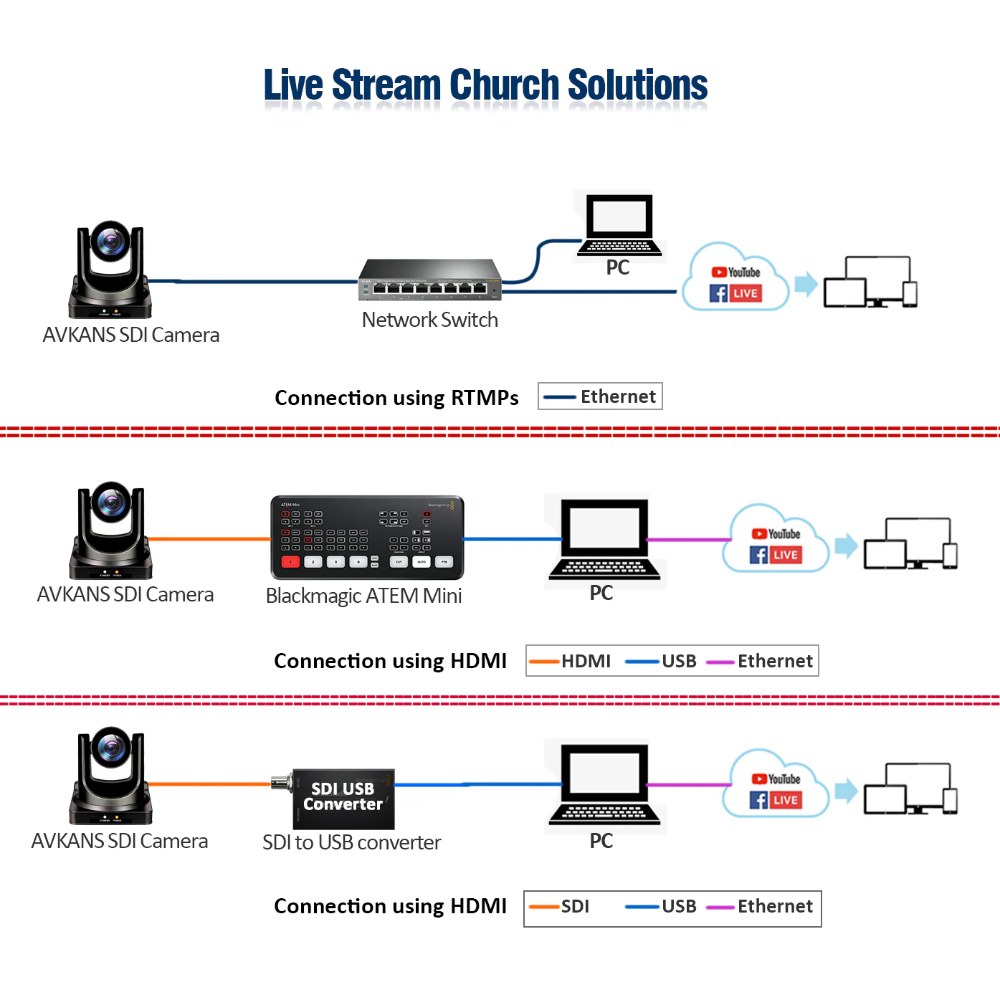
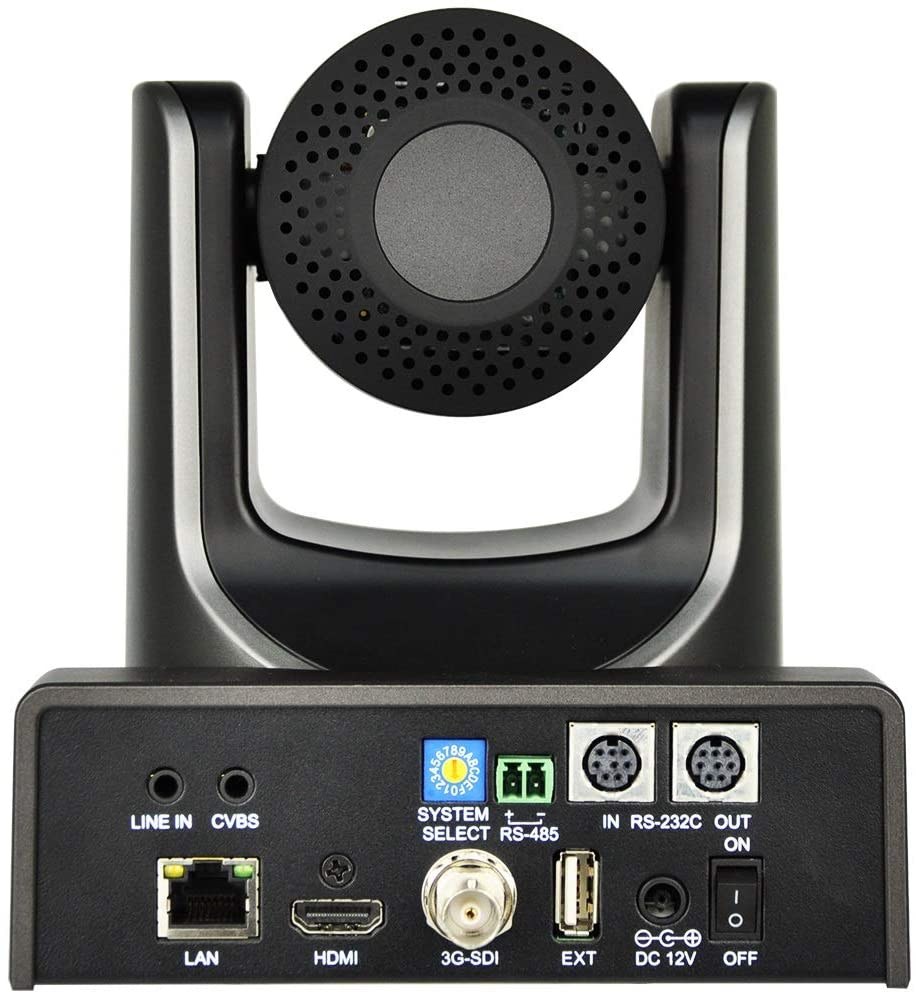
The AVKANS PTZ-U30 supports both SDI and HDMI video output, giving you flexibility in how you integrate it into your production workflow. SDI offers superior signal integrity over long cable runs and is the standard in professional broadcast environments. HDMI is simpler to configure and integrates easily with consumer-grade capture cards and switchers.
Understanding the differences between SDI and HDMI, planning which output your production system will use, and configuring the camera correctly ensures you get the best video quality and the most reliable operation from the U30.
Understand SDI Versus HDMI Output
SDI (Serial Digital Interface) is a professional video standard that encodes high-quality video in a format designed for broadcast and professional video systems. SDI uses 75-ohm coaxial cable and can run reliably over longer distances (up to 300 feet with proper cable and minimal loss) compared to HDMI.
HDMI (High-Definition Multimedia Interface) is a consumer and prosumer standard that combines video and audio on a single cable. HDMI is simpler to work with and integrates easily with consumer switchers and capture cards. HDMI cables have a practical maximum length of about 50 feet before signal degradation becomes noticeable.
For churches, the choice between SDI and HDMI usually comes down to your existing infrastructure and your production workflow. If you have a professional SDI switcher like a Grass Valley or similar broadcast-grade device, SDI makes sense. If you are using consumer-grade gear like ATEM Mini, Roland V-Mixer, or OBS with a capture card, HDMI is the practical choice.
Configure the PTZ-U30 for Your Chosen Output
Access the camera’s web UI and navigate to Video Output Settings. The camera typically allows you to select which output to use: SDI only, HDMI only, or simultaneous output on both.
If you are using HDMI, select HDMI Output and confirm that the resolution and frame rate match your production system requirements. Most churches use 1080p 60 fps for smooth motion, but 1080p 30 fps is also acceptable if bandwidth or processing power is limited.
If you are using SDI, select SDI Output and confirm the SDI format. The camera typically supports standard SDI formats that are compatible with broadcast-grade switchers and professional equipment.
Some cameras support simultaneous SDI and HDMI output at different resolutions, which can be useful if you want to feed different devices or create backup paths. Check your camera’s documentation for what combinations are supported.
Use Quality Cables Appropriate for Your Output
SDI requires professional-grade coaxial cable rated for SDI use. Do not substitute regular RG-6 or other video cables—they will not provide the impedance matching that SDI requires. Purchase SDI cable from a professional AV supplier and verify that it is rated for your video format (3G SDI, 6G SDI, or 12G SDI depending on your resolution and frame rate).
For HDMI, use certified HDMI cables rated for your resolution. For 1080p 60 fps, standard HDMI 2.0 cables are sufficient. Keep cable runs as short as practical; avoid long HDMI runs if possible. If you must run HDMI a long distance, use an HDMI extender or consider SDI instead.
Test your cables with your specific equipment before committing to them. Cable quality varies, and a low-quality cable can result in intermittent video loss or degradation that is frustrating to troubleshoot.
Route HDMI Output to OBS or Switchers
If you are using HDMI output to OBS, connect the camera’s HDMI output to your capture card and configure OBS to use that card as a source. In OBS, add a Video Capture Device source, select your capture card from the dropdown, and OBS adds the camera as a source. The video appears in your preview immediately.
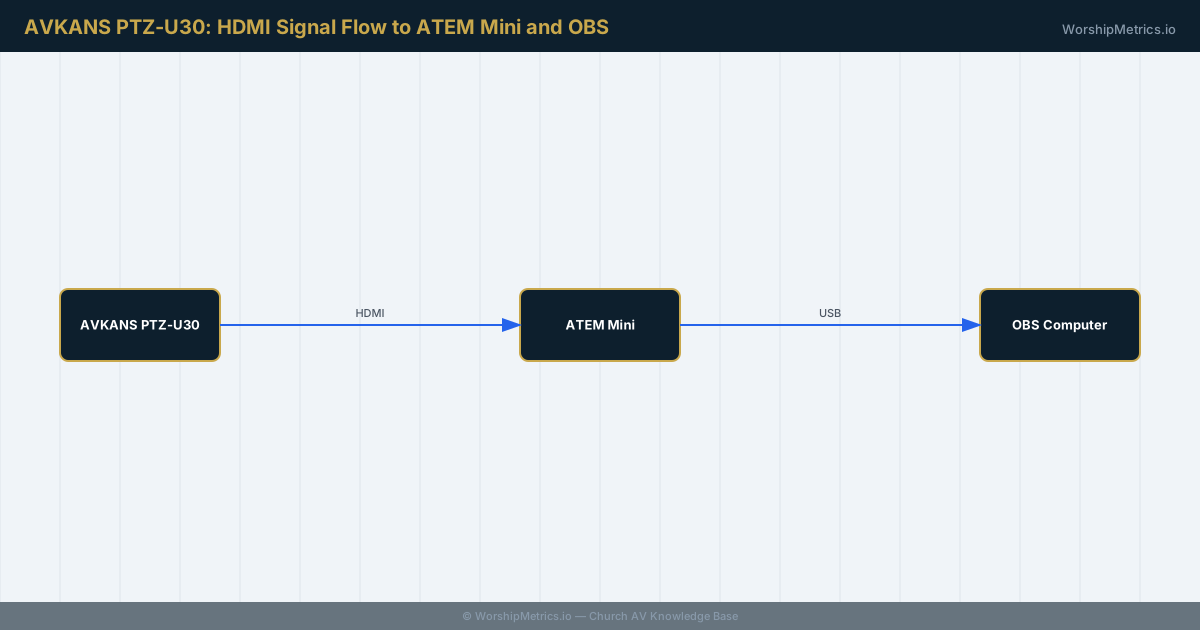
If you are using HDMI to a hardware switcher like ATEM Mini or Roland V-Mixer, connect the camera’s HDMI output to an available input on the switcher. The switcher receives the video and allows you to switch between the PTZ-U30 and other camera inputs.
Test the HDMI connection by viewing video on your production computer or switcher. If you see no video, check cable connections, verify the correct input is selected on your device, and confirm the camera’s HDMI output is actually enabled.
Route SDI Output to Professional Switchers
If you are using SDI output to a professional switcher, connect the SDI cable from the camera to an SDI input on your switcher. The switcher should recognize the video input and make it available for switching.
SDI integration is straightforward once the cable is connected correctly. Most professional switchers automatically detect SDI video and configure it appropriately. If the switcher does not recognize the video, verify that the camera’s SDI output is enabled and that the SDI format matches your switcher’s input capabilities.
Test the SDI connection during a rehearsal. SDI video is either working or not—there is little middle ground. If you see video, the connection is good. If you do not see video, check cables, connections, and camera configuration until video appears.
Enable Simultaneous SDI and HDMI Output if Supported
Some AVKANS cameras support simultaneous output on both SDI and HDMI, potentially at different resolutions. This can be useful if you want to feed multiple systems or create a backup path. For example, you might output 1080p 60 fps via HDMI to OBS and simultaneously output 1080p 30 fps via SDI to a hardware recorder for archival.
Check your camera documentation to see if simultaneous output is supported and how to configure it. If available, this can provide valuable redundancy: if your HDMI capture fails, you still have SDI video available.
Test Complete Video Routing Before Sunday Service
Run a full service rehearsal with your PTZ-U30 video routing active. Monitor video quality, ensure no stuttering or dropouts, and verify that your production system handles the video stream reliably.
If you are using HDMI and notice video quality issues, check cable quality, verify your capture card or switcher input is configured correctly, and confirm your production computer has adequate USB bandwidth if the capture card is USB-based.
If you are using SDI and experience issues, the problem is usually a cable or connection issue. SDI is stable once connected correctly. Check all physical connections and try a different cable to rule out cable damage.
Document Your Video Routing Configuration
Document which output (SDI, HDMI, or both) you are using, what devices are connected to each output, and the resolution and frame rate settings for each output. This documentation makes troubleshooting and future configuration changes much easier.
If you are using multiple outputs, document the routing clearly so another team member can understand how video flows through your system.
Conclusion
The AVKANS PTZ-U30’s dual output capability gives you flexibility to integrate into different production environments. Whether you choose HDMI for simplicity or SDI for professional reliability, proper configuration, quality cables, and thorough testing ensure stable video routing to your production system.
Plan your video routing carefully during initial setup so that your choice of output supports your production workflow for months or years to come.