Introduction
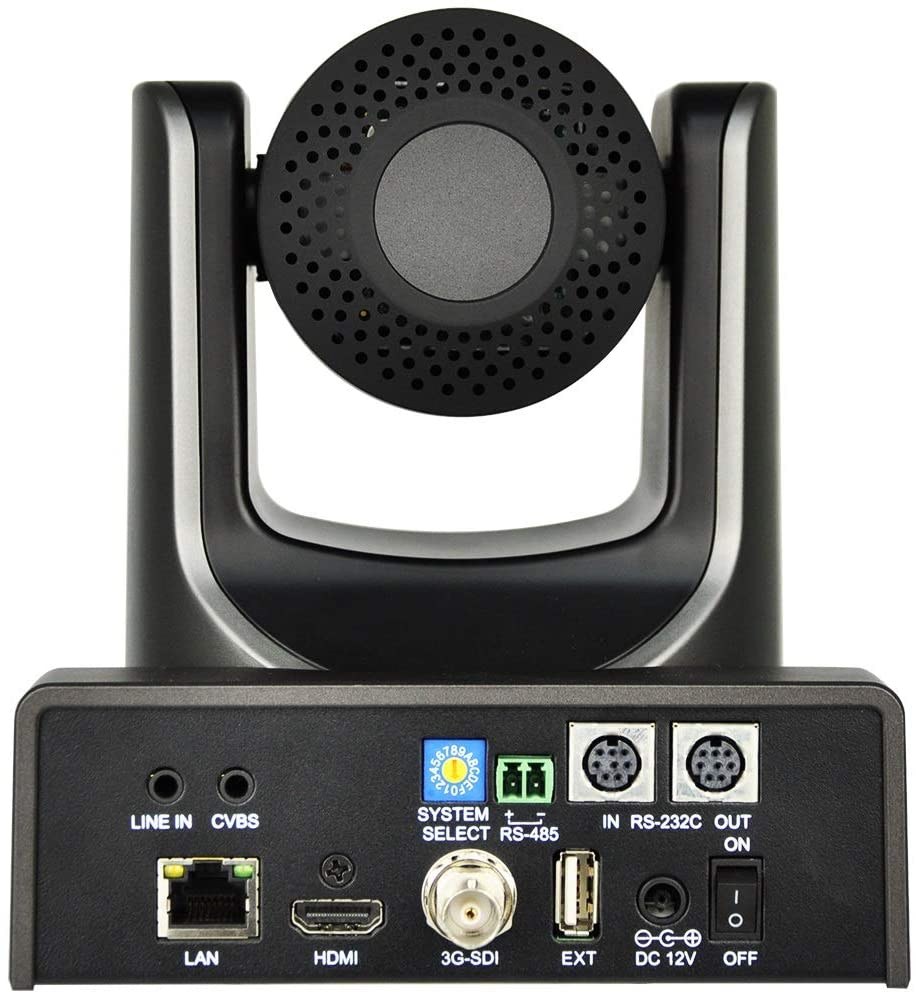
The AVKANS PTZ-U30 can be controlled remotely using external controllers and joystick devices, reducing the need for manual operation through the web interface. A physical joystick or PTZ controller allows smooth, responsive camera movement during service, which feels more natural than operating the camera through menus or software.
PTZ controllers come in many forms: dedicated PTZ joystick controllers designed for broadcast use, wireless remotes, or even generic game controllers configured for PTZ operation. This guide covers selecting an appropriate controller, configuring the camera to accept controller commands, and training your operator to use the device effectively.
Select an Appropriate PTZ Controller
Dedicated PTZ controllers are purpose-built devices with a joystick, speed controls, preset buttons, and other PTZ-specific features. These range from simple models with just a joystick and preset buttons to complex professional devices with extensive control options. For most churches, a simple PTZ controller is sufficient.
Generic alternatives like game controllers can work if your camera supports them, but they are less ergonomic and less intuitive than purpose-built PTZ devices. Your operator will feel more comfortable with a device designed for camera control than with a device designed for gaming.
When selecting a controller, verify that it is compatible with the AVKANS PTZ-U30. Some controllers use proprietary protocols that only work with specific cameras. Check the AVKANS documentation or contact the camera manufacturer to confirm compatibility.
Connect the Controller to Your Network
Most modern PTZ controllers connect via ethernet or over your network using Wi-Fi or wired connection. Connect the controller to your network using the same procedure as any network device: assign it a static IP address, confirm it can communicate with the camera, and test basic functionality.
The controller and camera must be able to communicate over your network. This is usually automatic if both devices are on the same network, but it may require configuration if your network is segmented or has security restrictions.
Some controllers are wireless and do not require network connection. Instead, they communicate with the camera directly using a proprietary wireless protocol. If you use a wireless controller, confirm that the wireless range is adequate for your church space and that the signal does not degrade with obstacles like walls or metal structures.
Configure Camera to Accept Controller Commands
Access the camera’s web UI and navigate to Controller Settings or PTZ Control settings. Confirm that remote control is enabled and that the protocol matches your controller type. Some cameras support multiple control protocols (ONVIF, Pelco, proprietary), so you may need to select the specific protocol your controller uses.
Document the camera’s network address or control ID in the controller so the two devices can communicate. Some controllers require you to enter the camera’s IP address or a device ID, while others discover cameras automatically. Follow your controller’s documentation for configuration.
Test the basic connection by moving the camera using the controller. Pan, tilt, and zoom should respond immediately to controller input. If the camera does not respond, verify that the controller is configured with the correct camera address and that both devices are networked properly.
Configure Speed and Sensitivity Settings
Most PTZ controllers allow you to adjust pan, tilt, and zoom speed. These settings control how quickly the camera moves in response to controller input. Appropriate speeds are a balance between responsiveness and control.
Pan and tilt speed that is too fast makes precise framing difficult and can result in jerky, unprofessional-looking movement. Speed that is too slow makes the operator feel like the camera is sluggish and unresponsive. Most operators prefer moderate pan and tilt speeds that allow smooth movement without excessive speed.
Zoom speed similarly affects how quickly the camera zooms in and out. A moderate zoom speed allows precise framing without overshooting. Too much zoom speed results in overshooting intended framing; too little makes zoom feel slow and unresponsive.
Spend time during initial setup tuning these speeds to feel comfortable for your operator. Different operators may have different preferences, so if your system allows it, save multiple speed profiles so different operators can use their preferred settings.
Configure Preset Buttons on the Controller
Most PTZ controllers have buttons that can be assigned to save and recall presets. Configure the controller buttons to match the presets you saved in the camera. For example, button 1 might recall Preset 1 (Wide), button 2 might recall Preset 2 (Pulpit), and button 3 might recall Preset 3 (Worship).
Configure the controller buttons to match your preset numbering scheme. This removes ambiguity: the operator knows that pressing button 1 recalls the wide shot, pressing button 2 recalls the pulpit shot, and so on.
Test each preset button to confirm it recalls the correct preset position. If a button recalls the wrong preset or no preset at all, verify that the button is correctly assigned and that the preset number matches what is saved in the camera.
Train Your Operator to Use the Controller
Successful PTZ operation depends on operator skill and comfort. Provide training before the operator uses the controller during a live service. The training should cover basic operation: how to use the joystick for smooth panning and tilting, how to operate zoom, and how to recall presets using the buttons.
Have the operator practice moving the camera to each preset and back to home position. Practice smooth transitions between presets. Practice zooming in and out. The goal is building muscle memory so the operator can control the camera smoothly without thinking about how to use the device.
During the first few services, have an experienced team member monitor the operator and provide feedback. Over time, the operator will develop comfort and skill with the controller.
Use Presets as the Primary Control Method
While the joystick is available for manual control, your primary operation method should be preset recalls. Presets ensure consistent framing and reduce the operator’s cognitive load during service. The operator focuses on timing (when to recall each preset) rather than on camera positioning (where to move the camera).
If your operator is moving the camera manually most of the time, you may not have presets set up effectively. Revisit your preset system and ensure you have enough presets to cover most moments in your service. A well-designed preset system means the operator uses manual joystick control only occasionally, not routinely.
Monitor Controller Battery and Connectivity
If you are using a wireless controller, ensure the battery is charged before each service. A wireless controller with a dying battery becomes unresponsive mid-service, which is worse than no controller at all. Establish a pre-service check that confirms the controller is charged and connected.
If you are using a wired controller, verify that the network cable is properly connected and that the controller has power. A disconnected controller will not function, so simple checks prevent most operational failures.
Conclusion
A properly configured PTZ controller gives your operator smooth, responsive control of the AVKANS PTZ-U30 and makes preset-based operation feel natural and effortless. The investment in good controller hardware and thoughtful operator training pays dividends in better camera work and more confident operation during services.
Focus on building a strong preset system and training the operator to use preset buttons for most of the service. Manual joystick control should be occasional, not routine. This approach creates a production system that is both flexible and reliable.