Introduction
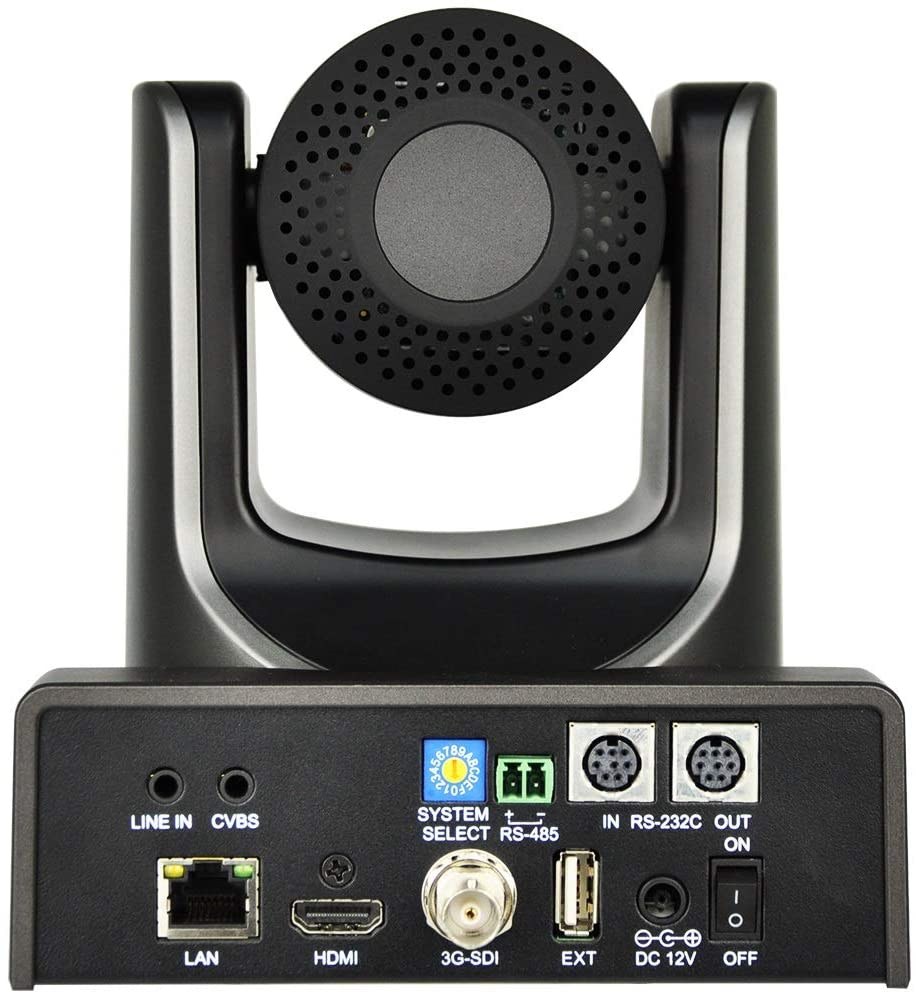
The AVKANS PTZ-U200 upgrades the budget-friendly U100 with Power over Ethernet (PoE) capability, which simplifies installation by eliminating the need for a separate power adapter at the camera location. It also delivers Full HD quality with robust NDI support, making it suitable for churches that want professional video quality without the complexity of larger systems.
PoE means you run a single network cable to the camera, which provides both network connectivity and power. This simplification reduces cable clutter, eliminates the need for power outlets near the camera, and makes relocation easier if you decide to move the camera later. This guide covers PoE setup, network configuration, initial NDI enablement, and basic preset configuration so you can move from unboxing to production use within a couple of hours.
What Comes in the Box and Network Requirements
The PTZ-U200 arrives with the camera, a network cable, and documentation. Unlike the U100, it does not include a power adapter because power comes from your network infrastructure. The missing power adapter is intentional, not a shipping error.
To use the U200, you need a PoE-capable network switch or a PoE injector. A PoE-capable switch provides power through the ethernet cable to any PoE device connected to it. If your church network switch is not PoE-capable, you can purchase an inexpensive PoE injector that sits between the switch and the camera, injecting power into the network cable.
Check your network switch documentation or ask your IT administrator whether your switch supports PoE. Most modern managed switches do, but older or budget switches may not. If you need a PoE injector, they are inexpensive (typically under fifty dollars) and plug into any switch. The injector passes data through normally while adding power on the same cable.
Connect to Network and Verify Network Power
Connect the network cable from your PoE switch or injector to the camera. As soon as you connect, the camera should power up. If the camera does not power up, either the switch is not providing PoE or the cable connection is faulty. Check the physical connection and confirm with your IT administrator that PoE is enabled on the switch port.
Once powered, the camera’s status lights should indicate it has booted successfully. Most AVKANS cameras have a power LED and a network activity LED that blink or glow to indicate normal operation. Wait a moment for the camera to fully boot before attempting to access it.
Unlike the U100, which requires a separate power supply and can sit anywhere near an outlet, the U200 must remain connected to a PoE switch or injector to operate. Plan your camera mounting location accordingly. If you need the camera in a location far from your switch, you may need to run additional network cable, use a network extender, or reconsider the U200 in favor of the U100.
Access the Web UI and Set Static IP Address
Once the camera is powered and booted, access the web UI from your production computer. Open a browser and navigate to the camera’s default IP address (usually 192.168.0.100 or 192.168.1.100). Log in with default credentials, typically admin/admin.
Navigate to Network Settings and configure a static IP address that matches your church network. Use an address in your network range (e.g., 192.168.1.200) and specify the gateway and subnet mask that matches the rest of your network. Write down this address for future reference.
Save the settings. The camera will reboot and attempt to connect using the new IP address. Wait a few moments, then open a new browser tab and navigate to the new IP address to confirm the camera is reachable.
Unlike the U100, which uses a separate power supply, the U200’s network configuration is critical to maintaining power supply continuity. Once you assign a static IP address and disconnect the USB cable (if you used one temporarily for initial setup), the camera relies entirely on network power. If the camera loses its IP address or network connection, it loses power.
Enable NDI Output
Locate the Video Settings or NDI Settings section in the web UI and confirm that NDI output is enabled. If NDI is disabled, enable it and save. The camera will reboot.
For the U200, also check your video output resolution and frame rate. The U200 supports 1080p at 60 fps, which is ideal for church production, but you can also reduce to 1080p 30 fps or 720p 60 fps if bandwidth is limited. Choose based on your network capacity and production software requirements.
Create Basic Presets for Initial Operation
Before your first service, create at least three basic presets using the web UI or control software: a wide stage shot, a speaker or pulpit position, and a worship team position. Position the camera at each location, zoom to the appropriate framing, and save the preset with a clear name.
Test each preset by recalling it several times. The camera should return to the exact same position reliably. If you see any drift or inconsistency, note it but do not worry about minor variations—that level of precision is rarely needed in church production.
Confirm NDI Discovery in Production Software
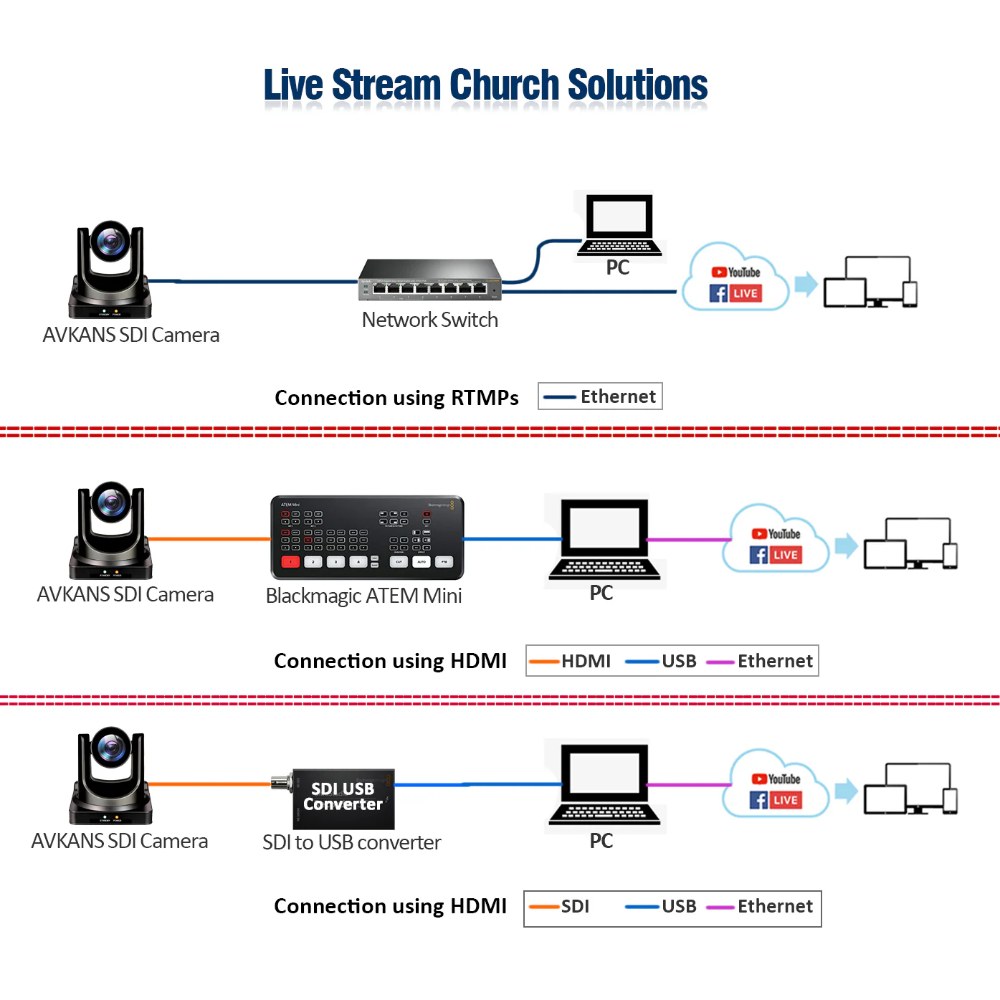
With NDI enabled, open OBS or vMix on your production computer and add an NDI source. The AVKANS PTZ-U200 should appear in the available sources list. If it does not, wait a few seconds and refresh. NDI discovery can take 10 to 15 seconds on some networks.
Once the camera appears as an NDI source, select it and confirm that video appears in your preview. The U200 will stream full 1080p video directly to your production software over the network.
Test PoE Reliability Before Sunday Service
Before using the U200 in a live production, test its PoE power stability. The U200 is designed to operate indefinitely on PoE power, but power interruptions—brief network outages, switch reboots, or cable disconnection—can cause the camera to lose power and require a manual restart.
Run a test broadcast or rehearsal that lasts at least 20 minutes. Verify the camera remains powered and maintains NDI streaming throughout. If the camera disconnects or loses power, investigate the cause before Sunday service. It could be a loose cable, a switch power issue, or a network stability problem.
Document Your Setup
After initial configuration, document the camera’s IP address, static IP settings, NDI status, and PoE power source. This documentation becomes invaluable if you need to troubleshoot or if a team member needs to troubleshoot remotely. Store this information where your team can find it, such as a shared folder or a printed sheet near your equipment.
Conclusion
The AVKANS PTZ-U200 setup is streamlined compared to cameras requiring separate power supplies. The PoE integration reduces installation complexity and cable clutter, making the U200 an excellent choice for churches that want professional quality without struggling through complex power infrastructure planning.
Once the U200 is networked, powered via PoE, and configured with static IP addressing and enabled NDI, it operates identically to the U100. Your production workflow is the same: presets, NDI sources in OBS or vMix, and reliable multi-camera control.