Introduction
Power over Ethernet (PoE) is one of the PTZ-U200’s strongest advantages. A single network cable provides both data and power, eliminating the need for power outlets near the camera and reducing installation complexity. However, PoE requires planning and proper network infrastructure, or the camera will sit powered down even when connected.
This guide covers evaluating your network switch for PoE capability, understanding power allocation and budgeting, using PoE injectors if your switch lacks PoE, cabling best practices, and troubleshooting when PoE power fails.
Understand PoE Power Standards
PoE (Power over Ethernet) comes in several standards, each providing different power levels. The AVKANS PTZ-U200 requires PoE+ (also called PoE Plus or 802.3at), which provides up to 30 watts of power at the device. Standard PoE (802.3af) provides only 15 watts, which is insufficient for the U200. Make sure your switch or injector supports PoE+.
Check your network switch documentation to see which PoE standard it supports. If your switch supports only standard PoE, you cannot power the U200 directly. You would need either to upgrade to a PoE+ switch or use a PoE+ injector.
Evaluate Your Network Switch for PoE Capability
Log into your network switch’s management interface or check the documentation to determine whether it supports PoE and PoE+. If you do not have access to the switch or documentation, ask your IT administrator. They can tell you definitively whether PoE is available and on which ports.
If your switch supports PoE, confirm that it has enough PoE power budget to support the U200. Network switches have a total power budget (typically 30, 60, 120 watts, or more depending on the model) that it can distribute across all PoE ports. If you plan to use multiple PoE devices, sum their power requirements and confirm the switch has enough budget.
The AVKANS PTZ-U200 requires approximately 20 to 30 watts of power depending on camera motor usage. If your switch has a 60-watt budget and you are planning to power three U200 cameras, you would need 60 to 90 watts total, which exceeds the switch’s budget. In that case, you would need either a larger switch or supplemental PoE injectors for some cameras.
Use PoE Injectors if Your Switch Lacks PoE
If your network switch does not support PoE or does not have enough power budget, you can use a PoE injector. A PoE injector is a small device that sits between the switch and the camera. It accepts a network cable from the switch, injects power into the cable, and sends the combined power and data to the camera.
To use a PoE injector, run your network cable from the switch to the injector, then another cable from the injector to the camera. The injector needs power from an outlet or power strip near the switch. This eliminates the advantage of PoE (no separate power needed at the camera), but allows you to power the camera if your switch lacks PoE.
PoE injectors are inexpensive (typically under fifty dollars for a PoE+ injector) and are available from most networking equipment suppliers. They are a practical solution when upgrading your switch to support PoE is not feasible.
Run Quality Network Cabling to the Camera
PoE power travels over the same cable as network data. Proper cabling is therefore critical for both network and power reliability. Use Category 5e or Category 6 network cable. Do not use lower-quality cable or damaged cable, as it will not safely or reliably deliver power.
Run the cable from your PoE switch (or PoE injector) directly to the camera. Avoid long runs with too many connections or splices, which add resistance and reduce power delivery. If you must run cable a long distance, use shorter segments connected with quality connectors or plan for supplemental power injectors.
Route the cable away from electrical wiring and power lines, which can introduce noise and interference. While network cable has some shielding, it is not immune to electrical interference.
Secure the cable so it is not pinched, crushed, or exposed to temperature extremes. A cable that is damaged physically will fail electrically, causing both network and power issues.
Confirm PoE Power Delivery at the Camera
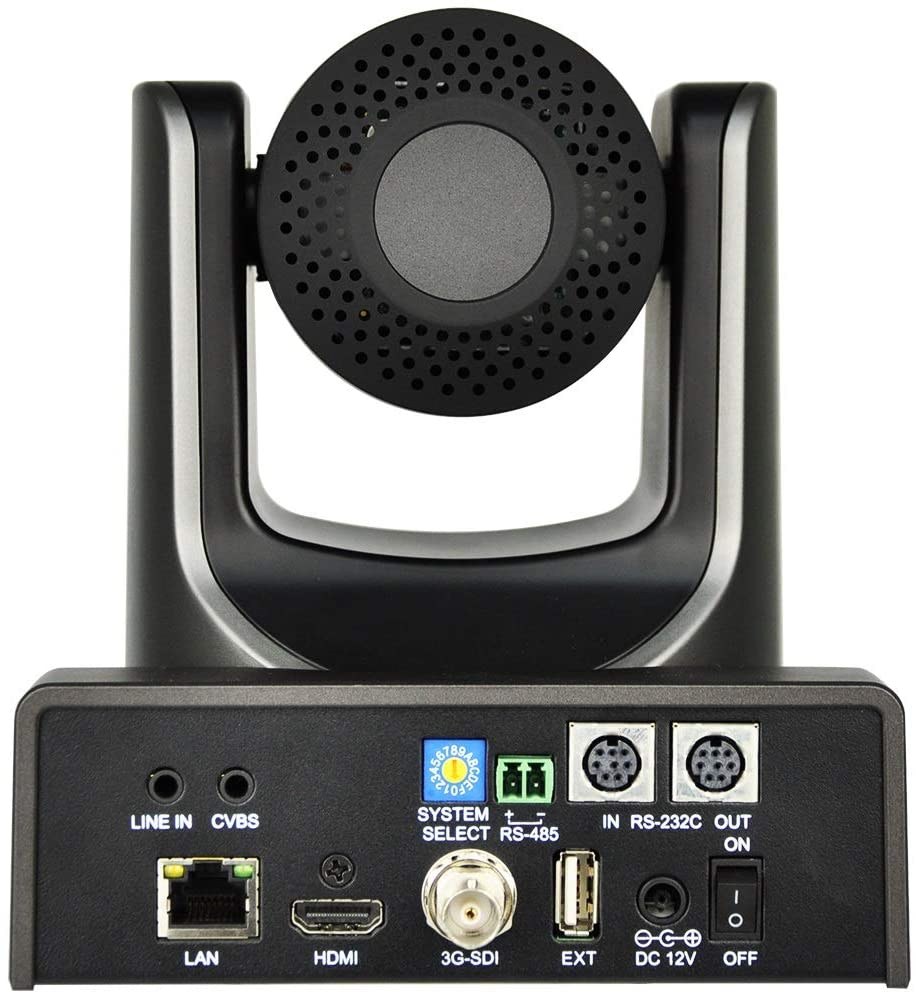
Once you connect the camera to PoE power, it should power up automatically. The camera’s power LED should illuminate and you should see network activity lights blinking on the port. If the camera does not power up, the issue is usually one of these:
The switch port is not providing PoE. Check the switch configuration or ask your IT administrator to confirm PoE is enabled on that specific port. Some switches require manual configuration to enable PoE on individual ports.
The cable is damaged or not properly connected. Check that the network cable is fully seated in both the switch port and the camera connector. Test with a different cable to rule out cable damage.
The camera is connected to a non-PoE port. If your switch has both PoE and non-PoE ports, make sure the camera is connected to a PoE port. Check the port labels on the switch or consult the switch documentation.
The PoE power budget has been exceeded. If the switch has insufficient power budget for multiple cameras, it may disable PoE on some ports automatically. Check the switch’s power status and reduce the number of PoE devices or upgrade to a larger switch.
Monitor PoE Power Stability During Operation
PoE power should be stable and reliable. However, some network switches reduce PoE power during high-load conditions or if the switch detects unusual current draws. Monitor the camera during initial setup to confirm that power remains stable.
If the camera periodically loses power (reboots unexpectedly), the problem is usually PoE power instability. This can be caused by inadequate power budget, damaged cable, or a switch that is prioritizing other devices. Work with your IT administrator to diagnose and resolve the issue.
Plan for Power Redundancy if Critical
If the U200 is critical to your production, consider redundancy. You could use a PoE injector as a backup: run two network cables from the switch to the camera, one from the switch directly and one through a PoE injector. If the switch’s PoE fails, the injector takes over. This requires running two cables to each camera, which is more work but provides reliability.
More practically, many churches find that a brief camera loss during service is acceptable, and they accept the PoE power dependency. The U200 is designed to handle brief power interruptions and will reboot quickly when power is restored.
Document Your PoE Network Design
After setup, document which ports on your switch provide PoE, which PoE injectors are in use, and which cameras are connected to which power sources. This documentation matters when adding more cameras or troubleshooting power issues.
If you use PoE injectors, label them clearly so the next person who works on your network knows what they are for and how they are connected.
Conclusion
PoE simplifies AVKANS PTZ-U200 installation by eliminating the need for separate power infrastructure at the camera location. Proper planning of your PoE switch capacity, careful cable installation, and documentation of your power configuration ensure reliable operation.
The investment in understanding your PoE infrastructure upfront pays dividends in simpler installation, easier troubleshooting, and more reliable camera operation over the camera’s lifetime.